> For the complete documentation index, see [llms.txt](https://docs.platform9.com/llms.txt). Markdown versions of documentation pages are available by appending `.md` to page URLs; this page is available as [Markdown](https://docs.platform9.com/private-cloud-director/virtualized-clusters/add-hosts-virtualized-cluster.md).
# Host
Learn how to add and configure Hosts in Private Cloud Director for your virtualized cluster. Discover Host roles, management, and troubleshooting tips to ensure optimal performance and uptime for your
A Host is a physical machine that you supply to space.vars.product\_name as a hypervisor. Each Host contains the resources needed for your cluster, such as virtual machines, storage, and networking components. Once authorized and configured, you can deploy virtual machines on top of the Host.
You can add multiple Hosts to your space.vars.product\_name virtualized cluster. After you configure your Cluster Blueprint, space.vars.product\_name has the information it needs to configure Hosts that you add to the cluster.
Learn how you can add a Host to your virtualized cluster, assign roles, and configure it for production use. You will also learn how to manage the Host lifecycle and troubleshoot common issues.
## Hypervisor
space.vars.product\_name standardizes on and uses open source KVM hypervisor behind the scenes. KVM is a type 1 hypervisor that runs directly within the Linux kernel on the host hardware. KVM hypervisor relies on and leverages hardware virtualization extensions from x86 and/or AMD processors to provide full virtualization capabilities.
## Resource Management
Hypervisor resource management enables you to make the best use of CPU and Memory resources available across all your hypervisor nodes within a virtualized cluster, to ensure that:
* Your applications get the required resources when they need, to meet your business SLA.
* You make the most optimal utilization of available resources within your cluster, and prevent or reduce and waste.
Resource management in space.vars.product\_name has multiple components to it. At the Hypervisor level, resource management is handled via a combination of the following components.
### Memory Ballooning
Memory ballooning is a KVM hypervisor technique for dynamic memory management that is used to reduce the impact of memory-overcommitment on the hypervisor load. Memory ballooning allows your guest OS to dynamically evict unused pages of virtual memory, so that the KVM host can then share the unused memory with other VMs, allowing the host to overcommit memory and optimize resource use by giving memory to VMs that suddenly need it. space.vars.product\_name hypervisor makes use of a combination of memory ballooning and memory swapping to enable optimal utilization of host memory.
### Memory Deduplication & Consolidation
Memory deduplication and consolidation is a memory management feature used by KVM hypervisor to consolidate identical memory pages to achieve higher virtual machine density. KVM hypervisor achieves this using a linux feature called **Kernel Samepage Merging (KSM)**, that finds identical memory pages across different virtual machines and merges them into a single, shared, Copy-on-Write (CoW) page, significantly reducing overall memory usage. KSM enables space.vars.product\_name to improve VM memory density on a host without impacting performance.
### Resource Overcommitment / Allocation Ratios
### Memory Overcommitment (Allocation Ratio)
space.vars.product\_name allow you to overcommit memory (also called memory overprovisioning or memory allocation ratio) at each host level, enabling you to effectively share the host level memory resources across virtual machines. Each new hypervisor host provisioned in space.vars.product\_name is configured with a default memory **overcommitment ratio of 1:1.5**. This means by default each host's memory is overcommitted by 50%. You can change this configuration by navigating to the 'Cluster Hosts' view in the space.vars.product\_name UI, then selecting a specific host, and editing the allocation ratios.
The KVM hypervisor uses a combination of memory ballooning and memory swapping to manage memory across running virtual machines.
### CPU Overcommitment & Time-Sharing (Allocation Ratio)
space.vars.product\_name allows you to overcommit CPU resources (also called CPU overprovisioning or CPU allocation ratio) at each host level, enabling you to effectively share the host's CPU cores across running virtual machines.
Behind the scenes, the KVM hypervisor dynamically allocates physical CPU cores to running virtual machines, context switching between different virtual machines, to enable sharing and overcommit.
Each new hypervisor host provisioned in space.vars.product\_name is configured with a default CPU **overcommitment ratio of 1:16**. This means by default each host's CPU is overcommitted by 16x. We choose this default setting as most virtualized workloads tend to be memory bound and can share CPU without impacting workload performance. But when running CPU heavily workloads, you will need to change this default overcommitment ratio to suite your application's needs. You can also utilize features like CPU pinning to reduce the context switching overhead for CPU heavy workloads.
### Ephemeral Storage Overcommitment (Allocation Ratio)
space.vars.product\_name also allows you to overcommit the [Ephemeral Storage](/private-cloud-director/storage/ephemeral-storage.md#what-is-ephemeral-storage) at per host level (also called ephemeral disk overprovisioning or ephemeral disk allocation ratio). This capability makes it possible for you to over-allocate the disk storage at per hypervisor host level that is used to store root disks for VMs using ephemeral storage for their root disks. Useful when you do not expect all VMs using ephemeral storage to use all their disk space.
For example, lets say that your VM ephemeral storage path on your hypervisor is set to the default location of `/opt/data/instances` and this path is on your root partition which has 100GB of total disk space. If you set the ephemeral disk overcommitment value to 2, this means you can create virtual machines with the sum total of root disk size not exceeding 200GB. This can become a problem if all the VMs start fully utilizing their allocated root disk space.
Each new hypervisor host provisioned in space.vars.product\_name is configured with a default ephemeral storage **overcommitment ratio of 1:9999**. This means by default each host's ephemeral disk is overcommitted by 9999x. We set it to such a high value by default because most production environments use block storage volumes for production VM root disks and VMs that use ephemeral storage for their root disk often tend to not utilize it fully. You will need to update this default value if you plan to use and rely on ephemeral root disk storage for production virtual machines.
{% hint style="warning" %}
Each new hypervisor host is configured with a default ephemeral storage **overcommitment ratio of 1:9999**.
You must **update this default** if you plan to use and rely on ephemeral root disk storage for production virtual machines. We recommend updating it to 1 for no overcommitment, or to a reasonable overcommitment ratio based on the nature of your VM workloads and their expected use of root disk.
{% endhint %}
### View Host CPU, Memory and Storage Allocation and Utilization Info
The current allocation and utilization values for CPU, Memory and Epheremeral Strorage for each host are reported as individual columns as part of the Cluster Hosts grid view in the UI.
* For Compute:
* **% CPU utilized** - this is the current CPU utilization for this host. This value is an aggregate across all physical CPU cores on the host and is reported in terms of total vs available MHz.
* **% VCPUs allocated** - this represents the sum total of VCPUs that have been allocated across all virtual machines provisioned on this host. For eg, if the host has 5 VMs currently deployed on it with 4 CPUs each, you will see the VCPUs allocated value to be 20. If the host has 10 physical CPUs and has overcommitment ratio of 1:2, then you can allocate a maximum of 20 VCPUs on this host.
* For Memory:
* **% Memory utilized** - this is the current Memory utilization for this host, reported as total vs available GiB.
* **% Memory allocated** - this represents the sum total of RAM that have been allocated across all virtual machines provisioned on this host. For eg, if the host has 5 VMs currently deployed on it with 4 GB RAM each, you will see the Memory allocated value to be 20. If the host has 20 GB physical RAM and has overcommitment ratio of 1:1, then you can allocate a maximum of 20 GB of memory across all VMs on this host.
* For Storage:
* **% root disk used** - this is the current root disk utilization for this host, reported as total vs available GiB.
* **% ephemeral disk used** - this represents the sum total of ephemeral root disks that have been allocated across all virtual machines provisioned on this host that are using ephemeral root disks. For eg, if the host has 5 VMs currently deployed on it, each using 10 GB of ephemeral root disk, you will see the ephemeral disk used value to be 50GB. If the host has 250 GB physical disk and has ephemeral disk overcommitment ratio of 1:1, then you can allocate a maximum of 250 GB of ephemeral root disk across all VMs on this host.
### View and Edit Overcommitment / Allocation Ratios
You can edit CPU, memory or ephemeral disk overcommitment values (allocation ratios) at per host level by following these steps:
1. Navigate to the Cluster Hosts view in the UI,
2. Select a specific host, then click on the host name to go to the host details view. Here you will see the currently set values for allocation ratios for CPU, Memory and Ephemeral storage for this host under "Properties" section.
3. To edit the current values, go back to the Host grid view, select the host then choosing "Edit allocation ratio" as the action from the action bar.
4. Here you can see again the currently configured overcommitment values for CPU, Memory and ephemeral disk for this host.
5. You can reset these values to their system default or change specific values here.
## Understanding Host Agent and Roles
### Host Agent
The Platform9 Host agent is the first component you install for each Host. The Host agent enables you to add Hosts and configure their roles in your virtualized cluster. Based on the assigned role to each Host, the agent downloads and configures the required software, integrating with the space.vars.product\_name management plane.
The Host agent also provides ongoing health monitoring of the Host, including the detection of failures and errors. It helps Platform9 orchestrate upgrades when you choose to upgrade your space.vars.product\_name deployment to a newer version.
### Host Roles
As part of the Host authorization process, you can configure Hosts to perform specific functions by assigning them one or more roles. The following roles are supported:
**Hypervisor**
The Hypervisor role enables the Host to function as a KVM-based hypervisor in your virtualized cluster. It is recommended you assign this role to all Hosts in your cluster, unless you experience performance bottlenecks and want to avoid running VM workloads on select Hosts that have other roles such as image library or storage roles.
**Image Library**
Every cluster needs at least one Image Library, which hosts the cluster copy of virtual machine source images from which you can provision new VMs. See more on [Configuring Image Library Role here](/private-cloud-director/images-and-image-library/image-library---images.md#configuration-).
**Persistent (Block) Storage**
You can typically configure one or more Hosts in your cluster as a **Block Storage Node**. See more on [Block Storage Service Configuration](/private-cloud-director/storage/block-storage.md#block-storage-service-configuration).
**Advanced Remote Support**
For specific troubleshooting situations, Platform9 support teams may request access to gather detailed telemetry from a Host that experiences problems automatically. This mode is turned off by default. To enable Advanced Remote Support, contact Platform9 Support.
**DNS**
Enables DNS as a Service (DNSaaS), which is an optional component.
## Prerequisites
Before adding a Host, ensure that your Host meets the prerequisites and that you have configured in your Cluster Blueprint.
* Verify that your Host meets the [Pre Requisites](/private-cloud-director/getting-started/pre-requisites.md) for space.vars.product\_name.
* Ensure you have administrative access to the Host.
* Confirm that your [Virtualized Cluster Blueprint](/private-cloud-director/virtualized-clusters/virtualized-cluster-blueprint.md) is configured in the space.vars.product\_name console.
* Confirm that you have created a Cluster in the space.vars.product\_name console.
## Add a Host
To add a host to space.vars.product\_name, you need to follow the steps to install the space.vars.product\_name agent software on your physical host, then follow the steps to add it to space.vars.product\_name.
#### Step 1: Add a Host
The **Add New Hosts** drawer offers two onboarding paths, based on the Host's operating system:
* **Platform9 OS:** `pcdctl` is preinstalled on the ISO, so no setup commands are required. Onboard the Host from the **Host Boot Console** or from the **Host Management Console**'s **PCD Connection** page. See [Platform9 OS](/private-cloud-director/getting-started/platform9-os.md) for the full installation and onboarding procedure.
* **Ubuntu:** follow the deployment-type tabs below, which walk through running the `pcdctl` setup commands on the Host.
The process for adding a Ubuntu host varies depending on which Platform9 product you are using. Choose the appropriate method below based on your deployment type:
* SaaS Deployment
* Self-Hosted Deployment
* Community Edition Deployment
{% tabs %}
{% tab title="SaaS Deployment" %}
For SaaS deployments, adding a Host is on the space.vars.product\_name console with minimal configuration requirements.
1. Navigate to **Infrastructure > Cluster Hosts** on space.vars.product\_name console.
2. Select **Add New Hosts**
3. Follow the on-screen instructions. You are required to run these [pcdctl](/private-cloud-director/automation-and-cli/pcdctl-command-line.md) commands using `sudo` privileges. The command requires you to add values specific to your environment that are provided on your space.vars.product\_name console. It takes about 2-3 minutes to download and install the Platform9 Host agent and other necessary Platform9 software components.
You have now successfully added a Host to your SaaS deployment. Continue to **Step 2: Authorize Host and Assign Roles**
{% endtab %}
{% tab title="Self-Hosted Deployment" %}
For self-hosted deployments, you may need to manually configure DNS entries before adding the Host.
**Step 1: Add a Host to Self-Hosted Deployment**
{% hint style="info" %}
**NOTE**
Hypervisor Hosts deployed as virtual machines must have virtualization support available inside the VM. Virtual machines on ARM CPUs are currently untested.
{% endhint %}
1. Verify nested virtualization
You can choose to verify how the nested virtualization works in a VM. Check for virtualization support inside the VM by running:
{% tabs %}
{% tab title="Bash" %}
```bash
egrep "svm|vmx" /proc/cpuinfo
```
{% endtab %}
{% endtabs %}
2. Add DNS entries to each Host
An FQDN is a fully-qualified domain name for your space.vars.product\_name installation. You will need both infrastructure and workload region FQDNs for your self-hosted deployment.
As a root user, add DNS entries on the hypervisor Host for both the infrastructure and workload region FQDNs: `/etc/hosts` file:
{% tabs %}
{% tab title="Bash" %}
```bash
echo "" | tee -a /etc/hosts
echo "" | tee -a /etc/hosts
```
{% endtab %}
{% endtabs %}
Replace `` with your management plane IP address and the FQDNs with your specific domain names.
Here is a sample example:
{% tabs %}
{% tab title="Bash" %}
```bash
echo "10.9.11.246 pcd.pf9.io" | tee -a /etc/hosts
echo "10.9.11.246 pcd-community.pf9.io" | tee -a /etc/hosts
```
{% endtab %}
{% endtabs %}
{% hint style="info" %}
**Important!**
Before adding a hypervisor Host, ensure that you have saved a Cluster Blueprint and created a Cluster on the space.vars.product\_name console.
{% endhint %}
* Navigate to **Infrastructure > Cluster Hosts** and the select **Add New Hosts**.
* Follow the on screen instructions. You are required to enter the administrative user password when prompted. For more details on `pcdctl` CLI see [Pcdctl Command Line](/private-cloud-director/automation-and-cli/pcdctl-command-line.md)
You have now successfully prepared your Host for self-hosted deployment. Continue to **Step 2: Authorize Host and Assign Roles**
{% endtab %}
{% tab title="Community Edition Deployment" %}
For Community Edition deployments, the process is similar to self-hosted but uses a specific FQDN for the user interface, unless configured otherwise via a Custom Install.
**Step 1: Add a Host to Community Edition Deployment**
{% hint style="info" %}
**NOTE**
Hypervisor Hosts deployed as virtual machines must have virtualization support available inside the VM. Virtual machines on ARM CPUs are currently untested.
{% endhint %}
1. **Verify nested virtualization (for VM Hosts)**
If you want to verify that nested virtualization works in a VM, check for virtualization support inside the VM:
{% tabs %}
{% tab title="Bash" %}
```bash
egrep "svm|vmx" /proc/cpuinfo
```
{% endtab %}
{% endtabs %}
If the command returns results, your VM supports nested virtualization and can run other virtual machines.
2. **Configure DNS entries**
By default, Community Edition uses `pcd.pf9.io` for the user interface and to reference the workload region, unless you have customized it [Custom Installation](/private-cloud-director/getting-started/getting-started-with-community-edition/custom-installation.md).
* Workload region & UI FQDN: `pcd.pf9.io`
3. **Add DNS entries to your Host**
Log in to your Host as a root user and add DNS entries for the FQDN by running the following command:
{% tabs %}
{% tab title="Bash" %}
```bash
echo "" | tee -a /etc/hosts
```
{% endtab %}
{% endtabs %}
Replace `` with your management plane IP address and the `FQDN` with your specific domain name.
Here is a sample example:
{% tabs %}
{% tab title="Bash" %}
```bash
echo "10.9.11.246 pcd.pf9.io" | tee -a /etc/hosts
```
{% endtab %}
{% endtabs %}
4. **Add the Host through the** space.vars.product\_name **console.**
{% hint style="info" %}
**Important!**
Before proceeding, ensure that you have saved a Cluster Blueprint and Created a cluster in the space.vars.product\_name console.
{% endhint %}
* Navigate to **Infrastructure > Cluster Hosts** and then select **Add New Hosts**.
* Follow the on screen instructions. You are required to enter the administrative user password when prompted. For more details on `pcdctl` CLI see [Pcdctl Command Line](/private-cloud-director/automation-and-cli/pcdctl-command-line.md)
You have now successfully prepared your Host for Community Edition deployment. Continue to **Step 2: Authorize Host and Assign Roles**
{% endtab %}
{% endtabs %}
#### Step 2: Authorize Host and Assign Roles
A successfully configured Host is accessible on **Infrastructure > Cluster Hosts** with an `Unauthorized` status, indicating an authorization and cluster role assignment.
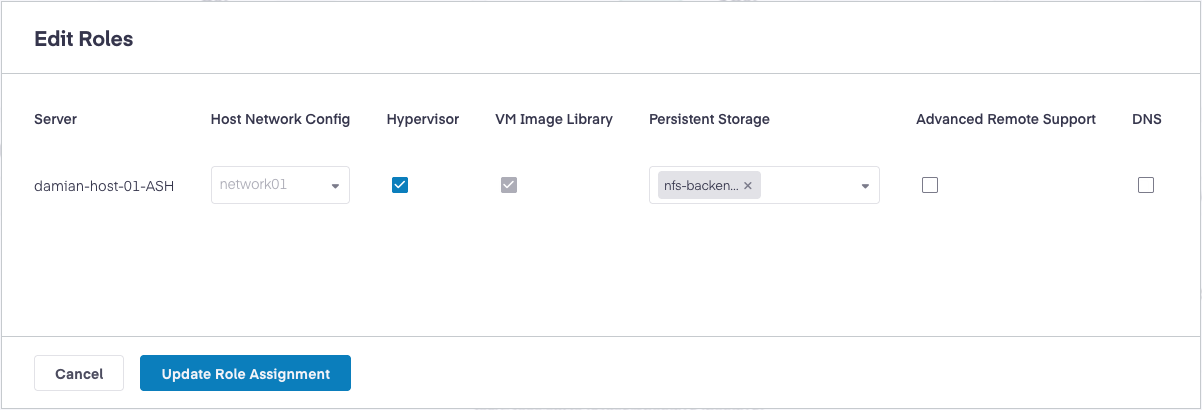
1. Navigate to **Infrastructure > Cluster Hosts** and select a specific Host.
2. Select **Edit Roles** to configure the appropriate roles for the Host based on your cluster architecture.
3. Configure roles based on your requirements:
* **Hypervisor Role**: Enables the Host to function as a KVM-based hypervisor. Read more on [Hypervisor Role](#hypervisor-role).
* **Networking Service Configuration:** Select appropriate Host Network Config for the Host networking requirements. Read more on [Networking Service Configuration](/private-cloud-director/virtualized-networking/networking-overview.md#networking-service-configuration).
* **Image Library Role:** Configures the Host to store VM images for the cluster. Read more on [Configuring Image Library Role here](/private-cloud-director/images-and-image-library/image-library---images.md#configuration-).
* **Block Storage Role:** Enables the Host to provide persistent storage services. Read more on [Configure a Host with Block (Persistent) Storage Node Role](/private-cloud-director/storage/volume.md#configure-a-host-with-block-persistent-storage-node-role).
* **Advanced Remote Support:** Enables Platform9 support to gather detailed telemetry for troubleshooting purposes. Read more on [Enabling Advanced Remote Support](#enable-advanced-remote-support).
* **DNS Checkbox**: Enables DNS as a Service (DNSaaS), which is an optional component. The DNS checkbox is for [Dns As A Service Dnsaas ](/private-cloud-director/virtualized-networking/dns-as-a-service-dnsaas.md). Read more on [Configuring DNS-as-a-Service](/private-cloud-director/virtualized-networking/dns-as-a-service-dnsaas.md#configuration).
{% hint style="info" %}
**Stretched Clusters**
If the cluster is configured with [Stretched Clusters](/private-cloud-director/virtualized-clusters/stretched-clusters.md), the **Edit Roles** modal shows a warning: "One or more Hypervisor Clusters are designated as Stretched Clusters. After the hypervisor role is applied, assign the respective hosts to the appropriate failure domain from the Edit Stretched Cluster page." Assigning the Host to a failure domain is a separate, follow-up step that you complete after the Hypervisor role is applied, not part of this role-assignment step.
{% endhint %}
4. Select **Update Role Assignment**
The space.vars.product\_name management plane works with the Platform9 agent installed on your Host to configure the required software. This process typically takes 3-5 minutes to complete. During this time, your Host status changes to `converging` in the space.vars.product\_name console.
You have successfully authorized your Host and assigned roles. Your Host is now being configured for use in your cluster.
#### Step 3: Monitor Host addition status
While your Host is in the `converging` state, you can monitor the configuration progress by examining the Host agent log files.
1. Locate the Host agent log file.
The Host agent log files are located on your Host. See the [Log Files](https://docs.platform9.com/private-cloud-director/virtualized-clusters/troubleshooting-and-log-files#log-files) section for detailed information about log file locations. The primary Host agent log is located at `/var/log/pf9/hostagent.log` on your Host.
2. Monitor the configuration progress.
Tail the log file to monitor the status of host addition:
{% tabs %}
{% tab title="Bash" %}
```bash
tail hostagent.log
```
{% endtab %}
{% endtabs %}
3. Verify successful completion
Monitor the log output for completion indicators. Once the Host is authorized and the role assignments have taken effect, your Host status changes from `converging` to `ok` in the space.vars.product\_name console.
Your Host is now ready to use and can run workloads according to its assigned roles.
## Add a Host to a Cluster from the Clusters Grid
You can add an existing Host to a virtualized cluster directly from the Clusters grid, without navigating to the Host first. This is useful when you want to grow a specific cluster and pick from the Hosts that are eligible to join it.
To add a Host to a cluster from the Clusters grid:
1. Navigate to **Infrastructure > Clusters** on the space.vars.product\_name console.
2. Select the cluster you want to grow.
3. Select the **Add Host** action.
4. Choose an eligible Host from the list, then confirm the addition.
The space.vars.product\_name management plane assigns the Host to the selected cluster and applies the Hypervisor role. During this time, the Host status changes to `converging` and then to `ok` once the role assignment takes effect.
### Host Eligibility
A Host is eligible to be added to a cluster from the Clusters grid when it meets all of the following conditions:
* **Hypervisor role capable:** The Host can take the Hypervisor role, which is required for a Host to join a cluster.
* **Network configured:** The Host has its networking configured. A Host without network configuration cannot take the Hypervisor role.
* **Online:** The Host is online and connected to the space.vars.product\_name management plane. A Host that is offline cannot activate the Hypervisor role until it is back online.
* **Matching hardware:** The Host hardware matches the cluster. For example, a GPU Host is only eligible for a GPU-enabled cluster, and a non-GPU Host is only eligible for a non-GPU cluster.
* **Healthy:** The Host is in a healthy state, with its services, roles, and authorization in good standing, and is not in maintenance mode.
### Ineligible Hosts
Hosts that do not meet the eligibility conditions are still shown in the list, but their addition to the cluster is blocked. When you select such a Host, a message explains why the Host cannot be added. Resolve the reported issue first, for example configure networking, bring the Host online, or match the hardware to the cluster, then retry the addition.
## Manage Host lifecycle
### Remove a Host
Entirely removing a Host from your space.vars.product\_name setup is a two-step process. You must first remove all roles assigned to the Host, and then, if necessary, decommission the Host to clean up any space.vars.product\_name related data associated with it. You must perform both steps if you plan to re-add the Host to your current or another product name setup.
#### Step 1 - Remove all roles and deauthorize a Host
Removing all roles from a Host is the first step toward entirely removing a Host from your space.vars.product\_name setup. Removing all roles uninstalls any specific packages and software components assigned to the Host.
**Prerequisites before removing a Host from** space.vars.product\_name setup.
* If the host is assigned `hypervisor` role, make sure that no VMs are running on the host using `sudo virsh list --all` The expected output is an empty list of VM UUIDs and their corresponding statuses.
* If the host is assigned a `persistent storage` role, make sure that this host is serving no storage volumes.
* If the host is assigned `image library` role, ensure that the host is serving no images in the image library. On the image library host, check if the image UUID exists in the `/var/lib/glance/images/glance` default directory, or if a custom image directory was added, check that location.
1. Navigate to the **Cluster Hosts** on the console.
2. Select the specific Host.
3. From the Actions bar dropdown, select **Remove all roles**.
**Remove all roles using CLI:**
Use the following `pcdctl` command to remove all roles from a Host:
{% tabs %}
{% tab title="Bash" %}
```bash
pcdctl deauthorize-node
```
{% endtab %}
{% endtabs %}
{% hint style="info" %}
**NOTE**
Removing all roles only uninstalls and removes software packages associated with all roles from the Host. It does not clean up and delete any directories or files created as part of the installation of these software components. You must decommission a Host for all space.vars.product\_name related data from that Host to be removed.
{% endhint %}
#### Step 2 - Decommission a Host
When you remove all roles from a Host using the command above, any space.vars.product\_name specific packages and software components associated with those roles are uninstalled and removed from the Host. However, any directories where the packages were installed are not cleaned up or deleted. This ensures that you still have access to the log files for those components if required for debugging.
To remove these directories and clean up any space.vars.product\_name related data from the Host, you need to run the decommission Host command.
**Prerequisites:**
* You must remove all roles from the Host using the space.vars.product\_name console or CLI before decommissioning.
* Always back up important data, such as log files and configuration files, from the Host before decommissioning.
* You must decommission a Host before you can add it again to your current or any other space.vars.product\_name setup. Not doing so results in problems when re-authorizing the Host in the space.vars.product\_name setup.
**Decommission using CLI:**
Currently, decommissioning a Host can only be performed using `pcdctl` CLI.
Use `pcdctl` to decommission a Host by running the following command:
{% tabs %}
{% tab title="Bash" %}
```bash
$ pcdctl decommission-node
Do you wish to decommission the node? (y/n) y
Checking if any roles exist on the host
Cleaning up the node
Decommission Successful
```
{% endtab %}
{% endtabs %}
Once the command executes successfully, the Host is removed from the list of active Hosts in the space.vars.product\_name console. If you encounter errors during decommissioning, check the logs for details and ensure the Host is reachable.
## Host Properties
### Host ID
Each hypervisor host gets a system-assigned ID when it's created. By default, the ID value is not shown in the host grid UI, but you can view the ID information by clicking on the 'Manage Columns' button on the cluster hosts grid view, then selecting the ID field to be displayed. You can also view a host's ID on the host details view by clicking on the host name from the host grid view. You can also query it from the `pcdctl` CLI by running `pcdctl hypervisor list` command or `pcdctl hypervisor show ` command where `` is the name of your hypervisor host.
### Host Connection Status
Host connection status, represented by the 'Connection Status' column in the Cluster Hosts grid in the UI, represents the status of connectivity between the host agent and the space.vars.product\_name management plane. The following are the different status values:
* **online** - The Host agent is connected to the space.vars.product\_name management plane and responds to heartbeats.
* **offline** - The Host agent is unable to connect to the space.vars.product\_name management plane due to the host being in a powered-off state or because the Host is running. However, the Platform9 host agent may be experiencing issues connecting with the management plane. For more information on debugging steps, refer to [Host Issues](https://platform9.com/docs/private-cloud-director/troubleshooting/hypervisor-or-host-issues).
### Host Role Status
Host role status, represented by the 'Role Status' column in the Cluster Hosts grid in the UI, indicates whether the host has been added to any virtualized cluster and assigned roles within the cluster. The following are the different role status values:
* **unauthorized -** The host has space.vars.product\_name host agent installed but has not yet been added to a cluster or assigned any specific roles.
* **applied** - The host is assigned to a cluster, has specific roles assigned to it within that cluster, and those roles have been successfully applied.
* **converging** - A new role is being applied to the host and/or the host is being authorized and added to a cluster
* **failed / error -** The host appears to be in a failed or error state. For more information, refer to [Host Issues](https://platform9.com/docs/private-cloud-director/troubleshooting/hypervisor-or-host-issues).
* **unknown** - The role status is displayed as unknown when the host connection status is offline, as it does not know if the application of any roles was in progress or if it was successful.
### Host OverCommitment / Allocation Ratios
You can update the overcommitment / allocation ratios for individual hosts by navigating to the Cluster Hosts grid view in the UI, slelecting a specific host, then selecting "Update allocation ratios" from the actions menu.
Read more about [#memory-overcommitment-allocation-ratio](#memory-overcommitment-allocation-ratio "mention") [#cpu-overcommitment-and-time-sharing-allocation-ratio](#cpu-overcommitment-and-time-sharing-allocation-ratio "mention") and [#ephemeral-storage-overcommitment-allocation-ratio](#ephemeral-storage-overcommitment-allocation-ratio "mention").
### Storage Initiator Identifiers (IQN and WWN)
Each host exposes the storage initiator identifiers that backends use to authenticate connections. Both appear as columns on the **Cluster Hosts** grid under **Infrastructure > Cluster Hosts**.
* **IQN** (iSCSI Qualified Name) – The host's iSCSI initiator name. iSCSI storage backends use this to recognize and authorize the host. Format: `iqn.YYYY-MM.:`.
* **WWN** (World Wide Name) – The host's Fibre Channel initiator port identifier. FC backends use this for zoning and host access configuration on the array side.
Use these when configuring host access on the storage array or when correlating a volume's **Management Host** (see [Volume](/private-cloud-director/storage/volume.md#placement-information)) with the array's view of attached hosts.
## View Volumes Mounted on a Host
Each host's details page includes a **Volumes** tab that lists the volumes currently mounted on virtual machines running on that hypervisor. Navigate to **Infrastructure > Cluster Hosts**, select a host, then open the **Volumes** tab.
The **Mounted Volumes** table shows, per volume: **Name**, **Status**, **Management Host** (the block storage host serving the volume), **Volume Backend**, **Type**, **VM** (the virtual machine the volume is attached to, linked to the VM details page), **Hypervisor Host** (matches the host you're viewing), **Device** (the guest device path, for example `/dev/vda`), **Snapshots**, **Size**, and **Bootable**.
Use this view to scope a storage problem to one hypervisor: which volumes is it currently serving, which VMs depend on them, and which backends are in play. Toggle **View Volumes in All Tenants** to widen the scope beyond the current tenant.
## Host Aggregates
A host aggregate is a **group of hosts** within your virtualized cluster that share common characteristics. Read [Host Aggregate](/private-cloud-director/virtualized-clusters/host-aggregate.md) for more information on how to configure them.
## Debugging Compute Service Problems
Follow [Troubleshooting And Log Files](/private-cloud-director/virtualized-clusters/troubleshooting-and-log-files.md) for steps to troubleshoot issues with the compute service.
## Related Pages
* [Platform9 OS](/private-cloud-director/getting-started/platform9-os.md): install and onboard a Host using the Platform9 OS ISO instead of Ubuntu
* [Pre-requisites](/private-cloud-director/getting-started/pre-requisites.md): supported operating systems and hardware requirements for Hosts
* [Virtualized Cluster](/private-cloud-director/virtualized-clusters/virtualized-cluster.md)
* [Maintenance Mode](/private-cloud-director/virtualized-clusters/add-hosts-virtualized-cluster/maintenance-mode.md)
* [GPU Support in Private Cloud Director](/private-cloud-director/gpu/gpu-support-pcd.md)
---
# Agent Instructions
This documentation is published with GitBook. GitBook is the documentation platform designed so that both humans and AI agents can read, navigate, and reason over technical content effectively. Learn more at gitbook.com.
## Querying This Documentation
If you need additional information that is not directly available in this page, you can query the documentation by asking a question.
Perform an HTTP GET request on the following URL with the `ask` and `goal` query parameters:
```
GET https://docs.platform9.com/private-cloud-director/virtualized-clusters/add-hosts-virtualized-cluster.md?ask=&goal=
```
`ask` is the immediate question: it should be specific, self-contained, and written in natural language.
`goal` is what the user is ultimately trying to achieve, the reason they need the answer. Sharing it helps GitBook give you a better, more relevant answer. A goal is most helpful when it describes the outcome the user wants rather than restating the question. For example, with `ask=how do I create an API token`, a goal like `automate deployments from our CI pipeline` lets GitBook tailor the answer to that use case.
The response will contain a direct answer to the question and relevant excerpts and sources from the documentation.
Use this mechanism when the answer is not explicitly present in the current page, you need clarification or additional context, or you want to retrieve related documentation sections.