# Commvault Integration with PCD

## Overview

Commvault protects virtual machines running in <code class="expression">space.vars.product\_name</code> (<code class="expression">space.vars.product\_acronym</code>). This guide walks through the Commvault setup for <code class="expression">space.vars.product\_acronym</code>. VM protection is agentless. It does not require agents inside the guest. Commvault integrates with <code class="expression">space.vars.product\_acronym</code> through OpenStack APIs.

### What you deploy

Commvault components you deploy (see [OpenStack system requirements](https://documentation.commvault.com/11.42/software/openstack_system_requirements.html)):

* **CommServe**: Central management and metadata server.
* **MediaAgent / Access Node**: VM(s) per <code class="expression">space.vars.product\_acronym</code> region for data movement and restores.
* **Disk library**: Backup storage. This is typically local disks on MediaAgent VMs.

### Terminology used in this guide

* **Access Node**: A MediaAgent VM used as the Virtual Server Agent (VSA) proxy for backup/restore.
* **Restore proxy**: The Access Node selected for restore operations.

### Key constraints

{% hint style="warning" %}
Only VMs that boot from persistent (bootable) volumes are supported. VMs that boot from ephemeral disks (created directly from images) are not protected.
{% endhint %}

* Snapshot quota and snapshot concurrency must match your backup schedule.
* Restores require an OS-matching Access Node (Windows ↔ Windows, Linux ↔ Linux).
* Restoring to a network with port security disabled is not supported.
* Layer 2 Networks (introduced in <code class="expression">space.vars.product\_name</code> 2026.1) are not supported.

### Architecture overview

#### Core components

* **CommServe**
  * Central management and metadata server.
  * No backup data stored here.
* **Media Agents (MA) / Access Nodes (VMs)**
  * Deployed as VMs per <code class="expression">space.vars.product\_acronym</code> region.
  * Responsible for:
    * Data movement (backup and restore)
    * Hosting local disk backup storage
    * Acting as restore proxies

#### OS separation (important for restores)

* **Backup**: Either Windows or Linux MediaAgent can move data.
* **Restore**: The VSA proxy mounts VM disks to browse or restore files. This requires an OS-matching MediaAgent.
  * Windows VM restore → Windows MediaAgent
  * Linux VM restore → Linux MediaAgent

## Prerequisites

### Commvault

* A supported OS for CommServe (Windows or Linux).
* Commvault packages for OpenStack / Virtual Server Agent (VSA) on the Access Nodes.
* Commvault system requirements: <https://documentation.commvault.com/11.20/system_and_hardware_requirements_for_commvault.html>
* OpenStack VSA proxy requirements: <https://documentation.commvault.com/11.20/commcell-console/system_requirements_for_virtual_server_agent_with_openstack_03.html#virtual-server-agent-proxy-requirements>

### Private Cloud Director / OpenStack

* Keystone endpoint reachable over **HTTPS/443** from CommServe and Access Nodes.
* Credentials with enough scope to discover and snapshot the VMs you plan to protect.
  * Use **system-scoped admin** if you need cross-project discovery.
  * Use **project-scoped** permissions if you only protect one project.

### Network and storage

* Access Nodes must be able to reach:
  * <code class="expression">space.vars.product\_name</code> endpoints (Keystone/Nova/Cinder/Glance) over HTTPS/443. You may need provider networks to host Access Nodes.
  * The disk library (local disk or object storage, if used)

## CommServe installation

#### Requirements

* Supported OS (Windows or Linux)
* As per **Commvault** system requirements

#### Install

{% stepper %}
{% step %}

#### Download & Run Installer

1. Download the Commvault Media Kit.
2. Run the installer.
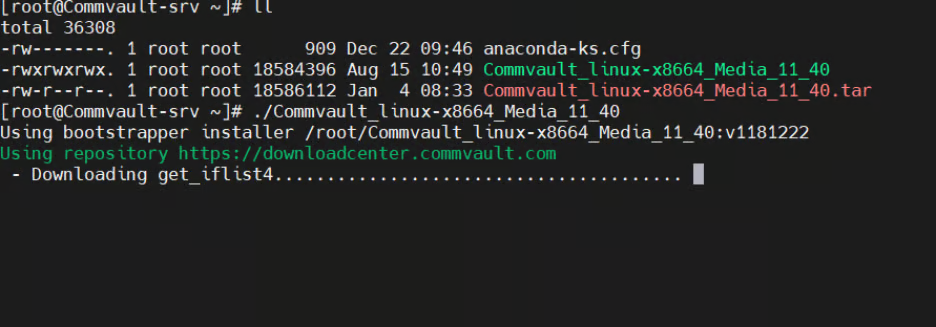
<figure><img src="https://1649501270-files.gitbook.io/~/files/v0/b/gitbook-x-prod.appspot.com/o/spaces%2FSNWOoFOMzRblbHdwmlrR%2Fuploads%2FdOGwHjXu3efkLncnwTz0%2Fimage.png?alt=media&#x26;token=366a2dd1-ce26-4b5b-92e9-6b187d0ed744" alt=""><figcaption></figcaption></figure>

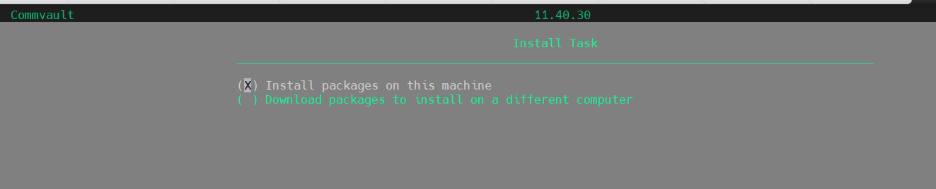
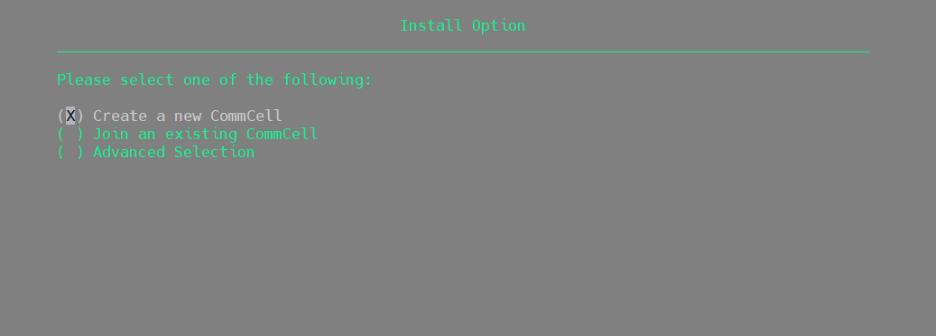
Choose:

* Install required packages locally
* Configure CommCell
  {% endstep %}

{% step %}

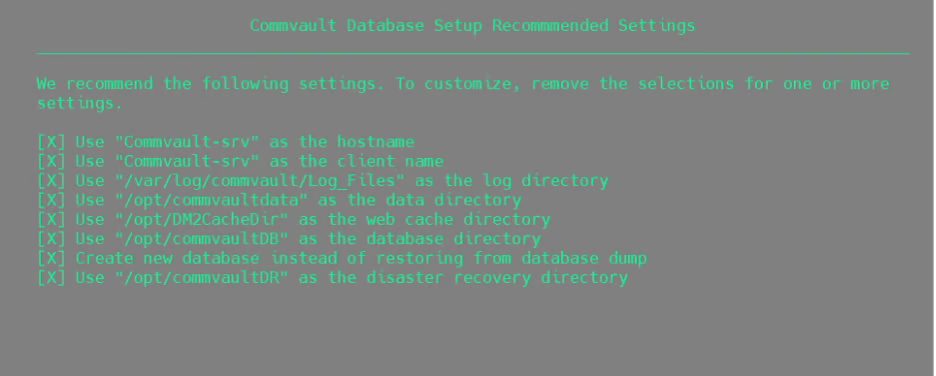
#### Installer Options & Defaults

* Install required packages on the server, or on a different computer. This guide uses the first option.
* There are many options depending on what you want to configure (in this case, CommCell).
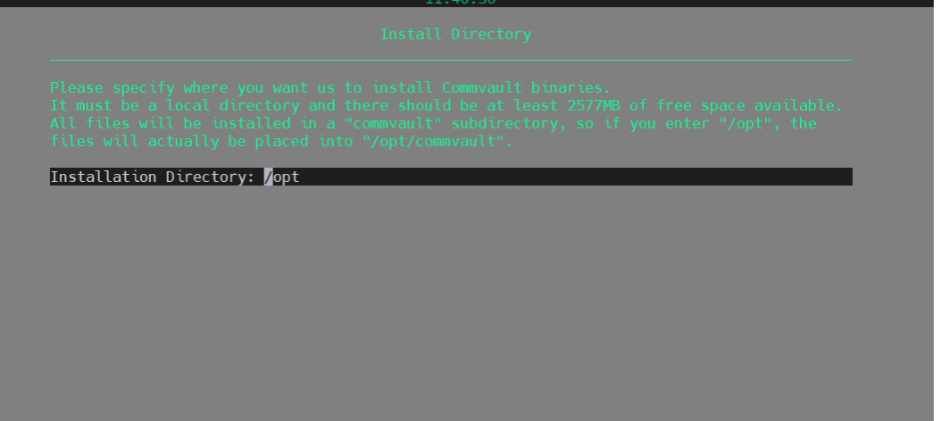
* Proceed with the default setup.

<figure><img src="https://1649501270-files.gitbook.io/~/files/v0/b/gitbook-x-prod.appspot.com/o/spaces%2FSNWOoFOMzRblbHdwmlrR%2Fuploads%2FSiyXh3EAhsoKWoW52nQJ%2Fimage.png?alt=media&#x26;token=c1d974ab-f541-4a80-b55e-328c944d6dce" alt=""><figcaption></figcaption></figure>

<details>

<summary>More screenshots</summary>

<figure><img src="https://1649501270-files.gitbook.io/~/files/v0/b/gitbook-x-prod.appspot.com/o/spaces%2FSNWOoFOMzRblbHdwmlrR%2Fuploads%2FqFzcd6HbWDhSLHKQ1SgT%2Fimage.png?alt=media&#x26;token=5f8f9789-4a7d-4e64-b623-ba610089eee2" alt=""><figcaption></figcaption></figure>

<figure><img src="https://1649501270-files.gitbook.io/~/files/v0/b/gitbook-x-prod.appspot.com/o/spaces%2FSNWOoFOMzRblbHdwmlrR%2Fuploads%2FOwAEVFQz6Z5sZXDyZitL%2Fimage.png?alt=media&#x26;token=2bf12e84-7904-4969-befd-53ac68c17de7" alt=""><figcaption></figcaption></figure>

<figure><img src="https://1649501270-files.gitbook.io/~/files/v0/b/gitbook-x-prod.appspot.com/o/spaces%2FSNWOoFOMzRblbHdwmlrR%2Fuploads%2FwIU1VQVKSFhEKL3lqim5%2Fimage.png?alt=media&#x26;token=3ebacb85-1f49-48cf-a8f6-2f55c7d34928" alt=""><figcaption></figcaption></figure>

</details>
{% endstep %}

{% step %}

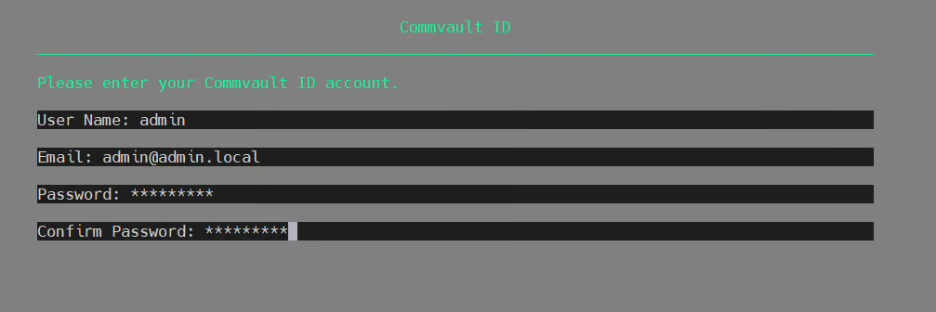
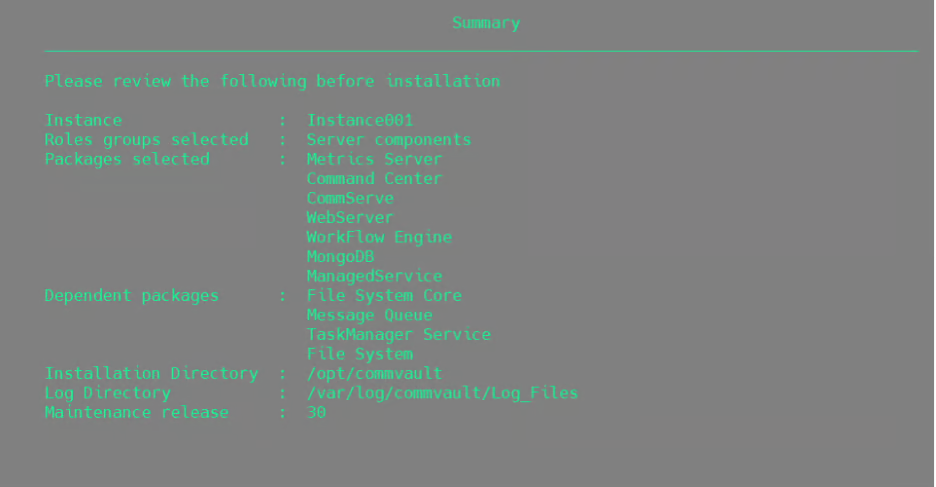
#### Credentials & Installation Progress

1. Enter the Commvault credentials. You will use these to access Commvault Command Center.

<figure><img src="https://1649501270-files.gitbook.io/~/files/v0/b/gitbook-x-prod.appspot.com/o/spaces%2FSNWOoFOMzRblbHdwmlrR%2Fuploads%2F1Szr3IIwG2KweH7DtKWl%2Fimage.png?alt=media&#x26;token=8614788a-e344-4f01-8e02-5d9e23da1f15" alt=""><figcaption></figcaption></figure>

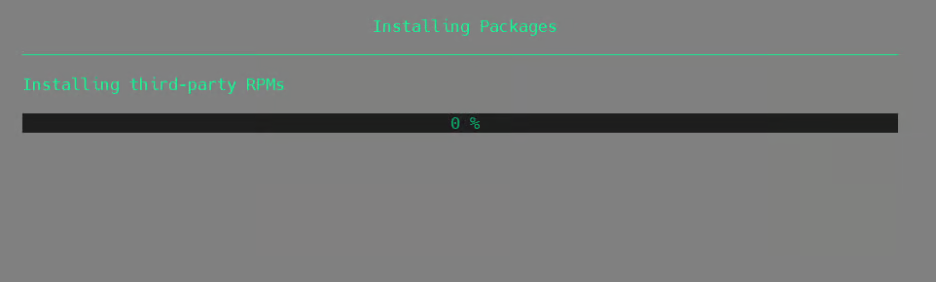
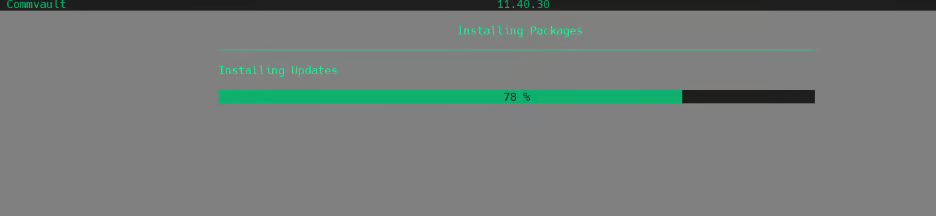
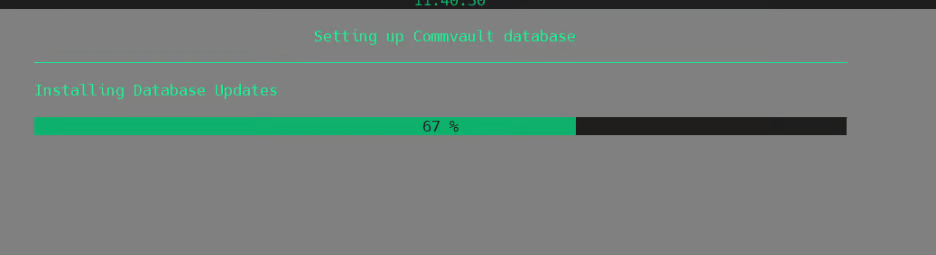
2. Wait for package download and installation. This can take \~1 hour.

<figure><img src="https://1649501270-files.gitbook.io/~/files/v0/b/gitbook-x-prod.appspot.com/o/spaces%2FSNWOoFOMzRblbHdwmlrR%2Fuploads%2FXDvABspz07jshstRqCBq%2Fimage.png?alt=media&#x26;token=2153d6be-1e4f-4153-8ee4-1d645892b660" alt=""><figcaption></figcaption></figure>

<details>

<summary>More screenshots</summary>

<figure><img src="https://1649501270-files.gitbook.io/~/files/v0/b/gitbook-x-prod.appspot.com/o/spaces%2FSNWOoFOMzRblbHdwmlrR%2Fuploads%2Fhkgs3qXjPcPHw9TxkBor%2Fimage.png?alt=media&#x26;token=fb3d5bbf-4207-4036-8a3b-29abb47374d8" alt=""><figcaption></figcaption></figure>

<figure><img src="https://1649501270-files.gitbook.io/~/files/v0/b/gitbook-x-prod.appspot.com/o/spaces%2FSNWOoFOMzRblbHdwmlrR%2Fuploads%2FaF2LJnQIHbJX28hsIsyI%2Fimage.png?alt=media&#x26;token=8ae1acf4-7ed5-4d4b-a241-2e398b6bfc06" alt=""><figcaption></figcaption></figure>

<figure><img src="https://1649501270-files.gitbook.io/~/files/v0/b/gitbook-x-prod.appspot.com/o/spaces%2FSNWOoFOMzRblbHdwmlrR%2Fuploads%2F73lveRnbJOgwvhuUuDXq%2Fimage.png?alt=media&#x26;token=998c5b74-f4dd-4f08-be1f-b1804ae3c786" alt=""><figcaption></figcaption></figure>

</details>
{% endstep %}
{% endstepper %}

#### Post-install

* Confirm Commvault services are running.

#### Access UI

`https://<commserve-fqdn>/commandcenter`

![](https://1649501270-files.gitbook.io/~/files/v0/b/gitbook-x-prod.appspot.com/o/spaces%2FSNWOoFOMzRblbHdwmlrR%2Fuploads%2F2OOCj4gN6m7hBA43Cur9%2Fcommvault-login.jpg?alt=media\&token=c2c7d80e-b786-4eae-9ece-360fa918ad44)

### Backup storage configuration

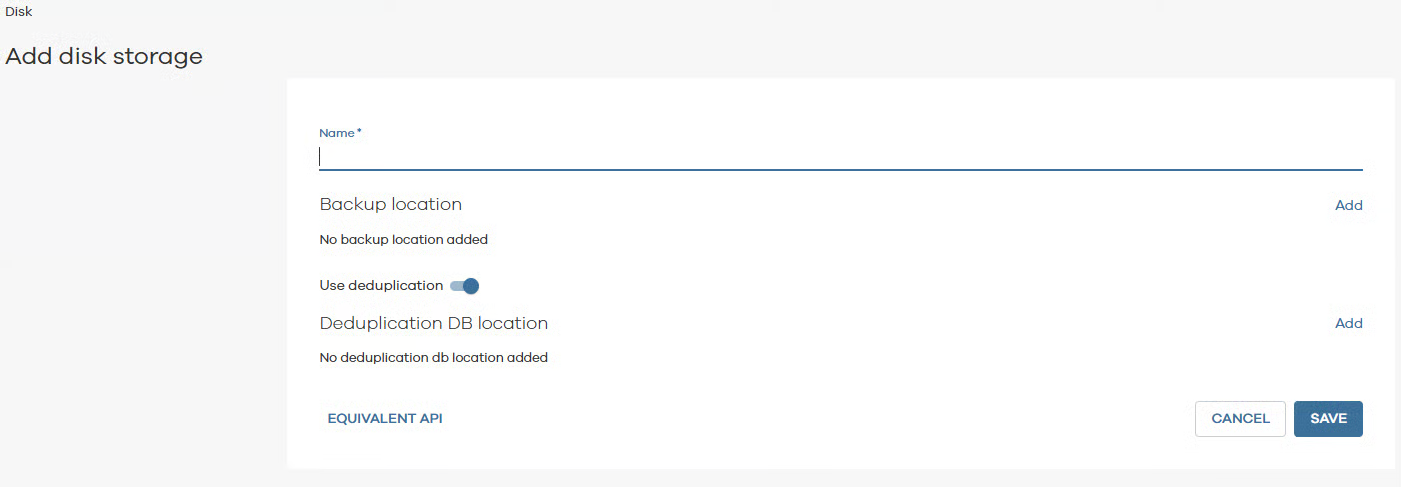
#### Primary storage (recommended)

<figure><img src="https://1649501270-files.gitbook.io/~/files/v0/b/gitbook-x-prod.appspot.com/o/spaces%2FSNWOoFOMzRblbHdwmlrR%2Fuploads%2FrD0wAmH0M4xZHQ3lwzYw%2Fimage.png?alt=media&#x26;token=7b8817d2-fc20-4a1d-83e4-a99d654f5fb1" alt=""><figcaption></figcaption></figure>

* Local disk storage on Media Agent VMs
* Disk Library configuration:
  * Use high IOPS storage.
  * Size it based on retention and workload.
* Benefits:
  * Faster restores (low RTO)
  * No WAN dependency during recovery

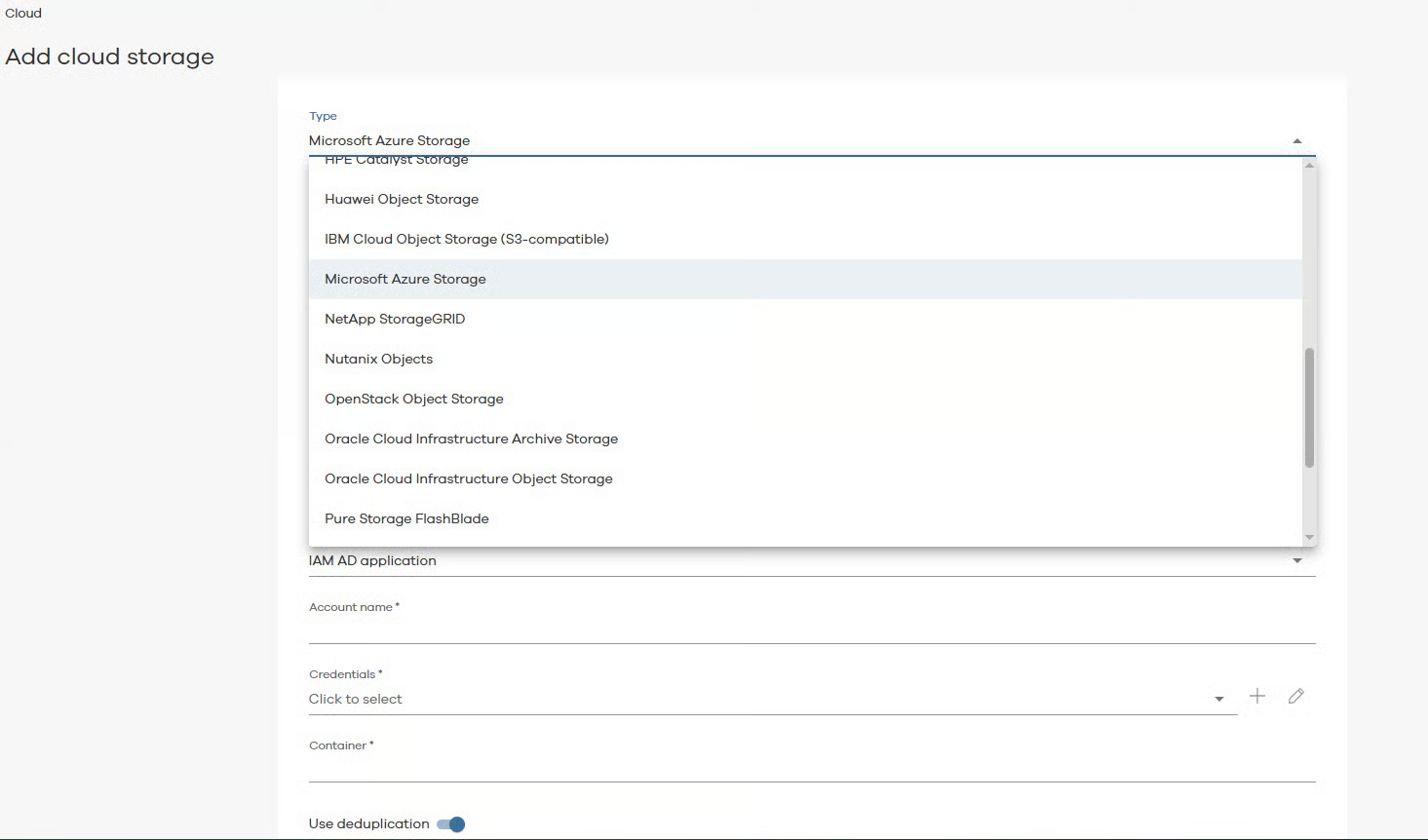
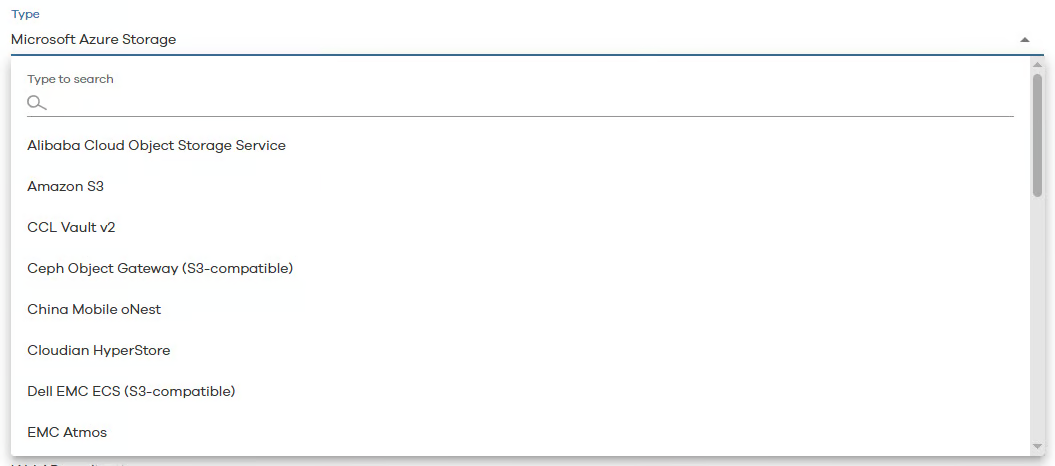
#### Secondary storage (optional)

<figure><img src="https://1649501270-files.gitbook.io/~/files/v0/b/gitbook-x-prod.appspot.com/o/spaces%2FSNWOoFOMzRblbHdwmlrR%2Fuploads%2FlBZeQ0EVuQHBNj1Ezt5a%2Fimage.png?alt=media&#x26;token=855aeef7-de00-4314-af18-10592f3b8fbd" alt=""><figcaption></figcaption></figure>

<figure><img src="https://1649501270-files.gitbook.io/~/files/v0/b/gitbook-x-prod.appspot.com/o/spaces%2FSNWOoFOMzRblbHdwmlrR%2Fuploads%2FiZ4mYMN6jly17r8Pcm6a%2Fimage.png?alt=media&#x26;token=ee967b4b-7e32-4790-9538-a6680df414b4" alt=""><figcaption></figcaption></figure>

* Can be cloud storage (S3 / Azure / etc.)
* Used for:
  * Secondary copy
  * Long-term retention
  * DR use cases

### MediaAgent (MA) / Access Node deployment

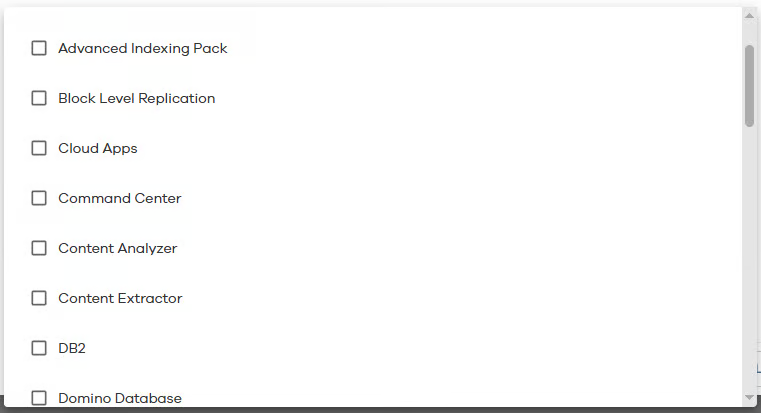
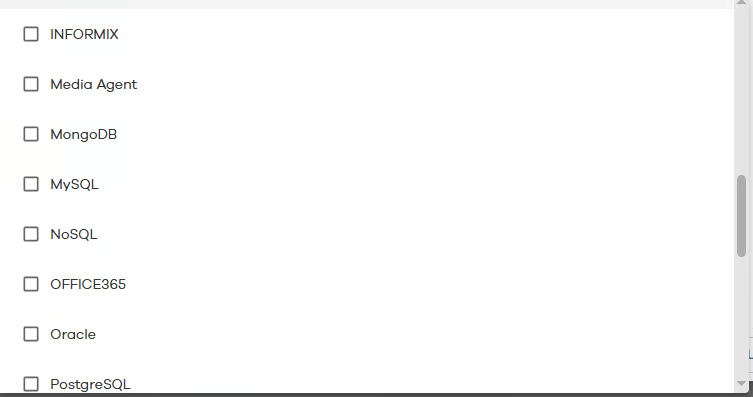
VMs can be configured to do various jobs depending on the packages installed on them:

<figure><img src="https://1649501270-files.gitbook.io/~/files/v0/b/gitbook-x-prod.appspot.com/o/spaces%2FSNWOoFOMzRblbHdwmlrR%2Fuploads%2FHONE0VafNsdKSVUVNfv9%2Fimage.png?alt=media&#x26;token=77a803e8-d6af-4853-ba93-ebd037ce631f" alt=""><figcaption></figcaption></figure>

<figure><img src="https://1649501270-files.gitbook.io/~/files/v0/b/gitbook-x-prod.appspot.com/o/spaces%2FSNWOoFOMzRblbHdwmlrR%2Fuploads%2FgBVNkUa5IQU3Q0pbKDIf%2Fimage.png?alt=media&#x26;token=8a6ece46-c3af-46d5-adae-2959cad795d6" alt=""><figcaption></figcaption></figure>

#### General Rules

* Deploy as VMs in <code class="expression">space.vars.product\_name</code>.
* Use one Windows MediaAgent and one Linux MediaAgent per region.
* Attach local disks for backup storage.

#### Create a Custom Installation Package

#### Create a Custom Installation Package

{% stepper %}
{% step %}

### Run installer on CommServe

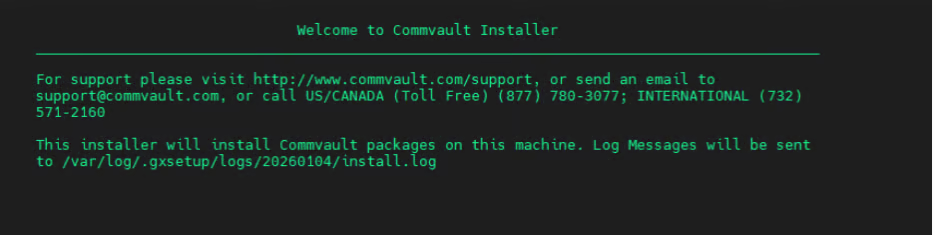
Execute the Commvault installation script on the CommServe server.
<figure><img src="https://1649501270-files.gitbook.io/~/files/v0/b/gitbook-x-prod.appspot.com/o/spaces%2FSNWOoFOMzRblbHdwmlrR%2Fuploads%2Fx8TUOnVrAz3NAkKNtgVV%2Fimage.png?alt=media&#x26;token=e75da112-38b8-4c90-b4e0-c51a0fc28902" alt=""><figcaption></figcaption></figure>
{% endstep %}

{% step %}

### Select Download Package

Select "Download package to install on a different computer."

<figure><img src="https://1649501270-files.gitbook.io/~/files/v0/b/gitbook-x-prod.appspot.com/o/spaces%2FSNWOoFOMzRblbHdwmlrR%2Fuploads%2FfXFAT9VNotueKm167XnB%2Fimage.png?alt=media&#x26;token=70455038-9c98-4083-9819-196f4212832d" alt=""><figcaption></figcaption></figure>
{% endstep %}

{% step %}

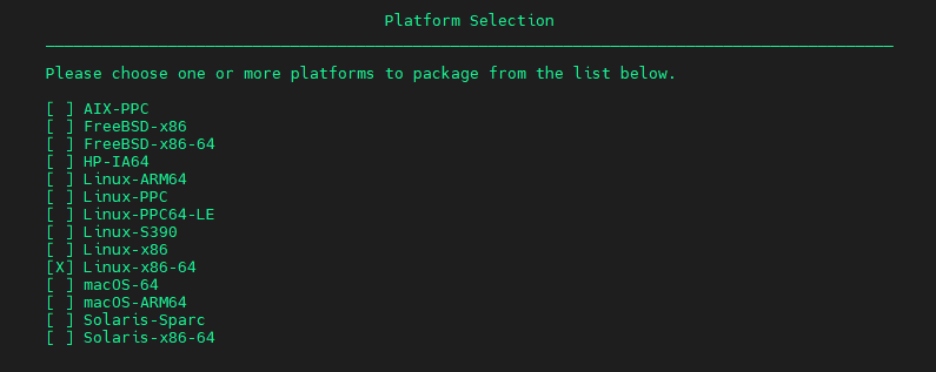
### Choose Media Option & Platform

* Choose the correct media option (e.g., Linux / Unix Custom Package).
* Select the correct operating system platform.

<figure><img src="https://1649501270-files.gitbook.io/~/files/v0/b/gitbook-x-prod.appspot.com/o/spaces%2FSNWOoFOMzRblbHdwmlrR%2Fuploads%2FoMAVJY1jYCZeDfcOaZFz%2Fimage.png?alt=media&#x26;token=a8ed83de-da9a-4e3c-bc33-386d204193a1" alt=""><figcaption></figcaption></figure>
{% endstep %}

{% step %}

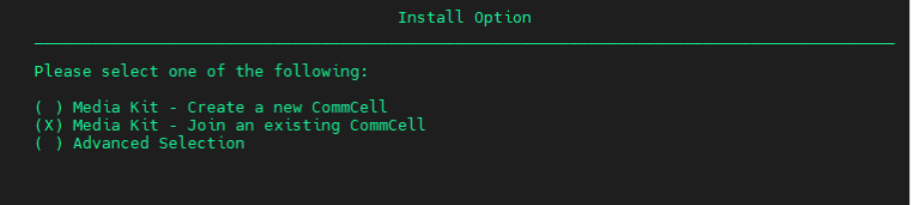
### Advanced & Join CommCell

* Choose Advanced to select specific components.
* Select "Join an existing CommCell."

<figure><img src="https://1649501270-files.gitbook.io/~/files/v0/b/gitbook-x-prod.appspot.com/o/spaces%2FSNWOoFOMzRblbHdwmlrR%2Fuploads%2F0XAHwBD61zatXspvjfE8%2Fimage.png?alt=media&#x26;token=12b341c0-ce61-449c-aadc-e8863e7c6ac9" alt=""><figcaption></figcaption></figure>
{% endstep %}

{% step %}

### Select Roles & Verify

* Select the required roles.
* Verify the package directory.
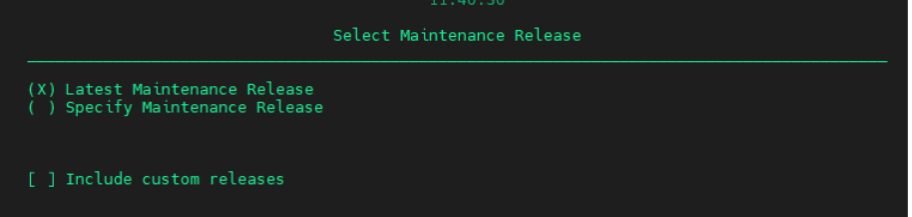
* Select the Latest Maintenance Release.
* Review the configuration and proceed.

<figure><img src="https://1649501270-files.gitbook.io/~/files/v0/b/gitbook-x-prod.appspot.com/o/spaces%2FSNWOoFOMzRblbHdwmlrR%2Fuploads%2FoCjhbdHUef3fxWKanixB%2Fimage.png?alt=media&#x26;token=62cedad4-46f9-4f5a-a435-7e8dafbd892a" alt=""><figcaption></figcaption></figure>
{% endstep %}

{% step %}

### Package Creation & Recording

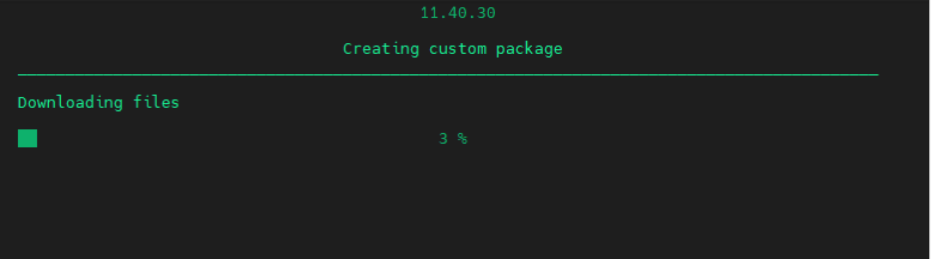
* Wait while the custom package is created.
* Record the custom package answers for reference.

<figure><img src="https://1649501270-files.gitbook.io/~/files/v0/b/gitbook-x-prod.appspot.com/o/spaces%2FSNWOoFOMzRblbHdwmlrR%2Fuploads%2FG8Ws7TxO1QDRDIqYpT4K%2Fimage.png?alt=media&#x26;token=30b401f2-72f1-4b1f-8bfa-c22752678660" alt=""><figcaption></figcaption></figure>
{% endstep %}

{% step %}

### Installation-specific Answers

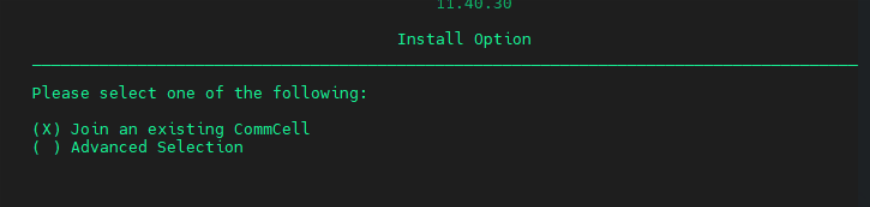
* Leave the Instance Number empty. This uses the current instance.
* Join an existing CommCell.

<figure><img src="https://1649501270-files.gitbook.io/~/files/v0/b/gitbook-x-prod.appspot.com/o/spaces%2FSNWOoFOMzRblbHdwmlrR%2Fuploads%2FM0iMAcCLg451TwKKwFwp%2Fimage.png?alt=media&#x26;token=31245980-5462-43c4-bb1a-dc97a94d15d0" alt=""><figcaption></figcaption></figure>
{% endstep %}

{% step %}

### Role & Option Selections

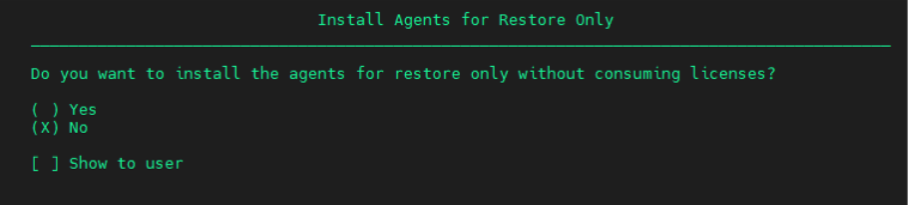
* Select the required roles.
* Select **No** for restore-only agent.
* Check the installation directory.
* Select **No** for dedicated Unix group.
* Leave the CVD Port empty to use the default.
* Set the Data Directory to /opt.
* Review the configuration before starting installation.

<figure><img src="https://1649501270-files.gitbook.io/~/files/v0/b/gitbook-x-prod.appspot.com/o/spaces%2FSNWOoFOMzRblbHdwmlrR%2Fuploads%2F8VqUqHBn4nbFG8Dlrfeh%2Fimage.png?alt=media&#x26;token=b0e66583-497d-47c8-baa2-4462d769b2a9" alt=""><figcaption></figcaption></figure>
{% endstep %}

{% step %}

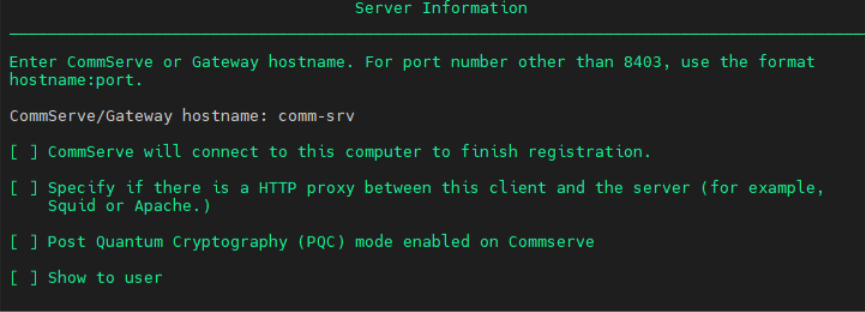
### Certificate / CommServe Details

* Select **No** for server pre-client certificate.
* Provide the CommServe hostname or IP address.
* Select **No** for decoupled install.
* Select **No** for ignore name conflict.
* Enter the CommServe authentication credentials.

<figure><img src="https://1649501270-files.gitbook.io/~/files/v0/b/gitbook-x-prod.appspot.com/o/spaces%2FSNWOoFOMzRblbHdwmlrR%2Fuploads%2FpbgKy7FSUaLJeQ9qXOAW%2Fimage.png?alt=media&#x26;token=90d1c42e-d3a6-4798-9ee2-a427c6ec5ea2" alt=""><figcaption></figcaption></figure>
{% endstep %}

{% step %}

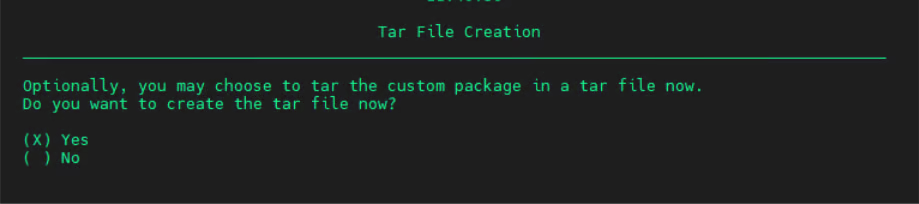
### Final Options & TAR file

* Leave the plan option empty for now.
* Client group: No.
* Subclient Policy: Empty.
* Leave the Storage policy empty for now.
* Prepare tar file: Yes.

<figure><img src="https://1649501270-files.gitbook.io/~/files/v0/b/gitbook-x-prod.appspot.com/o/spaces%2FSNWOoFOMzRblbHdwmlrR%2Fuploads%2F6KCFtEO9h320OHiqnuK8%2Fimage.png?alt=media&#x26;token=3f6ade95-a87f-4a16-82bd-5f356fad152f" alt=""><figcaption></figcaption></figure>

The custom package (TAR file) will be created under: /opt/DownloadPackageLocation/tar

<figure><img src="https://1649501270-files.gitbook.io/~/files/v0/b/gitbook-x-prod.appspot.com/o/spaces%2FSNWOoFOMzRblbHdwmlrR%2Fuploads%2Fg1ISqwmUeU5BWN31mjBu%2Fimage.png?alt=media&#x26;token=0fd4f5e6-a883-40a4-8bde-7f17b2bbfd21" alt=""><figcaption></figcaption></figure>
{% endstep %}
{% endstepper %}

### Linux MediaAgent (Access Node)

#### OS-level requirements

Install the following packages (required for restore & file browse):

* QEMU disk image utility (qemu-img)
* libguestfs
* libguestfs-tools
* Logical Volume Management (lvm)

#### Required Commvault packages

Installed from Commvault UI:

* Linux File System
* Virtual Server Agent
* MediaAgent

#### Install

{% stepper %}
{% step %}

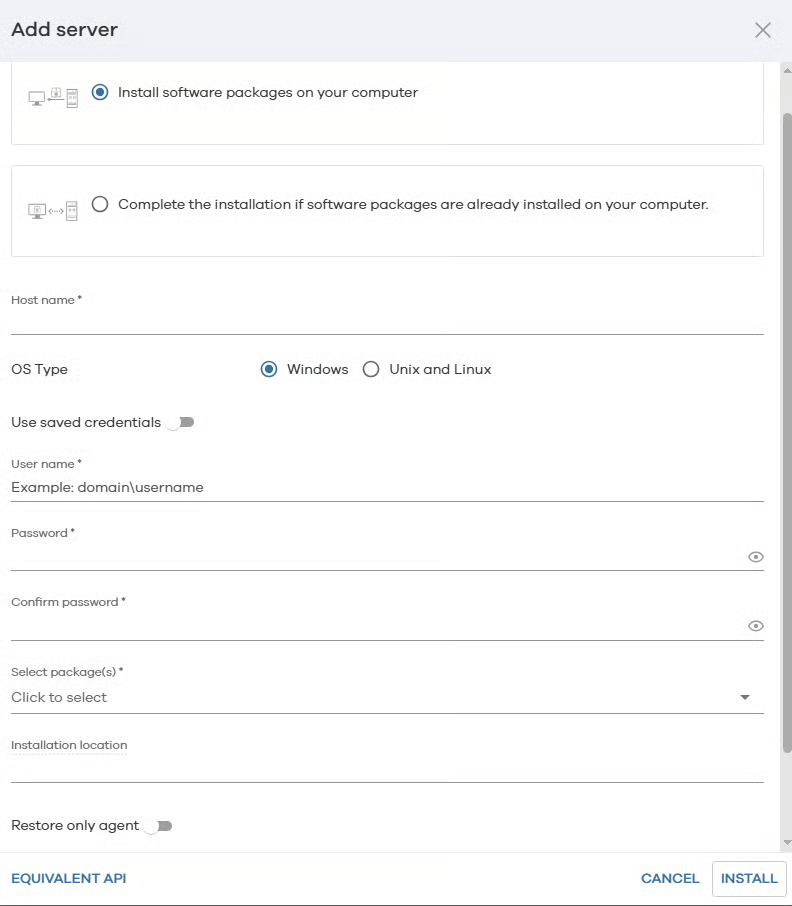
### Add server in the UI

1. Go to Commvault UI.
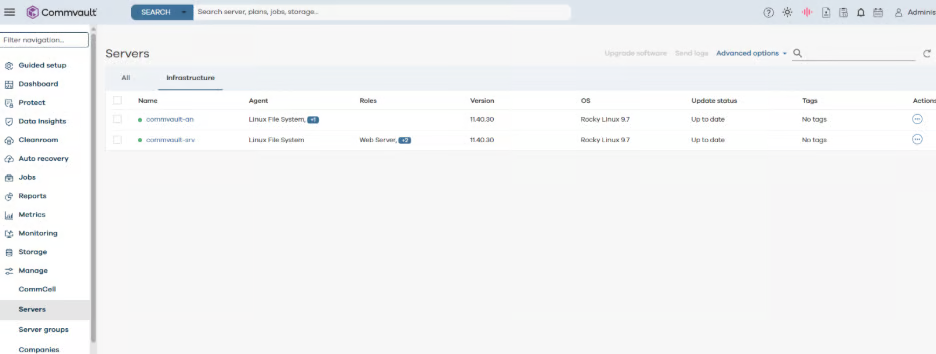
2. Manage → Servers → Add Server.
3. Select a Linux server.
   {% endstep %}

{% step %}

### Push install and verify

1. Push install the required packages.
2. Verify the MediaAgent appears under **Servers**.

<figure><img src="https://1649501270-files.gitbook.io/~/files/v0/b/gitbook-x-prod.appspot.com/o/spaces%2FSNWOoFOMzRblbHdwmlrR%2Fuploads%2Fn44mhWGjsFNbdiueKDQ1%2Fimage.png?alt=media&#x26;token=ebc20087-d738-417d-8545-454d8b27ee8e" alt=""><figcaption></figcaption></figure>
{% endstep %}
{% endstepper %}

### Windows MediaAgent (Access Node)

#### OS-level requirements

* Install .NET Framework 4.8
* Required before Commvault package installation

{% hint style="info" %}
Windows clients cannot be installed from a Linux CommServe UI in some versions.
{% endhint %}

#### Install

{% stepper %}
{% step %}

#### Copy TAR to Access Node

Copy the generated TAR file to the Access Node server.
{% endstep %}

{% step %}

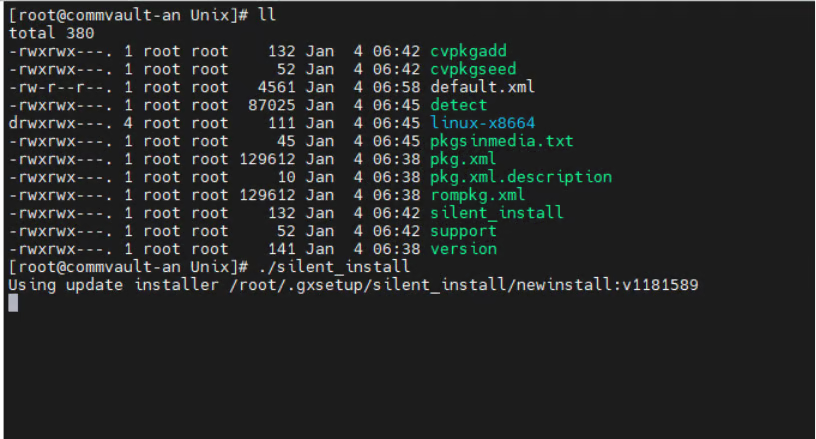
#### Silent Installation

Execute the silent installation script (silent\_install).

<figure><img src="https://1649501270-files.gitbook.io/~/files/v0/b/gitbook-x-prod.appspot.com/o/spaces%2FSNWOoFOMzRblbHdwmlrR%2Fuploads%2FHM9x0WR7nBfO736VxNIR%2Fimage.png?alt=media&#x26;token=b8412614-c4ac-4b2f-97f4-ee7d4f396ea5" alt=""><figcaption></figcaption></figure>
{% endstep %}
{% endstepper %}

#### Verify

* Appears as Media Agent in UI
* Assigned as Windows restore proxy

<figure><img src="https://1649501270-files.gitbook.io/~/files/v0/b/gitbook-x-prod.appspot.com/o/spaces%2FSNWOoFOMzRblbHdwmlrR%2Fuploads%2F09QSXOo53dTWlpb7qVht%2Fimage.png?alt=media&#x26;token=78c89c48-d646-4d0d-9375-d61485b209eb" alt=""><figcaption></figcaption></figure>

## Add <code class="expression">space.vars.product\_name</code> to Commvault

Go to Commvault UI.

{% stepper %}
{% step %}

### Add Hypervisor

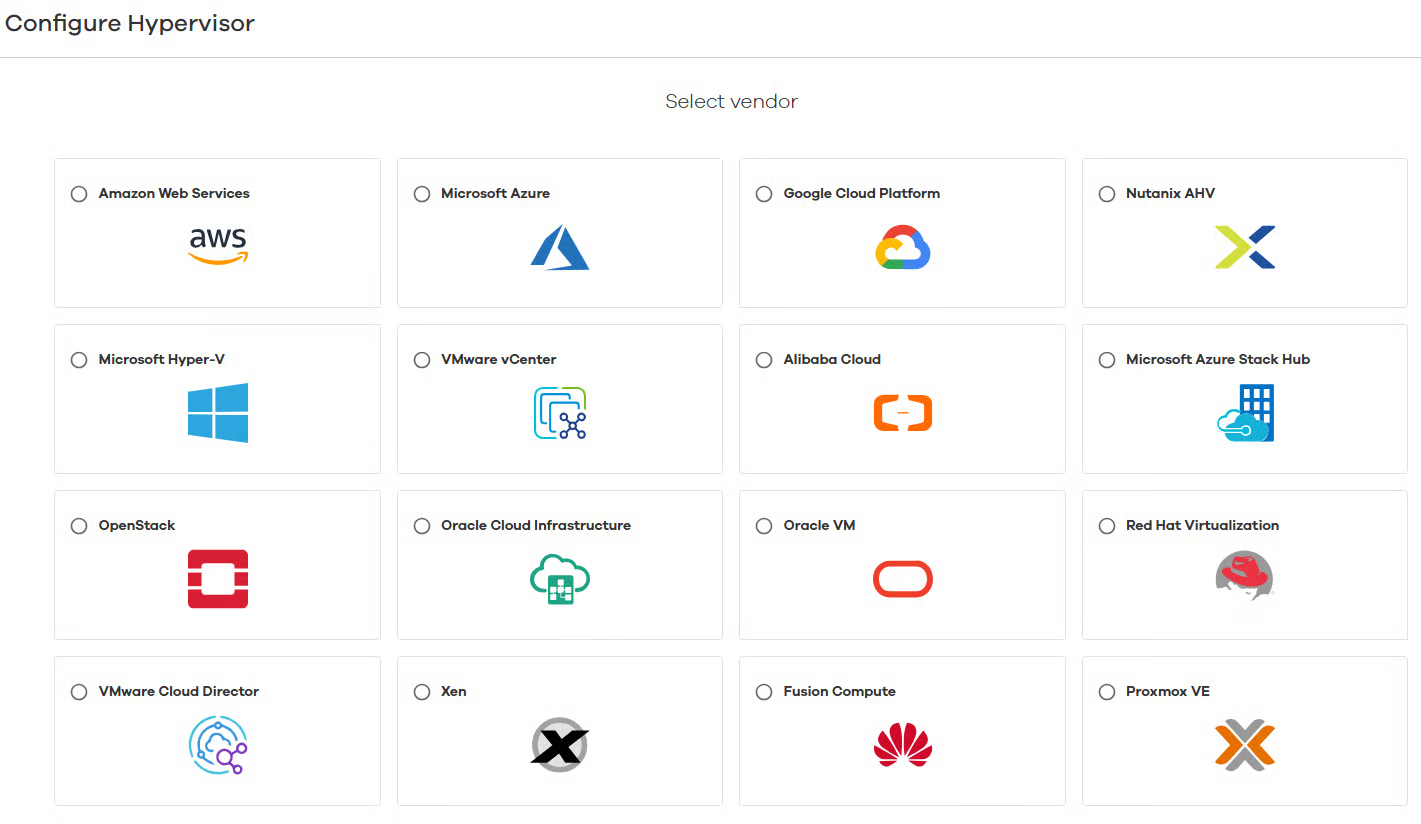
1. Go to Virtualization → Add Hypervisor.
2. Select OpenStack.
<figure><img src="https://1649501270-files.gitbook.io/~/files/v0/b/gitbook-x-prod.appspot.com/o/spaces%2FSNWOoFOMzRblbHdwmlrR%2Fuploads%2FmLuf1uTh6NlICXU4a9Bv%2Fimage.png?alt=media&#x26;token=76954511-cad2-4fc1-84fc-2ab425dbb590" alt=""><figcaption></figcaption></figure>
{% endstep %}

{% step %}

### Enter PCD Details

* <code class="expression">space.vars.product\_acronym</code> Keystone endpoint (HTTPS/443), for example: `https://<pcd-region-fqdn>:443/keystone/v3`&#x20;
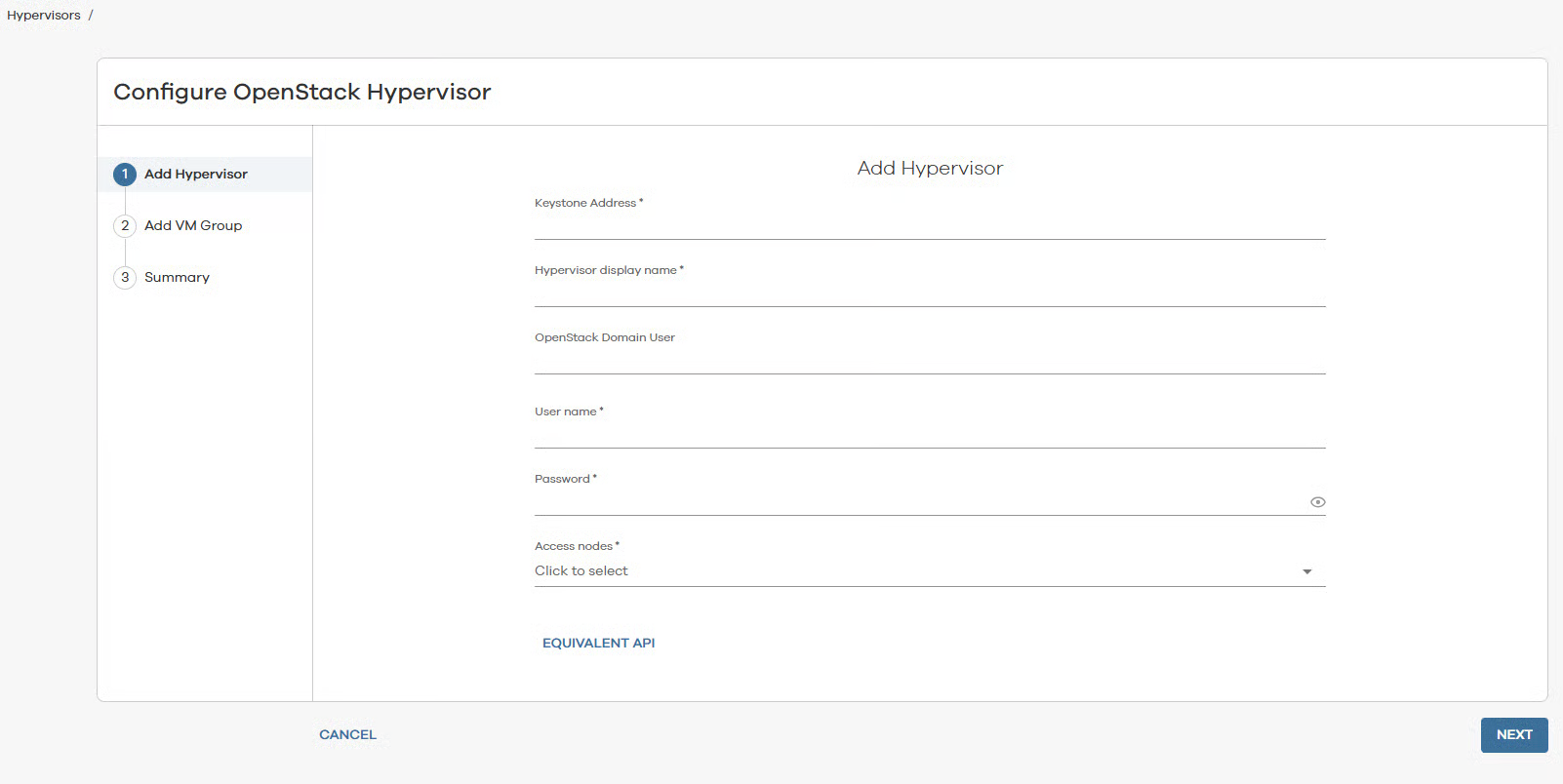
  * Note: Commvault defaults to port 5000 if not otherwise specified. Be sure to use port 443 in the Keystone address.
* OpenStack Domain User (mandatory): the domain associated with the user. Specify **Default** if not using a custom domain.
* Credentials
* Project / Region details

<figure><img src="https://1649501270-files.gitbook.io/~/files/v0/b/gitbook-x-prod.appspot.com/o/spaces%2FSNWOoFOMzRblbHdwmlrR%2Fuploads%2FilZHUuvNWecxFh129oqz%2Fimage.png?alt=media&#x26;token=acbd1b02-ddae-4657-844a-9a2066bccf53" alt=""><figcaption></figcaption></figure>
{% endstep %}

{% step %}

### Validate & Discover

1. Validate connection.
2. Discover <code class="expression">space.vars.product\_name</code> VMs.
   {% endstep %}
   {% endstepper %}

## Backup and restore

### Add VMs for backup

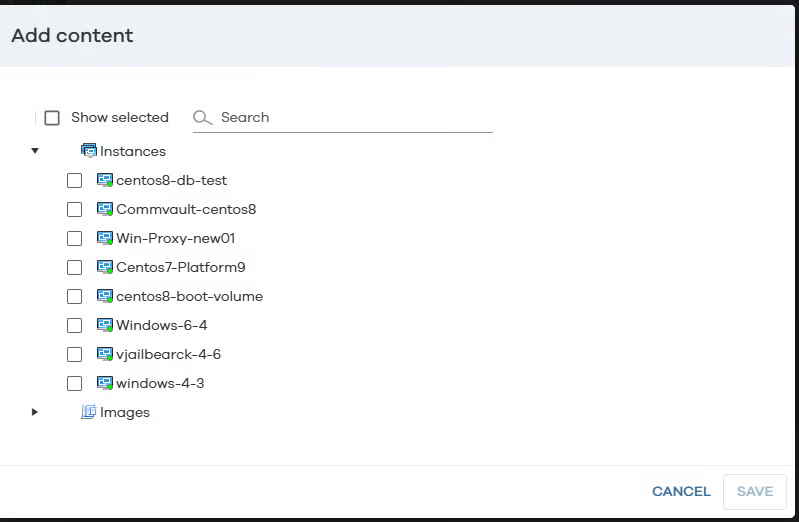
VM Groups

* Create VM Groups using:
  * Content (explicit VMs)
  * Rules (tags / naming patterns)
<figure><img src="https://1649501270-files.gitbook.io/~/files/v0/b/gitbook-x-prod.appspot.com/o/spaces%2FSNWOoFOMzRblbHdwmlrR%2Fuploads%2FVmCJuFAvy9PgCLPKWUmj%2Fimage.png?alt=media&#x26;token=ee0e1930-631a-4e12-af20-68b91c6b633f" alt=""><figcaption></figcaption></figure>

<details>

<summary>Database protection (optional)</summary>

Database protection is agent-based.

Add the DB serverAdd the DB server:Manage → Servers → Add ServerInstall agents on the DB serverInstall directly on the same database server:File System AgentApplication-specific agent (MySQL, MSSQL, etc.)Configure policies and verifyConfigure DB backup policies.Verify visibility under the Database tab.Since the agent is installed on the database server itself, backups are application-aware. This ensures consistent backups and supported restores.

</details>

### Backup and restore workflow in <code class="expression">space.vars.product\_name</code>

This section explains the sequence of operations and the resources created in <code class="expression">space.vars.product\_acronym</code> when a backup or restore job is triggered from Commvault.

#### Backup Workflow (High-Level Flow)

Commvault interacts with <code class="expression">space.vars.product\_acronym</code> using the OpenStack APIs. Backups are agentless at the VM level (for VMs), with data movement handled by the Media Agent (Access Node).

{% stepper %}
{% step %}

#### Backup Job Triggered

* A backup job is initiated from Commvault (scheduled or manual).
* The job is associated with a VM Group and a Storage Policy.
  {% endstep %}

{% step %}

#### PCD / OpenStack Authentication

* Commvault authenticates to <code class="expression">space.vars.product\_acronym</code> via Keystone using the configured credentials.
* Project and region context is established.
  {% endstep %}

{% step %}

#### VM Metadata Collection

* Commvault queries <code class="expression">space.vars.product\_acronym</code> for:
  * VM details
  * Attached volumes
  * Disk layout
  * Snapshot capabilities
    {% endstep %}

{% step %}

#### Snapshot Creation (<code class="expression">space.vars.product\_acronym</code> Side)

* <code class="expression">space.vars.product\_acronym</code> creates:
  * AVM snapshot or
  * Volume snapshots (depending on configuration)

{% hint style="warning" %}
Only VMs that boot from persistent (bootable) volumes are supported. Ephemeral-root VMs are not protected.
{% endhint %}

* The VM remains powered on unless otherwise configured.
  {% endstep %}

{% step %}

#### Temporary Snapshot Resources Created

On the PCD side, the following resources are created temporarily:

* Snapshot objects (VM or volume)
* Temporary snapshot volumes
* Snapshot metadata entries
  {% endstep %}

{% step %}

#### Data Read by Media Agent

* The MediaAgent (Access Node VM) accesses the snapshot data.
* A temporary volume created from the snapshot is attached or mapped to the MediaAgent. This allows reads without impacting the source VM.
* Backup data is streamed:
  * From snapshot → MediaAgent
  * From MediaAgent → local disk library
    {% endstep %}

{% step %}

#### Snapshot Cleanup

* Once data transfer completes successfully:
  * Snapshot resources are deleted
  * Temporary volumes are removed
* <code class="expression">space.vars.product\_acronym</code> returns the VM to its original state.
  {% endstep %}

{% step %}

#### &#x20;Job Completion

* Backup metadata is updated in Commvault.
* Backup data is retained according to the Storage Policy.
  {% endstep %}
  {% endstepper %}

<code class="expression">space.vars.product\_acronym</code> Impact Summary (Backup)

* No permanent resources left behind
* Short-lived snapshots only
* No agent installed inside the VM
* Minimal VM performance impact

#### Restore Workflow

Restores are proxy-based and require an OS-matching MediaAgent. Commvault uses <code class="expression">space.vars.product\_acronym</code> APIs to recreate or overwrite VM resources.

{% stepper %}
{% step %}

#### 1. Restore Job Triggered

* Restore initiated from Commvault:
  * Full VM restore
  * File-level restore
    {% endstep %}

{% step %}

#### 2. Restore Proxy Selection

* Commvault selects an OS-specific Media Agent:
  * Windows VM restore → Windows Media Agent
  * Linux VM restore → Linux Media Agent
    {% endstep %}

{% step %}

#### 3. PCD Authentication

* Commvault authenticates to <code class="expression">space.vars.product\_acronym</code> using Keystone.
* Target project, network, cluster, and region are selected.
  {% endstep %}

{% step %}

#### 4. Target Resource Preparation (PCD Side)

Depending on restore type, PCD creates:

* New volumes from backup data
* Temporary volumes (during restore)
* Network attachments
  {% endstep %}

{% step %}

#### 5. Data Transfer

* Backup data is read from:
  * Local disk library on Media Agent
* Data is written to:
  * Newly created or existing <code class="expression">space.vars.product\_acronym</code> volumes
    {% endstep %}

{% step %}

#### 6. VM Reconstruction

For full VM restore:

* VM definition is recreated
* Volumes attached
* Networks connected

  <div data-gb-custom-block data-tag="hint" data-style="warning" class="hint hint-warning"><p>The network selected for restore should have port security enabled.</p></div>
* VM powered on (optional)
  {% endstep %}

{% step %}

#### 7. Cleanup of Temporary Resources

* Temporary restore volumes or staging resources are removed.
* Final VM and disks remain active.
  {% endstep %}

{% step %}

#### 8. Restore Job Completion

* Restore status updated in Commvault.
* VM becomes available in <code class="expression">space.vars.product\_acronym</code>.
  {% endstep %}
  {% endstepper %}

<code class="expression">space.vars.product\_acronym</code> Impact Summary (Restore)

* New resources may be permanently created:
  * VMs
  * Volumes
  * Network attachments
* Temporary resources are cleaned automatically
* Restore speed depends on:
  * Media Agent proximity
  * Local disk performance
  * Volume size

### Troubleshooting quick checks

* **Discovery fails**
  * Confirm Keystone URL ends in `/keystone/v3`.
  * Confirm HTTPS/443 reachability from CommServe and Access Nodes.
  * Confirm credentials and scope (system vs project).
* **Backup fails at snapshot**
  * Check tenant snapshot quota and concurrent jobs.
  * Check Cinder snapshot support for the backend.
* **Restore fails**
  * Confirm the restore proxy OS matches the guest OS.
  * Confirm Access Node can attach and read volumes in the target project.

### Summary

* Deploy CommServe and Access Nodes per <code class="expression">space.vars.product\_acronym</code> region for performance and isolation.
* Backups are snapshot-based and agentless for VMs.
  * Database backups remain agent-based (inside the DB server).
* Media Agents handle all data movement.
* Local disk storage ensures:
  * Faster restores
  * Reduced dependency on network or cloud storage
* OS-specific Media Agents are mandatory for restores, not backups.


---

# Agent Instructions: Querying This Documentation

If you need additional information that is not directly available in this page, you can query the documentation dynamically by asking a question.

Perform an HTTP GET request on the current page URL with the `ask` query parameter:

```
GET https://docs.platform9.com/private-cloud-director/integrations/commvault-integration-with-pcd.md?ask=<question>
```

The question should be specific, self-contained, and written in natural language.
The response will contain a direct answer to the question and relevant excerpts and sources from the documentation.

Use this mechanism when the answer is not explicitly present in the current page, you need clarification or additional context, or you want to retrieve related documentation sections.