# Rubrik Integration with PCD

## Overview

Rubrik Cloud Data Management (CDM) is a backup appliance that provides agentless backup, recovery, and disaster recovery for virtual machines running in <code class="expression">space.vars.product\_name</code> ( <code class="expression">space.vars.product\_acronym</code>).

This guide explains how to connect Rubrik to your <code class="expression">space.vars.product\_acronym</code> environment so it can automatically discover and protect your VMs.

{% hint style="warning" %}
**WARNING**

Rubrik is **currently not supported on PCD 2026.1**. This page is included in the PCD 2026.1 documentation for reference, but the Rubrik integration supports only the **2025.10** release.
{% endhint %}

### Prerequisites

Before you begin, ensure you meet the following criteria.

**Rubrik CDM:**

* Access to your Rubrik CDM portal at `https://<your-domain>.my.rubrik.com`
* Rubrik CDM appliance deployed and accessible from your <code class="expression">space.vars.product\_acronym</code> environment.
* Administrator privileges in the Rubrik portal.

<code class="expression">space.vars.product\_acronym</code> **environment:**

* <code class="expression">space.vars.product\_acronym</code> version **2025.10-112** or later. PCD **2026.1** is currently **not supported**.
* Administrator access to create users and assign roles.
* Access to run `pcdctl` commands.

**Network requirements:**

* Rubrik appliance can reach the endpoint (HTTPS/443).
* Rubrik appliance can reach proxy VMs on TCP ports 12800 and 12801.
* Proxy VMs and the Rubrik appliance are on the same network, or routing is configured between them.

**For disaster recovery replication (optional):**

* Second Rubrik CDM appliance
* Network connectivity between both Rubrik appliances.
* Rubrik **9.4.1-p1-30807** or later

## Configure <code class="expression">space.vars.product\_acronym</code> user for Rubrik

Rubrik requires a dedicated <code class="expression">space.vars.product\_acronym</code> user with system-scoped admin privileges. System-scoped privileges enable Rubrik to discover and manage VMs across all tenants and domains, without being restricted to a single project.

#### Create the Rubrik user

1. Create a dedicated user for Rubrik in <code class="expression">space.vars.product\_acronym</code>:

```bash
   # Example user: rubrik-system-user@acme.com
   # Replace with your actual domain
```

2. Assign system-scoped admin privileges to the user:

```bash
   pcdctl role add --user 'rubrik-system-user@acme.com' --user-domain default --system all admin
```

3. Verify the role assignment:

```bash
   pcdctl role assignment list --user 'rubrik-system-user@acme.com'
```

Confirm the output includes:

* The user exists in the list
* An assignment row where the **System** column shows `all`

Example output:

```
   +-------------+---------------------------+-------+---------+--------+--------+-----------+
   | Role        | User                      | Group | Project | Domain | System | Inherited |
   +-------------+---------------------------+-------+---------+--------+--------+-----------+
   | 0a39274e... | b38b3de8cd904395...       |       | 857...  |        |        | False     |
   | 0a39274e... | b38b3de8cd904395...       |       |         |        | all    | False     |
   +-------------+---------------------------+-------+---------+--------+--------+-----------+
```

#### Test the connection

Before configuring Rubrik, verify that the user can authenticate with the system scope:

1. Set environment variables for the Rubrik user:

```bash
   export OS_USERNAME=rubrik-system-user@acme.com
   export OS_PASSWORD=<your-password>
   export OS_AUTH_URL=https://<DU-FQDN>/keystone/v3
   export OS_IDENTITY_API_VERSION=3
   export OS_USER_DOMAIN_NAME=Default
   export OS_SYSTEM_SCOPE=system
```

2. Test authentication:

```bash
   openstack token issue
```

If successful, you will see token details. If this fails, verify the user credentials and role assignment before proceeding.

## Connect Rubrik CDM to <code class="expression">space.vars.product\_acronym</code>

After configuring the <code class="expression">space.vars.product\_acronym</code> user, add your <code class="expression">space.vars.product\_acronym</code> environment as a data source in Rubrik CDM.

#### Add Certificates to Rubrik CDM

Starting version 9.4.2 of Rubrik CDM, please add the certificate(s)

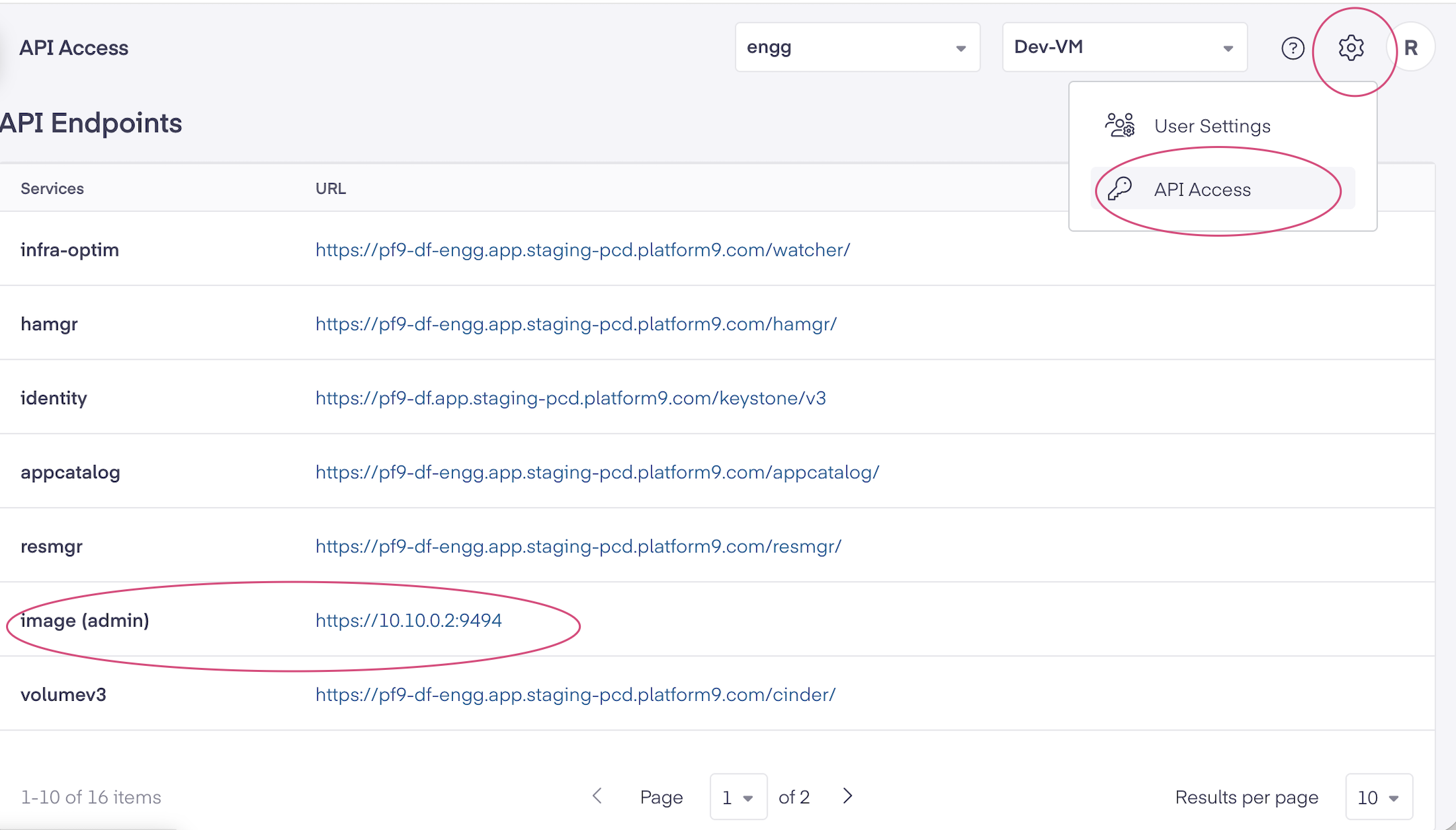
1. Get the list of endpoints. There are two primary

   1. `https://<DU-FQDN>/`
   2. `https://<some ip address for galnce/`

   <figure><img src="https://1649501270-files.gitbook.io/~/files/v0/b/gitbook-x-prod.appspot.com/o/spaces%2FSNWOoFOMzRblbHdwmlrR%2Fuploads%2FI71P4IwWpYxJlKBpwKY1%2Fimage.png?alt=media&#x26;token=ac018ced-9593-496e-9a1c-8ab00ce7ca80" alt=""><figcaption></figcaption></figure>
2. Export the certificate(s) for both endpoints.\
   Go to the URls (a, b) above and click on the `https` and use certificate export for the root or the self-signed certificates to export those certificates as `.pem` files.
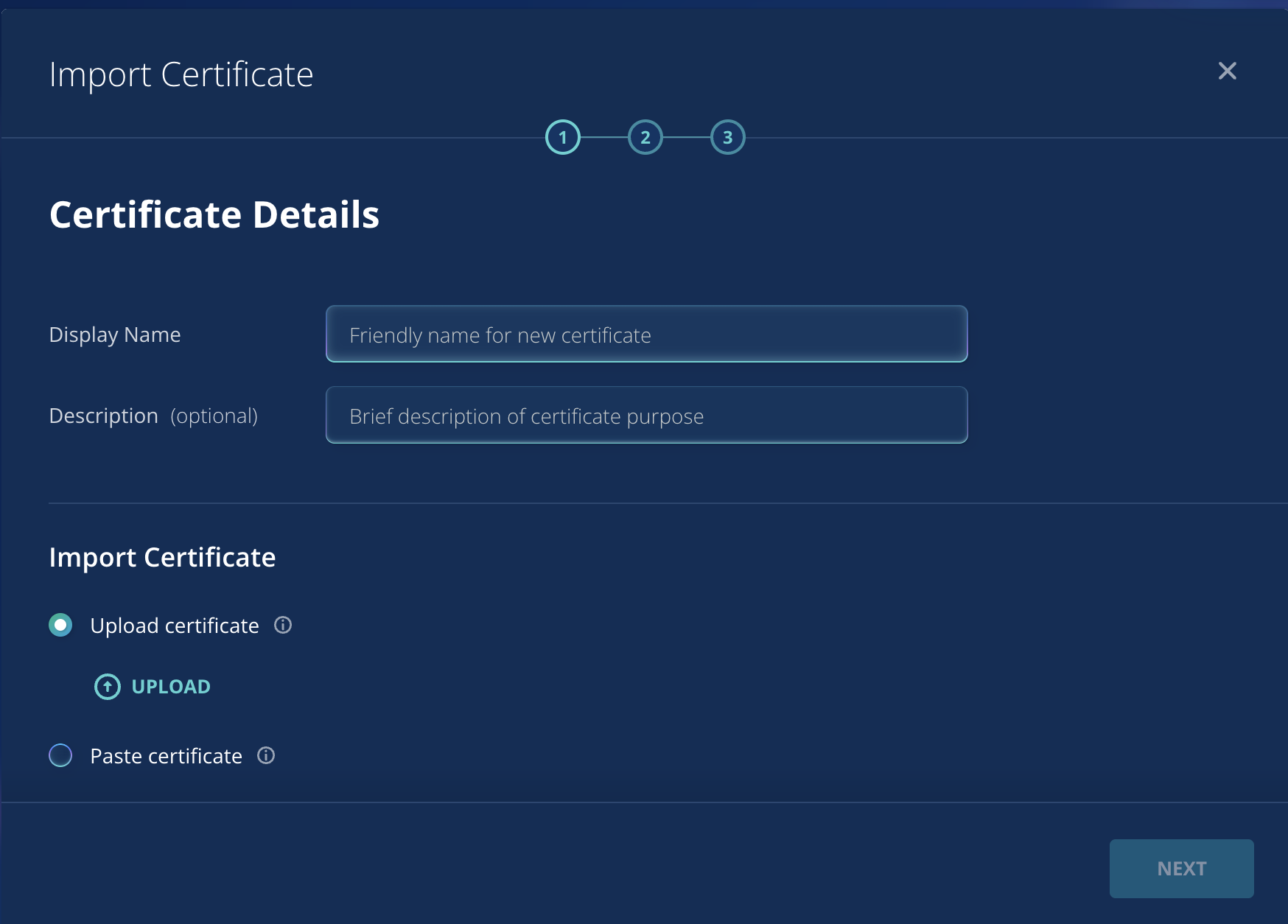
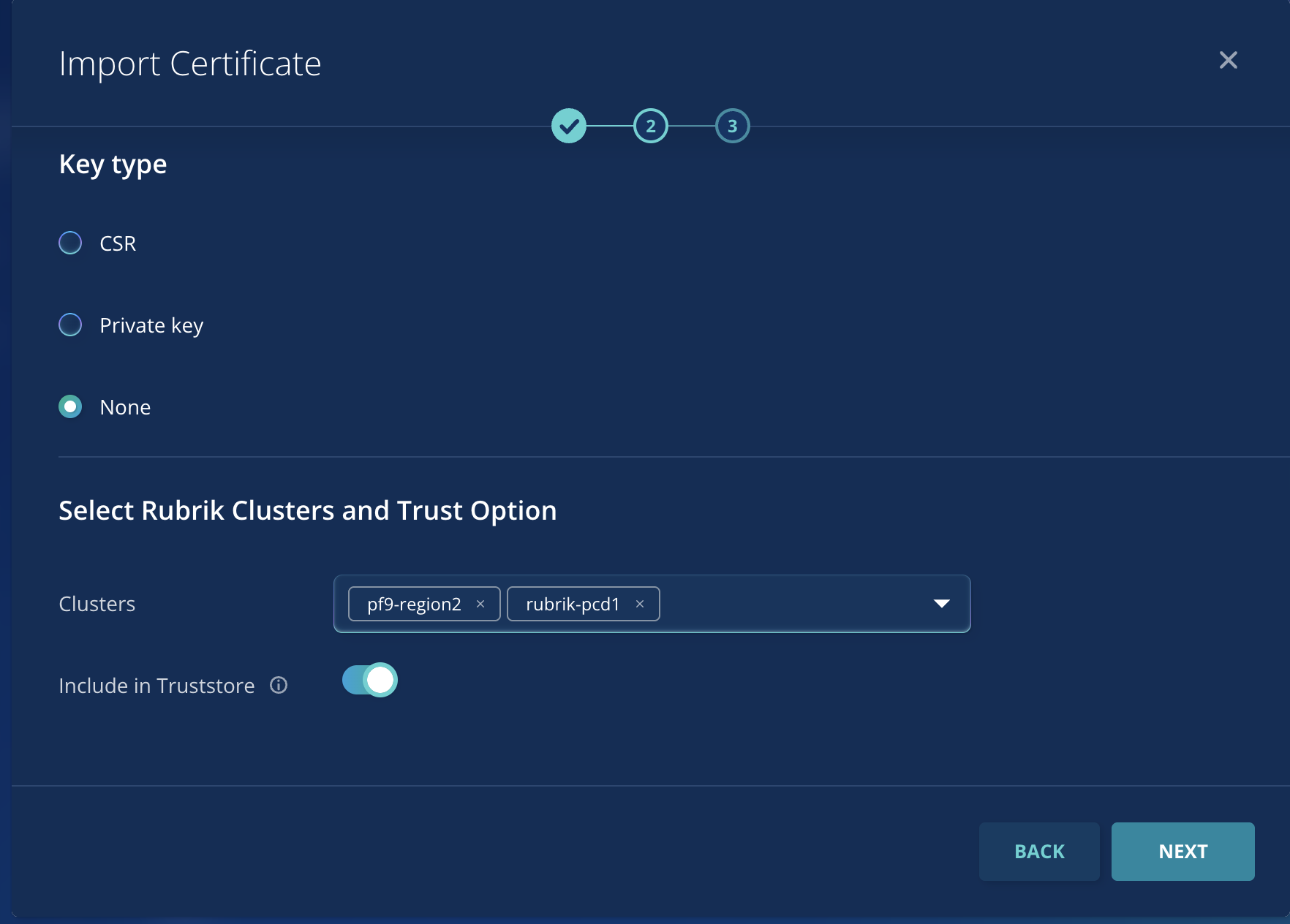
3. Import certificates into the CDM\
   On Rubirk CDM portal, navigate to **Settings > Security > Certificate Management** and import the certificates. Ensure you enable **Include in Truststore.**

<figure><img src="https://1649501270-files.gitbook.io/~/files/v0/b/gitbook-x-prod.appspot.com/o/spaces%2FSNWOoFOMzRblbHdwmlrR%2Fuploads%2FgEQkq1itvqyK7WNOip8b%2Fimage.png?alt=media&#x26;token=59b50d6e-a79d-4e9b-b33e-ac8782db0516" alt=""><figcaption></figcaption></figure>

<figure><img src="https://1649501270-files.gitbook.io/~/files/v0/b/gitbook-x-prod.appspot.com/o/spaces%2FSNWOoFOMzRblbHdwmlrR%2Fuploads%2F0mNiHTCtJdSjsuCRAGer%2Fimage.png?alt=media&#x26;token=257e118f-1356-4c84-89c7-b873ab7cbf7e" alt=""><figcaption></figcaption></figure>

#### Add <code class="expression">space.vars.product\_acronym</code> as an OpenStack data source

1. In the Rubrik CDM portal, navigate to **Settings** > **Datasource** > **OpenStack** > **Add OpenStack**.<br>

<figure><img src="https://1649501270-files.gitbook.io/~/files/v0/b/gitbook-x-prod.appspot.com/o/spaces%2FSNWOoFOMzRblbHdwmlrR%2Fuploads%2FzqNAscX8gZjB2d329Svw%2FScreenshot%202026-02-09%20at%2012.23.51.png?alt=media&#x26;token=5367771c-ae27-4033-8938-0f024d673158" alt="" width="563"><figcaption></figcaption></figure>

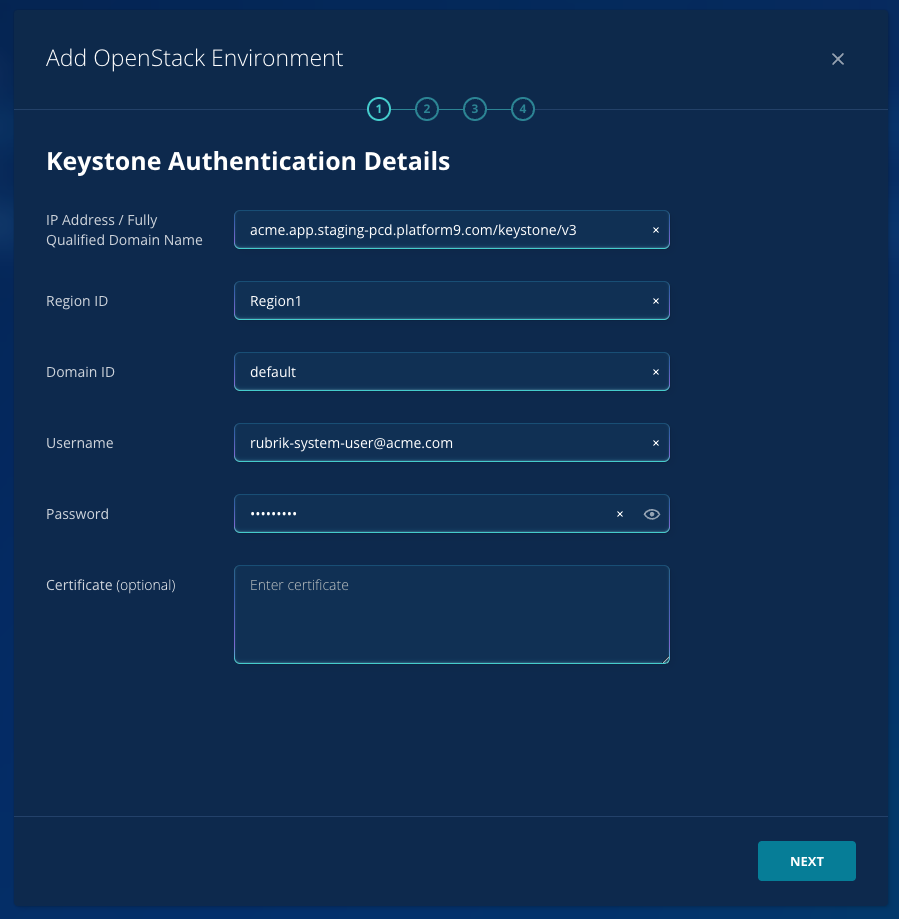
2. In the configuration wizard, enter the following:

* IP Address/Fully Qualified Domain Name:

```
   <DU-FQDN>/keystone/v3
```

{% hint style="info" %}
**NOTE**

Do not include `https://` in this field. Rubrik adds the protocol automatically.
{% endhint %}

Example: `pcd-region1.example.com/keystone/v3`

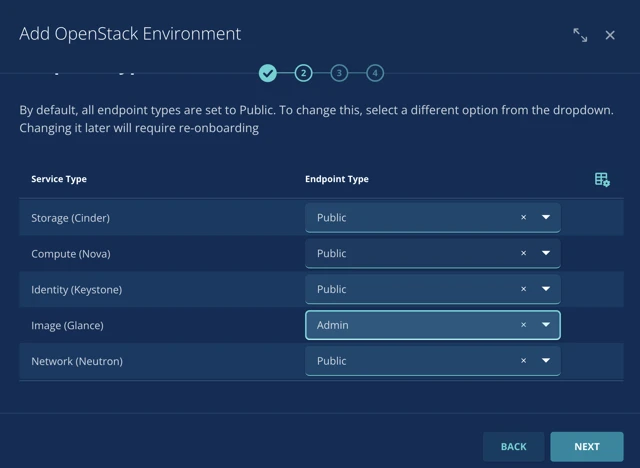
3. For the **Image (Glance)** endpoint type, select **Admin endpoint**.<br>

   <figure><img src="https://1649501270-files.gitbook.io/~/files/v0/b/gitbook-x-prod.appspot.com/o/spaces%2FSNWOoFOMzRblbHdwmlrR%2Fuploads%2FblJeJRh3Sxw1m3zyJz39%2Fimage.png?alt=media&#x26;token=09a74f36-3984-4227-af94-946e8d497467" alt=""><figcaption></figcaption></figure>

The admin endpoint allows Rubrik to access the full image catalog across all tenants. The public endpoint will not provide sufficient access.

4. Enter the credentials for your Rubrik user:

* **Username:** `rubrik-system-user@acme.com`
* **Password:** The password you set for this user
* **User Domain Name:** `Default`

5. Complete the remaining wizard fields with your environment details.
6. Click **Add** to save the configuration.

#### Verify inventory discovery

After adding the data source, Rubrik begins discovering your VM inventory. This process takes 5-10 minutes.

To verify successful discovery:

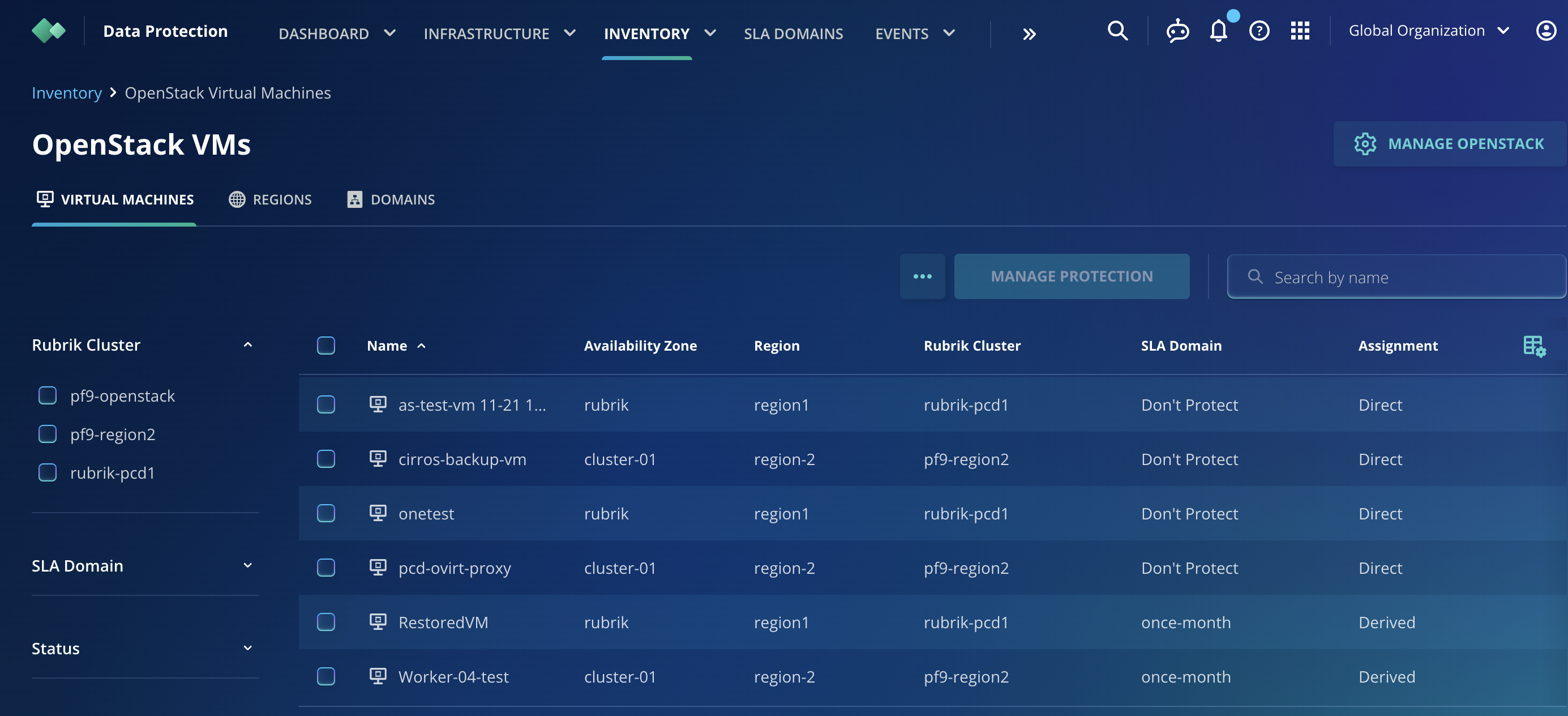
1. Navigate to **Data Protection** > **Inventory** > **OpenStack Virtual Machine**.

<figure><img src="https://1649501270-files.gitbook.io/~/files/v0/b/gitbook-x-prod.appspot.com/o/spaces%2FSNWOoFOMzRblbHdwmlrR%2Fuploads%2FtRVeqIspfXyggI077Dz4%2Fimage.png?alt=media&#x26;token=bca1c78c-a1b7-4325-ab94-6016ce8a0f9a" alt=""><figcaption></figcaption></figure>

2. Confirm all expected VMs appear in the list.
   * VMs are organized by availability zone, which maps to your <code class="expression">space.vars.product\_acronym</code> clusters.
   * You can filter by **Domains or Projects** in the inventory view.
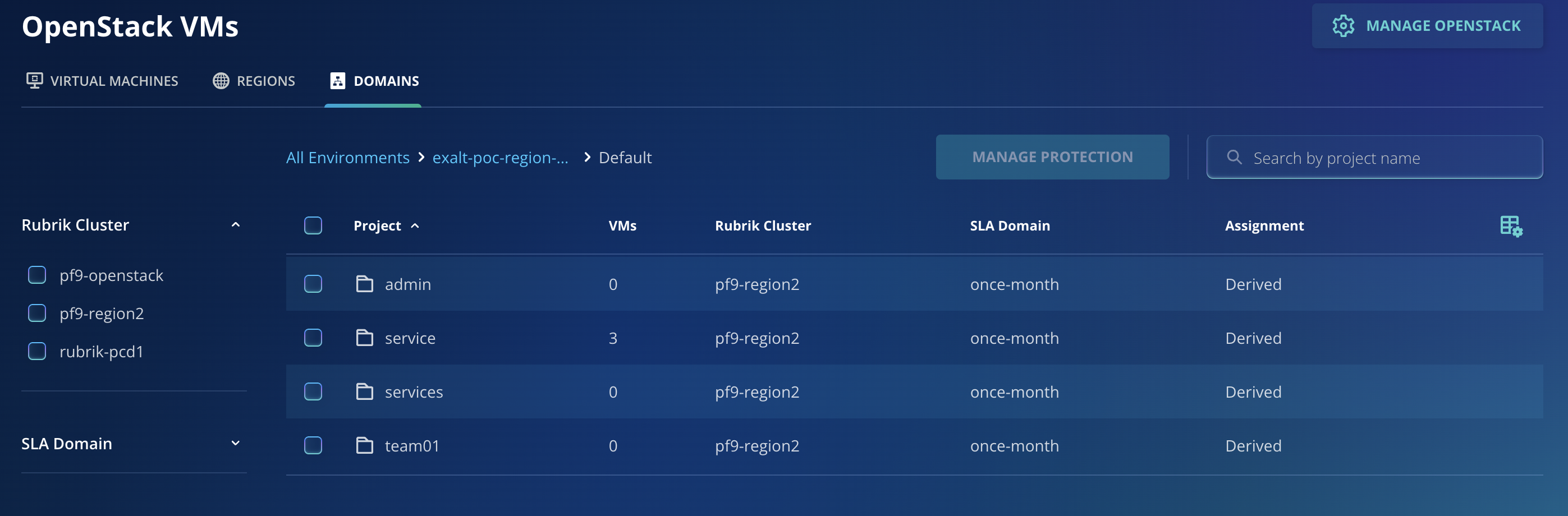
<figure><img src="https://1649501270-files.gitbook.io/~/files/v0/b/gitbook-x-prod.appspot.com/o/spaces%2FSNWOoFOMzRblbHdwmlrR%2Fuploads%2FeusSnnRWT9xD4QruHShi%2Fimage.png?alt=media&#x26;token=a0999f4b-0566-46f5-8834-06cf66c3caf4" alt=""><figcaption></figcaption></figure>

3. If VMs do not appear after 10 minutes, verify the following:

* Network connectivity from the Rubrik appliance to the <code class="expression">space.vars.product\_acronym</code> keystone endpoint.
* User credentials and system-scoped privileges.
* Rubrik appliance logs for connection errors.

### Network configuration

Rubrik creates a proxy VM in each tenant during backup or restore operations. The Rubrik appliance communicates with these proxy VMs to transfer data.

#### Proxy VM deployment

When you run your first backup or restore in a tenant, Rubrik automatically:

* Uploads a proxy image to the tenant's Glance catalog.
* Creates a proxy VM instance in the tenant.
* Configures the proxy VM for data transfer operations.

The proxy VM remains running throughout backup/restore operations, and you will find new Rubrik Proxy VMs in your tenant, as shown here.
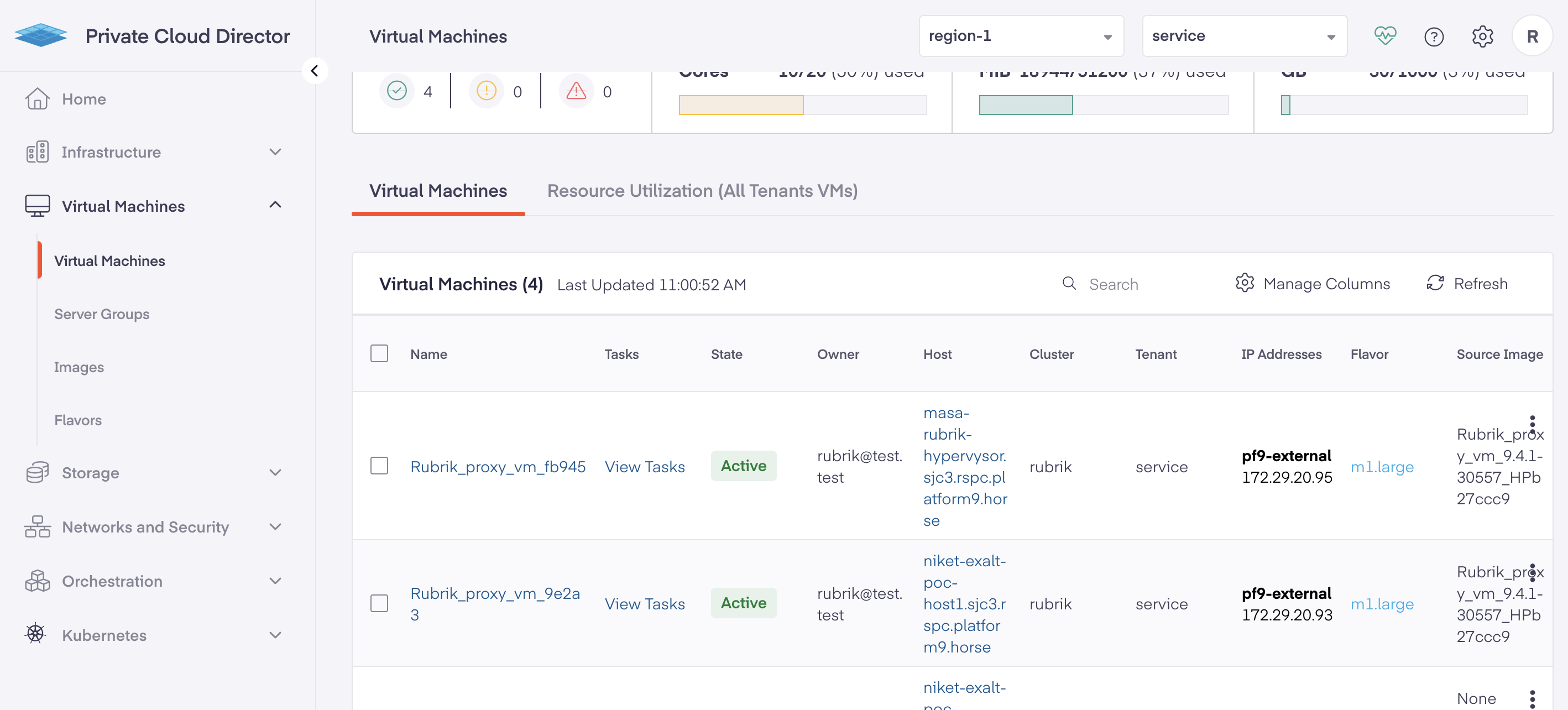
<figure><img src="https://1649501270-files.gitbook.io/~/files/v0/b/gitbook-x-prod.appspot.com/o/spaces%2FSNWOoFOMzRblbHdwmlrR%2Fuploads%2FVxA7F0lqLXJKN3rDeG4M%2Fimage.png?alt=media&#x26;token=d3302910-abd7-4278-a970-b1765dc71644" alt=""><figcaption></figcaption></figure>

#### Network requirements

For successful backup and restore operations:

* **Network placement:** Rubrik appliance and proxy VMs must be on the same network.
* **Port access:** The Rubrik appliance must reach proxy VMs on TCP ports 12800 and 12801.
* **Routing:** Ensure no firewalls or security groups block traffic between the appliance and proxy VMs.

#### Troubleshooting

After Rubrik creates a proxy VM in your tenant, verify connectivity:

* Identify the proxy VM in your tenant (typically named `rubrik-proxy-<tenant-name>`).
* Note the proxy VM's IP address.
* From the Rubrik appliance, test connectivity on required ports:

```bash
   nc -zv <proxy-vm-ip> 12800
   nc -zv <proxy-vm-ip> 12801
```

Both ports should show as open/connected. If either test fails, check:

* Security group rules on the proxy VM.
* Network routing between the Rubrik appliance and the <code class="expression">space.vars.product\_acronym</code> tenant network.
* Firewall rules in your environment.

#### Constraints

* Rubrik backup only works for VMs and volumes that are not ephemeral
* The Rubrik system relies on VM snapshots, and this depends on the snapshot quota of the tenant under which the VM lives. If you have a large number of VMs that need backup concurrently, increase the snapshot quota.
* Layer 2 Networks (introduced in PCD 2026.1) are not supported.


---

# Agent Instructions: Querying This Documentation

If you need additional information that is not directly available in this page, you can query the documentation dynamically by asking a question.

Perform an HTTP GET request on the current page URL with the `ask` query parameter:

```
GET https://docs.platform9.com/private-cloud-director/integrations/rubrik-integration-with-pcd.md?ask=<question>
```

The question should be specific, self-contained, and written in natural language.
The response will contain a direct answer to the question and relevant excerpts and sources from the documentation.

Use this mechanism when the answer is not explicitly present in the current page, you need clarification or additional context, or you want to retrieve related documentation sections.