> For the complete documentation index, see [llms.txt](https://docs.platform9.com/llms.txt). Markdown versions of documentation pages are available by appending `.md` to page URLs; this page is available as [Markdown](https://docs.platform9.com/private-cloud-director/tutorials/beginners-guide-to-deploying-pcd-community-edition.md).
# Beginner's Guide to Deploying PCD Community Edition
Hey everyone! 👋 So, you're curious about setting up your own little cloud haven? I've got you covered with this simple guide to getting started with space.vars.product\_name Community Edition (CE). Think of it as your friendly "let's build something cool together" walkthrough.
## What's Community Edition?
This version of space.vars.product\_name is awesome for testing stuff out or if you're just starting small. You can deploy it on a bare-metal setup or inside a virtual machine. The infrastructure and workload regions run on the same VM, but a separate hypervisor host is needed. This can run as a VM alongside CE if needed. This guide will use a single bare-metal host to run the necessary VMs. Check out the [official docs](/private-cloud-director/getting-started/getting-started-with-community-edition.md) to learn more about space.vars.product\_name Community Edition.
## My Home Lab Setup
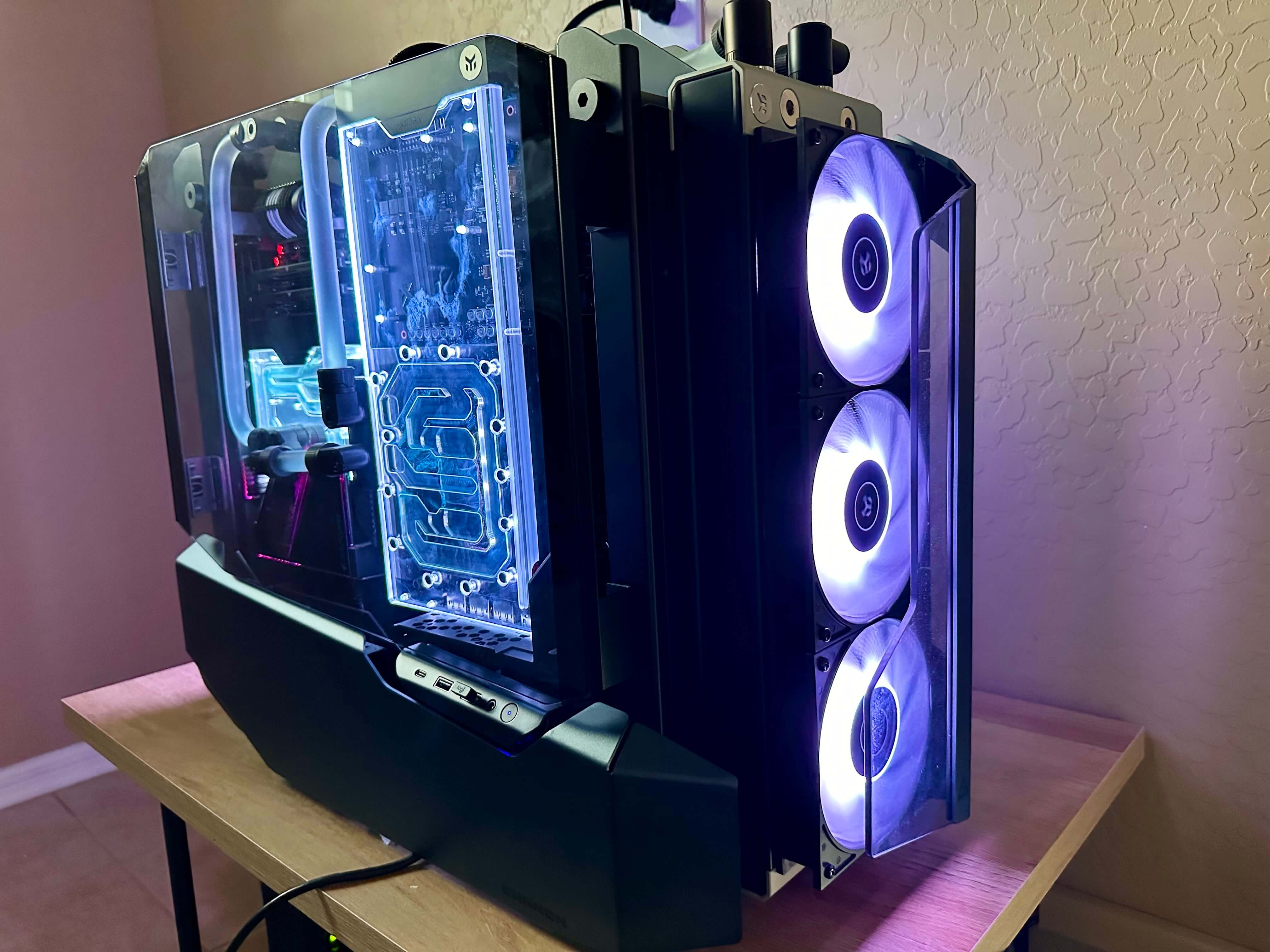
Since I'm a bit of a hardware geek (I build water-cooled gaming PCs in my spare time!), that's what we're using for our example. Here's the beast:
* Intel i9 12900k (16 cores, 24 threads)
* 64 GB RAM
* 2 TB SSD
* Nvidia 3090 Ti
But hey, feel free to use whatever you've got lying around. The minimum hardware requirements for a CE host are:
* 8 CPUs
* 32GB RAM
* 100GB local storage
In order to create virtual machines, at least one hypervisor host must be available. The minimum hardware requirements for a hypervisor host are:
* 8 CPUs
* 16GB RAM suggested
* 100GB local storage suggested
## Let's Get Down to Business: Deployment Steps
Okay, here's the rundown of what we're going to do:
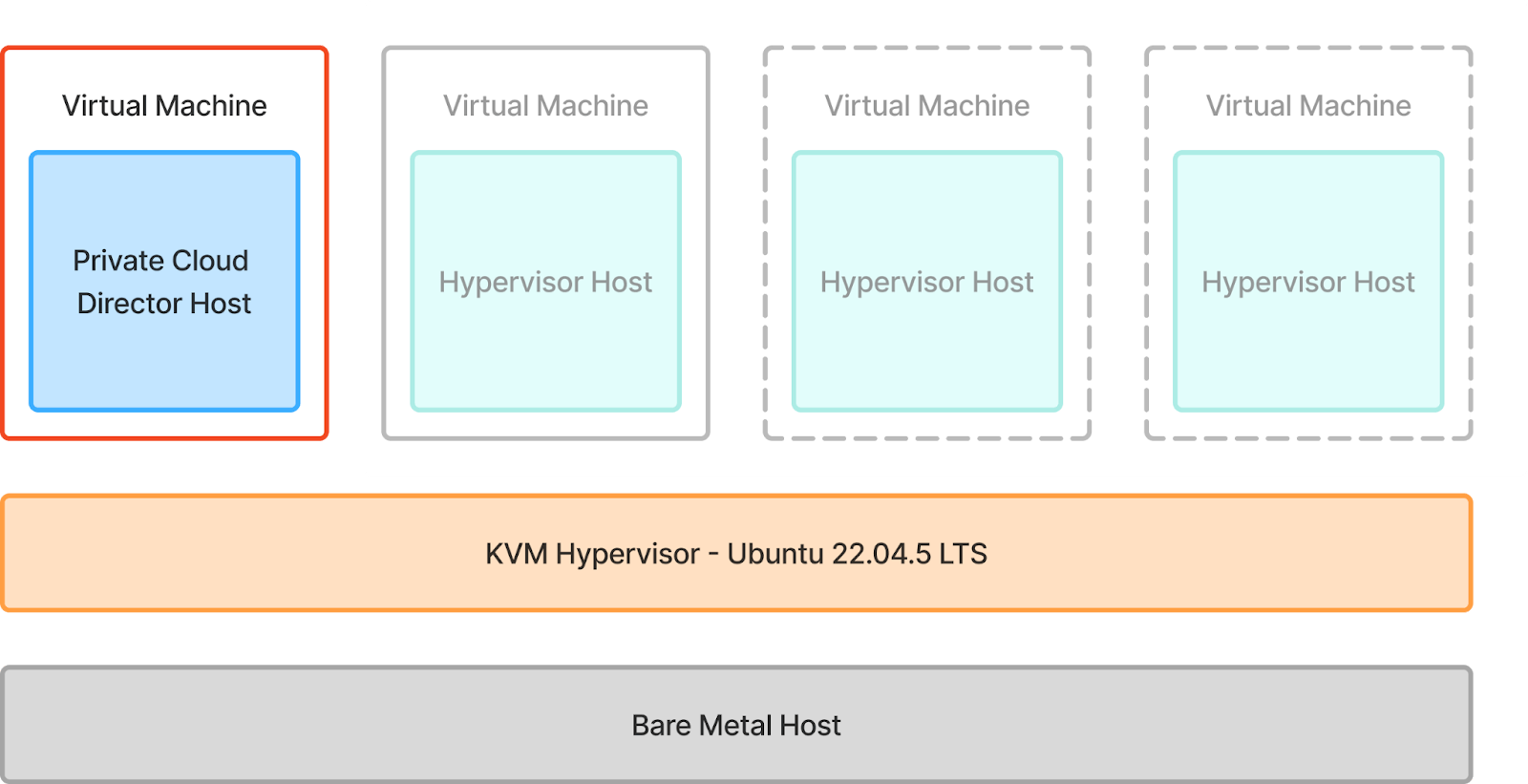
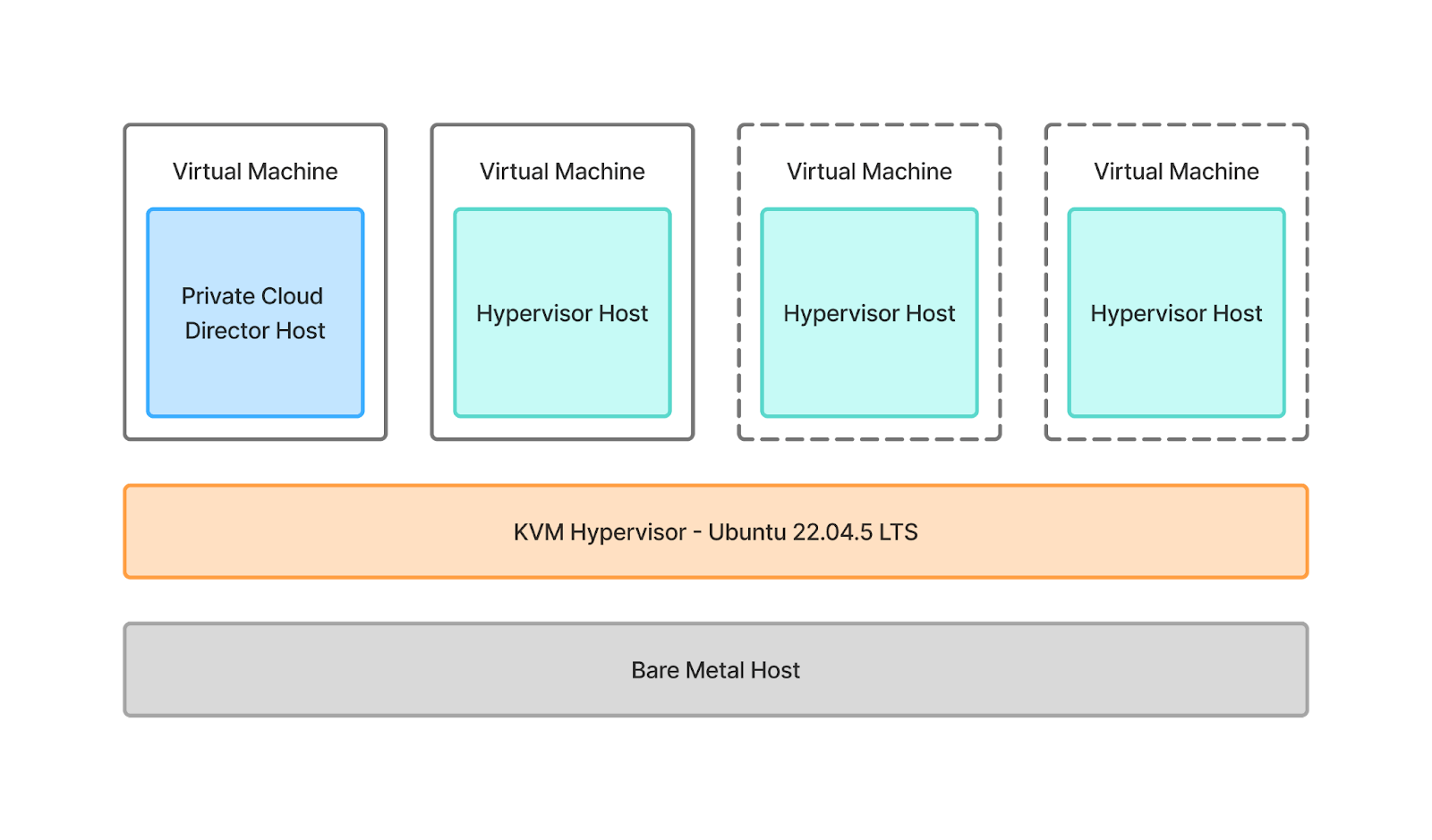
**1. Bare-Metal Hypervisor Install:** First, we'll install [Ubuntu Desktop](https://releases.ubuntu.com/jammy/ubuntu-22.04.5-desktop-amd64.iso) on our machine (highlighted in red in the diagram below). This will allow us to use the KVM hypervisor to spin up virtual machines that we will use to deploy Community Edition and our hypervisor host into.
**2. Private Cloud Director Community Edition Install:** We will then install Community Edition into the VM highlighted in red.
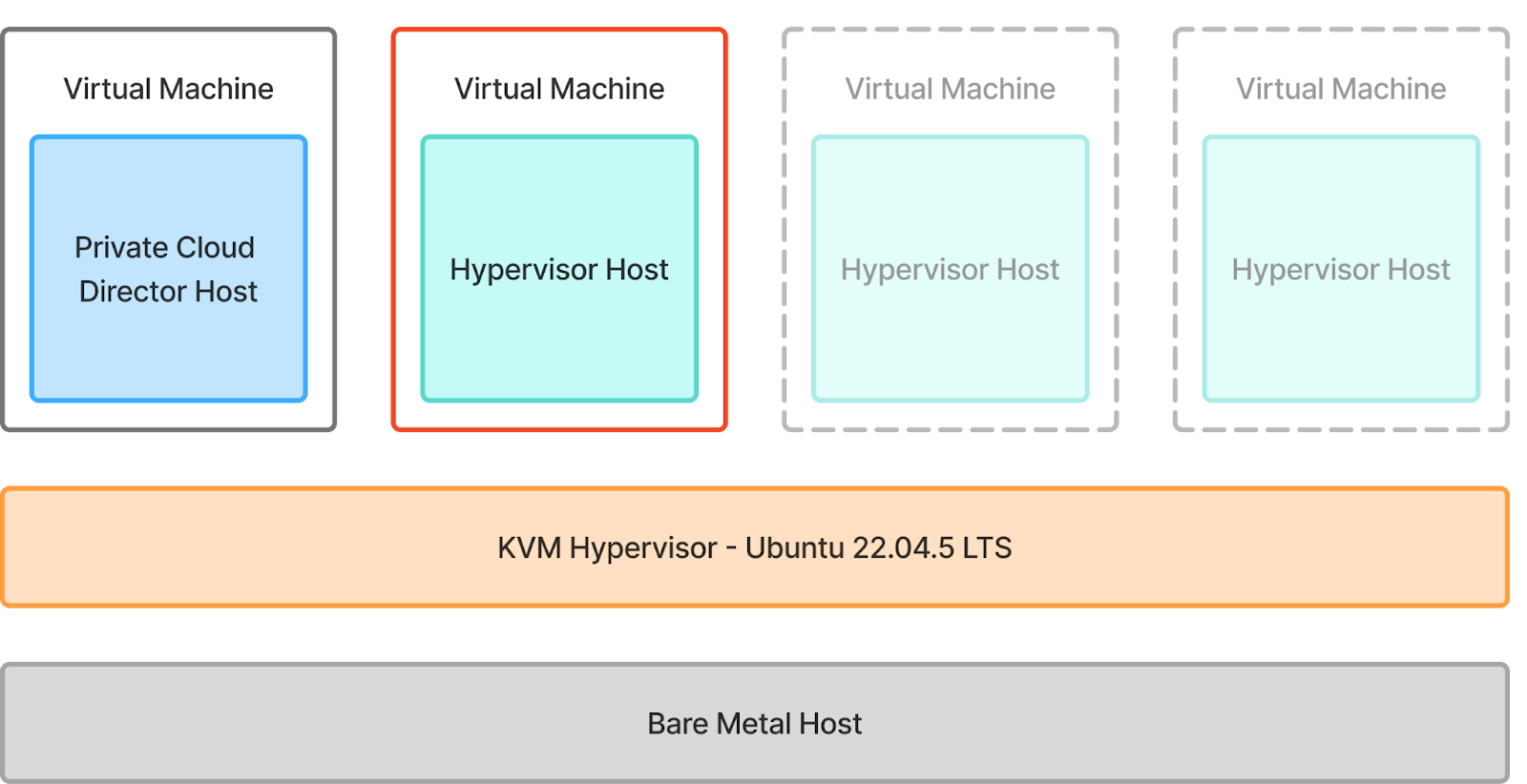
**3. Hypervisor Host Onboarding:** Finally, we will onboard a hypervisor host that will host the workload virtual machines on it. And yes, we will take full advantage of nested virtualization to make this happen.
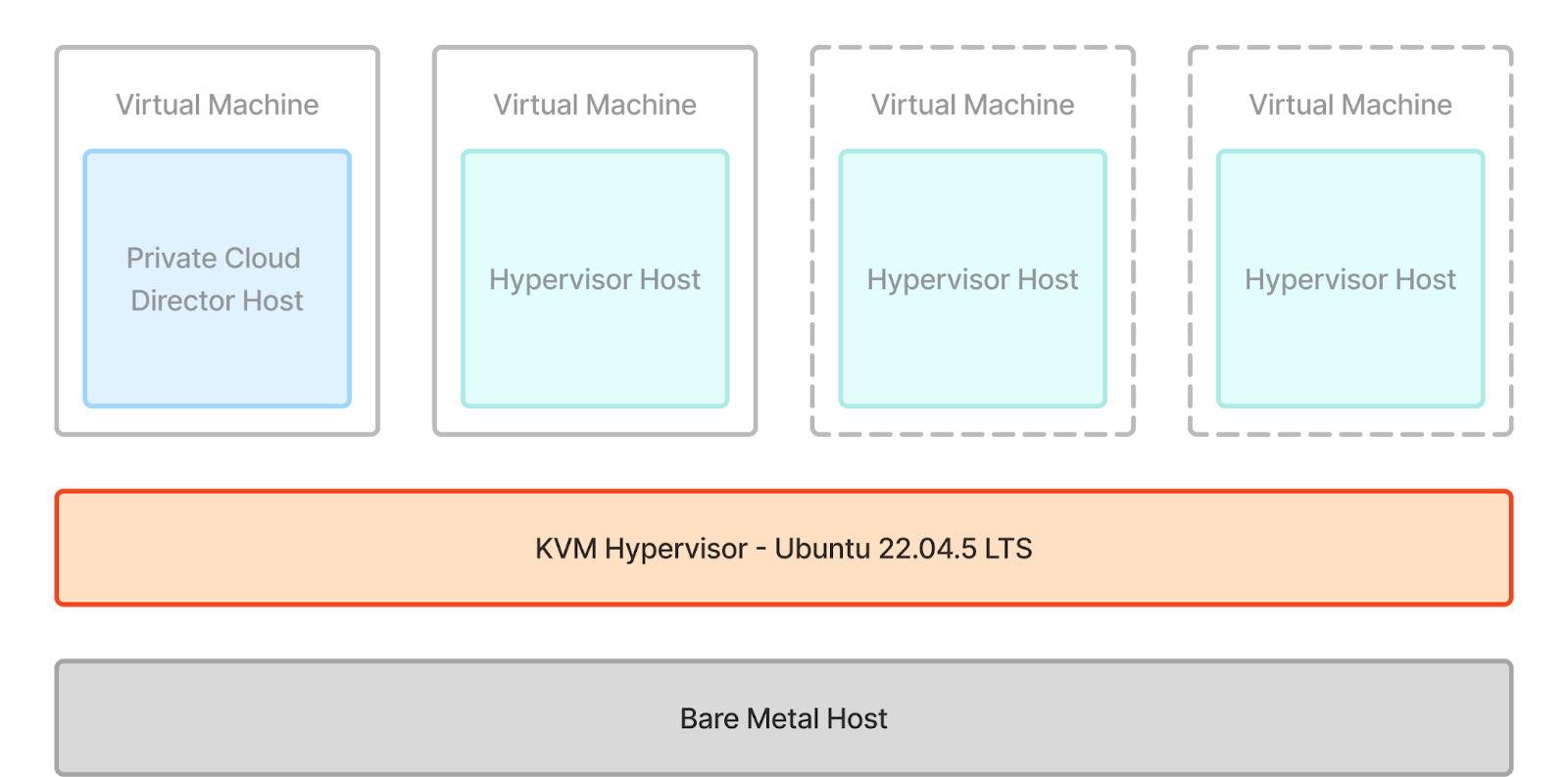
This is what everything will look like once we’re done. We will be onboarding a single hypervisor host, but feel free to onboard more (shown in dotted line below) if you have the resources available.
Let’s get started!
## Bare-Metal Hypervisor Install
Install [Ubuntu Desktop](https://releases.ubuntu.com/jammy/ubuntu-22.04.5-desktop-amd64.iso) on the bare metal host. We will use `virt-manager` GUI to easily manage our virtual machines. Launch `virt-manager` GUI with the following command.
{% tabs %}
{% tab title="Bash" %}
```bash
virt-manager
```
{% endtab %}
{% endtabs %}
Next, we will create an [Ubuntu Server 22.04](https://releases.ubuntu.com/jammy/ubuntu-22.04.5-live-server-amd64.iso) virtual machine to host space.vars.product\_name CE. Navigate to **File > New Virtual Machine.**
Follow the prompts to create the virtual machine. Ensure that the following resources are assigned to the virtual machine:
* 8 vCPU
* 32 GB RAM
* 100 GB local storage
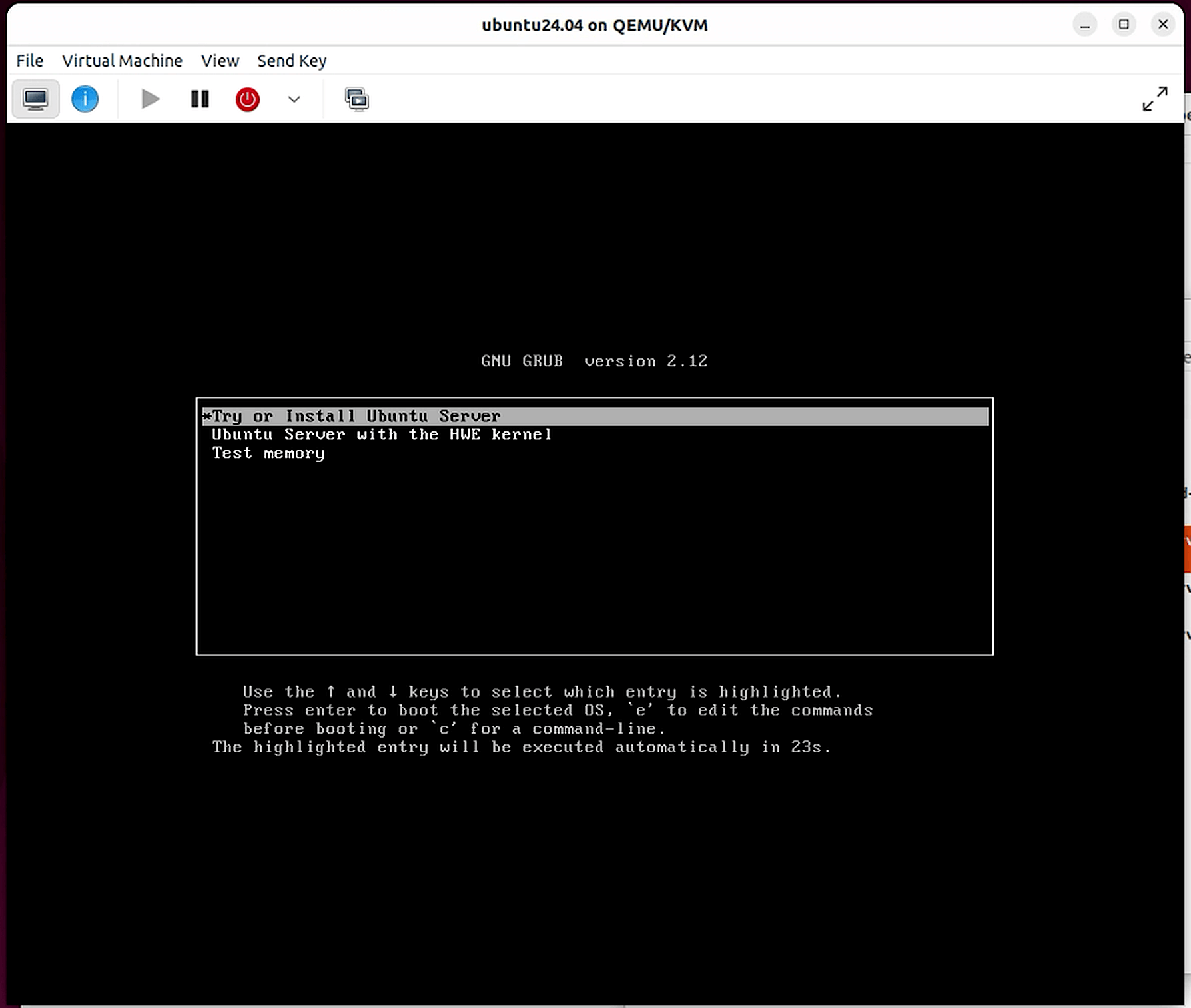
Launch the VM, and follow the prompts to install Ubuntu Server.
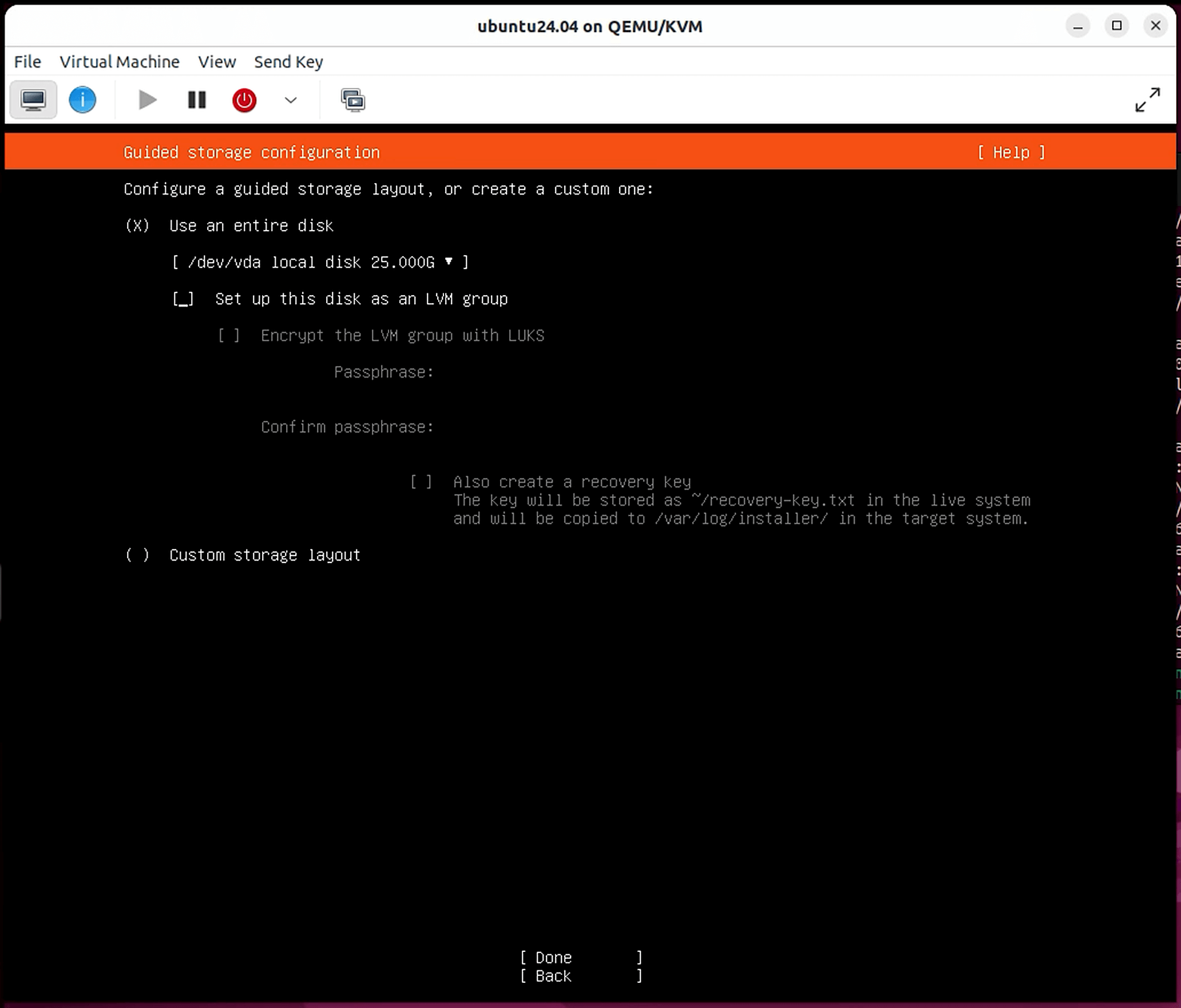
Follow the prompts till you reach the **Guided storage configuration** screen. For simplicity, uncheck LVM under the storage configuration menu
If you choose to enable LVM, ensure that the logical volume is expanded to take up the entire physical partition after installation is complete. Installing CE on a volume with less than 50 GB of space will result in failure, even if the underlying partition is larger.
Below are helpful commands to resize the logical volume.
Command to expand LVM to take up the entire partition:
{% tabs %}
{% tab title="Bash" %}
```bash
sudo lvresize -l +100%FREE /dev/mapper/
```
{% endtab %}
{% endtabs %}
Example:
{% tabs %}
{% tab title="Bash" %}
```bash
sudo lvresize -l +100%FREE /dev/mapper/ubuntu--vg-ubuntu--lv
```
{% endtab %}
{% endtabs %}
Command to resize filesystem to match the logical volume:
{% tabs %}
{% tab title="Bash" %}
```bash
sudo resize2fs /dev/mapper/
```
{% endtab %}
{% endtabs %}
Example:
{% tabs %}
{% tab title="Bash" %}
```bash
sudo resize2fs /dev/mapper/ubuntu--vg-ubuntu--lv
```
{% endtab %}
{% endtabs %}
## Community Edition Install
Now we are ready to deploy space.vars.product\_name CE to the virtual machine. Launch the VM that we just created. Run the commands below to switch to root and begin the deployment process.
{% tabs %}
{% tab title="Bash" %}
```bash
sudo su -
curl -sfL https://go.pcd.run | bash
```
{% endtab %}
{% endtabs %}
The final deployment step is long-running and takes around 45 minutes to complete.
Once the deployment completes, you will be presented with the space.vars.product\_name FQDN and login credentials.
Next, we will add a DNS entry to our Ubuntu Desktop environment so we can access the space.vars.product\_name UI from here. Replace `172.16.122.183` with the IP address of the space.vars.product\_name Community Edition VM we just deployed. This entry resolves requests to the correct IP address when attempting to reach `pcd.pf9.io`.
{% tabs %}
{% tab title="Bash" %}
```bash
echo "172.16.122.183 pcd.pf9.io" | sudo tee -a /etc/hosts
```
{% endtab %}
{% endtabs %}
From the Ubuntu Desktop environment, navigate to `https://pcd.pf9.io` in a web browser. If everything has gone well, you will see the space.vars.product\_name login screen.
Leave the Domain as default, choose "Use local credentials" at the top right, and login with the credentials provided when the Community Edition install completed.
## Hypervisor Host Onboarding
There are a few steps necessary to get a host onboarded: first the hypervisor host virtual machine needs to be deployed, and then a cluster blueprint and a cluster need to be created within the space.vars.product\_name user interface. space.vars.product\_acronym agents will then be installed on the host, and host roles are assigned. After that, we can begin deploying virtual machines.
### Deploy a hypervisor host
Now we will create a new VM that will serve as our hypervisor host to our workload VMs. Similar to how we created the CE VM, create another Ubuntu Server VM with the following resources:
* 8 CPUs
* 16GB RAM
* 100GB local storage
### Create a Cluster Blueprint
After that is completed, the next step is to create a Cluster Blueprint. In the user interface, navigate to **Infrastructure** > **Cluster Blueprint** and click "Create Cluster Blueprint".
The first tab on the Cluster Blueprint page is for VM networking. Give the blueprint a name, change the DNS Domain name as needed, choose the Segmentation Technology that will be used for VM networking, and assign an ID range for segmentation. Note: The total number of IDs provided here will be the maximum number of virtual networks available for virtual machines later.
The second tab is for the Host Configuration. This section assigns Ethernet interfaces on hypervisor hosts to carry different management traffic types.
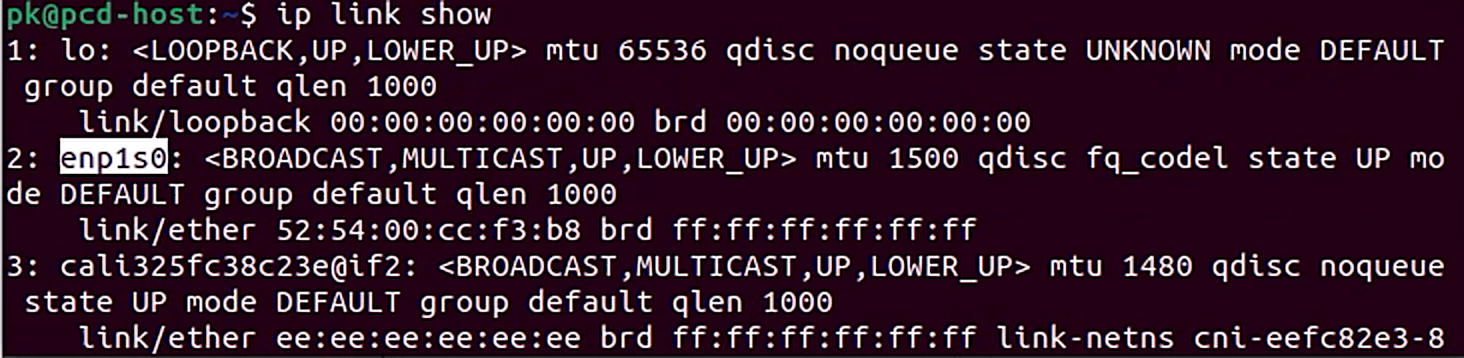
The **Network Interface** refers to the name of the Ethernet network interface on the hypervisor host. You can view the network interface(s) on your hypervisor host by running the following command.
{% tabs %}
{% tab title="Bash" %}
```bash
ip link show
```
{% endtab %}
{% endtabs %}
The **Physical Network Label** is used to identify the interface that will provide physical network access to virtual machines.
For lab or proof of concept environments, it's OK to assign a physical network label and all traffic types to a single Ethernet interface.
The Persistent Storage Connectivity tab is where external storage (such as NFS or iSCSI) is configured. We'll configure this later.
The Customize Cluster Defaults tab is used to set the Image Library & virtual machine storage paths. These can be left at their defaults, which will store these locally on the hypervisor host.
Click "Save Blueprint" in the top right corner to finalize the cluster blueprint.
### Create a cluster
We need to create a cluster before we can onboard the hypervisor host, because cluster selection is part of that process.
Navigate to **Infrastructure > Clusters** and click **Add Cluster** in the top right corner. Give the cluster configuration a name, leave the CPU mode as Default, and enable VM High Availability and Dynamic Resource Rebalancing as desired. We'll leave GPU workloads disabled, as the hypervisor host VM doesn't have a GPU attached. Click "Add Cluster" to finish.
### Onboard the hypervisor host
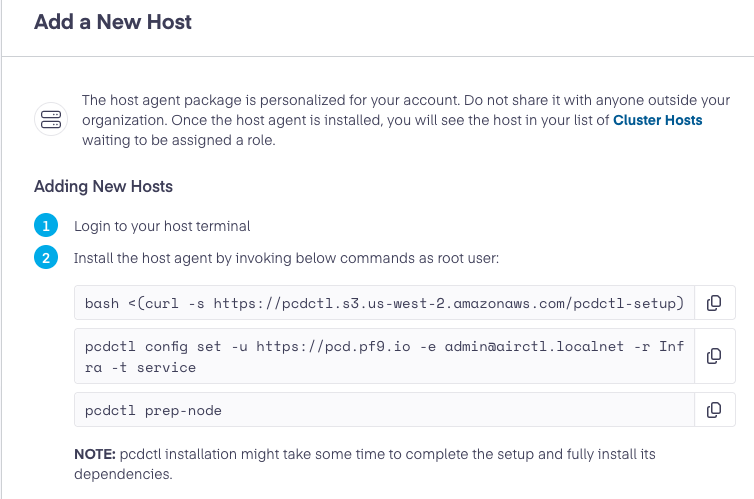
Now we will onboard the new hypervisor host onto space.vars.product\_acronym. Navigate to **Infrastructure** > **Cluster Hosts** click the "Add New Hosts" button on the top right.
Before running the steps displayed, connect to the hypervisor host VM that we just created and add a DNS entry like we previously did for our Ubuntu Desktop environment.
Proceed to execute commands from the UI in your hypervisor host VM to onboard this host to PCD. You can click the copy icon on the right and paste it into the hypervisor host's command line.
{% tabs %}
{% tab title="Bash" %}
```bash
bash <(curl -s https://pcdctl.s3.us-west-2.amazonaws.com/pcdctl-setup)
```
{% endtab %}
{% endtabs %}
For the second command, skip prompts for Proxy URL and MFA Token by hitting enter. Enter your password when prompted.
{% tabs %}
{% tab title="Bash" %}
```bash
pcdctl config set -u https://pcd.pf9.io -e admin@airctl.localnet -r Infra -t service
```
{% endtab %}
{% endtabs %}
Finally run the third command.
{% tabs %}
{% tab title="Bash" %}
```bash
pcdctl prep-node
```
{% endtab %}
{% endtabs %}
Once the host provisioning process completes, you will see the host in the UI under **Infrastructure** > **Cluster Hosts**. The host's inital status will be "Unauthorized" until host roles are configured.
To configure host roles, select the host, and then click the "Edit Roles" button in the context menu that appears above it. Select the Host Config that was defined in the Cluster Blueprint, check the Hypervisor Cluster checkbox and select the cluster, and check the Image Library checkbox. We'll set up persistent storage in the next section of this guide, and then return to add that host role afterwards.
Advanced Remote Support allows Platform9 to securely access enterprise customer hypervisors, and the DNS checkbox is to enable DNS as a Service. For the purposes of this guide, we'll leave both unchecked.
## Creating a Virtual Machine with Persistent Storage
We will now create persistent storage that can be used by VMs. We will create a Network File System (NFS) share in the Ubuntu Desktop environment that will be made available to PCD VMs.
### Create an NFS share
Install the NFS server on the Ubuntu Desktop with the following command:
{% tabs %}
{% tab title="Bash" %}
```bash
sudo apt install nfs-kernel-server
```
{% endtab %}
{% endtabs %}
Create the directory to be shared and update permissions.
{% tabs %}
{% tab title="Bash" %}
```bash
sudo mkdir -p /srv/nfs/shared
sudo chmod 777 /srv/nfs/shared
```
{% endtab %}
{% endtabs %}
Update config file with NFS share configuration.
{% tabs %}
{% tab title="Bash" %}
```bash
sudo nano /etc/exports
```
{% endtab %}
{% endtabs %}
Update the contents of the file to the following.
{% tabs %}
{% tab title="Bash" %}
```bash
/srv/nfs/shared *(rw,no_subtree_check)
```
{% endtab %}
{% endtabs %}
The asterisk allows connections from any IP address. This isn’t ideal for any real-world scenarios, but we do this here for the sake of simplicity. **rw** allows read-write access. Use CTRL+X to close the file, and press Y to confirm.
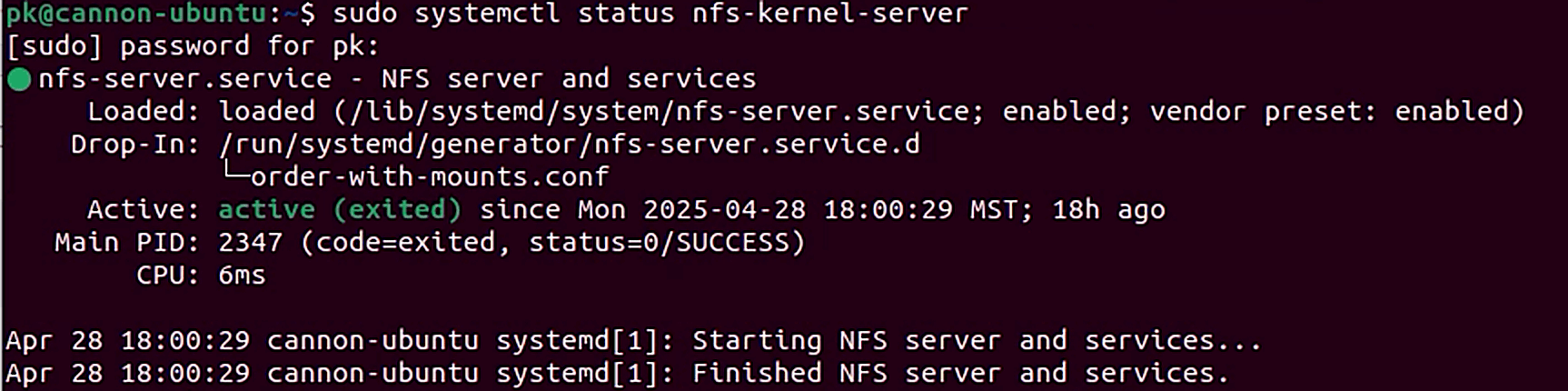
After the exports file saves and closes, restart the NFS server to pick up the configuration changes, and check status.
{% tabs %}
{% tab title="Bash" %}
```bash
sudo systemctl restart nfs-kernel-server
sudo systemctl status nfs-kernel-server
```
{% endtab %}
{% endtabs %}
The nfs-kernel-server's status should show "Active".
### Configure Persistent Storage
We are now ready to connect to this NFS path from space.vars.product\_name. Navigate to **Infrastructure** > **Cluster Blueprint > Persistent Storage Connectivity** tab**.** Under **Storage Volume Backend**, click "Add Volume Backend", give the Volume Backend a name, and click "Add Volume Backend Configuration". Select the NFS storage driver, and enter a configuration name such as "NFS".
Leave everything as-is except for the `nfs_mount_points` field. In that field, enter the following:
```
:/srv/nfs/shared
```
As an example, if the IP address of your Ubuntu Desktop is 192.168.1.206, the value for `nfs_mount_points` should be:
```
192.168.1.206:/srv/nfs/shared
```
Click "Add Volume Backend Configuration" to save, and then click "Create & Assign Volume Type". Volume Types allow space.vars.product\_name to expose different external storage capabilities to tenants. For the purposes of this guide, name the Volume Type "NFS" and select the NFS Volume Backend we just definted. Click "Create Volume Type" to save, then "Next" in the top right, and "Save Blueprint".
Finally, navigate to **Infrastructure** > **Cluster Hosts**, select the host we onboarded a few steps ago, and click **Edit Roles**. Under Persistent Storage select the NFS configuration we created. Click **Update Role Assignment**.
### Upload an OS image
Before we can create our first VM, we have to upload an image that will be used to create it. I am using [CirrOS](https://github.com/cirros-dev/cirros) for its small footprint. Navigate to **Virtual Machines** > **Images and VM Snapshots** > **Images** and accept the self-signed certificate if prompted. Click "Add Image" in the top right, and select to Upload Image via URL. Paste the URL `https://github.com/cirros-dev/cirros/releases/download/0.6.3/cirros-0.6.3-x86_64-disk.img` , name it Cirros, choose Linux as the operating system, leave the Disk Format as QCOW2, and click "Add Image" to upload it. You should see the image listed as Active momentarily.
### Create a virtual network
Next, we'll create a virtual network for the VM. Navigate to **Networks and Security** > **Networks** and click on **Create Network > Virtual Network** button on the top right. Configure the virtual network as follows:
Network configuration:
* Give the network a name
* Leave the rest of the Network Configurations defaults as set
Subnet configuration:
* Give the subnet a name
* Set or leave IPv4 as the default
* Enter `10.0.0.0/16` for the Network Address CIDR
Leave everything else as set and click "Create Virtual Network" to save it.
### Deploy a VM
Finally, navigate to **Virtual Machines** > **Virtual Machines** and click the **Deploy New VM** button in the top right corner. Use the following steps to deploy the VM.
* Give the a VM a name
* Choose the cluster
* Boot the VM from a new 20GB volume on the NFS volume type
* Select the CirrOS image and click Next.
* The next screen may give you an option to add available volumes to the VM. This screen can be skipped by clicking Next.
* Choose the `m1.tiny.vol` flavor.
* Choose the virtual network that was previously created. If that step was skipped, you'll need to create the virtual network before moving forward with VM deployment.
* On the final screen of the deployment wizard, you can leave all of the defaults as-is. Since Cirros is not a cloud-init enabled image, you will not need to set a password during deployment.
* Click Deploy VM and Finish, if needed.
You should now see the VM in your **Virtual Machines** tab.
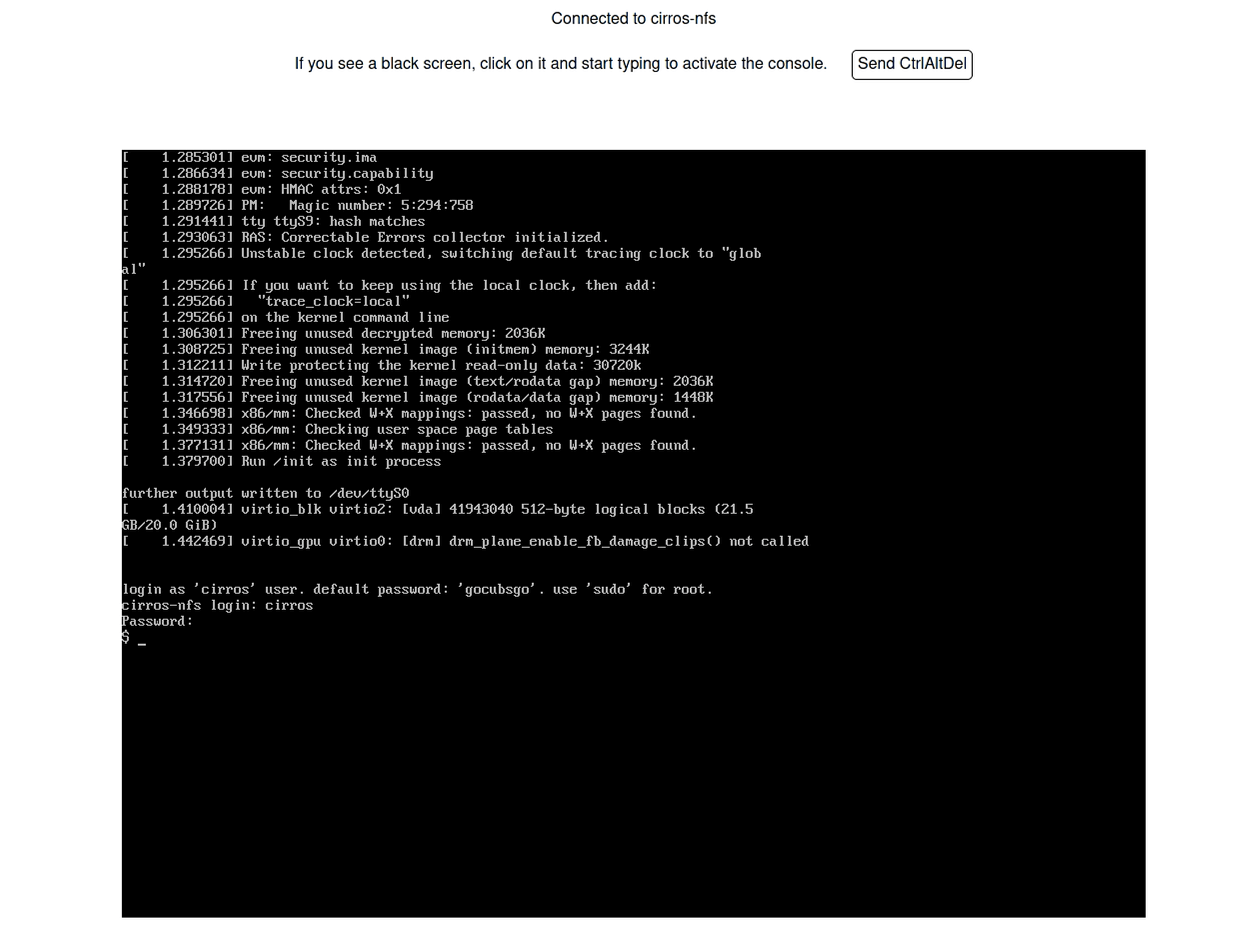
Select the VM and click on the **Console** button to launch into the VM.
From here, you can login using the `cirros` user and the default password `gocubsgo`. You can validate that the image was deployed on a 20GB volume with the following command:
```bash
df -h /
```
The filesystem should show a size of approximately 19.4GB.
Congratulations on making it to the end! We started with a bare metal Ubuntu installation and deployed your first VM on space.vars.product\_name. Please give Community Edition a spin and let us know how things go.
Head over to our [subreddit](https://www.reddit.com/r/platform9/) and join the community!
---
# Agent Instructions
This documentation is published with GitBook. GitBook is the documentation platform designed so that both humans and AI agents can read, navigate, and reason over technical content effectively. Learn more at gitbook.com.
## Querying This Documentation
If you need additional information that is not directly available in this page, you can query the documentation by asking a question.
Perform an HTTP GET request on the following URL with the `ask` and `goal` query parameters:
```
GET https://docs.platform9.com/private-cloud-director/tutorials/beginners-guide-to-deploying-pcd-community-edition.md?ask=&goal=
```
`ask` is the immediate question: it should be specific, self-contained, and written in natural language.
`goal` is what the user is ultimately trying to achieve, the reason they need the answer. Sharing it helps GitBook give you a better, more relevant answer. A goal is most helpful when it describes the outcome the user wants rather than restating the question. For example, with `ask=how do I create an API token`, a goal like `automate deployments from our CI pipeline` lets GitBook tailor the answer to that use case.
The response will contain a direct answer to the question and relevant excerpts and sources from the documentation.
Use this mechanism when the answer is not explicitly present in the current page, you need clarification or additional context, or you want to retrieve related documentation sections.