# Set up Okta

Set up Single Sign-On (SSO) integration between Okta and <code class="expression">space.vars.product\_name</code> (<code class="expression">space.vars.product\_acronym</code>). You will configure an Okta SAML 2.0 application and connect it to your <code class="expression">space.vars.product\_acronym</code> deployment for seamless user authentication.

{% hint style="info" %}
**NOTE**

Only 5 active applications are allowed in Okta. Deactivate unused applications before creating new integrations.
{% endhint %}

### Step 1: Create an Okta SAML application

This step guides you through creating a new SAML 2.0 application integration in Okta.

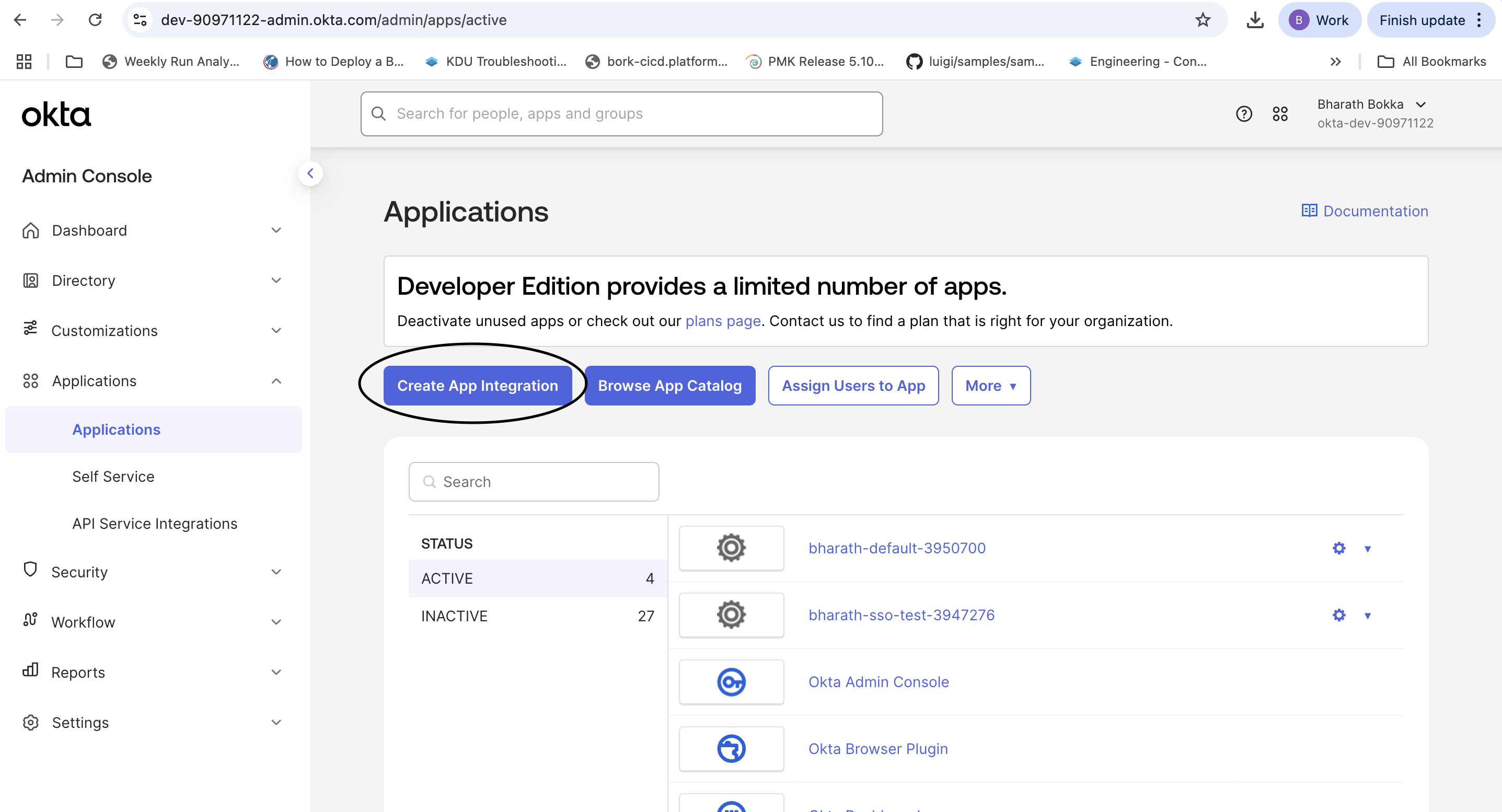
1. Log in to your Okta server and navigate to **Applications**. Verify you have fewer than 5 active applications. If needed, deactivate unused applications.
2. Select **Create App Integration**.
<figure><img src="https://1100565312-files.gitbook.io/~/files/v0/b/gitbook-x-prod.appspot.com/o/spaces%2FIYcmHH6U169jTwihxwwy%2Fuploads%2Fgit-blob-46e7e9ce770432bcaa4d6c0880a1a30441e58e0a%2F6goekr5nkfltxppk7rcsfg0gd3r7n2cujmpk5b5ei1s8eevb7z237rl1fmdoo8r2.png?alt=media" alt=""><figcaption></figcaption></figure>

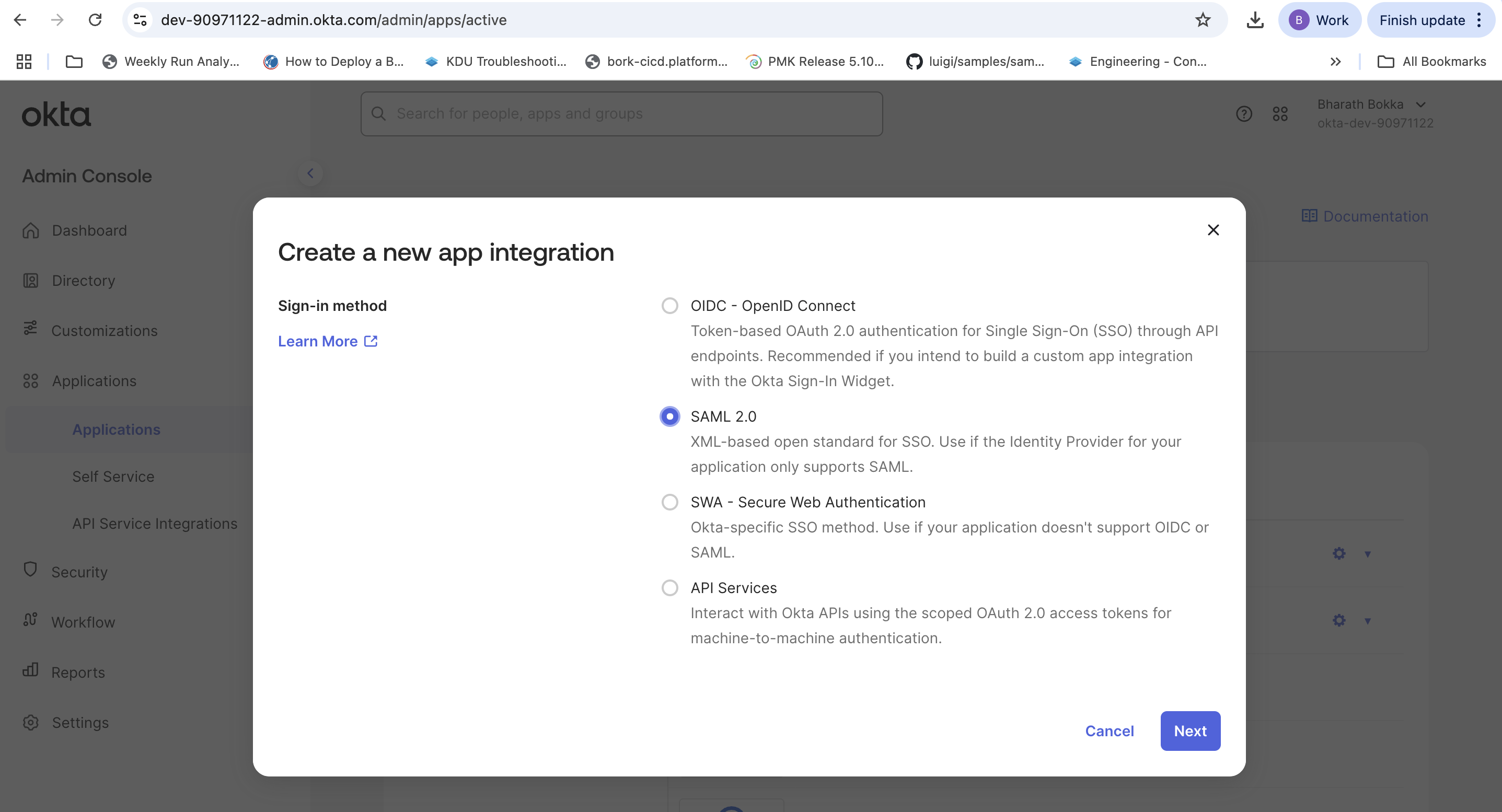
3. Select **SAML 2.0** as the sign-on method.

<figure><img src="https://1100565312-files.gitbook.io/~/files/v0/b/gitbook-x-prod.appspot.com/o/spaces%2FIYcmHH6U169jTwihxwwy%2Fuploads%2Fgit-blob-a627f2320806c5c1f5673a0bc34926e91048fafb%2Fuvc6ledzh6h97sz4536pbyp7g77bgg6dg9ojaxfcr1i3lh235hdc8p6p9joqki2h.png?alt=media" alt=""><figcaption></figcaption></figure>

4. Select **Next** to proceed to the general settings.

### Step 2: Configure SAML settings

Configure the basic SAML integration settings for your PCD deployment.

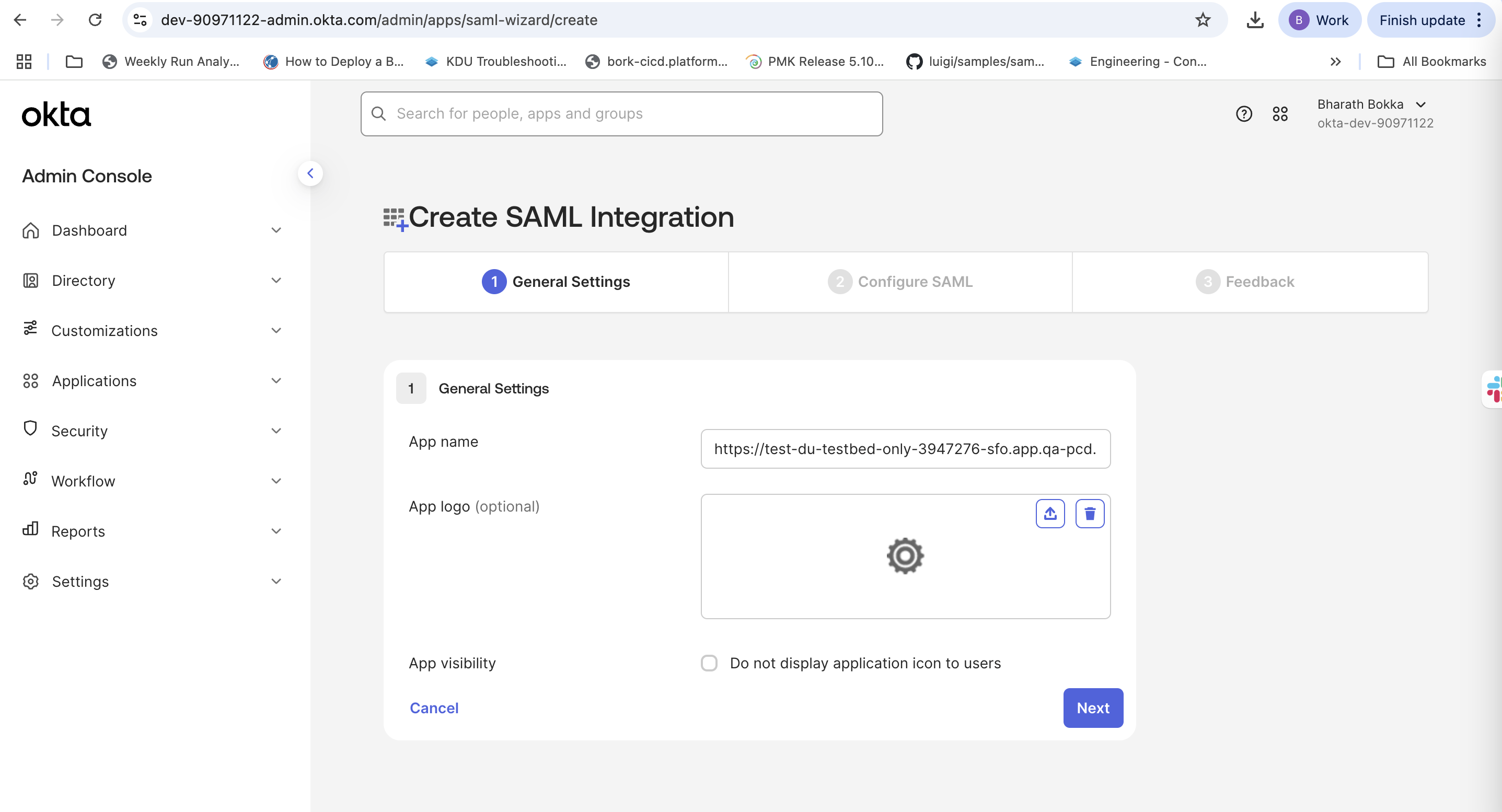
1. On **General Settings**, enter a descriptive application name.
2. Select **Next** to proceed to SAML configuration.

<figure><img src="https://1100565312-files.gitbook.io/~/files/v0/b/gitbook-x-prod.appspot.com/o/spaces%2FIYcmHH6U169jTwihxwwy%2Fuploads%2Fgit-blob-cfceb9f5fe56754773d85c29e3b91df0130908dd%2F0rzpudr56ca5dsfzof1nj1zwvqclaf7qps6m9kfape9kjjztujumr56xnig8jnnw.png?alt=media" alt=""><figcaption></figcaption></figure>

3. In **Configure SAML**, enter the following required information:

{% hint style="info" %}
**NOTE**

Replace `<FQDN>`with your PCD environment without any regions. Use `IDP1` for the default domain, or substitute your specific domain name for `<DOMAIN_NAME>` .
{% endhint %}

| Field                                              | Description                                                                                                                                                                                                    |
| -------------------------------------------------- | -------------------------------------------------------------------------------------------------------------------------------------------------------------------------------------------------------------- |
| **Single sign-on URL**                             | <p><code>https\://\<FQDN>/sso/\<DOMAIN\_NAME>/Shibboleth.sso/SAML2/POST</code><br>Example: <code><https://test-du-testbed-only-3950700.app.qa-pcd.platform9.com/sso/IDP1/Shibboleth.sso/SAML2/POST></code></p> |
| **Use this for Recipient URL and Destination URL** | Select this checkbox                                                                                                                                                                                           |
| **Audience URI (SP Entity ID)**                    | <p><code>https\://\<FQDN>/keystone</code><br>Example: <code><https://test-du-testbed-only-3950700.app.qa-pcd.platform9.com/keystone></code></p>                                                                |
| **Default RelayState**                             | Leave blank                                                                                                                                                                                                    |
| **Name ID format**                                 | EmailAddress                                                                                                                                                                                                   |
| **Application Username**                           | Okta Username                                                                                                                                                                                                  |
| **Update application username on**                 | Create and update                                                                                                                                                                                              |

### Step 3: Set up attribute statements

Add attribute statements to pass user information from Okta to <code class="expression">space.vars.product\_acronym</code> .

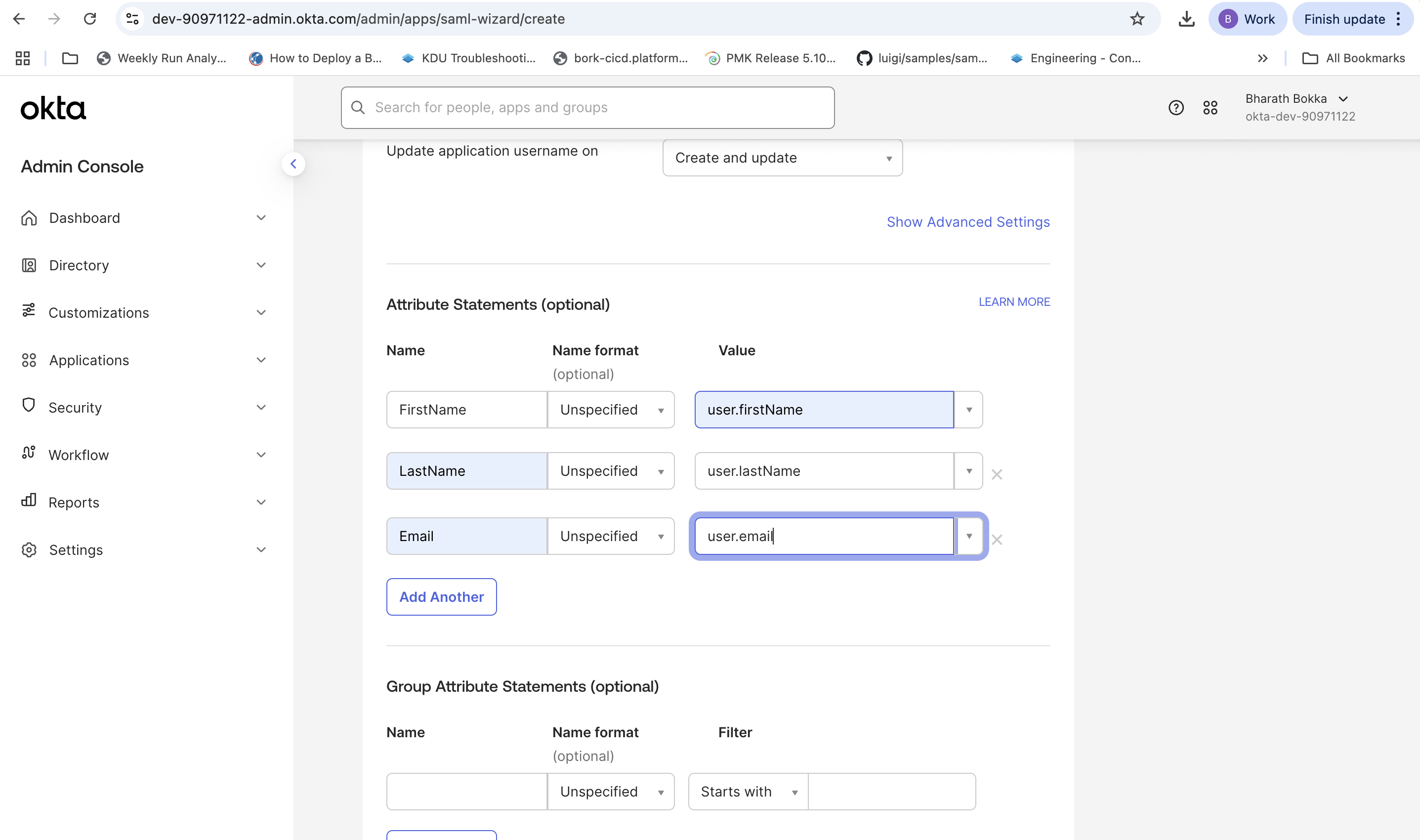
1. Optionally, you can choose to update the **Attribute Statements** by adding the following mappings.

| Name      | Name Format | Value          |
| --------- | ----------- | -------------- |
| FirstName | Unspecified | user.firstName |
| LastName  | Unspecified | user.lastName  |
| Email     | Unspecified | user.email     |
<figure><img src="https://1100565312-files.gitbook.io/~/files/v0/b/gitbook-x-prod.appspot.com/o/spaces%2FIYcmHH6U169jTwihxwwy%2Fuploads%2Fgit-blob-e186db73e0228c77ed34480a3e16d59aa992bfc7%2F8dfr3vzpanexs1cqwmv8zxgstmg34z1sr9lcuit5bfkharcf283cjd0ssi4j5hw5.png?alt=media" alt=""><figcaption></figcaption></figure>

2. Select **Next** to continue.
3. In **Feedback**, select **Finish** to complete the application setup.

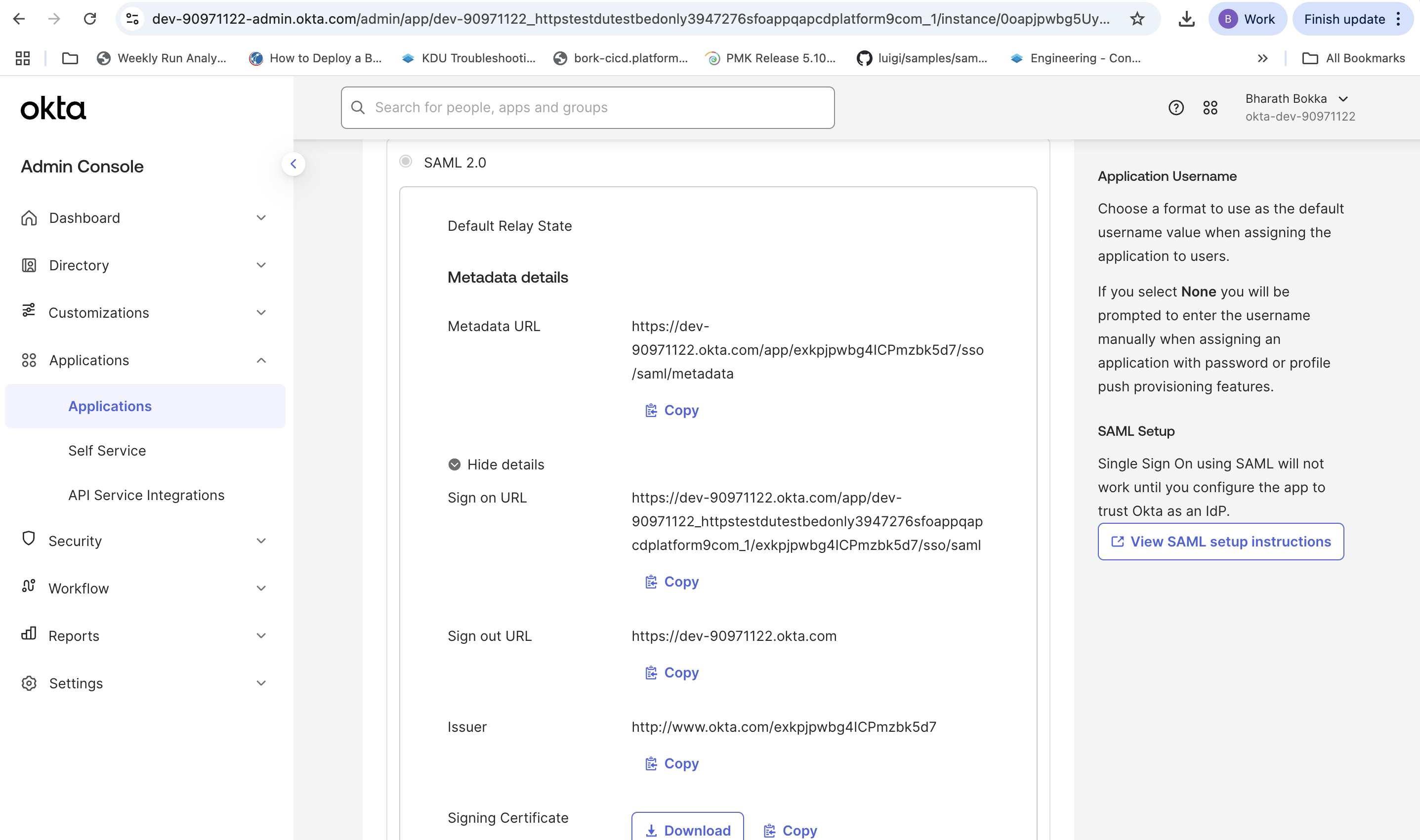
You will be redirected to the application **Sign On Settings**, which displays the **Issuer** and **Metadata URL** needed for <code class="expression">space.vars.product\_acronym</code> configuration.

<figure><img src="https://1100565312-files.gitbook.io/~/files/v0/b/gitbook-x-prod.appspot.com/o/spaces%2FIYcmHH6U169jTwihxwwy%2Fuploads%2Fgit-blob-475e29f4fc61226fb56c07cb854795da4e3fcfb2%2F10kohjc2brsreqzj8ffbn9dgxk2p1ydylccd3r4x4ghg958ep7yz31hefe1yqocd.png?alt=media" alt=""><figcaption></figcaption></figure>

### Step 4: Assign users to the application

Grant users access to the SAML application in Okta.

1. Navigate to the **Assignments** tab in your application.
2. Select **Assign**, then select **Assign to People**.
3. Select the users to give access to <code class="expression">space.vars.product\_acronym</code> through SSO.
4. Choose **Assign** to complete the user assignment.

The Okta configuration is now complete.

### Step 5: Configure SSO in <code class="expression">space.vars.product\_acronym</code>

Connect your <code class="expression">space.vars.product\_acronym</code> deployment to the Okta SAML application.

1. Log in to your <code class="expression">space.vars.product\_acronym</code> deployment using the DU FQDN for your target region.
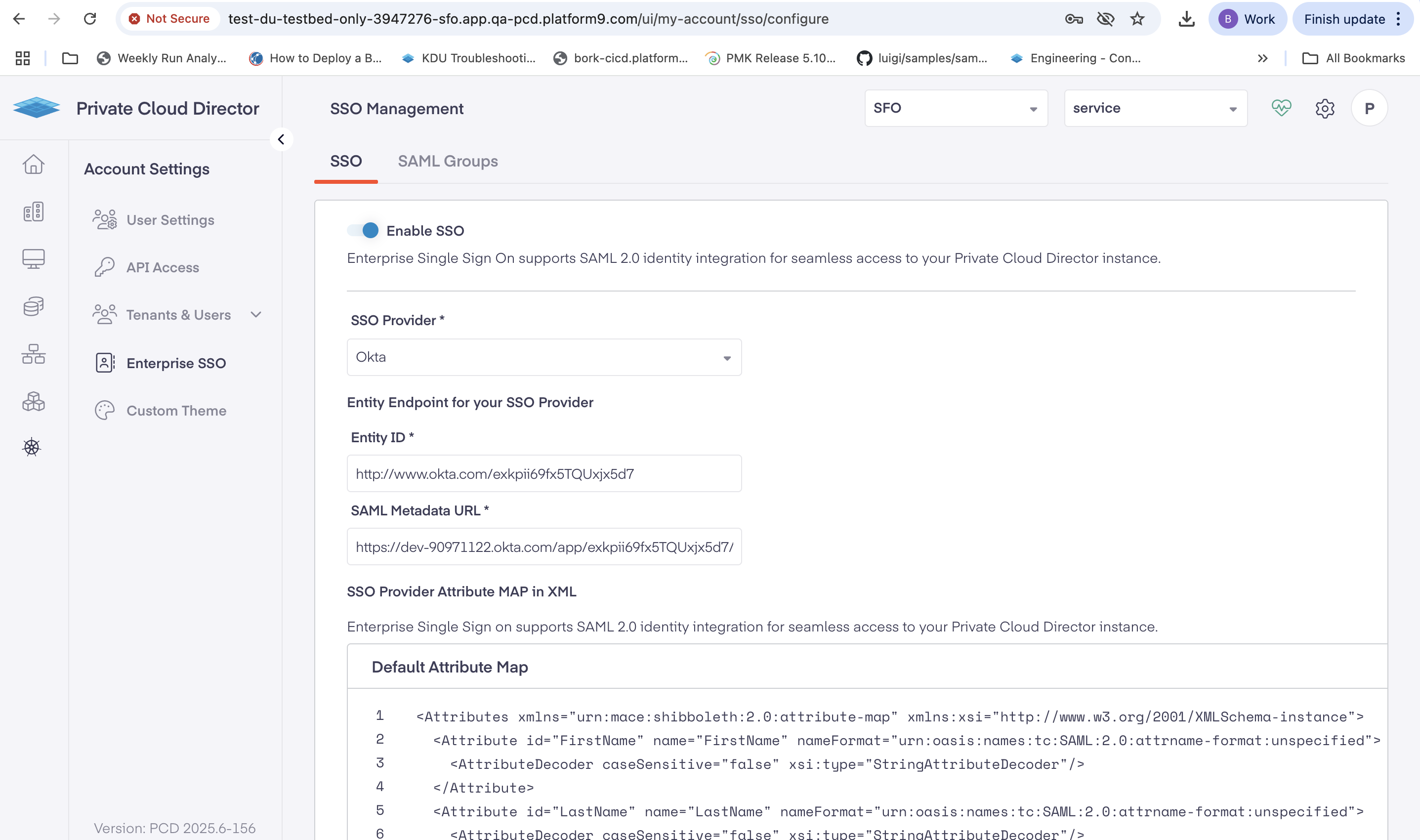
2. Navigate to **Settings** > **Enterprise SSO**.
3. Select **Enable SSO**.
<figure><img src="https://1100565312-files.gitbook.io/~/files/v0/b/gitbook-x-prod.appspot.com/o/spaces%2FIYcmHH6U169jTwihxwwy%2Fuploads%2Fgit-blob-a306aebbf1a5d8aa8845c082d9993c0eb92e56d2%2Fzcxzyave0e5j1hsfgw7vvb5v7k58w1q8z2zq5ocers906xaiv9vtxoux4a1ujgmz.png?alt=media" alt=""><figcaption></figcaption></figure>

4. Select **Okta** as your SSO Provider.
5. Copy the **Issuer** from your Okta application **Sign On** and paste it in the **Entity ID** field.
6. Copy the **Metadata URL** from your Okta application **Sign On** tab and paste it in the **SAML Metadata URL** field.
7. Add the following XML configuration in the **SSO Provider Attribute MAP** field:

{% tabs %}
{% tab title="XML" %}

```yaml
<Attributes xmlns="urn:mace:shibboleth:2.0:attribute-map" xmlns:xsi="http://www.w3.org/2001/XMLSchema-instance">
  <Attribute id="FirstName" name="FirstName" nameFormat="urn:oasis:names:tc:SAML:2.0:attrname-format:unspecified">
    <AttributeDecoder caseSensitive="false" xsi:type="StringAttributeDecoder"/>
  </Attribute>
  <Attribute id="LastName" name="LastName" nameFormat="urn:oasis:names:tc:SAML:2.0:attrname-format:unspecified">
    <AttributeDecoder caseSensitive="false" xsi:type="StringAttributeDecoder"/>
  </Attribute>
  <Attribute id="Email" name="Email" nameFormat="urn:oasis:names:tc:SAML:2.0:attrname-format:unspecified">
    <AttributeDecoder caseSensitive="false" xsi:type="StringAttributeDecoder"/>
  </Attribute>
  <Attribute id="UserName" name="UserName" nameFormat="urn:oasis:names:tc:SAML:2.0:attrname-format:unspecified">
    <AttributeDecoder caseSensitive="false" xsi:type="StringAttributeDecoder"/>
  </Attribute>
  <Attribute id="department" name="department" nameFormat="urn:oasis:names:tc:SAML:2.0:attrname-format:unspecified">
    <AttributeDecoder caseSensitive="false" xsi:type="StringAttributeDecoder"/>
  </Attribute>
  <Attribute id="division" name="division" nameFormat="urn:oasis:names:tc:SAML:2.0:attrname-format:unspecified">
    <AttributeDecoder caseSensitive="false" xsi:type="StringAttributeDecoder"/>
  </Attribute>
  <Attribute id="locale" name="locale" nameFormat="urn:oasis:names:tc:SAML:2.0:attrname-format:unspecified">
    <AttributeDecoder caseSensitive="false" xsi:type="StringAttributeDecoder"/>
  </Attribute>
  <Attribute id="organization" name="organization" nameFormat="urn:oasis:names:tc:SAML:2.0:attrname-format:unspecified">
    <AttributeDecoder caseSensitive="false" xsi:type="StringAttributeDecoder"/>
  </Attribute>
  <Attribute id="preferredLanguage" name="preferredLanguage" nameFormat="urn:oasis:names:tc:SAML:2.0:attrname-format:unspecified">
    <AttributeDecoder caseSensitive="false" xsi:type="StringAttributeDecoder"/>
  </Attribute>
  <Attribute id="userType" name="userType" nameFormat="urn:oasis:names:tc:SAML:2.0:attrname-format:unspecified">
    <AttributeDecoder caseSensitive="false" xsi:type="StringAttributeDecoder"/>
  </Attribute>
  <Attribute id="custom1" name="custom1" nameFormat="urn:oasis:names:tc:SAML:2.0:attrname-format:unspecified">
    <AttributeDecoder caseSensitive="false" xsi:type="StringAttributeDecoder"/>
  </Attribute>
  <Attribute id="custom2" name="custom2" nameFormat="urn:oasis:names:tc:SAML:2.0:attrname-format:unspecified">
    <AttributeDecoder caseSensitive="false" xsi:type="StringAttributeDecoder"/>
  </Attribute>
  <Attribute id="custom3" name="custom3" nameFormat="urn:oasis:names:tc:SAML:2.0:attrname-format:unspecified">
    <AttributeDecoder caseSensitive="false" xsi:type="StringAttributeDecoder"/>
  </Attribute>
  <Attribute id="custom4" name="custom4" nameFormat="urn:oasis:names:tc:SAML:2.0:attrname-format:unspecified">
    <AttributeDecoder caseSensitive="false" xsi:type="StringAttributeDecoder"/>
  </Attribute>
  <Attribute id="custom5" name="custom5" nameFormat="urn:oasis:names:tc:SAML:2.0:attrname-format:unspecified">
    <AttributeDecoder caseSensitive="false" xsi:type="StringAttributeDecoder"/>
  </Attribute>
</Attributes>
```

{% endtab %}
{% endtabs %}

8. Select **Save** to create the configuration.

You will see a confirmation message as **SSO configuration saved**.

### Step 6: Create SAML groups and mappings

Set up SAML groups to manage user permissions and role assignments in <code class="expression">space.vars.product\_acronym</code>.

1. Create a new SAML group with the following settings:

| **Field**                               | **Description**                                                                                                                                                                                                                            |
| --------------------------------------- | ------------------------------------------------------------------------------------------------------------------------------------------------------------------------------------------------------------------------------------------ |
| **Name**                                | Enter a descriptive group name                                                                                                                                                                                                             |
| **Description**                         | Provide a clear description                                                                                                                                                                                                                |
| **Username Attribute Mapping Template** | <p>Enter a template that defines how the username should be constructed using SAML attributes.<br>Use the format <code>{attributeKey}</code> where attributeKey corresponds to the attributes available in your identity provider</p>      |
| **Email Attribute Mapping Template**    | <p>Enter a template that defines how the email address should be constructed using SAML attributes.<br>Use the format <code>{attributeKey}</code> where attributeKey corresponds to the attributes available in your identity provider</p> |

**Template Examples:**

* `{FirstName} {LastName}` - Combines first and last name with a space
* `{FirstName}-{LastName}` - Combines first and last name with a dash
* `{FirstName}xxxx{LastName}` - Combines first and last name with custom characters
* `{Email}` - Uses the email attribute directly

The attribute keys must match those configured in your identity provider's attribute mapping configuration.

2. Add a group mapping with these configurations.

| **Field**                | **Value**                                                                                                                                                       |
| ------------------------ | --------------------------------------------------------------------------------------------------------------------------------------------------------------- |
| **SAML Group Attribute** | `Email`                                                                                                                                                         |
| **Criteria**             | `Any one of`                                                                                                                                                    |
| **SAML Group Values**    | <p>Enter email addresses that match user assignments in your Okta application<br>(For example: <code><name@platform9.com>, <nonadmin@platform9.com></code>)</p> |

3. Assign roles and tenants from **Tenants & Roles**, by configuring the following.

| Role                        | Description                 |
| --------------------------- | --------------------------- |
| **Admin**                   | Full administrative access  |
| **SSU (Self-Service User)** | Limited self-service access |
| **ReadOnly**                | View-only access            |

4. Select **Add group** to complete the SAML group setup.

### Step 7: Verify the SSO integration

Verify if your Okta SSO integration works correctly.

1. Log out of your current <code class="expression">space.vars.product\_acronym</code> session.
2. Navigate to your <code class="expression">space.vars.product\_acronym</code> environment URL to initiate a new login.
3. The system redirects you to Okta for authentication.
4. Enter your Okta credentials and complete any required multi-factor authentication (MFA).

Upon successful authentication, Okta redirects you back to <code class="expression">space.vars.product\_acronym</code> with the appropriate user permissions.

You have now successfully configured Okta SSO for <code class="expression">space.vars.product\_acronym</code>. Users can now access <code class="expression">space.vars.product\_acronym</code> using their Okta credentials with seamless single sign-on authentication.