> For the complete documentation index, see [llms.txt](https://docs.platform9.com/llms.txt). Markdown versions of documentation pages are available by appending `.md` to page URLs; this page is available as [Markdown](https://docs.platform9.com/private-cloud-director/2025.10/kubernetes-clusters/getting-started-with-kubernetes-in-pcd.md).
# Getting Started
Log in to the space.vars.product\_acronym UI and click on the Kubernetes menu entry:
If you have logged in for the first time, you will see a getting-started page. Click on the Create New Cluster button to start creating your first cluster.
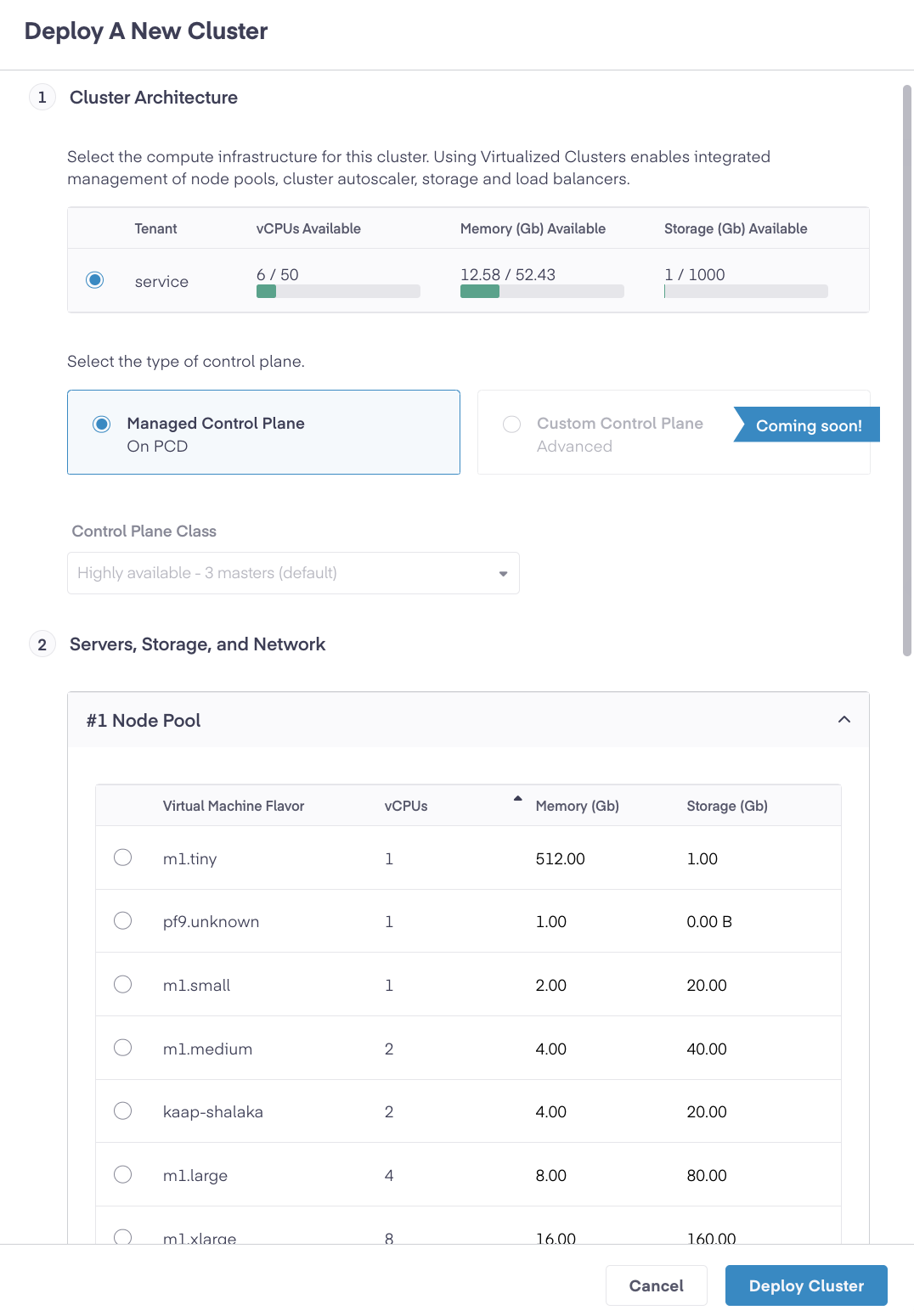
The cluster creation process provides you with a form to provide the details of your Kubernetes cluster. Let's look at those details:
* **Cluster Architecture**
* This section provides details on the resource capacity available in your tenant, which will help you estimate the number of Kubernetes Worker node VMs you can create.
* **Server, Storage, and Network**
* This section lets you configure your node groups. Node groups are logical entities that let you create a template for a set of Kubernetes worker nodes. Each node group can be configured to have a defined number of nodes with Networking and Storage properties.
* Note: This release of PCD uses the default Storage configured for the VMs in the PCD. Storage configuration will be enabled in the future.
* [Auto-scaling](https://cluster-api.sigs.k8s.io/tasks/automated-machine-management/autoscaling): space.vars.product\_acronym deploys a Kubernetes Cluster auto-scalar for each cluster in space.vars.product\_acronym management plane. You can enable/disable and configure the maximum number of nodes to which the node group can scale.
* **Configure your Cluster**
* Choose the Kubernetes Version for your cluster.
* Choose which add-ons you want to enable or disable. space.vars.product\_acronym Kubernetes supports 2 types of add-ons
* Core Add-ons
* The add-ons are critical to the functionality of your Kubernetes cluster, including CNI, CoreDNS, and more.
* Other Add-ons
* These are add-ons supported and managed by PCD to extend Kubernetes capabilities and provide services such as load balancing.
* This release of PCD Kubernetes Clusters supports only [MetalLB](https://metallb.io/).
* Note: PCD only deploys MetalLB controllers on the Kubernetes Cluster, and you still have to [configure MetalLB](https://metallb.io/usage/example/) after the cluster is created.
Provide a name for the cluster, then click the **Deploy Cluster** Button. It usually takes 5-10 minutes to bring the complete cluster up, but it can take longer based on the number of node groups and worker nodes configured.
You can select a cluster from the Clusters list to dive deeper into its details.
---
# Agent Instructions
This documentation is published with GitBook. GitBook is the documentation platform designed so that both humans and AI agents can read, navigate, and reason over technical content effectively. Learn more at gitbook.com.
## Querying This Documentation
If you need additional information that is not directly available in this page, you can query the documentation by asking a question.
Perform an HTTP GET request on the following URL with the `ask` and `goal` query parameters:
```
GET https://docs.platform9.com/private-cloud-director/2025.10/kubernetes-clusters/getting-started-with-kubernetes-in-pcd.md?ask=&goal=
```
`ask` is the immediate question: it should be specific, self-contained, and written in natural language.
`goal` is what the user is ultimately trying to achieve, the reason they need the answer. Sharing it helps GitBook give you a better, more relevant answer. A goal is most helpful when it describes the outcome the user wants rather than restating the question. For example, with `ask=how do I create an API token`, a goal like `automate deployments from our CI pipeline` lets GitBook tailor the answer to that use case.
The response will contain a direct answer to the question and relevant excerpts and sources from the documentation.
Use this mechanism when the answer is not explicitly present in the current page, you need clarification or additional context, or you want to retrieve related documentation sections.