On Premises (BareOS)

This article describes the creation of a single-node on-premises Kubernetes cluster using Platform9 Managed Kubernetes (PMK).

What is BareOS

PMK uses the term ‘BareOS’ to refer to a set of physical or virtual machines in your on-premises infrastructure that have a supported linux operating system installed that can be used to create an on-premises Kubernetes cluster using PMK. Read On Premises (BareOS)arrow-up-right for a detailed description.

What you’ll need

1

Step: Log in to your Platform9 Account

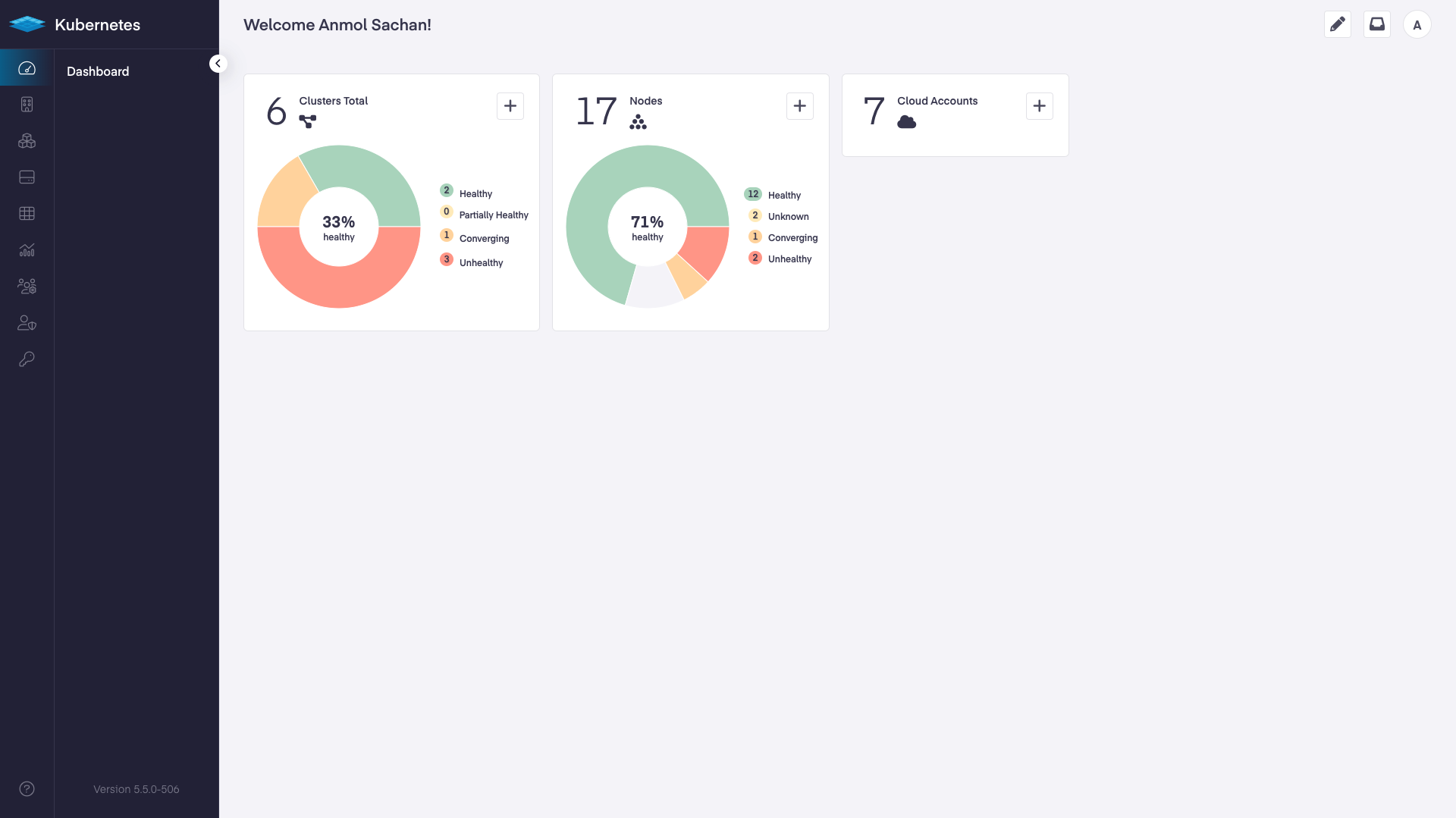
Log in to your Platform9 account. Once you sign in you’ll be directed to your account's dashboard. This is a summary of all Kubernetes clusters, nodes, pods, and cloud accounts associated with your Platform9 account. If this is a brand new account, there may not be anything associated… yet!

2

Step: Create a Node

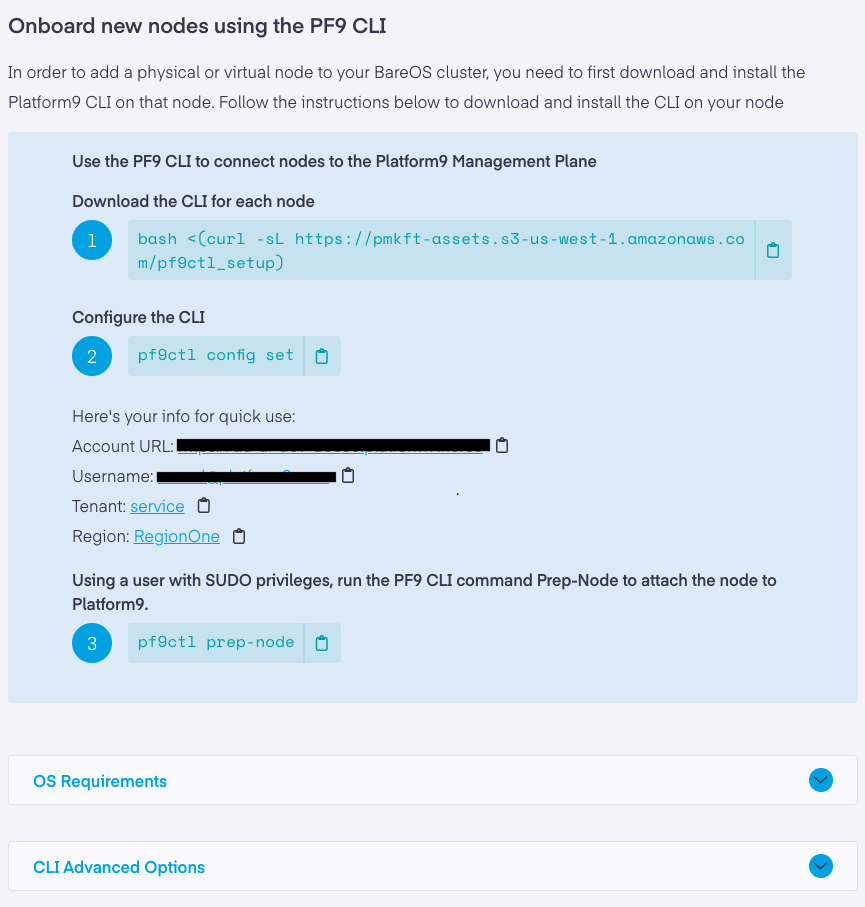
From the dashboard click the "Add Node" button, then choose the "PF9 Cli" tab. This area will give you direction about how to download and install our CLI on your Virtual Machine or physical server and then configure the CLI to talk back to your PMK Account. Note when running the pf9ctl config set command you will be prompted to provide your account credentials established earlier.

The pf9ctl prep-node command will install your customized PF9 agent and begin promoting the VM as a PMK node. Once the command starts it could take a bit to complete. You can check progress by going to the "Infrastructure > Nodes" area.

pf9ctl pre-checks output
 Loaded Config Successfully
 Missing package(s) installed successfully
 Removal of existing CLI
 Existing Platform9 Packages Check
 Required OS Packages Check
 SudoCheck
 CPUCheck
x DiskCheck - At least 30 GB of total disk space and 15 GB of free space is needed on host. Disk Space found: 2 GB
x MemoryCheck - At least 12 GB of memory is needed on host. Total memory found: 4 GB
 PortCheck
 Existing Kubernetes Cluster Check

 Completed Pre-Requisite Checks successfully

Optional pre-requisite check(s) failed. Do you want to continue? (y_n)
circle-info

Once everything has completed you will see a status of "Ready" next to the node.

3

Step: Create a simple one-click cluster

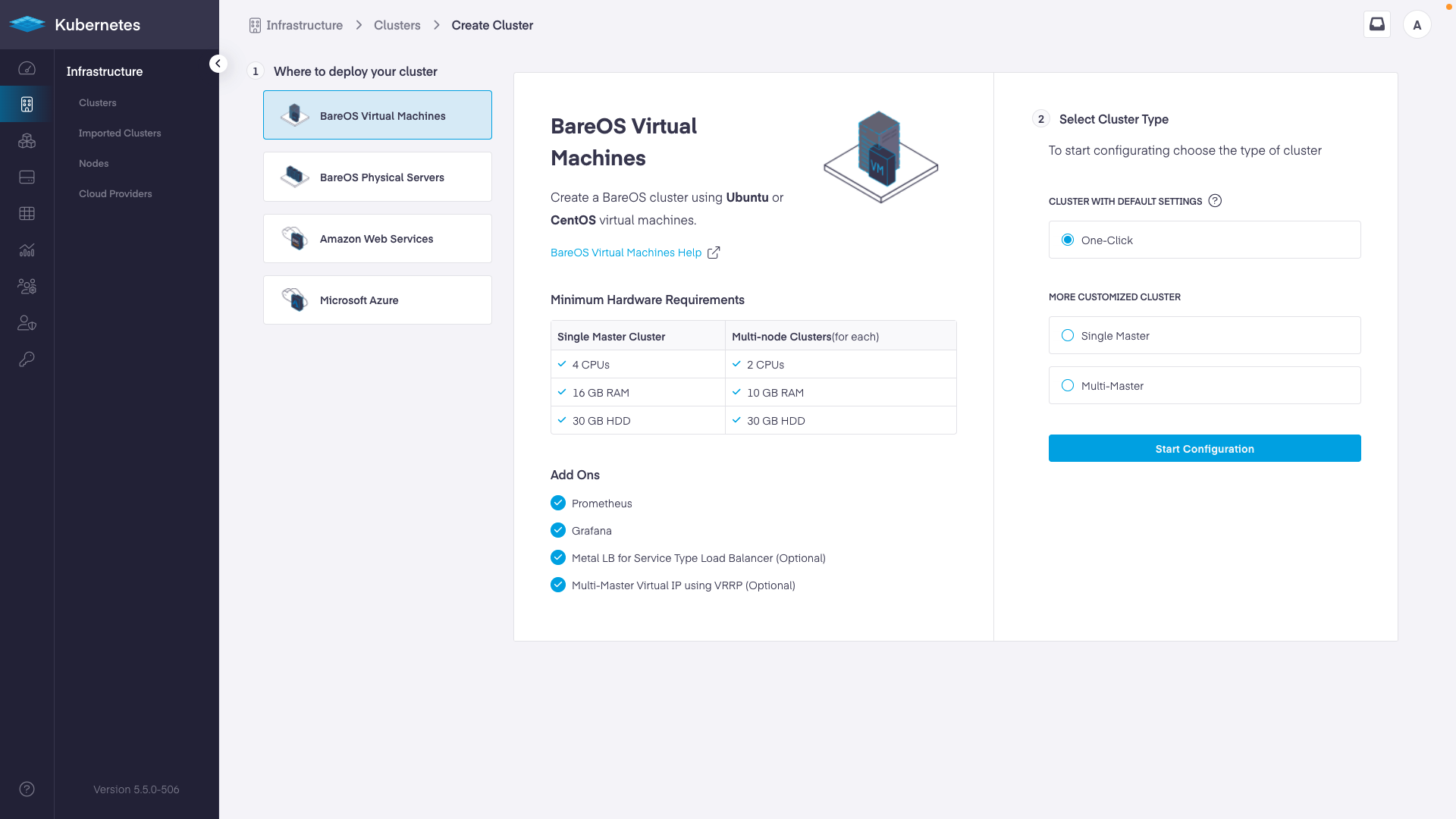
From your dashboard click the "Add Cluster" button and choose "BareOS Virtual Machine" or "BareOS Physical Server" depending on your set up. Then choose the "One-Click Cluster" button to get started.

Name your cluster something memorable like "my-bareos-cluster" and choose the appropriate values to tell the Platform9 system where to create the cluster.

Click "Complete" to begin the creation of your new cluster.

The Platform9 system will promote the node to be a Kubernetes master node and enable your workloads to run on it. Routing will be automatically configured as well as full observability.

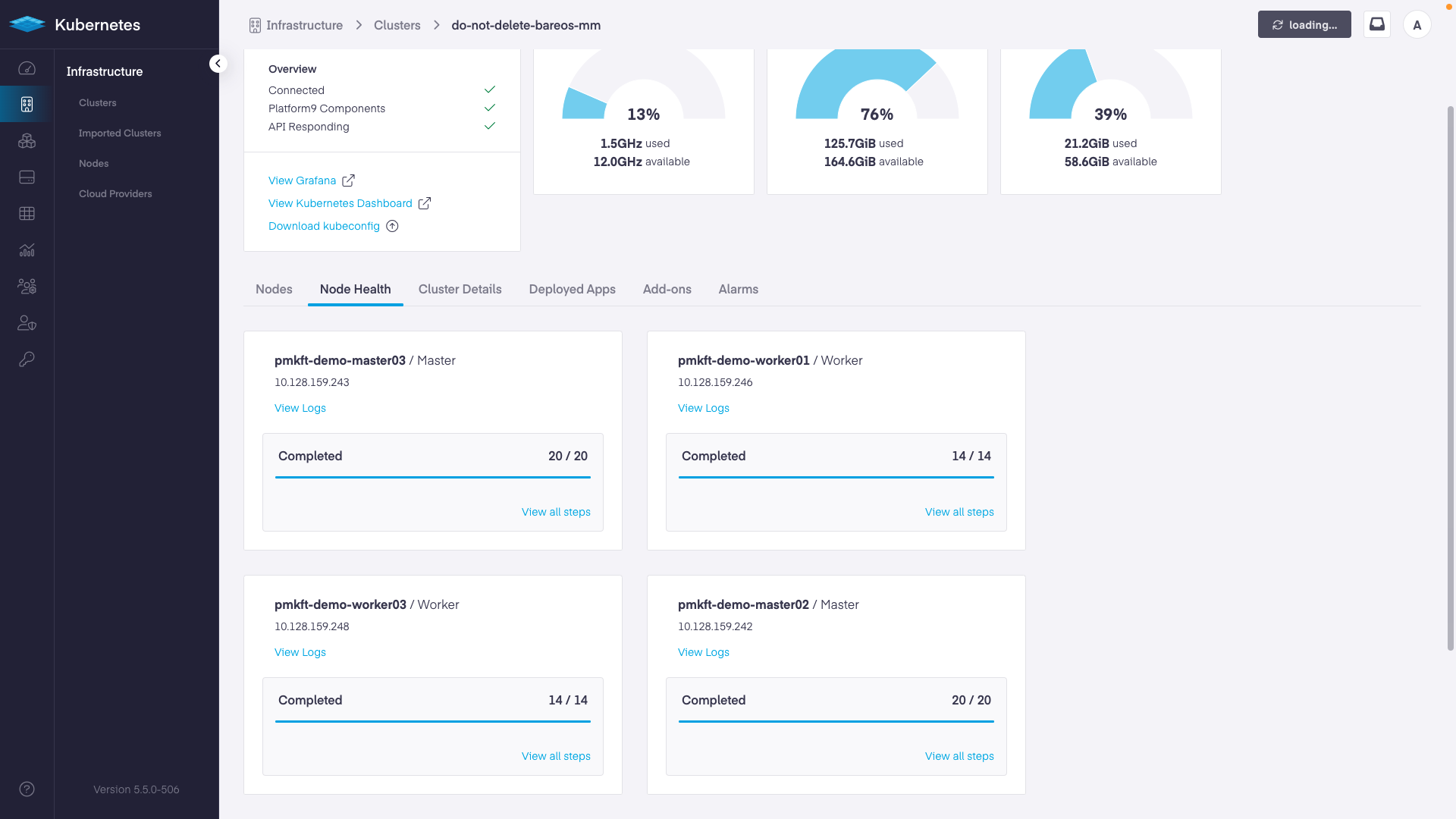
After creation successfully initializes you will be directed to the "Node Health" tab where you can watch the progress.

Navigate back to your dashboard to see a summary of the new management plane.

chevron-rightDebugginghashtag

If you encounter the message: Failure to prepare node, please review the pf9ctl log file for additional context.

Enterprise – Please submit a Support Requestarrow-up-right with the log attached and our team will review and work with you to onboard the node.

Last updated

Was this helpful?