> For the complete documentation index, see [llms.txt](https://docs.platform9.com/llms.txt). Markdown versions of documentation pages are available by appending `.md` to page URLs; this page is available as [Markdown](https://docs.platform9.com/managed-kubernetes/getting-started/get-started-aws.md).
# AWS
This article describes the steps to create a Kubernetes cluster on Amazon Web Services (AWS) cloud using AWS EC2 instances, and using Platform9 Managed Kubernetes (PMK).
## What you’ll need
* Access to the inbox of a valid email address
* AWS account that meets the [Pre-requisites for AWS Native Clusters](https://github.com/platform9/pcd-docs-gitbook/blob/main/other-docs/pmk/5.14/docs/kubernetes/aws-prerequisites/README.md)
## Log in to your Platform9 Account
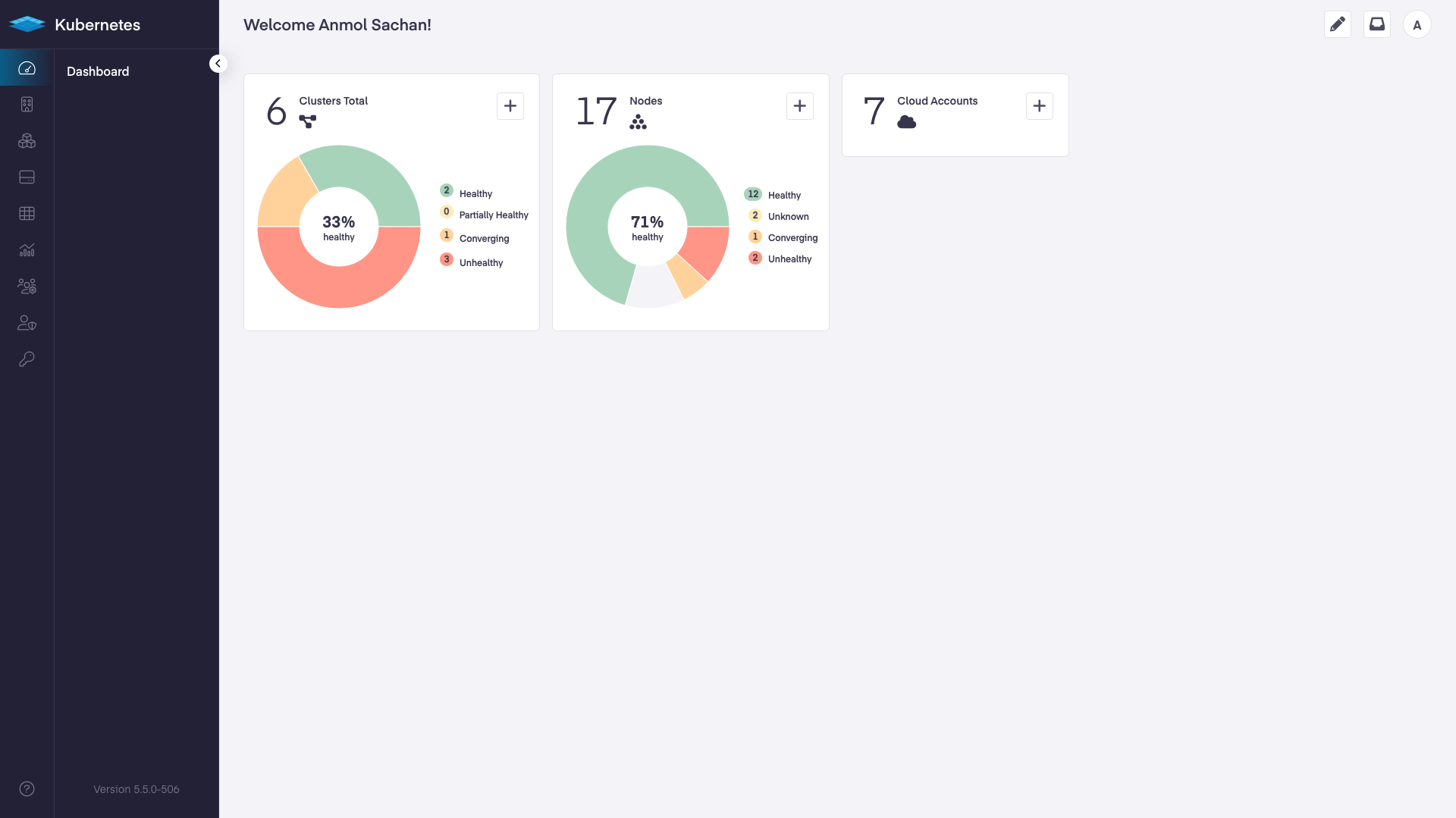
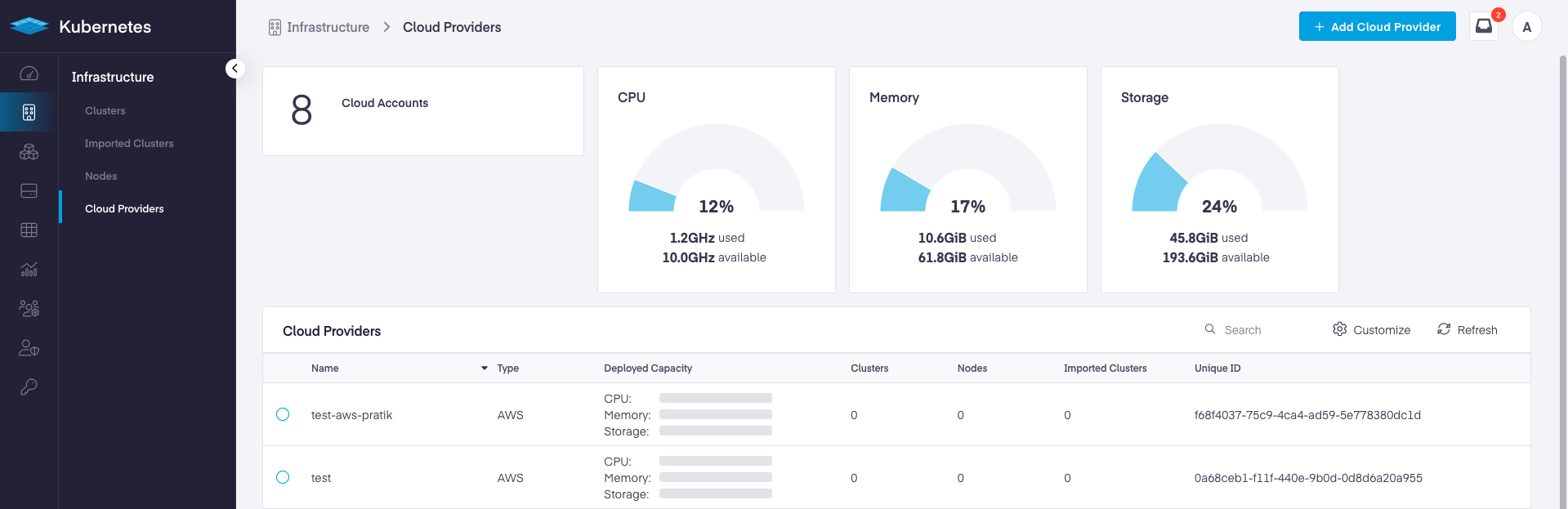
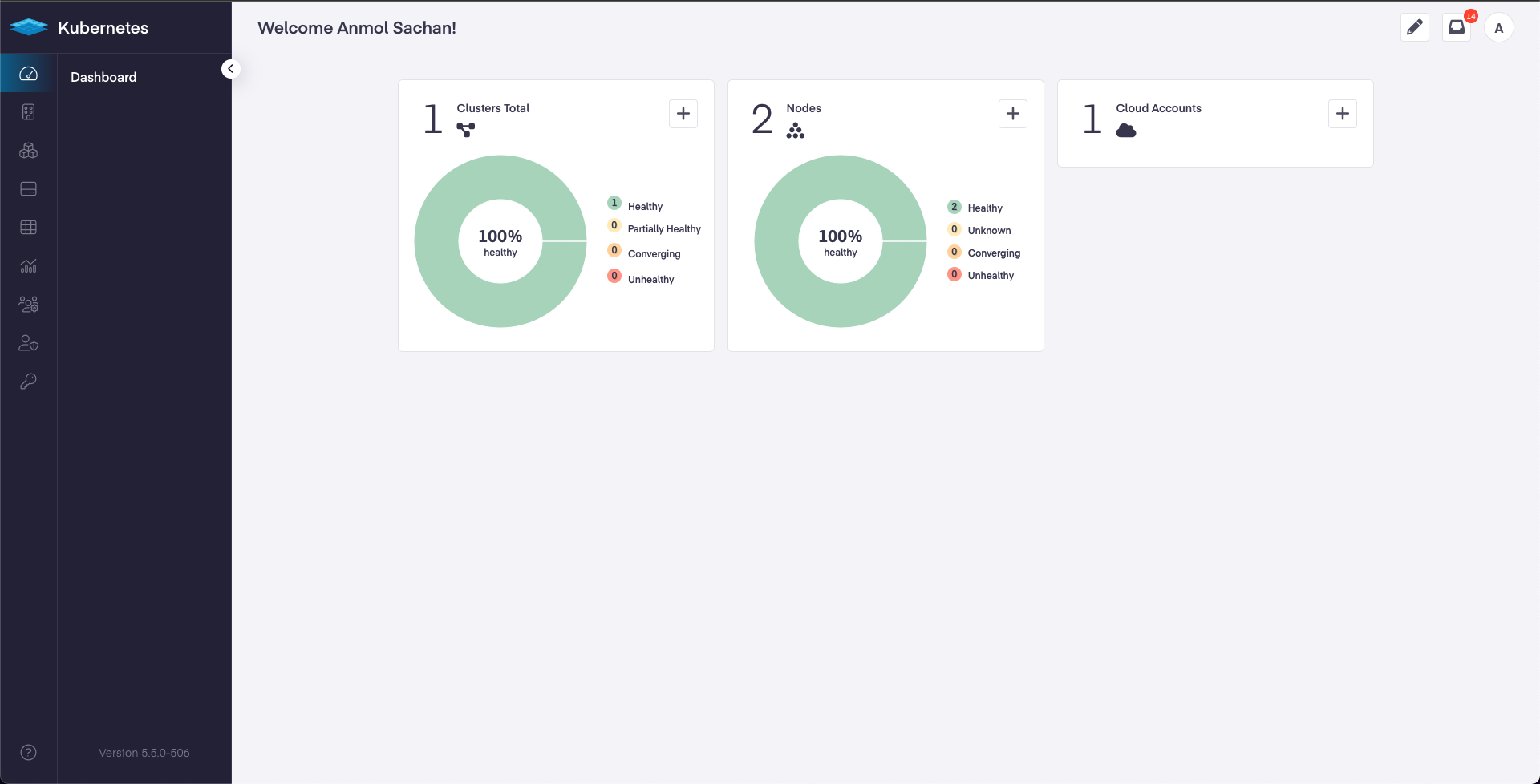
Log in to your Platform9 account. Once you sign in you’ll be directed to your account's dashboard. This is a summary of all Kubernetes clusters, nodes, pods, and cloud accounts associated with your Platform9 account. If this is a brand new account, there may not be anything associated… yet!
Platform9 – UI - Dashboard
## Connect your AWS account with your Platform9 instance
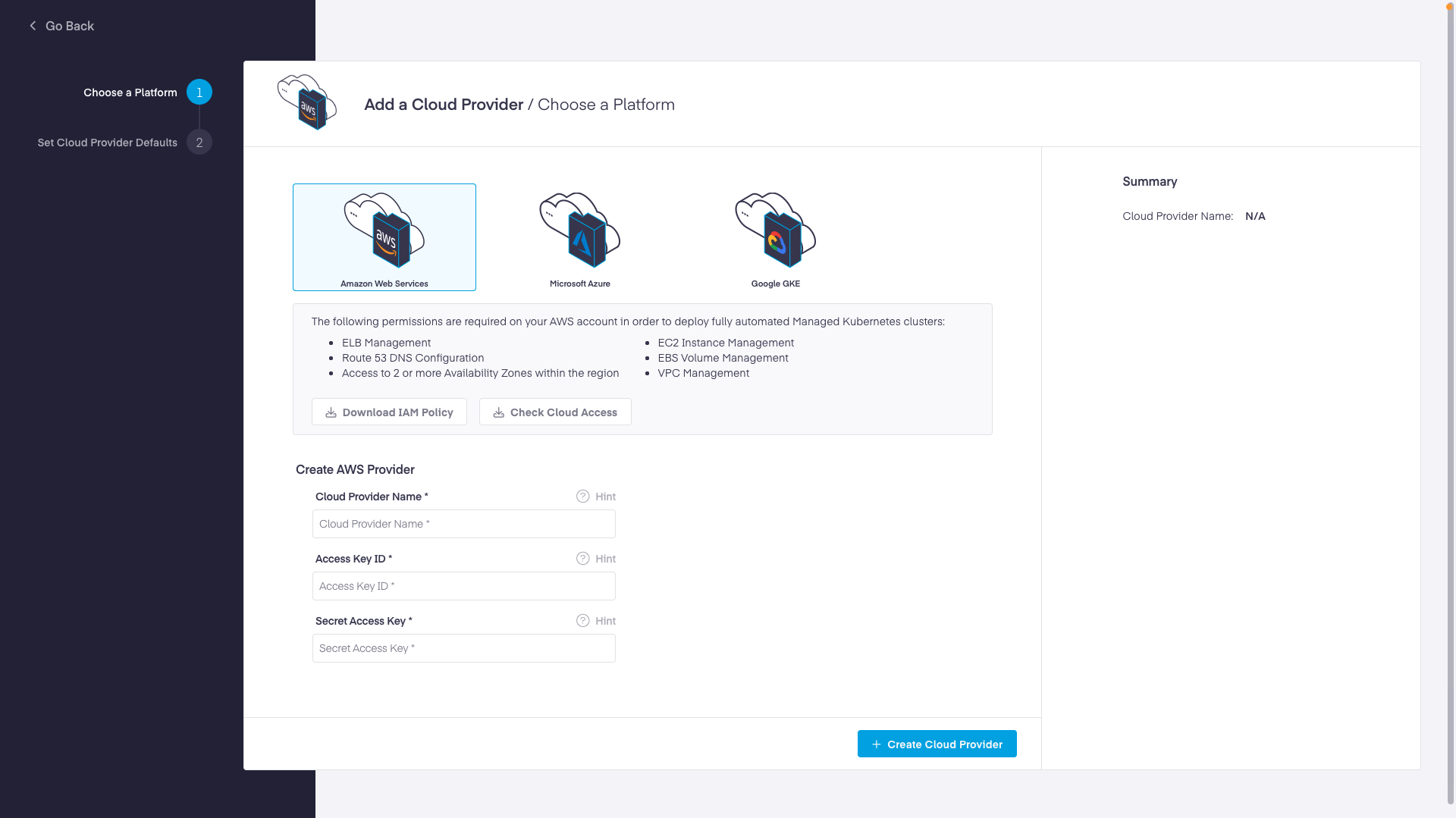
Before associating your account make sure it meets the minimum requirements, [read more here](https://docs.platform9.com/kubernetes/aws-prerequisites#pre-requisites-for-aws-native-clusters). You’ll need an SSH key-pair before running the provider wizard.
From your dashboard click the "Add Cloud" button and choose "Amazon Web Services" as your cloud provider type. Name the new provider something memorable like 'my-aws-provider' and provide your AWS key credentials.
{% hint style="warning" %}
**AWS IAM Policy**
Ensure your AWS IAM User has the correct IAM access by using the [Cloud Provider Checks](https://pf9.developerhub.io/kubernetes-docs/kubernetes/cloud-provider-iam-check) CLI or by adding the Platform9 IAM Policy by downloading it [here](https://raw.githubusercontent.com/platform9/support-locker/master/pmk/aws-policy.json)
{% endhint %}
Platform9 – UI - Add New AWS Cloud Provider
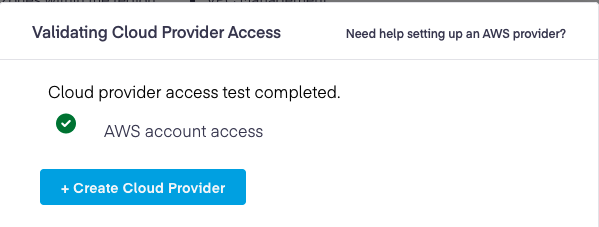
When you click "Next" your AWS account will be validated for correct permissions.
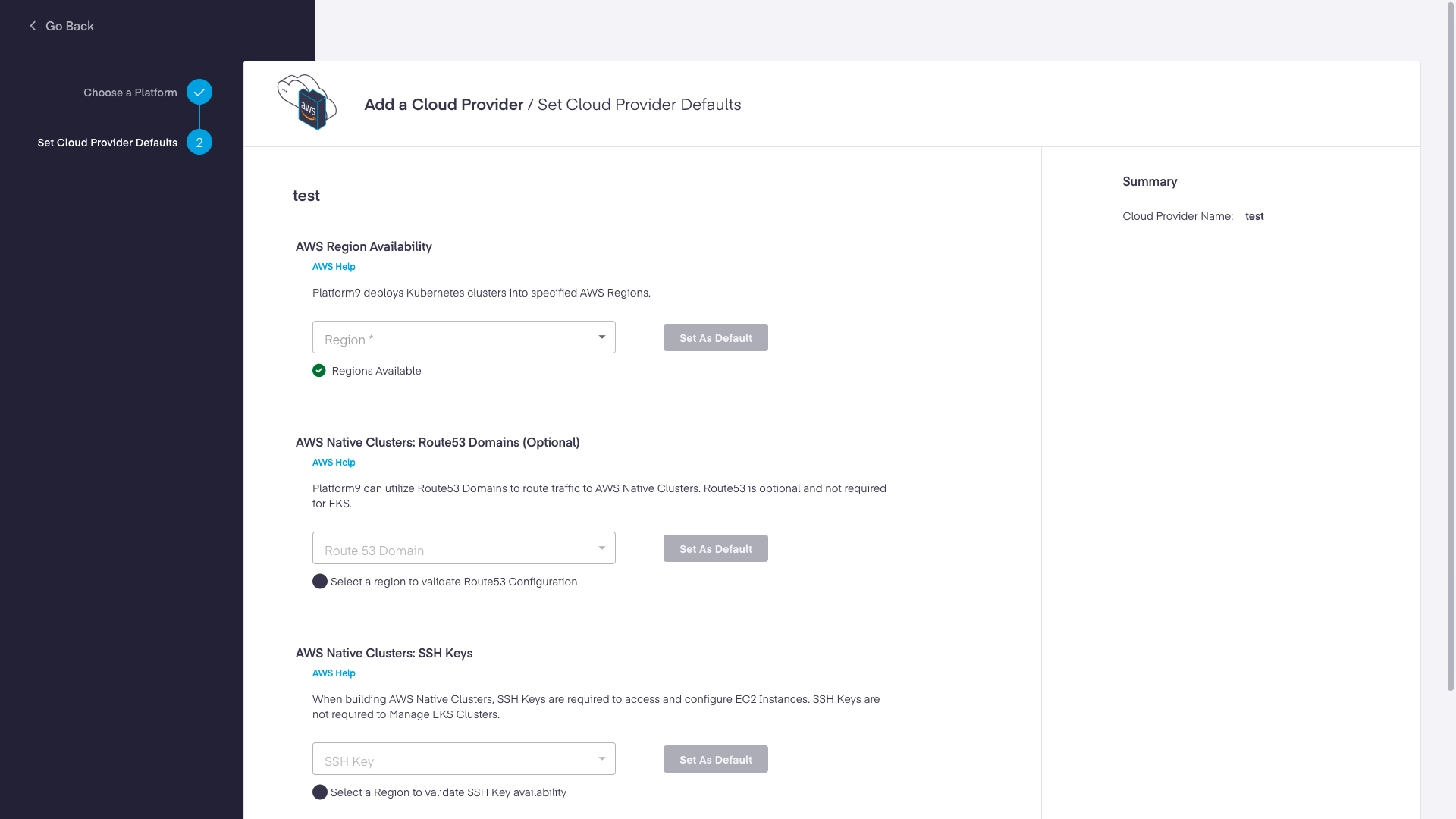
Once validated, choose the AWS region, route name, and SSH key-pair to use when creating your new cluster. As you choose a region, your routes within that region will be loaded automatically.
{% hint style="info" %}
**Why are routes required?**
In order to route traffic to your cluster, a valid domain name must be used.
{% endhint %}
"Complete" to create your new cloud provider and be directed back to the cloud providers listing.
{% hint style="success" %}
**Cloud Provider Created**
{% endhint %}
## Create a simple one-click cluster
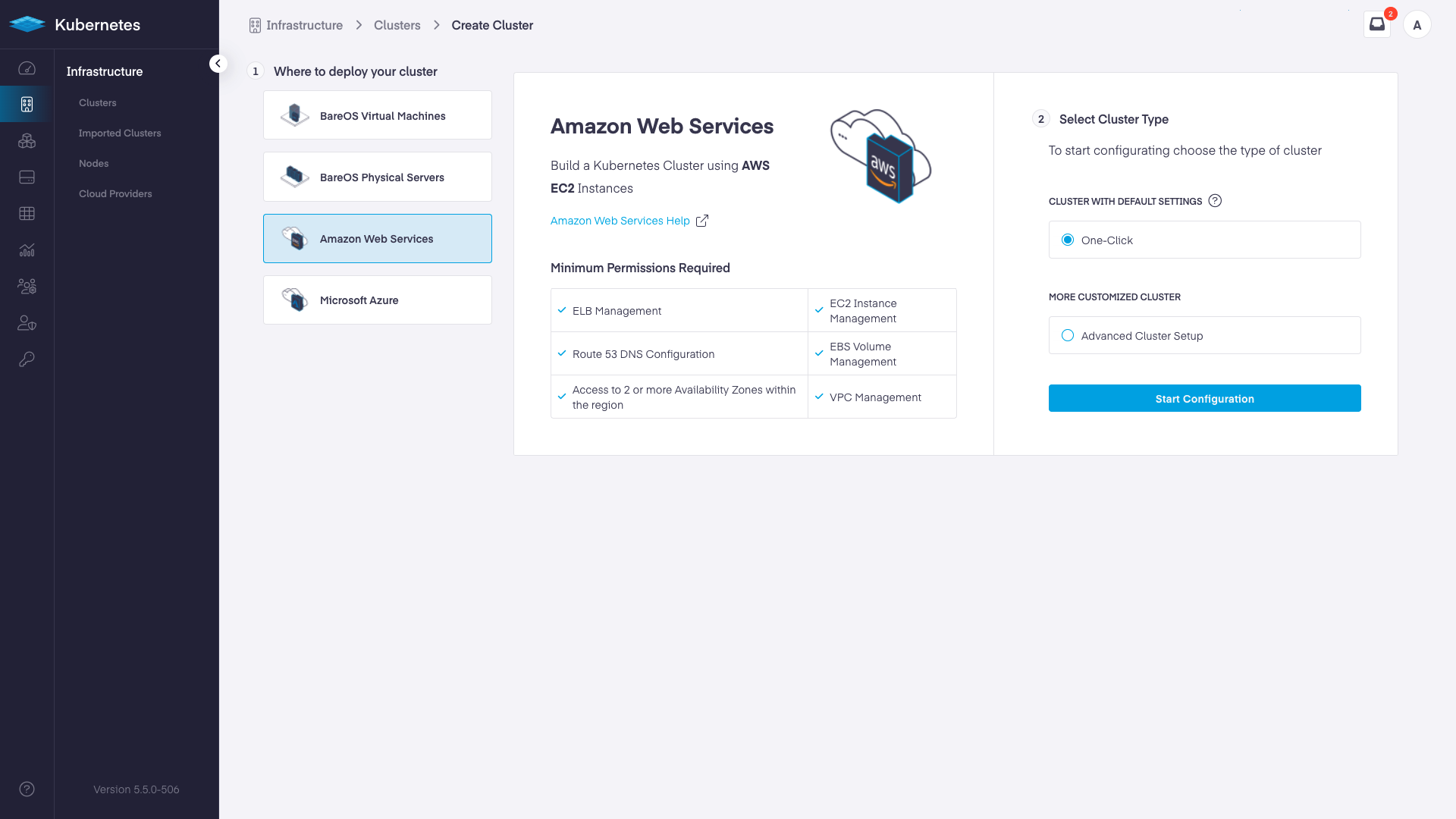
From your dashboard, click the "Add Cluster" button and choose "Amazon Web Services" as your infrastructure provider. Choose the "One-Click Cluster" button to get started.
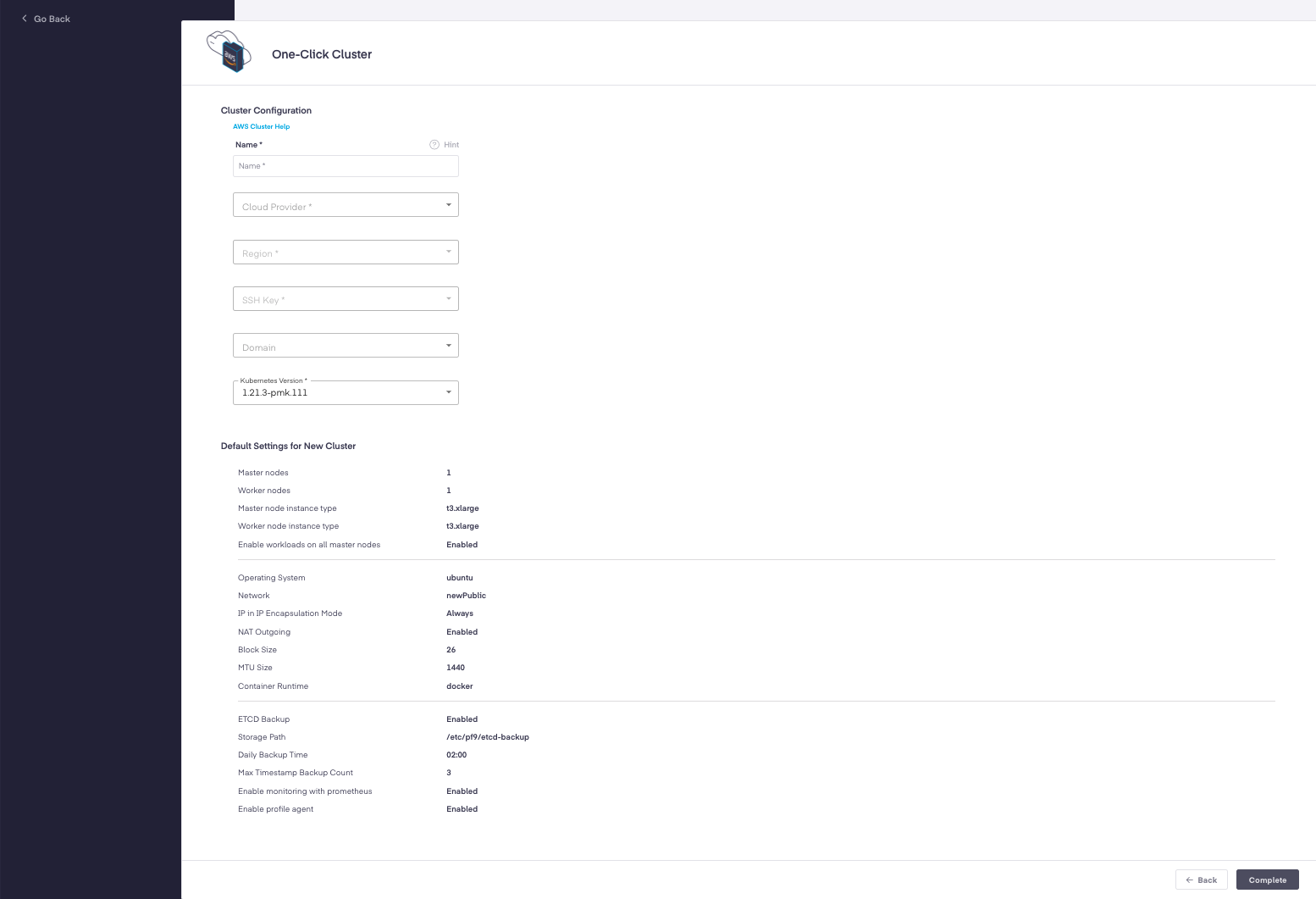
Name your cluster something memorable like "my-aws-cluster" and choose the appropriate values to tell the Platform9 system where to create the cluster.
"Complete" to begin the creation of your new cluster.
{% hint style="info" %}
**Info**
The Platform9 system will create a single EC2 instance, promote it to be a Kubernetes master node, and enable your workloads to run on it. Routing will be automatically configured as well as full observability.
Sometimes this can take a little time depending on many things. Behind the scenes the PMK packages are being installed, along with other needed services.
{% endhint %}
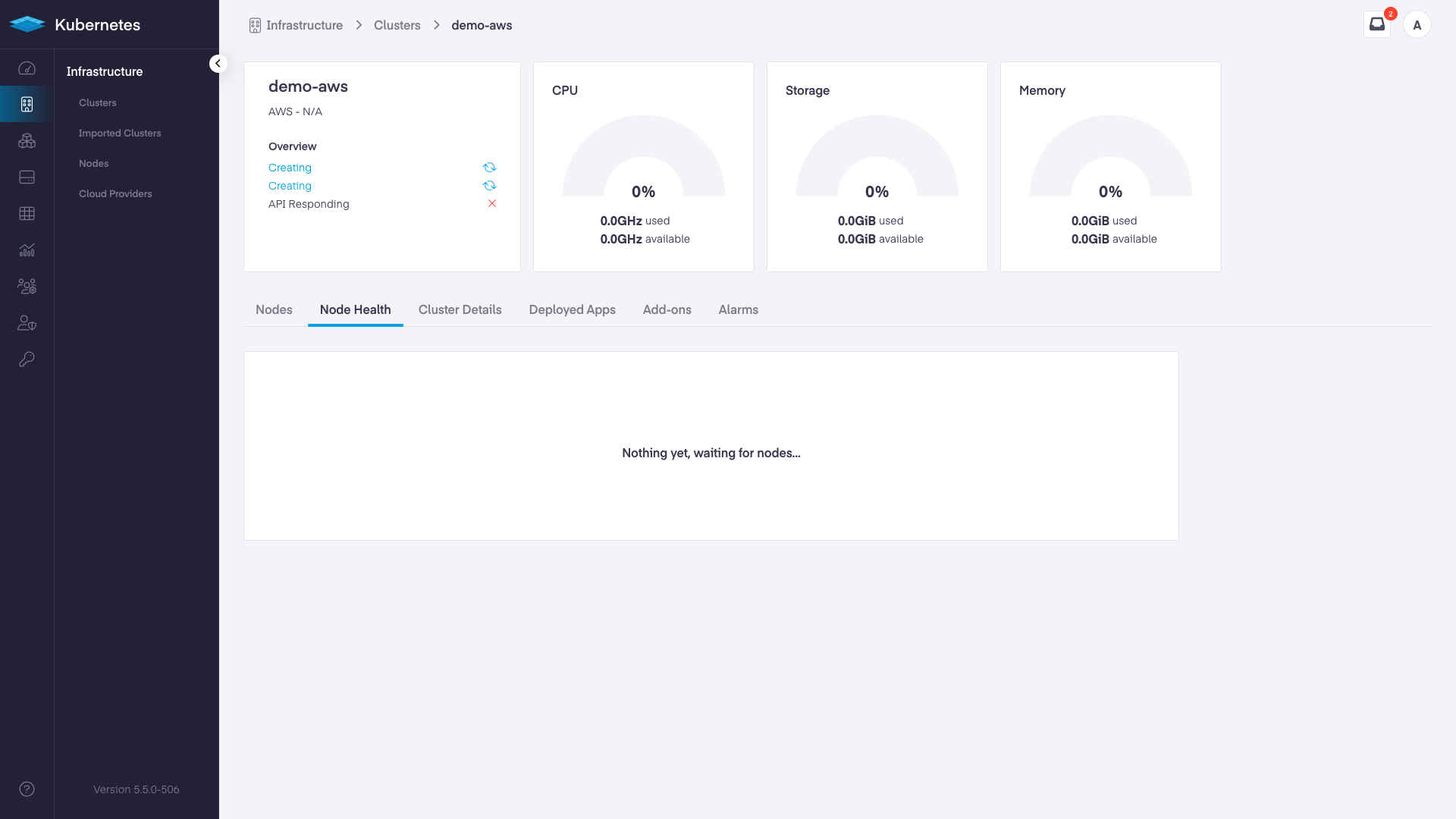
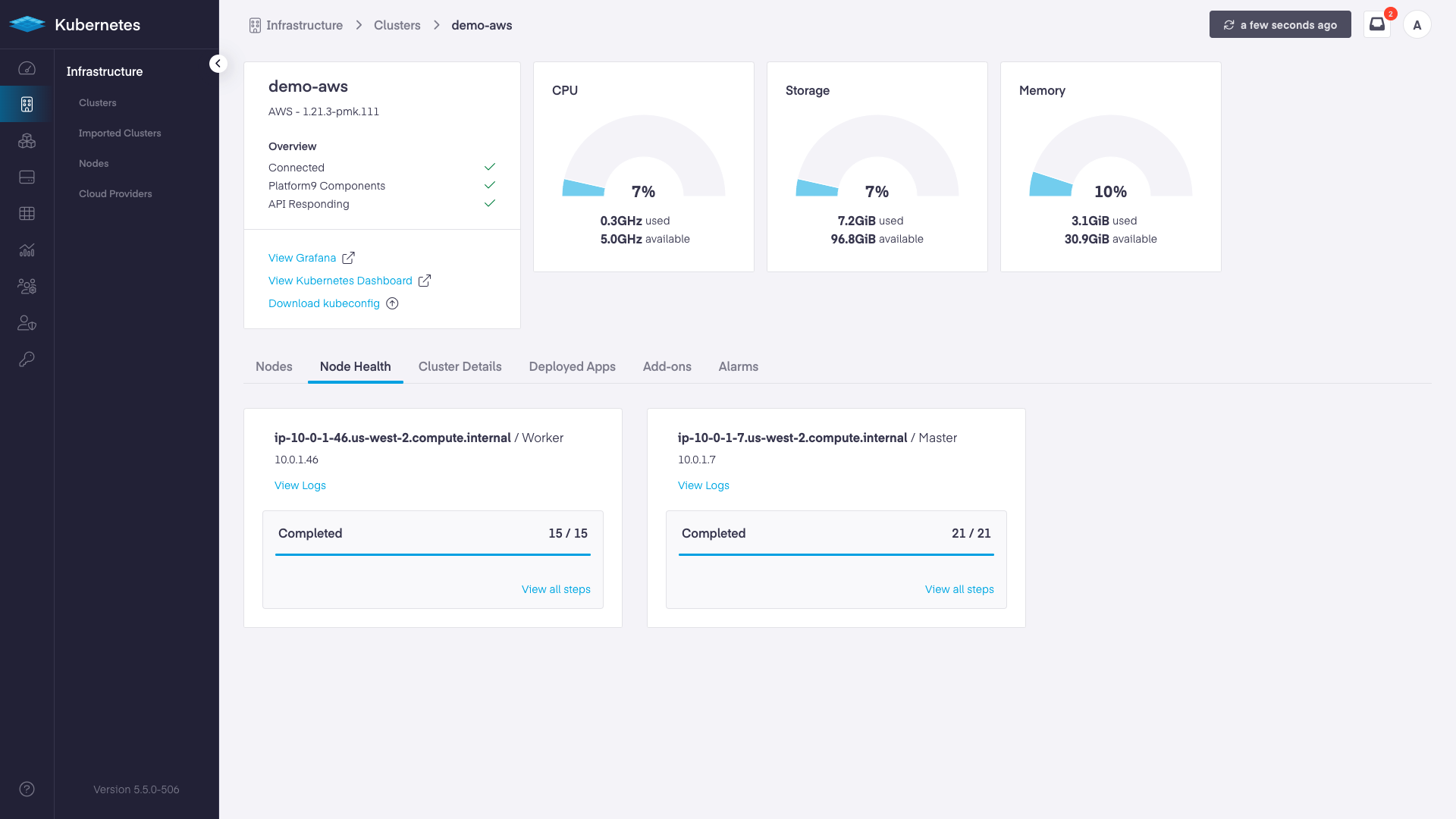
After creation successfully initializes, you will be directed to the "Node Health" tab where you can watch the progress.
As the deployment progresses, the screen will update with steps completed and a final message of "Connected" and "Healthy".
{% hint style="success" %}
**Cluster Created**
Navigate back to your dashboard to see a summary of the new management plane.
{% endhint %}
## Removing a One-Click Cluster From Your AWS Account
1. Navigate to the "Infrastructure" area.
2. Choose the "Clusters" tab.
3. Select the cluster to remove and click the "Delete" icon.
{% hint style="info" %}
**Info**
It will take a few minutes to terminate the EC2 instance running as the Kubernetes master. In the "Nodes" tab, the associated instance will automatically remove after termination.
{% endhint %}
## What's next?
| Introduction to kubeconfig | [Get Your First Container Running on Kubernetes](https://github.com/platform9/pcd-docs-gitbook/blob/main/platform9-docs/v5.2/kubernetes/tutorials-first-container/README.md#Deploying-a-new-version-of-the-App) | [Integrating External DNS with Kubernetes](https://github.com/platform9/pcd-docs-gitbook/blob/main/platform9-docs/v5.2/kubernetes/tutorials-integrating-external-dns-with-k8s/README.md) |
| -------------------------- | --------------------------------------------------------------------------------------------------------------------------------------------------------------------------------------------------------------- | ---------------------------------------------------------------------------------------------------------------------------------------------------------------------------------------- |
| | | |
---
# Agent Instructions
This documentation is published with GitBook. GitBook is the documentation platform designed so that both humans and AI agents can read, navigate, and reason over technical content effectively. Learn more at gitbook.com.
## Querying This Documentation
If you need additional information that is not directly available in this page, you can query the documentation by asking a question.
Perform an HTTP GET request on the following URL with the `ask` and `goal` query parameters:
```
GET https://docs.platform9.com/managed-kubernetes/getting-started/get-started-aws.md?ask=&goal=
```
`ask` is the immediate question: it should be specific, self-contained, and written in natural language.
`goal` is what the user is ultimately trying to achieve, the reason they need the answer. Sharing it helps GitBook give you a better, more relevant answer. A goal is most helpful when it describes the outcome the user wants rather than restating the question. For example, with `ask=how do I create an API token`, a goal like `automate deployments from our CI pipeline` lets GitBook tailor the answer to that use case.
The response will contain a direct answer to the question and relevant excerpts and sources from the documentation.
Use this mechanism when the answer is not explicitly present in the current page, you need clarification or additional context, or you want to retrieve related documentation sections.