> For the complete documentation index, see [llms.txt](https://docs.platform9.com/llms.txt). Markdown versions of documentation pages are available by appending `.md` to page URLs; this page is available as [Markdown](https://docs.platform9.com/managed-kubernetes/5.13/bareos-what-is-bareos/get-started-terraform.md).
# Get Started Terraform
Follow these steps to create a Kubernetes cluster using the Platform9 terraform provider.
### What you’ll need
* General understanding of [Terraform](https://learn.hashicorp.com/terraform)
* Access to the inbox of a valid email address
* AWS account that meets the [auto$](https://github.com/platform9/pcd-docs-gitbook/blob/main/kubernetes/aws-prerequisites/README.md)
## Log in to your Platform9 Account
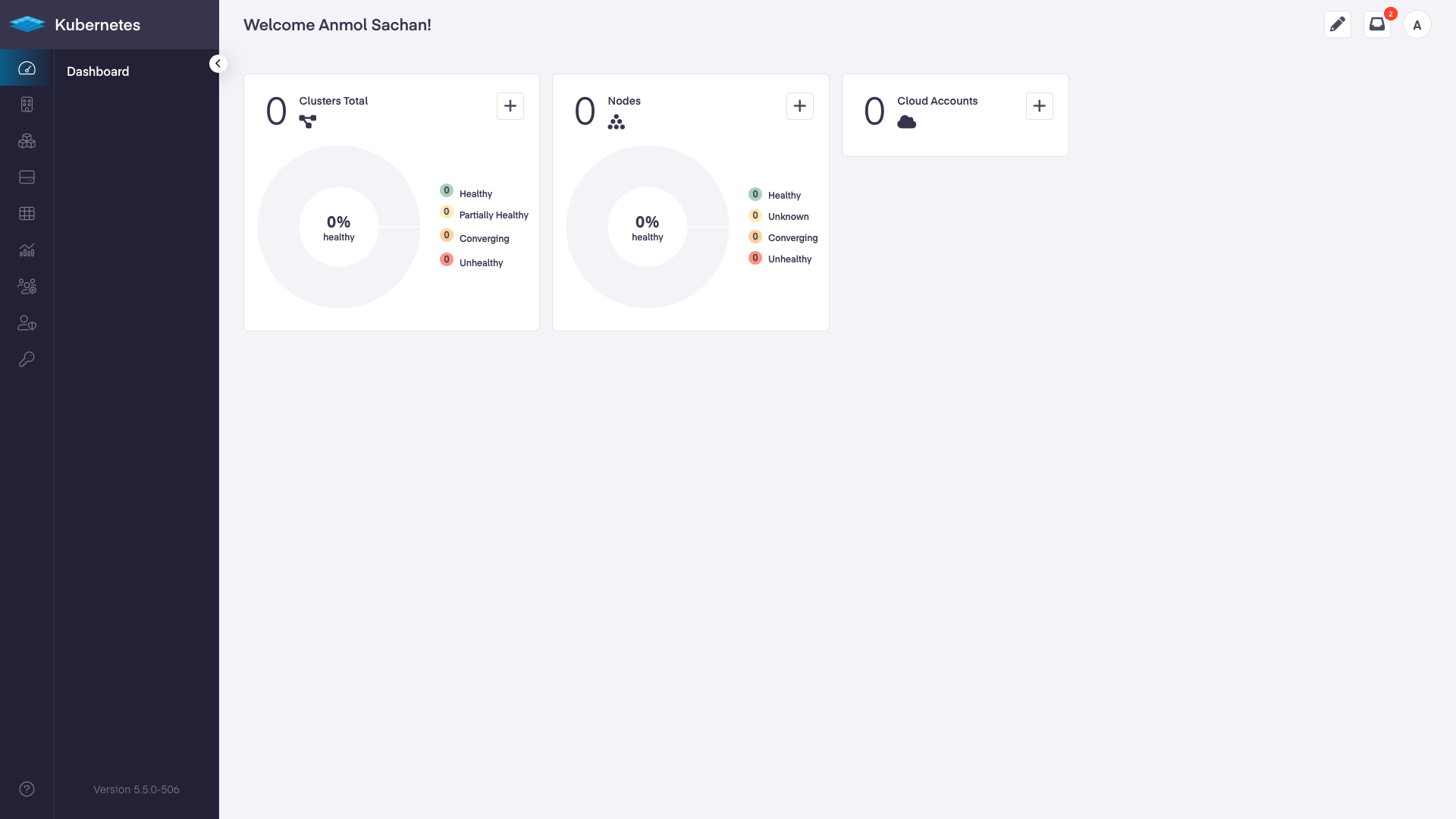
Log in to your Platform9 account. Once you sign in you’ll be directed to your account's dashboard. This is a summary of all Kubernetes clusters, nodes, pods, and cloud accounts associated with your Platform9 account. If this is a brand new account, there may not be anything associated… yet!
Platform9 – UI - Dashboard
{% hint style="success" %}
**Logged In**
{% endhint %}
## Create a terraform file
Create a file named p9-simple-cluster.tf and paste the below contents within that file.
{% tabs %}
{% tab title="JSON" %}
```json
locals {
p9_tenant_uuid = ""
aws_account_key = ""
aws_account_secret = ""
aws_keypair_name = ""
tags = {
source: "terraform/platform9/pf9"
provider_version: "0.1.6"
}
}
terraform {
required_providers {
pf9 = {
source = "platform9/pf9"
version = "0.1.6"
}
}
}
provider "pf9" {}
resource "pf9_aws_cloud_provider" "My-AWS-Provider" {
name = "My-AWS-Provider"
type = "aws"
key = local.aws_account_key
secret = local.aws_account_secret
project_uuid = local.p9_tenant_uuid
}
resource "pf9_cluster" "simple-aws-cluster" {
/*P9 Account Values*/
project_uuid = local.p9_tenant_uuid
cloud_provider_uuid = ""
/*Cluster Config Values*/
name = "simple-aws-cluster"
containers_cidr = "10.20.0.0/16"
services_cidr = "10.21.0.0/16"
num_masters = 1
num_workers = 1
/*AWS Specific Values*/
ami = "ubuntu"
azs = ["us-east-1b"]
region = "us-east-1"
worker_flavor = "t2.medium"
master_flavor = "t2.medium"
ssh_key = local.aws_keypair_name
tags = local.tags
}
```
{% endtab %}
{% endtabs %}
In the “locals” area of the file fill in the relevant information:
| | |
| -------------------- | -------------------------------------------------------------------------------------------------------------------------------------------------------------- |
| p9\_tenant\_uuid | Your Platform9 project UUID. Learn how to find this value, [here](https://platform9.com/docs/kubernetes/introduction-to-platform9-uuid#tenants--project-uuid). |
| aws\_account\_key | Your AWS account info. |
| aws\_account\_secret | Your AWS account secret. |
| aws\_keypair\_name | The name of a saved AWS keypair. |
| | |
Save the file and note its path
## Create cloud provider and cluster using Terraform
Navigate to the directory where you saved the tf file, in your terminal
Run the following command using the terraform cli
{% tabs %}
{% tab title="Bash" %}
```bash
terraform init
```
{% endtab %}
{% endtabs %}
{% hint style="info" %}
**Info**
Terraform will find the .tf file and initialize the directory for management of the provider.
{% endhint %}
Once initialized, start the Terraform pf9 provider with the following command
{% tabs %}
{% tab title="Bash" %}
```bash
terraform apply
```
{% endtab %}
{% endtabs %}
{% hint style="info" %}
**Info**
Terraform will run through validations of your values and begin creating the cloud provider and then the cluster.
{% endhint %}
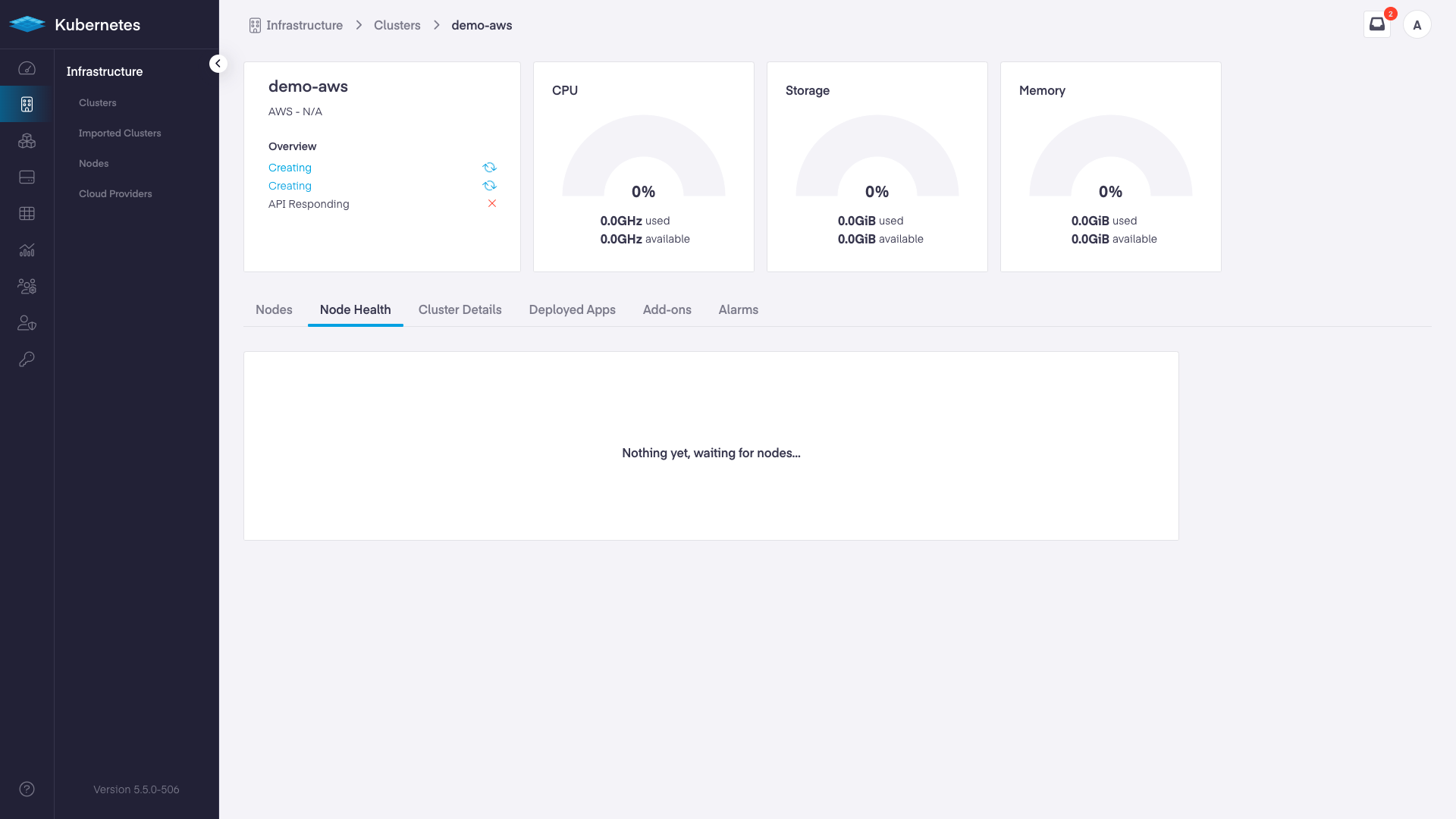
To follow the progress of your cluster creation go back to the Platform9 dashboard and navigate to “Infrastructure”, and then “Node Health”. Initially, the screen will be:
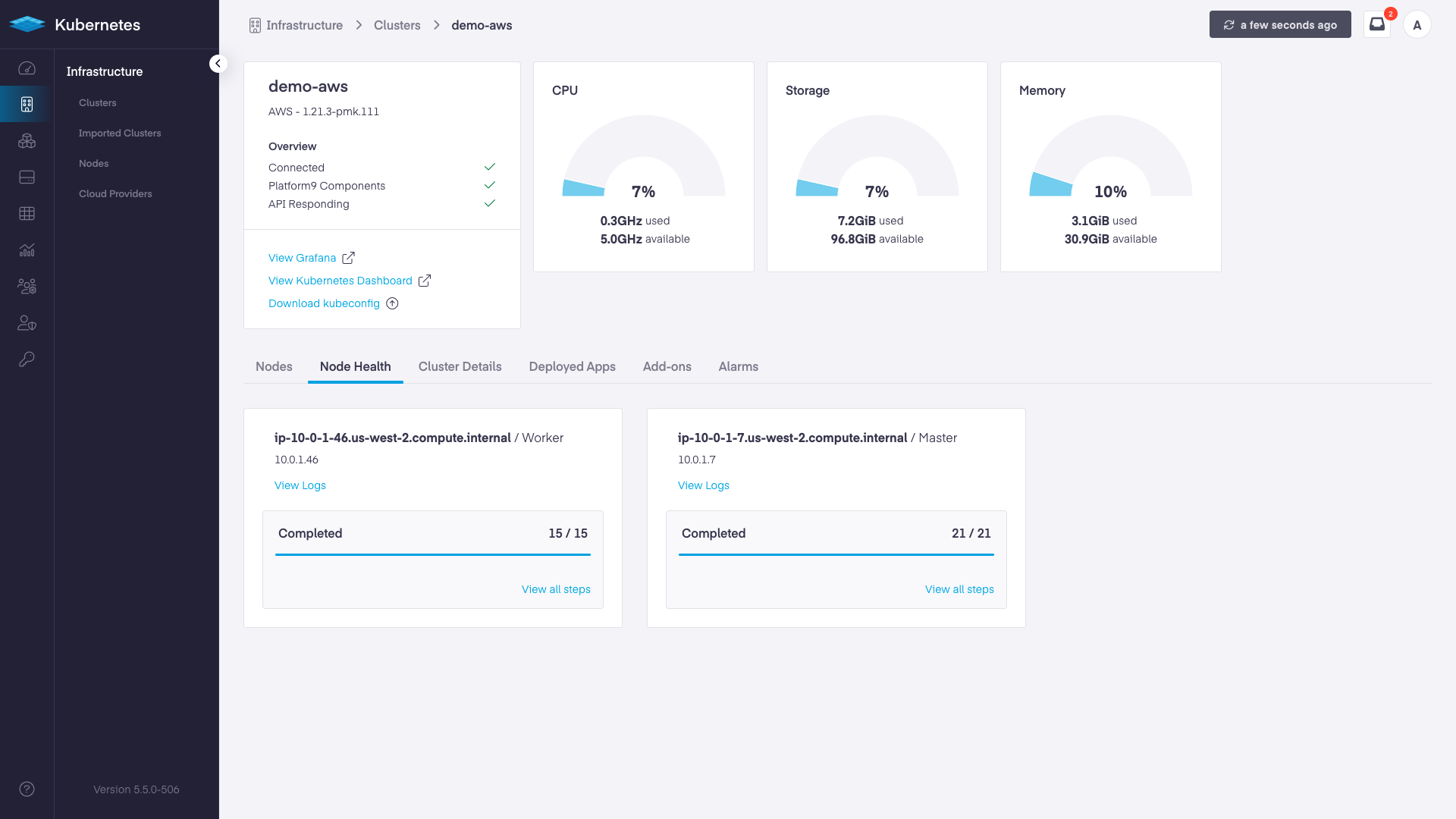
As the deployment progresses, the screen will update with steps completed and a final message of "Connected" and "Healthy".
{% hint style="success" %}
**Cluster Created**
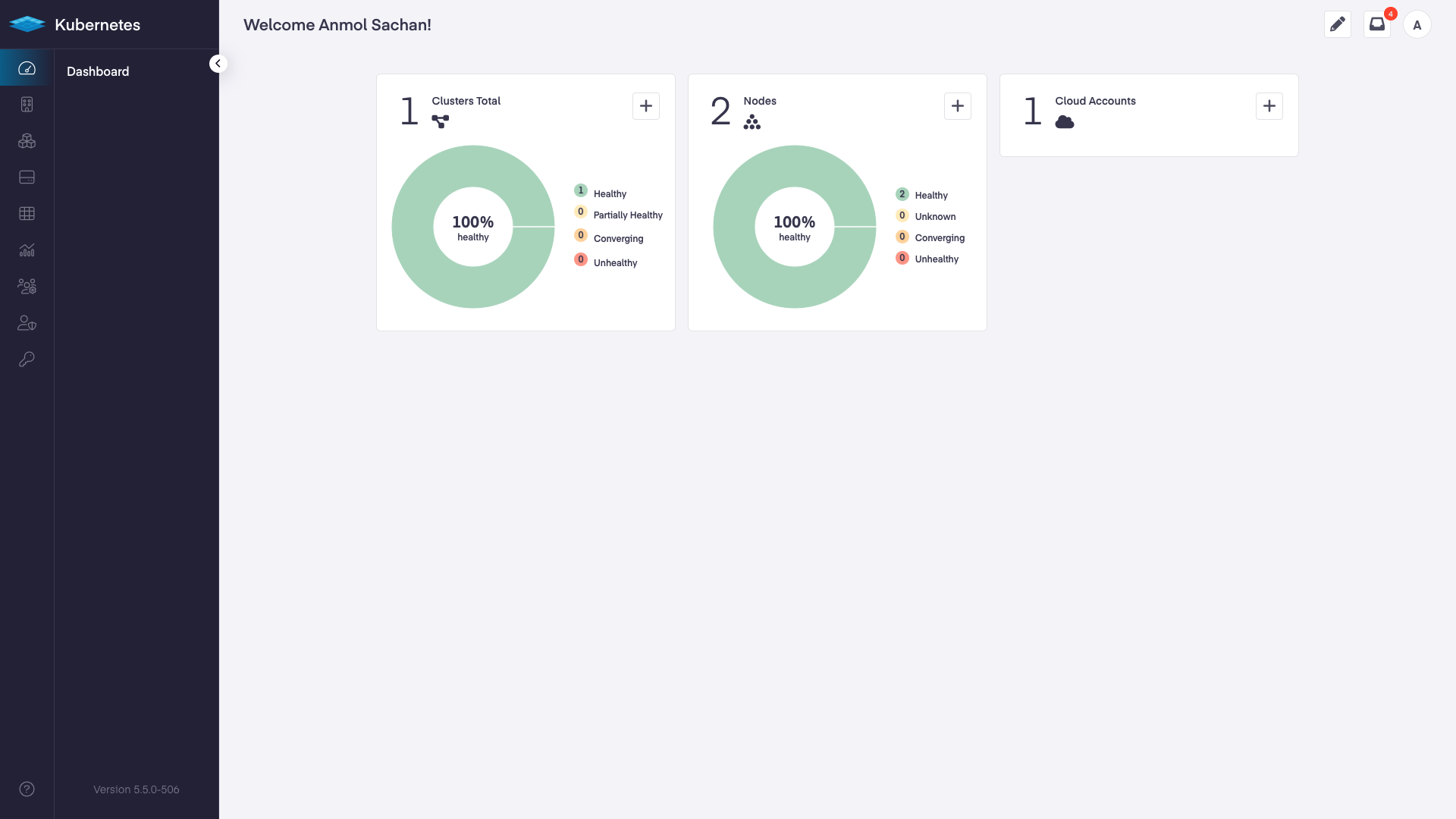
Navigate back to your dashboard to see a summary of the new management plane.
{% endhint %}
## Removing the new cluster using Terraform
1. Using your terminal run the following command:
{% tabs %}
{% tab title="Bash" %}
```bash
terraform destroy
```
{% endtab %}
{% endtabs %}
This will remove the cluster completely.
## Next Steps
| [Introduction to kubeconfig](https://github.com/platform9/pcd-docs-gitbook/blob/main/platform9-docs/v5.2/kubernetes/kubeconfig-and-clients-introduction-to-kubeconfig/README.md) | [Get Your First Container Running on Kubernetes](https://github.com/platform9/pcd-docs-gitbook/blob/main/platform9-docs/v5.2/kubernetes/tutorials-first-container/README.md#Deploying-a-new-version-of-the-App) | [Integrating External DNS with Kubernetes](https://github.com/platform9/pcd-docs-gitbook/blob/main/platform9-docs/v5.2/kubernetes/tutorials-integrating-external-dns-with-k8s/README.md) |
| -------------------------------------------------------------------------------------------------------------------------------------------------------------------------------- | --------------------------------------------------------------------------------------------------------------------------------------------------------------------------------------------------------------- | ---------------------------------------------------------------------------------------------------------------------------------------------------------------------------------------- |
| | | |
---
# Agent Instructions
This documentation is published with GitBook. GitBook is the documentation platform designed so that both humans and AI agents can read, navigate, and reason over technical content effectively. Learn more at gitbook.com.
## Querying This Documentation
If you need additional information that is not directly available in this page, you can query the documentation by asking a question.
Perform an HTTP GET request on the following URL with the `ask` and `goal` query parameters:
```
GET https://docs.platform9.com/managed-kubernetes/5.13/bareos-what-is-bareos/get-started-terraform.md?ask=&goal=
```
`ask` is the immediate question: it should be specific, self-contained, and written in natural language.
`goal` is what the user is ultimately trying to achieve, the reason they need the answer. Sharing it helps GitBook give you a better, more relevant answer. A goal is most helpful when it describes the outcome the user wants rather than restating the question. For example, with `ask=how do I create an API token`, a goal like `automate deployments from our CI pipeline` lets GitBook tailor the answer to that use case.
The response will contain a direct answer to the question and relevant excerpts and sources from the documentation.
Use this mechanism when the answer is not explicitly present in the current page, you need clarification or additional context, or you want to retrieve related documentation sections.