> For the complete documentation index, see [llms.txt](https://docs.platform9.com/llms.txt). Markdown versions of documentation pages are available by appending `.md` to page URLs; this page is available as [Markdown](https://docs.platform9.com/private-cloud-director/2025.2/tutorials/deploy-vms-on-your-virtualized-cluster.md).
# Deploy VMs on your Virtualized Cluster
This tutorial describes steps to create a new virtual machine on a virtualized cluster in space.vars.product\_name.
Provision VMs from Images
If you are provisioning VMs from existing images, you'll first need to ensure your images are available in the cluster via the Image Library.
### Import Images into Image Library
To import images into the Image Library, navigate to 'Images' in the Navigation Pane and choose your import method - CLI or via UI.
{% hint style="info" %}
**Info**
As of this release, we recommend using the CLI for images >1GB.
{% endhint %}
#### Importing Images via the CLI
To import images via the CLI, use a machine that has access to the images to upload it into the OpenStack Glance service. Setup the OpenStack python client on your machine, and perform the steps outlined in your UI:
### Verify Flavors
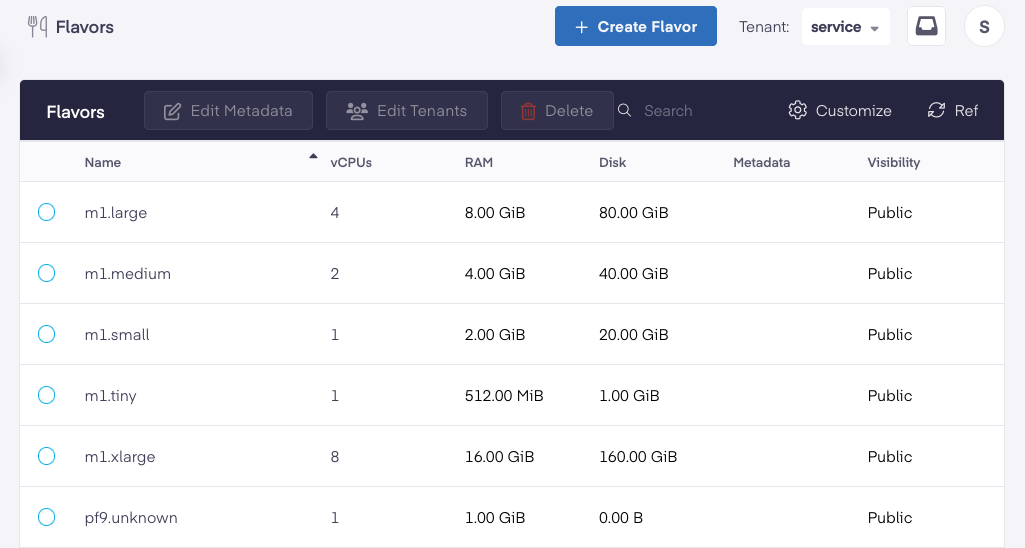
Once you have the images you would like to use, it's time to look at the resource configuration for the VMs to be deployed. space.vars.product\_name uses T-Shirt sized configurations of resource allocations, called Flavors, to allow you to specify the resource allocation for VMs. Navigate to the Flavors section of the UI and create or edit flavors to suit your desired CPU memory configuration.
{% hint style="info" %}
**Info**
Flavors can also be used to specify VM placement rules, by specifying additional attributes (called Host Aggregates) that would direct VMs to be placed on Cluster hosts that match those attributes. You can review those later, as you get more familiar with the platform.
{% endhint %}
### Deploy Your VM
By now, you have your desired VM image, your preferred Flavor, and you have previously setup at least one Network that you can use to deploy your VM. So navigate to Virtual Machines in the Navigation pane and start 'Deploy Virtual Machine'.
Beyond the obvious selection of source image, flavor and network, we'll introduce some of the other VM creation options here.
#### VM source
{% hint style="warning" %}
**Warning**
This is an important selection that affects where your VM is stored, and whether it should be 'Ephemeral' vs 'Persistent'.
{% endhint %}
**Boot VM from Image**
Use this option if you would like to provision a temporary VM that doesn't need to persist upon host failure, or after the VM is terminated. The VM disk will be created using local storage on the Hypervisor it is provisioned on, and populated using the contents of the source image. If the Hypervisor were to go down or the VM were to be terminated, this VM will not be recoverable.
**Boot VM from New Volume**
Use this option if you would like a VM whose data should be persistent, or if it should be resident on your desired Cinder storage backend. Here, a new, persistent volume is created on the block storage configured in your cluster, and its contents populated with the contents from the source image. A VM created in this manner will persist across host failures and VM termination, unless you choose to have the volume be deleted upon VM termination.
**Boot VM from Existing Volume**
This option is like the previous one, except you are choosing to boot from an existing volume as opposed to provisioning a new volume from a base image.
#### SSH Key
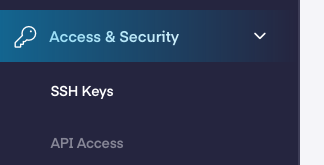
Using SSH Keys to access your VM is the recommended method in lieu of insecure passwords. To setup your SSH Key, navigate to 'Access and Security' in the Navigation Pane, and import your SSH Keys.
Once you have the key imported, you can select that key so you can access the newly provisioned VM via that key.
#### Server Group Assignment
Server Groups are logical groups of Virtual Machines so you can specify "Affinity" or "Anti-Affinity" rules. We will cover these in greater detail later.
#### Using cloud-init
Using cloud-init allows you to customize the Virtual Machine as it boots up, such as to provision certain additional software or customization scripts.
#### Assigning Security Groups
Security groups allow you to limit port access to Virtual Machines. If you don't already have a Security Group configured, you can cover this later.
#### Specifying Metadata
Metadata attributes allow you to specify additional key-value pairs of metadata, which can be used for querying and organizing your Virtual Machine environments.
{% hint style="success" %}
**Success**
With this information specified, space.vars.product\_name has all it needs to spin up your VM, and you should see the VM provision within a few minutes. You can then access the VM over the network or via its console.
{% endhint %}
---
# Agent Instructions
This documentation is published with GitBook. GitBook is the documentation platform designed so that both humans and AI agents can read, navigate, and reason over technical content effectively. Learn more at gitbook.com.
## Querying This Documentation
If you need additional information that is not directly available in this page, you can query the documentation by asking a question.
Perform an HTTP GET request on the following URL with the `ask` and `goal` query parameters:
```
GET https://docs.platform9.com/private-cloud-director/2025.2/tutorials/deploy-vms-on-your-virtualized-cluster.md?ask=&goal=
```
`ask` is the immediate question: it should be specific, self-contained, and written in natural language.
`goal` is what the user is ultimately trying to achieve, the reason they need the answer. Sharing it helps GitBook give you a better, more relevant answer. A goal is most helpful when it describes the outcome the user wants rather than restating the question. For example, with `ask=how do I create an API token`, a goal like `automate deployments from our CI pipeline` lets GitBook tailor the answer to that use case.
The response will contain a direct answer to the question and relevant excerpts and sources from the documentation.
Use this mechanism when the answer is not explicitly present in the current page, you need clarification or additional context, or you want to retrieve related documentation sections.