> For the complete documentation index, see [llms.txt](https://docs.platform9.com/llms.txt). Markdown versions of documentation pages are available by appending `.md` to page URLs; this page is available as [Markdown](https://docs.platform9.com/private-cloud-director/2025.2/kubernetes-clusters/kubernetes-operating-system-image-management.md).
# Operating System Image Management
space.vars.product\_acronym Kubernetes allows the flexibility to use your own Operating System (OS) to use with your Kubernetes clusters. It requires Cluster API compliant Operating System Images uploaded into [Image Library](/private-cloud-director/2025.2/virtualized-clusters/image-library---images.md) specific to Kubernetes version you want to deploy. The ability to bring your own OS to PCD gives you more control over dependencies in your environment and ensures compatibility with your existing applications. The OS you bring can be commercial or an open source distribution.
## Building OS image
You can use [OpenstackImageBuilder](https://image-builder.sigs.k8s.io/capi/providers/openstack) based on the [KubernetesImageBuilder](https://image-builder.sigs.k8s.io/introduction.html) to create your own OS images on your machine. PCD currently support only **Ubuntu 22.04** as the OS for worker nodes and **qcow2** as the image format.
**Pre-requisites**: qemu and libvirt running
Steps:
{% tabs %}
{% tab title="Bash" %}
```bash
git clone https://github.com/kubernetes-sigs/image-builder.git
make deps-qemu
PACKER_LOG=1 make build-qemu-ubuntu-2204
```
{% endtab %}
{% endtabs %}
The OS and its supported versions are defined in `images/capi/packer/qemu/`. Any modifications to the `build-qemu` command for building different OS versions can also be found there.
By default make will use the latest kube version. To build specific kube version. Update the kube version in the following file and run the make again.
{% tabs %}
{% tab title="Bash" %}
```bash
# cat image-builder/images/capi/packer/config/kubernetes.json
{
"crictl_arch": "amd64",
"crictl_sha256": "https://github.com/kubernetes-sigs/cri-tools/releases/download/v%7B%7Buser crictl_version}}/crictl-v{{user crictl_version}}-linux-{{user crictl_arch}}.tar.gz.sha256",
"crictl_source_type": "pkg",
"crictl_url": "https://github.com/kubernetes-sigs/cri-tools/releases/download/v%7B%7Buser crictl_version}}/crictl-v{{user crictl_version}}-linux-{{user crictl_arch}}.tar.gz",
"crictl_version": "1.29.0",
"kubeadm_template": "etc/kubeadm.yml",
"kubernetes_apiserver_port": "6443",
"kubernetes_container_registry": "GitHub - kubernetes/registry.k8s.io: This project is the repo for registry.k8s.io, the production OCI registry service for Kubernetes' container image artifacts ",
"kubernetes_deb_gpg_key": "https://pkgs.k8s.io/core:/stable:/{{ user kubernetes_series }}/deb/Release.key",
"kubernetes_deb_repo": "https://pkgs.k8s.io/core:/stable:/{{ user kubernetes_series }}/deb/",
"kubernetes_deb_version": "v1.29.11-1.1",
"kubernetes_goarch": "amd64",
"kubernetes_http_source": "https://dl.k8s.io/release",
"kubernetes_load_additional_imgs": "false",
"kubernetes_rpm_gpg_check": "True",
"kubernetes_rpm_gpg_key": "https://pkgs.k8s.io/core:/stable:/{{ user kubernetes_series }}/rpm/repodata/repomd.xml.key",
"kubernetes_rpm_repo": "https://pkgs.k8s.io/core:/stable:/{{ user kubernetes_series }}/rpm/",
"kubernetes_rpm_repo_arch": "x86_64",
"kubernetes_rpm_version": "v1.29.11",
"kubernetes_semver": "v1.29.11",
"kubernetes_series": "v1.29",
"kubernetes_source_type": "pkg",
"systemd_prefix": "/usr/lib/systemd",
"sysusr_prefix": "/usr",
"sysusrlocal_prefix": "/usr/local"
}
```
{% endtab %}
{% endtabs %}
## Uploading OS Images to PCD [Image Library](/private-cloud-director/2025.2/virtualized-clusters/image-library---images.md)
You can user the PCD UI or OpenStack CLI to upload an image to the [Image Library & Images](/private-cloud-director/2025.2/virtualized-clusters/image-library---images.md) in PCD. Please follow the instructions in the [Image Library & Images](/private-cloud-director/2025.2/virtualized-clusters/image-library---images.md) to import the generated qcow2 image into PCD.
## Adding required Properties to OS Images
PCD required following properties to be present on the Image to be used for creating Kubernetes Node VMs in PCD. These are required to identify the image build for a specific Kubernetes version.
| Property Key | Property Value |
| ------------ | -------------------------------------------------------------------- |
| k8s\_version | Kubernetes version in formation major.minor version. Eg 1.30 or 1.31 |
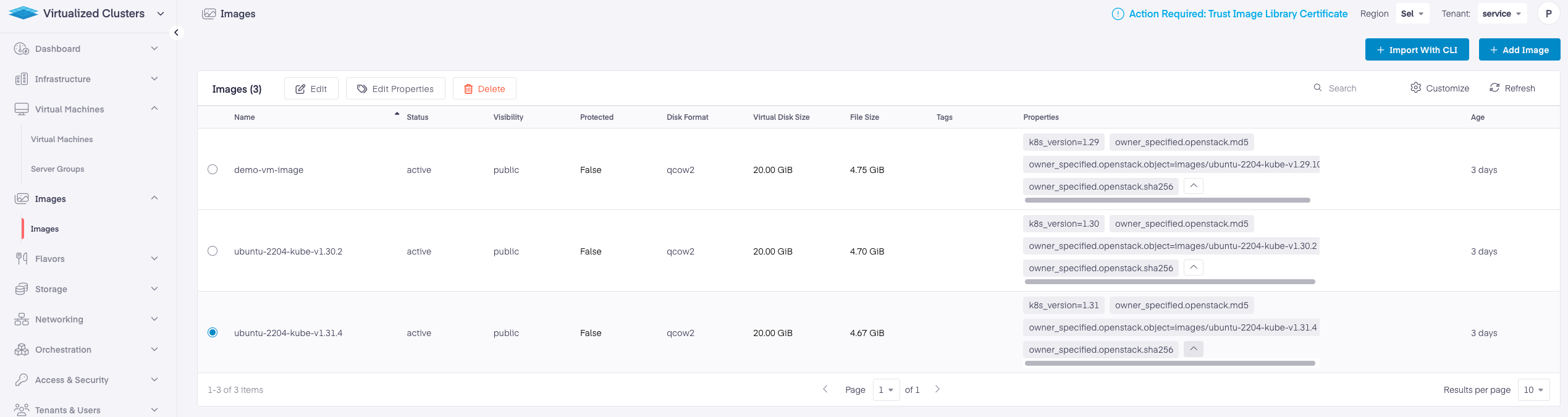
You can add the image property after the image is imported to PCD via the PCD UI. Go to the Virtualized Cluster > Images Page and select the image to add properties. Click on Edit Properties to add the image. Once the Properties are added, the image properties should appear as below in PCD.
---
# Agent Instructions
This documentation is published with GitBook. GitBook is the documentation platform designed so that both humans and AI agents can read, navigate, and reason over technical content effectively. Learn more at gitbook.com.
## Querying This Documentation
If you need additional information that is not directly available in this page, you can query the documentation by asking a question.
Perform an HTTP GET request on the following URL with the `ask` and `goal` query parameters:
```
GET https://docs.platform9.com/private-cloud-director/2025.2/kubernetes-clusters/kubernetes-operating-system-image-management.md?ask=&goal=
```
`ask` is the immediate question: it should be specific, self-contained, and written in natural language.
`goal` is what the user is ultimately trying to achieve, the reason they need the answer. Sharing it helps GitBook give you a better, more relevant answer. A goal is most helpful when it describes the outcome the user wants rather than restating the question. For example, with `ask=how do I create an API token`, a goal like `automate deployments from our CI pipeline` lets GitBook tailor the answer to that use case.
The response will contain a direct answer to the question and relevant excerpts and sources from the documentation.
Use this mechanism when the answer is not explicitly present in the current page, you need clarification or additional context, or you want to retrieve related documentation sections.