> For the complete documentation index, see [llms.txt](https://docs.platform9.com/llms.txt). Markdown versions of documentation pages are available by appending `.md` to page URLs; this page is available as [Markdown](https://docs.platform9.com/private-cloud-director/2025.2/virtualized-clusters/add-hosts-virtualized-cluster.md).
# Host
A **Host** is a physical machine that you supply to space.vars.product\_name as a hypervisor. Once authorized and configured, virtual machines can be deployed on top of the host.
Once you have your Cluster Blueprint configured, space.vars.product\_name has the information it needs to configure hosts that will be added to the cluster.
## Host Agent
The Platform9 host agent is the first component you will install on each host. The host agent enables you to add hosts and configure their roles in your virtualized cluster. Based on each hosts' assigned role(s), the agent will download and configure the required software and integrate it with the space.vars.product\_name management plane.
The host agent is also used for ongoing health monitoring of the host, including failure and error detection. It also helps Platform9 orchestrate an upgrade for the host when you choose to upgrade your space.vars.product\_name deployment to a newer version.
## Roles
As part of host authorization process, you can configure hosts to perform specific functions by assigning them one or more roles. Following are the **supported roles**:
### Hypervisor Role
The Hypervisor role enables the Host to function as a KVM based Hypervisor in your Virtualized Cluster, using the OpenStack Nova data-plane.
Typically, all hosts in your cluster will be assigned this role; unless you are experiencing performance bottlenecks and want to avoid running VM workloads on select hosts that are assigned other roles such as image library role or storage role.
### VM Image Library Role
Every cluster needs to have at least one 'Image Library', which will host the cluster copy of Virtual Machine source images from which new VMs can be provisioned. Read more about [Configuring Image Library Role here](/private-cloud-director/2025.2/virtualized-clusters/image-library---images.md#configuration-).
### Block Storage Node Role
One or more hosts in your cluster will typically be configured as a 'Block Storage Node'. Read more about how to [Configure Block Storage Role here](/private-cloud-director/2025.2/storage/block-storage-options---configuration.md#configure-block-storage).
### Enable Advanced Remote Support
For certain troubleshooting situations, Platform9 support teams may request access to automatically gather detailed telemetry from a host that is experiencing some problems. Enabling Advanced Remote Support enables this mode. By default, this should be disabled and should only be enabled when requested by Platform9 support.
## Add a Host (SaaS Deployment)
Ensure that the host that you are trying to add [meets the pre-requisites](/private-cloud-director/2025.2/getting-started/pre-requisites.md#host-hardware-and-configuration).
Once you have the required pre-requisites confirmed, add hosts by navigating to Infrastructure > Cluster Hosts, and click "Add New Hosts". Follow the instructions as shown. You will enter the administrative user's password when prompted.
You will now see the two simple steps in the UI that you need to run on each of your hosts. Remember to ensure you have `sudo` privileges.
{% tabs %}
{% tab title="Bash" %}
```bash
bash <(curl -s https://cloud-ctl.s3.us-west-1.amazonaws.com/cloud-ctl-setup)
cloud-ctl prep-node
```
{% endtab %}
{% endtabs %}
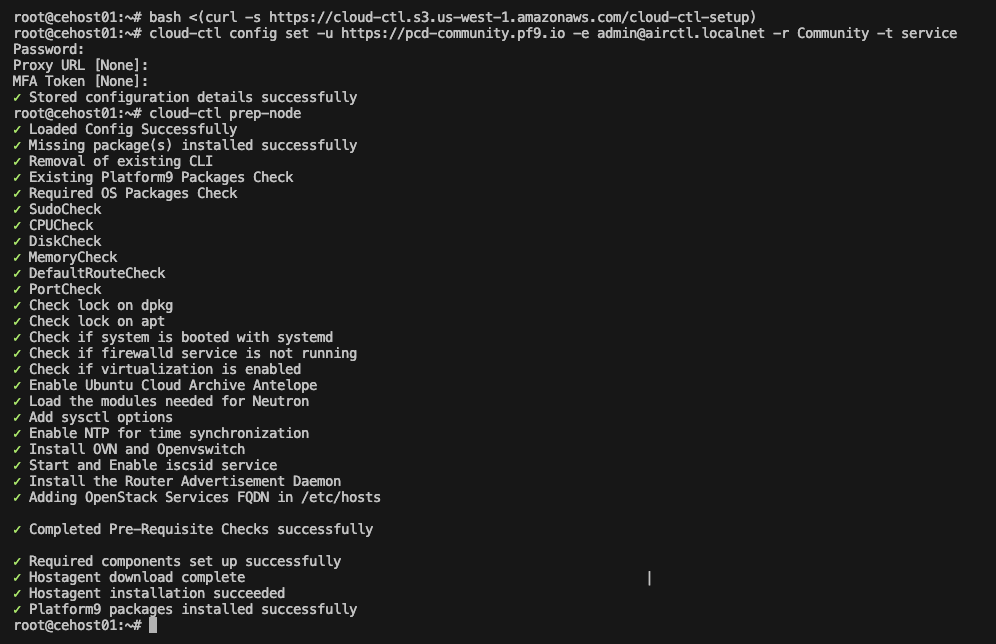
These commands download `cloud-ctl` CLI and invoke the `prep-node` command on `cloud-ctl`. The command will ask you for a number of inputs; the values for all of these specific to your environment are provided in your space.vars.product\_name UI for ease of use.
It will typically take 2-3 minutes to download and install the Platform9 host agent and other necessary Platform9 software components, which will then allow you to proceed to the next step to assign role.
## Add a Host (Self-Hosted & Community Edition Deployment)
Community Edition Note: Hypervisor hosts deployed as virtual machines must have virtualization support available inside the VM. Virtual machines on ARM CPUs are currently untested.
If you want to verify that nested virtualization is working in a VM, you can check for virtualization support inside the VM by running:
{% tabs %}
{% tab title="Bash" %}
```bash
egrep "svm|vmx" /proc/cpuinfo
```
{% endtab %}
{% endtabs %}
To add (onboard) a hypervisor host to a self-hosted or Community Edition deployment of space.vars.product\_name, login to the host and follow the following steps as a **root** user.
### Add DNS entries
{% hint style="info" %}
**Note**
An FQDN is a fully-qualified domain name for your Private Cloud Director installation. For Community Edition, the FQDN for the workload region (and where you'll login to the user interface) is `pcd-community.pf9.io`. The FQDN for the infrastructure region is `pcd.pf9.io`.
{% endhint %}
As a root user, add DNS entries on each hypervisor host for both the infrastructure & workload region FQDNs using the `/etc/hosts` file.
{% tabs %}
{% tab title="Bash" %}
```bash
echo "" | tee -a /etc/hosts
echo "" | tee -a /etc/hosts
```
{% endtab %}
{% endtabs %}
{% tabs %}
{% tab title="Example" %}
```bash
echo "10.9.11.246 pcd.pf9.io" | tee -a /etc/hosts
echo "10.9.11.246 pcd-community.pf9.io" | tee -a /etc/hosts
```
{% endtab %}
{% endtabs %}
### Trust Management Plane SSL Certificate
As a root user, the self-signed management plane/workload region SSL certificate must be trusted on each target hypervisor host before beginning the host onboarding process.
{% tabs %}
{% tab title="Bash" %}
```bash
# Export DU_URL
export FQDN=
# Get the DUs self-signed certificate
openssl s_client -showcerts -connect $FQDN:443 2>/dev/null du.crt
# Copy it to trusted store
cp du.crt /usr/local/share/ca-certificates
# Refresh CA certs
update-ca-certificates
# Ensure curl does not complain about the certificate
curl https://$FQDN/keystone/v3
```
{% endtab %}
{% endtabs %}
An example output is shown below:
{% tabs %}
{% tab title="Example" %}
```bash
export FQDN=pcd-community.pf9.io
openssl s_client -showcerts -connect $FQDN:443 2>/dev/null du.crt
cp du.crt /usr/local/share/ca-certificates
update-ca-certificates
Updating certificates in /etc/ssl/certs...
rehash: warning: skipping ca-certificates.crt,it does not contain exactly one certificate or CRL
1 added, 0 removed; done.
Running hooks in /etc/ca-certificates/update.d...
done.
curl https://$FQDN/keystone/v3
{"version": {"id": "v3.14", "status": "stable", "updated": "2020-04-07T00:00:00Z", "links": [{"rel": "self", "href": "https://pcd-community.pf9.io/keystone/v3/"}], "media-types": [{"base": "application/json", "type": "application/vnd.openstack.identity-v3+json"}]}}
```
{% endtab %}
{% endtabs %}
### Prepare Host
{% hint style="info" %}
**Info**
Before preparing a hypervisor host, ensure that a cluster blueprint has been saved in the Private Cloud Director user interface first.
{% endhint %}
In the Private Cloud Director user interface, navigate to Infrastructure > Cluster Hosts, and click "Add New Hosts". Follow the instructions as shown. You will enter the administrative user's password when prompted.
Host preparation example
## Assign Roles
Now that your host is added, it will show up Infrastructure > Cluster Hosts with an "unauthorized" status, which means it is awaiting cluster role assignment. Select the host and click "Edit Roles". Configure these host roles as you desire for your cluster architecture.
Based on your desired cluster role assignment, the space.vars.product\_name management plane will work with the Platform9 agent to configure the required software on your host. This will typically take 3-5 minutes to complete. During this time, you will see the host status as `converging` in the space.vars.product\_name UI.
### Monitor Host Addition Status
While a host is in converging state, you can monitor the status of this activity by looking at the hostagent log. See [Log Files](#log-files) for location of the hostagent log files. Tail the log file to monitor the status of host addition:
{% tabs %}
{% tab title="Bash" %}
```bash
tail hostagent.log
```
{% endtab %}
{% endtabs %}
{% hint style="success" %}
**Success**
Once the role assignments have taken effect, your host is ready to use!
{% endhint %}
## Host Aggregates
A host aggregate is a **group of hosts** within your virtualized cluster that share common characteristics. Read [Host Aggregate](/private-cloud-director/2025.2/virtualized-clusters/host-aggregate.md) for more information and how to configure them.
## Decommissioning a Host
Before decommissioning, ensure that the host is not running any critical workloads.
{% hint style="warning" %}
**Warning**
Always back up important data and configurations from the host before decommissioning.
{% endhint %}
Use the `cloud-ctl` to decommission a host by running the following command:
{% tabs %}
{% tab title="Bash" %}
```bash
$ cloud-ctl decommission-node
Do you wish to decommission the node? (y/n) y
Checking if any roles exist on the host
Cleaning up the node
Decommission Successful
```
{% endtab %}
{% endtabs %}
Once the command executes successfully, the host will be removed from the list of active hosts in the space.vars.product\_name UI. If you encounter errors during decommissioning, check the logs for details and ensure the host is reachable.
#### Potential Impact
* **Resource Availability**: Decommissioning a host reduces the available resources (CPU, memory, storage) in the cluster.
* **Service Disruption**: If workloads are not properly migrated, it may lead to service downtime.
* **Cluster Rebalancing**: The cluster may take time to rebalance workloads across remaining hosts.
## Log Files
Important log files for debugging:
1. **Log files for all services** - Each host stores all its log files for the various components running on it at `/var/log/pf9`**.** Here you will find logs for compute, image library, storage, networking and other services, depending on the roles assigned to that host.
1. **Image library service log** - The log file for the Image library service is located at `/var/log/pf9/glance-api.log` on host(s) with image library role assigned.
2. **Compute service log** - The log file for the compute service is located at `/var/log/pf9/ostackhost.log` on all hosts with hypervisor role assigned. Useful for debugging issues with Virtual Machine creation or updates.
3. **Storage service log** - The log file that corresponds to all block storage attach / detach operations is located at `/var/log/pf9/cindervolume-base.log`. Use this file when debugging any issues with respect to block storage volume attachment or detachment to virtual machines. (Also look at the compute service log file `ostackhost.log` file for further details when debugging any volume attachment issues.)
2. **Host agent log** - The log file for the Platform9 host agent that is installed on each hypervisor host is located at `/var/log/pf9/hostagent.log`. This is helpful for debugging issues with host agent install or connectivity with space.vars.product\_name management plane.
3. **Communication agent log** - Located at `/var/log/pf9/comms/comms.log`. Log file for Platform9 communications agent that is responsible for ensuring the health and uptime of host agent. Helpful for debugging issues regarding connectivity.
4. **Libvirt logs** - Located at `/var/log/libvirt/qemu/` where should be the UUID of the VM and at `/var/log/libvirt/libvirtd.log`. Libvirt logs help with debugging any resource allocation or other issues with virtual machine instances.
---
# Agent Instructions
This documentation is published with GitBook. GitBook is the documentation platform designed so that both humans and AI agents can read, navigate, and reason over technical content effectively. Learn more at gitbook.com.
## Querying This Documentation
If you need additional information that is not directly available in this page, you can query the documentation by asking a question.
Perform an HTTP GET request on the following URL with the `ask` and `goal` query parameters:
```
GET https://docs.platform9.com/private-cloud-director/2025.2/virtualized-clusters/add-hosts-virtualized-cluster.md?ask=&goal=
```
`ask` is the immediate question: it should be specific, self-contained, and written in natural language.
`goal` is what the user is ultimately trying to achieve, the reason they need the answer. Sharing it helps GitBook give you a better, more relevant answer. A goal is most helpful when it describes the outcome the user wants rather than restating the question. For example, with `ask=how do I create an API token`, a goal like `automate deployments from our CI pipeline` lets GitBook tailor the answer to that use case.
The response will contain a direct answer to the question and relevant excerpts and sources from the documentation.
Use this mechanism when the answer is not explicitly present in the current page, you need clarification or additional context, or you want to retrieve related documentation sections.