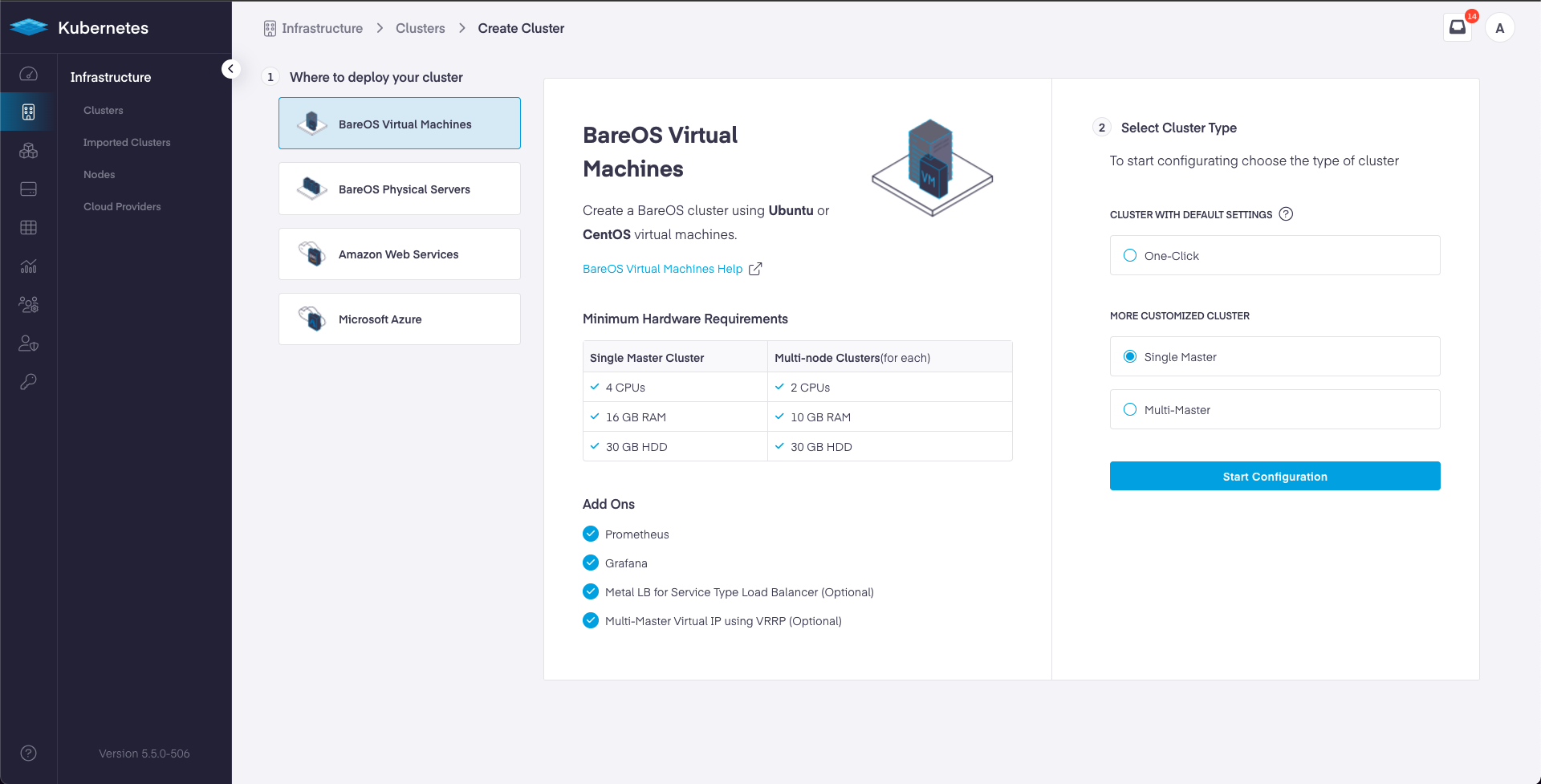
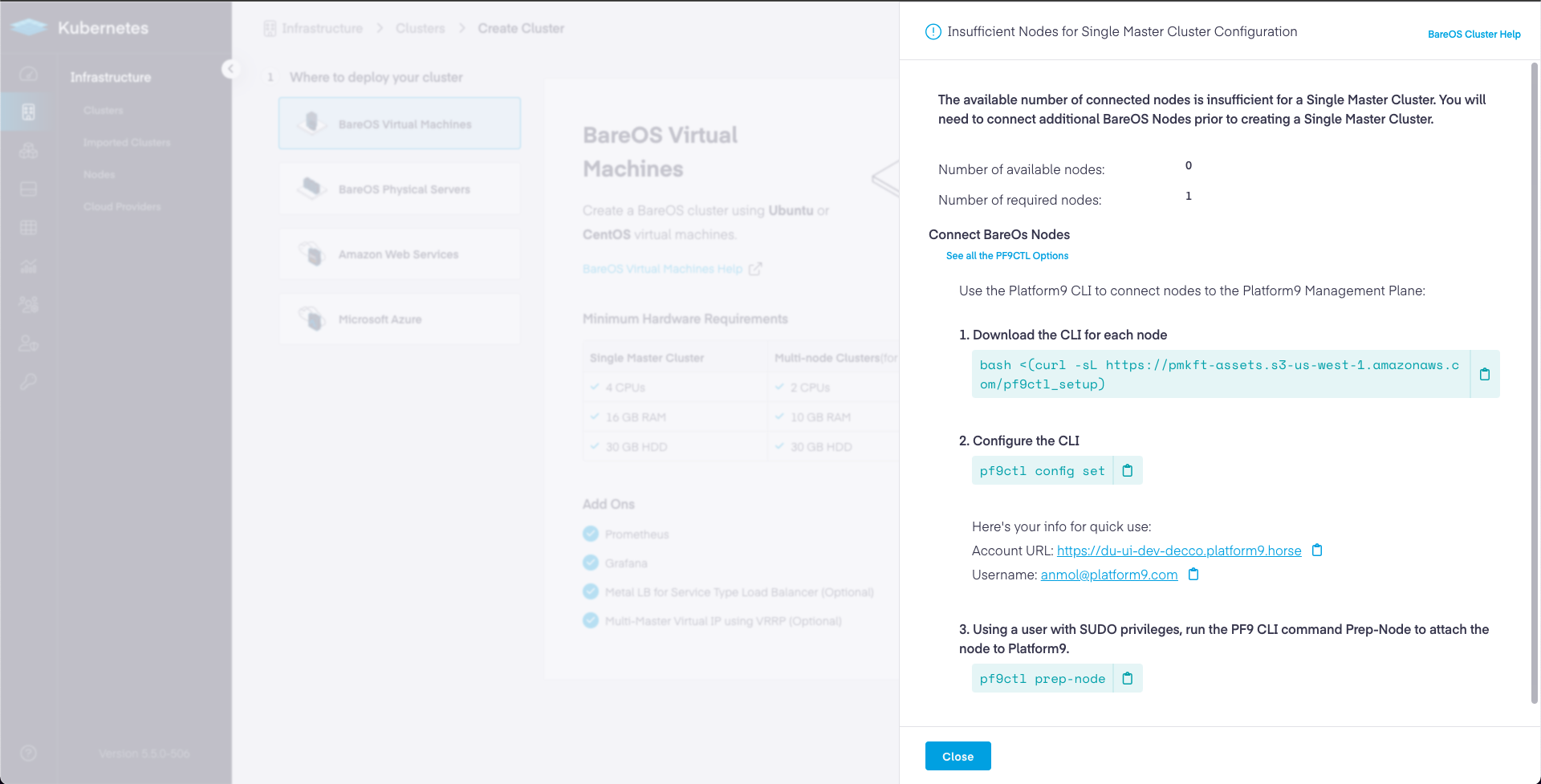
✓ Stored configuration details Succesfully
```
{% endtab %}
{% endtabs %}
{% hint style="info" %}
**Info**
{% endhint %}
{% tabs %}
{% tab title="Prepare Node" %}
```bash
pf9ctl prep-node
```
{% endtab %}
{% endtabs %}
The [*prep-node*](https://github.com/platform9/pcd-docs-gitbook/blob/main/kubernetes/pmk-cli-prep-node/README.md) command will perform [prerequisites](https://github.com/platform9/pcd-docs-gitbook/blob/main/kubernetes/bareos-networking-prerequisites/README.md) checks on your node. If any checks fail, you will receive an output similar to the following.
{% tabs %}
{% tab title="Prepare Node - Pre-Requisite Check(s) Failed" %}
```bash
✓ Loaded Config Successfully
✓ Missing package(s) installed successfully
✓ Removal of existing CLI
✓ Existing Platform9 Packages Check
✓ Required OS Packages Check
✓ SudoCheck
✓ CPUCheck
x DiskCheck - At least 30 GB of total disk space and 15 GB of free space is needed on host. Disk Space found: 2 GB
x MemoryCheck - At least 12 GB of memory is needed on host. Total memory found: 4 GB
✓ PortCheck
✓ Existing Kubernetes Cluster Check
✓ Completed Pre-Requisite Checks successfully
Optional pre-requisite check(s) failed. Do you want to continue? (y/n)
```
{% endtab %}
{% endtabs %}
{% hint style="warning" %}
**Warning**
{% endhint %}
{% hint style="danger" %}
**Failed to Prepare Node**
{% endhint %}
{% tabs %}
{% tab title="Bash" %}
```bash
Failed to prepare node. See /root/pf9/log/pf9ctl-20210330.log or use --verbose for logs
```
{% endtab %}
{% endtabs %}
{% tabs %}
{% tab title="Bash" %}
```bash
✓ Loaded Config Successfully
✓ Missing package(s) installed successfully
✓ Removal of existing CLI
✓ Existing Platform9 Packages Check
✓ Required OS Packages Check
✓ SudoCheck
✓ CPUCheck
✓ DiskCheck
✓ MemoryCheck
✓ PortCheck
✓ Existing Kubernetes Cluster Check
✓ Completed Pre-Requisite Checks successfully
✓ Disabled swap and removed swap in fstab
✓ Hostagent installed successfully
✓ Initialised host successfully
✓ Host successfully attached to the Platform9 control-plane
```
{% endtab %}
{% endtabs %}
{% hint style="info" %}
**Info**
{% endhint %}
{% tabs %}
{% tab title="Bash" %}
```bash
pf9ctl cluster prep-node -u testuser -p testpassword -s ~/.ssh/id_rsa -i localhost -i 150.20.7.65 -i 150.20.7.66
```
{% endtab %}
{% endtabs %}
**Step 5** - Once you have prepared all the nodes that will become part of your cluster, return to the PMK UI cluster creation wizard, and `Next` to proceed to the `Master Node` page of the wizard.
**Step 6** – On the `Master Node` page of the wizard, you should now see all the nodes that you prepared in the previous step listed in the table. Select one of the nodes to be the master for your cluster. This node will run the Kubernetes control plane along with the etcd database.
Proceed to Next step.
**Step 7** - In the `Worker Node` selection page of the wizard, select one or more nodes as worker nodes for your cluster.
**Step 8** - At this point, you can choose to leave all the remaining properties of the wizard to their default values and click `Finish and Review` to review your cluster creation request before submitting it for creation.
At this point, your cluster is created and ready for use!
**Step 9** - Following table describes all the options provided to you in the cluster creation wizard. Use this information to understand the various options provided to you, and to make meaningful changes to them when required.
| | Option | Description |
| ------------------------------------ | --------------------------------- | -------------------------------------------------------------------------------------------------------------------------------------------------------------------------------------------------------------------------------------------------------------------------------------------------------------------------------------------------------------------------------------------------------------------------------------------------------------------------------------------------------------------------------------------------------- |
| **Cluster Settings** | | |
| | Kubernetes Version | Select the `Kubernetes Version` from the [list of supported Kubernetes versions](https://github.com/platform9/pcd-docs-gitbook/blob/main/kubernetes/support-matrix/README.md). |
| **Application & Container Settings** | | |
| | Privileged Containers | Select the check box to enable the cluster to run privileged containers. Note that being able to run privileged containers within the cluster is a prerequisite if you wish to enable service type load balancer using MetalLB. By default a container is not allowed to access any devices on the host, but a “privileged” container is given access to all devices on the host. For more information, see [Privileged Policy Reference](https://kubernetes.io/docs/concepts/policy/pod-security-policy/#privileged) |
| | Make Master nodes Master + Worker | Opt to schedule workloads onto the master nodes, or, deploy only the necessary control plane services and cordon the masters otherwise. |
| **Cluster Add-Ons** | | |
| | Enable ETCD Backup | Configures automated etcd backups |
| | Deploy MetalLB + Layer2 Mode | MetalLB is a software load balancer that is deployed and managed by Platform9. MetalLB will be automatically attached to the cluster and allow services to be deployed using the LoadBalancer service type. Simplifying the steps required to make applications accessible outside of the cluster.
Requirements: MetalLB requires a reserved network address range. MetalLB will manage the IP range to expose Kubernetes services
Example: Starting IP 10.128.159.250 – Ending IP 10.128.159.253
|
| | Monitoring | Learn more [auto$](https://github.com/platform9/pcd-docs-gitbook/blob/main/kubernetes/in-cluster-monitoring/README.md) |
| | KubeVirt | Learn more [auto$](https://github.com/platform9/pcd-docs-gitbook/blob/main/kubernetes/platform9-managed-kubevirt-overview/README.md) |
| | Network Plugin Operator | Learn more [auto$](https://github.com/platform9/pcd-docs-gitbook/blob/main/kubernetes/luigi-network-operator-quickstart/README.md) |
| **ETCD Backup Configuration** | | |
| | Storage Path | Storage path on the master node where etcd backups will be stored
Requirement: The storage path specified here must be created and available on all Master Nodes
|
| | Backup Interval (Minutes) | Controls how often the backups will be performed (in minutes). |
| **MetalLB Configuration** | | |
| | Address Range | Address range to be used by MetalLB when allocating to service load balancer instances.
Example: Starting IP 10.128.159.250 – Ending IP 10.128.159.253
|
| | **Field** | **Value** |
| ----------------------------------------- | --------------------------------------------- | --------------------------------------------------------------------------------------------------------------------------------------------------------------------------------------------------------------------------------------------------------------------------------------------------------------------------------- |
| **Cluster API FQDN** | | |
| | API FQDN | The FQDN (DNS Name) that is to be used to access the Kubernetes cluster API server from outside of the cluster. |
| **Cluster Virtual IP Configuration** | | |
| | Virtual IP Address for Cluster | Required only when creating a multi-master cluster.
The reserved IP address or the highly availability floating IP address with which the user accesses the cluster.
|
| | Physical Interface for Virtual IP Association | Required only when creating a multi-master cluster
The network interface to which the virtual IP gets associated. Ensure that the virtual IP specified above is accessible on this network interface, and that all master nodes use the same interface name for the interface to be associated with the virtual IP.
|
| **Cluster Networking Range & HTTP Proxy** | | |
| | Containers CIDR | Required
The IP range that Kubernetes uses to configure the Pods (Docker containers) deployed by Kubernetes.
|
| | Services CIDR | Required
The IP range that Kubernetes uses to configure services deployed by Kubernetes
|
| | HTTP Proxy | |
| | Field | Option | |
| - | -------------------------- | ------------------------------- | ---------------------------------------------------------------------------------------------------------------------------------------------------------------------------------------------------------------------------------------------------------------------------------------------------------------------------------------------------------------------------------------------------------------------------------------------------------------------------------------------------------------------------------------------------------------------------------------- |
| | Advanced API Configuration | | |
| | | Default API groups and versions | Select the Default API groups and versions option to enable
on the cluster, the default APIs based on the Kubernetes installation in
your environment
|
| | | All API groups and versions | Select All API groups and versions option to enable on the
cluster, all alpha, beta, and GA versions of Kubernetes APIs that have
been published till date.
|
| | | Custom API groups and versions | Select Custom API groups and versions option to specify one
or more API versions that you wish to enable and/or disable. Enter the
API versions in the text area following the Custom API groups and
versions option.
For example, to enable Kubernetes v1 APIs, enter the expression,api/v1=true.
Similarly, to disable Kubernetes v2 APIs, enter the expression, api/v2=false.
If you want to enable and/or disable multiple versions, you could enter comma-separated expressions, such as, api/v2=false,api/v1=true.
|
At this point, your cluster is deployed, and you are ready to start creating your workloads on it.
## Create BareOS Cluster Using REST API
For advanced users, you can automate the process of creating a multi-master BareOS Kubernetes cluster by integrating with our [PMK (Qbert) REST API](https://github.com/platform9/pcd-docs-gitbook/blob/main/other-docs/pmk/5.8/bareos-what-is-bareos/learn/qbert-cli/README.md).
---
# Agent Instructions
This documentation is published with GitBook. GitBook is the documentation platform designed so that both humans and AI agents can read, navigate, and reason over technical content effectively. Learn more at gitbook.com.
## Querying This Documentation
If you need additional information that is not directly available in this page, you can query the documentation by asking a question.
Perform an HTTP GET request on the following URL with the `ask` and `goal` query parameters:
```
GET https://docs.platform9.com/managed-kubernetes/5.8/bareos-what-is-bareos/bareos-ubuntu-prerequisites.md?ask=&goal=
```
`ask` is the immediate question: it should be specific, self-contained, and written in natural language.
`goal` is what the user is ultimately trying to achieve, the reason they need the answer. Sharing it helps GitBook give you a better, more relevant answer. A goal is most helpful when it describes the outcome the user wants rather than restating the question. For example, with `ask=how do I create an API token`, a goal like `automate deployments from our CI pipeline` lets GitBook tailor the answer to that use case.
The response will contain a direct answer to the question and relevant excerpts and sources from the documentation.
Use this mechanism when the answer is not explicitly present in the current page, you need clarification or additional context, or you want to retrieve related documentation sections.