> For the complete documentation index, see [llms.txt](https://docs.platform9.com/llms.txt). Markdown versions of documentation pages are available by appending `.md` to page URLs; this page is available as [Markdown](https://docs.platform9.com/managed-kubernetes/5.8/get-started-google-cloud.md).
# Get Started Google Cloud
This article describes the steps to create a Kubernetes cluster that is managed by Platform9 Managed Kubernetes (PMK) on Google Cloud.
### [What you’ll need](https://platform9.com/learn/tutorials/get-started-aws#what-youll-need)
* Access to the inbox of a valid email address.
* Google Cloud account with at least 1 active project.
* For this tutorial, we will be using a project named "Platform9 Demo".
* The project will need access to the [Google Compute Engine API](https://console.cloud.google.com/apis/library/compute.googleapis.com).
* Access to a GNU/Linux system/shell/terminal.
{% hint style="info" %}
**Google Cloud PMK Documentation**
Looking to dive deeper? Check out the full [auto$](https://github.com/platform9/pcd-docs-gitbook/blob/main/kubernetes/google-cloud-prerequisites/README.md) for more extensive, provider-specific information.
{% endhint %}
## Installing and Configuring Local Tools
1. Install the [Google Cloud CLI](https://cloud.google.com/sdk/docs/install-sdk#deb).
{% tabs %}
{% tab title="Bash" %}
```bash
# Add the Cloud CLI distribution URI as a package source
$ echo "deb [signed-by=/usr/share/keyrings/cloud.google.gpg] https://packages.cloud.google.com/apt cloud-cli main" | sudo tee -a /etc/apt/sources.list.d/google-cloud-sdk.list
# Import the Google Cloud Platform public key
$ curl https://packages.cloud.google.com/apt/doc/apt-key.gpg | sudo apt-key --keyring /usr/share/keyrings/cloud.google.gpg add -
# Update the package list and install the Cloud SDK
$ sudo apt-get update && sudo apt-get install google-cloud-cli
```
{% endtab %}
{% endtabs %}
2. Configure the CLI to use your Google Cloud credentials.
{% tabs %}
{% tab title="Bash" %}
```bash
$ gcloud init
```
{% endtab %}
{% endtabs %}
3. Select the default project for the CLI.
{% tabs %}
{% tab title="Bash" %}
```bash
You are logged in as: [mike@gmail.com].
Pick cloud project to use:
[1] platform9-demo-274119
[2] Create a new project
Please enter numeric choice or text value (must exactly match list item):
```
{% endtab %}
{% endtabs %}
4. Select the first option (which matches the project we created for the demo).
5. To make it easier to provision new compute resources, set the default zone.
{% tabs %}
{% tab title="Bash" %}
```bash
$ gcloud config set compute/zone us-west1-a
```
{% endtab %}
{% endtabs %}
## Creating Virtual Machine (VM) Instance
1. List the public images available on the Google Compute Engine.
{% tabs %}
{% tab title="Bash" %}
```bash
$ gcloud compute images list
```
{% endtab %}
{% endtabs %}
2. Based on the previous output, identify the image for `Ubuntu 18.04 LTS` (which we'll use in this example), and create a VM instance with the name `demo-cluster-1`.
{% tabs %}
{% tab title="Bash" %}
```bash
$ gcloud compute instances create demo-cluster-1 \
--image-family ubuntu-1804-lts \
--image-project ubuntu-os-cloud
Created [https://www.googleapis.com/compute/v1/platform9-demo-274119/zones/us-west1-a/instances/demo-cluster-1].
NAME ZONE MACHINE_TYPE PREEMPTIBLE INTERNAL_IP EXTERNAL_IP STATUS
Demo-cluster-1 us-west1-a n1-standard-1 10.138.0.2 35.233.254.6 RUNNING
```
{% endtab %}
{% endtabs %}
{% hint style="info" %}
**External IP Address**
**Note:** record the `EXTERNAL_IP` as we'll need it in a few steps.
{% endhint %}
3. Establish an SSH connection to the VM instance.
{% tabs %}
{% tab title="Bash" %}
```bash
gcloud compute ssh demo-cluster-1
```
{% endtab %}
{% endtabs %}
{% hint style="info" %}
**VM Instance Credentials**
This command creates the necessary SSH keys, and logs you into the instance. The username is the same name you used to log into the terminal from which you’re working.
{% endhint %}
{% tabs %}
{% tab title="Bash" %}
```bash
mike@demo-cluster-1:~$
```
{% endtab %}
{% endtabs %}
## Attach VM Instance to Platform9
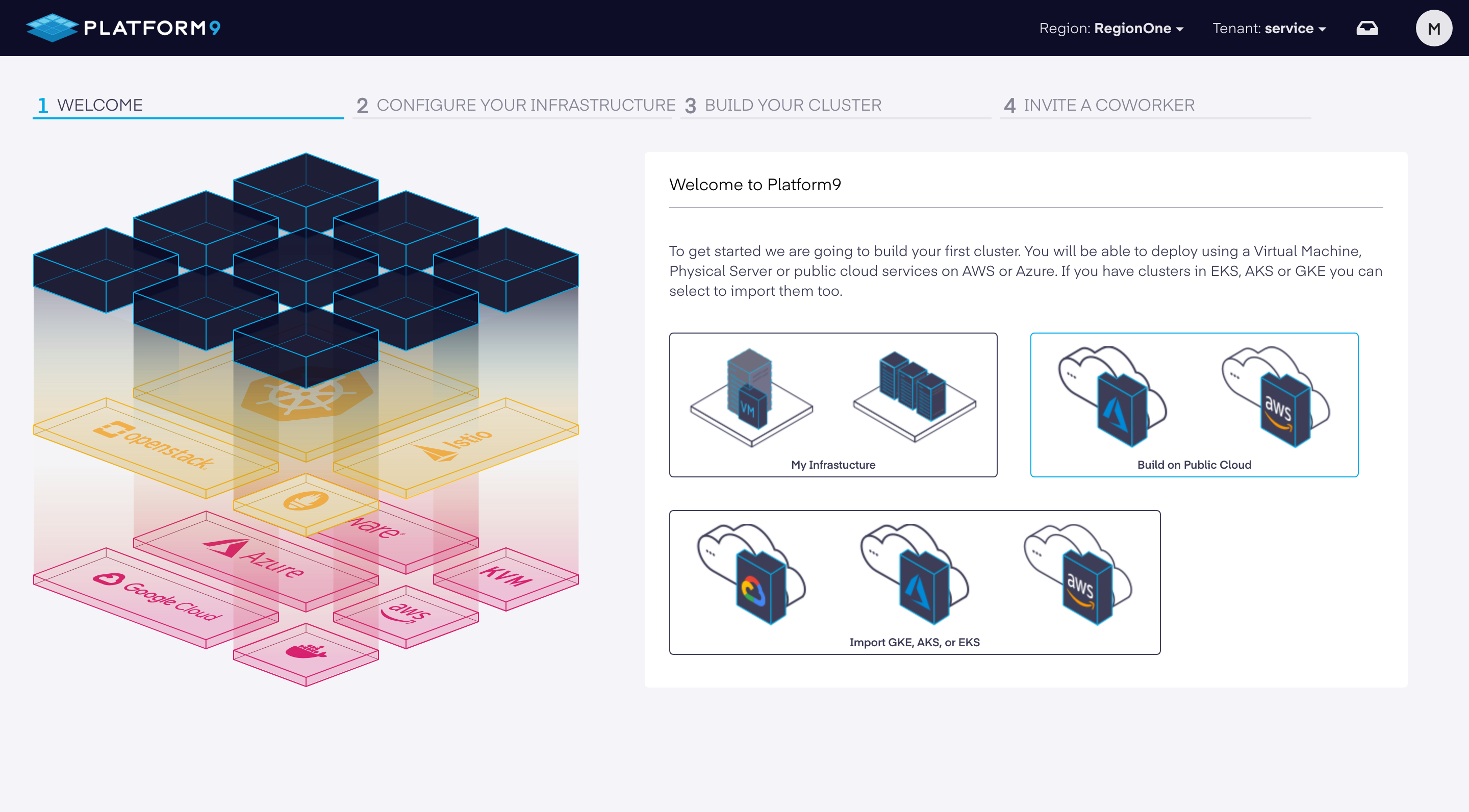
1. From your PMK Dashboard, select "My Infrastructure".
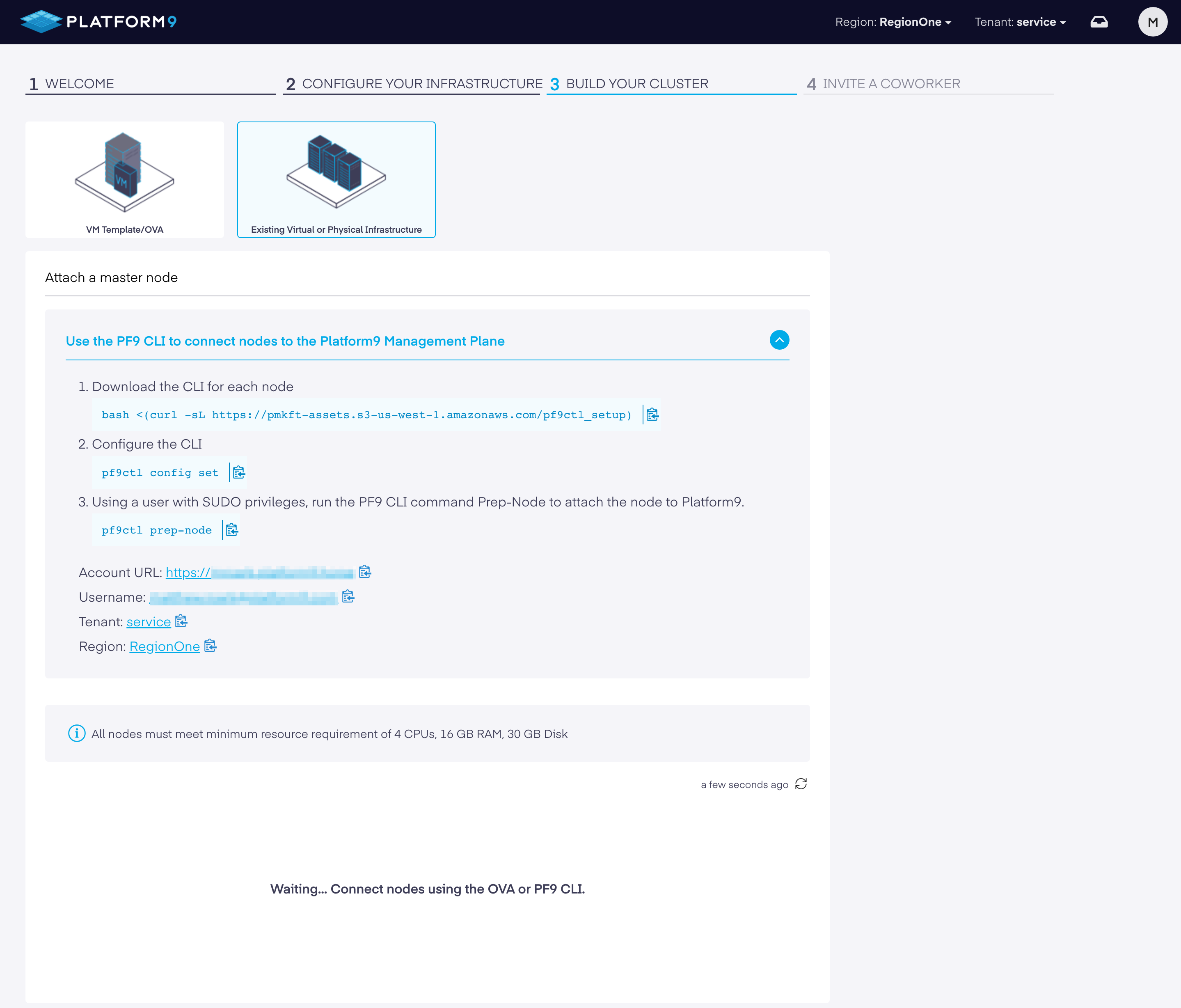
2. Select "Existing Virtual or Physical Infrastructure".
This area will give you direction about how to load our CLI on the VM instance you are SSH'd in to. You then configure the CLI to talk back to your PMK instance.
{% hint style="info" %}
**Google Cloud Account Credentials**
**Note:** when running the `pf9ctl config set` command, you will be prompted to provide your account credentials which were established earlier.
{% endhint %}
The `pf9ctl prep-node` command will install your customized PF9 agent and begin promoting the VM as a PMK node. The node will show up in the UI shortly after completion.
{% tabs %}
{% tab title="Prepare Node - Pre-Requisite Check(s) Failed" %}
```bash
✓ Loaded Config Successfully
✓ Missing package(s) installed successfully
✓ Removal of existing CLI
✓ Existing Platform9 Packages Check
✓ Required OS Packages Check
✓ SudoCheck
✓ CPUCheck
x DiskCheck - At least 30 GB of total disk space and 15 GB of free space is needed on host. Disk Space found: 2 GB
x MemoryCheck - At least 12 GB of memory is needed on host. Total memory found: 4 GB
✓ PortCheck
✓ Existing Kubernetes Cluster Check
✓ Completed Pre-Requisite Checks successfully
Optional pre-requisite check(s) failed. Do you want to continue? (y/n)
```
{% endtab %}
{% endtabs %}
## [Debugging](https://platform9.com/learn/tutorials/get-started-bareos#debugging)
If you encounter the message: `Failure to prepare node`, please review the `pf9ctl` log file for additional context.
**Enterprise** – Please submit a [Support Request](https://support.platform9.com/hc/en-us/requests/new?ticket_form_id=360000924873) with the log attached and our team will review and work with you to onboard the node.
---
# Agent Instructions
This documentation is published with GitBook. GitBook is the documentation platform designed so that both humans and AI agents can read, navigate, and reason over technical content effectively. Learn more at gitbook.com.
## Querying This Documentation
If you need additional information that is not directly available in this page, you can query the documentation by asking a question.
Perform an HTTP GET request on the following URL with the `ask` and `goal` query parameters:
```
GET https://docs.platform9.com/managed-kubernetes/5.8/get-started-google-cloud.md?ask=&goal=
```
`ask` is the immediate question: it should be specific, self-contained, and written in natural language.
`goal` is what the user is ultimately trying to achieve, the reason they need the answer. Sharing it helps GitBook give you a better, more relevant answer. A goal is most helpful when it describes the outcome the user wants rather than restating the question. For example, with `ask=how do I create an API token`, a goal like `automate deployments from our CI pipeline` lets GitBook tailor the answer to that use case.
The response will contain a direct answer to the question and relevant excerpts and sources from the documentation.
Use this mechanism when the answer is not explicitly present in the current page, you need clarification or additional context, or you want to retrieve related documentation sections.