> For the complete documentation index, see [llms.txt](https://docs.platform9.com/llms.txt). Markdown versions of documentation pages are available by appending `.md` to page URLs; this page is available as [Markdown](https://docs.platform9.com/managed-kubernetes/5.8/aws-cluster-api/creating-aws-capi-clusters.md).
# Creating Aws Capi Clusters
{% hint style="info" %}
**Note**
CAPI clusters can only be created using Platform9 UI or [Arlon Project](https://arlon.io/). You must have an administrator role in PMK to create clusters.
{% endhint %}
## Navigating to Cluster Creation Flow
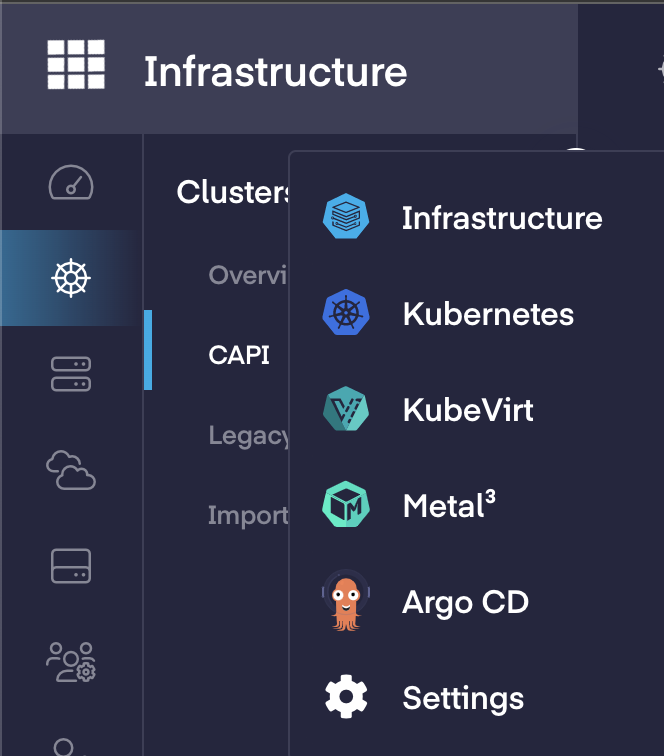
Switch to the Infrastructure app using the App Switcher on top left the of the PMK UI.
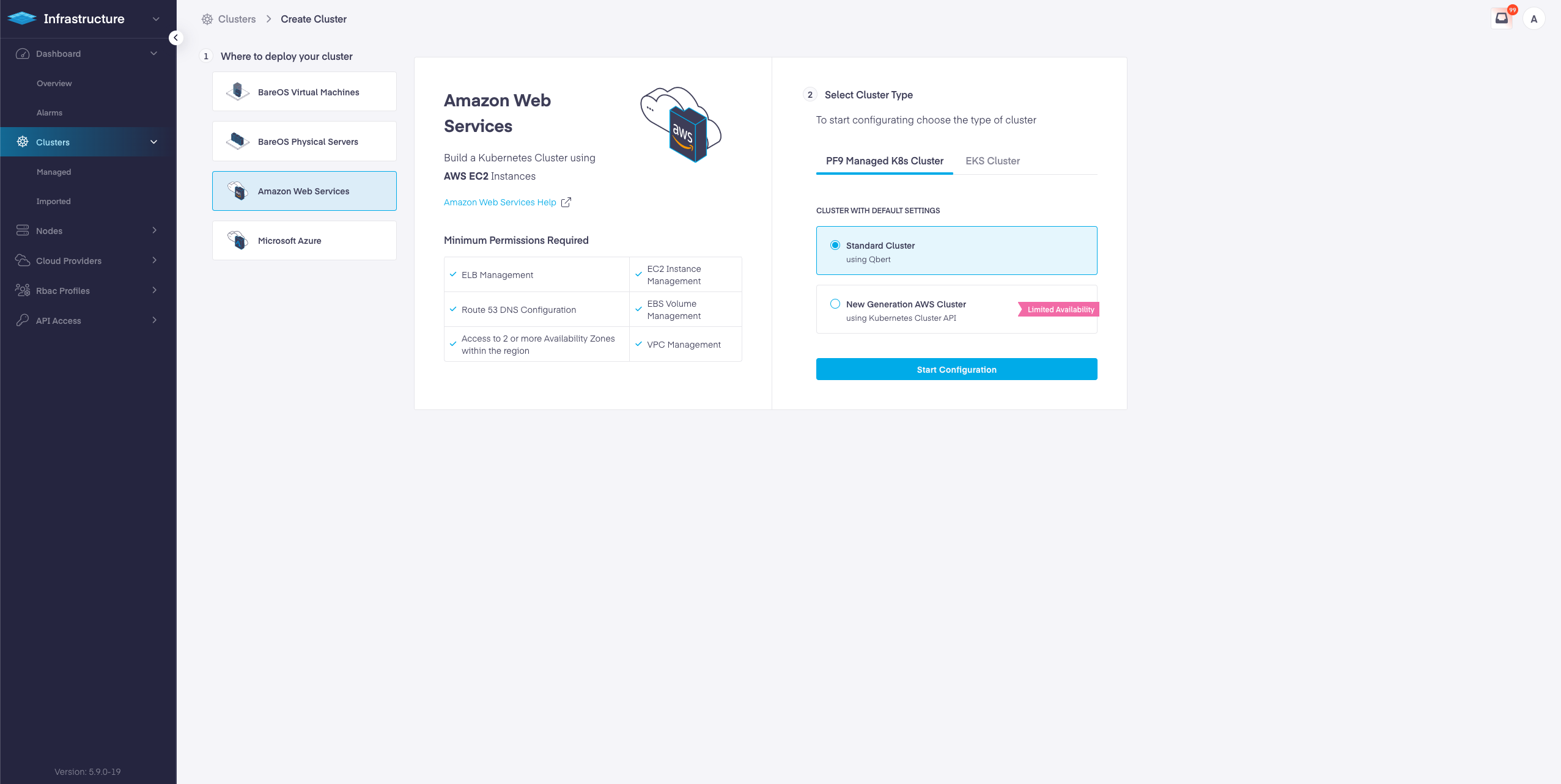
* Navigate to Infrastructure > Clusters
* Click **Add Cluster**
* Choose **Amazon Web Services**
* Select **New Generation AWS Cluster**
* Click **Start Configuration**
## AWS CAPI Cluster Creation Steps
The cluster creation flow is divided into 5 steps.
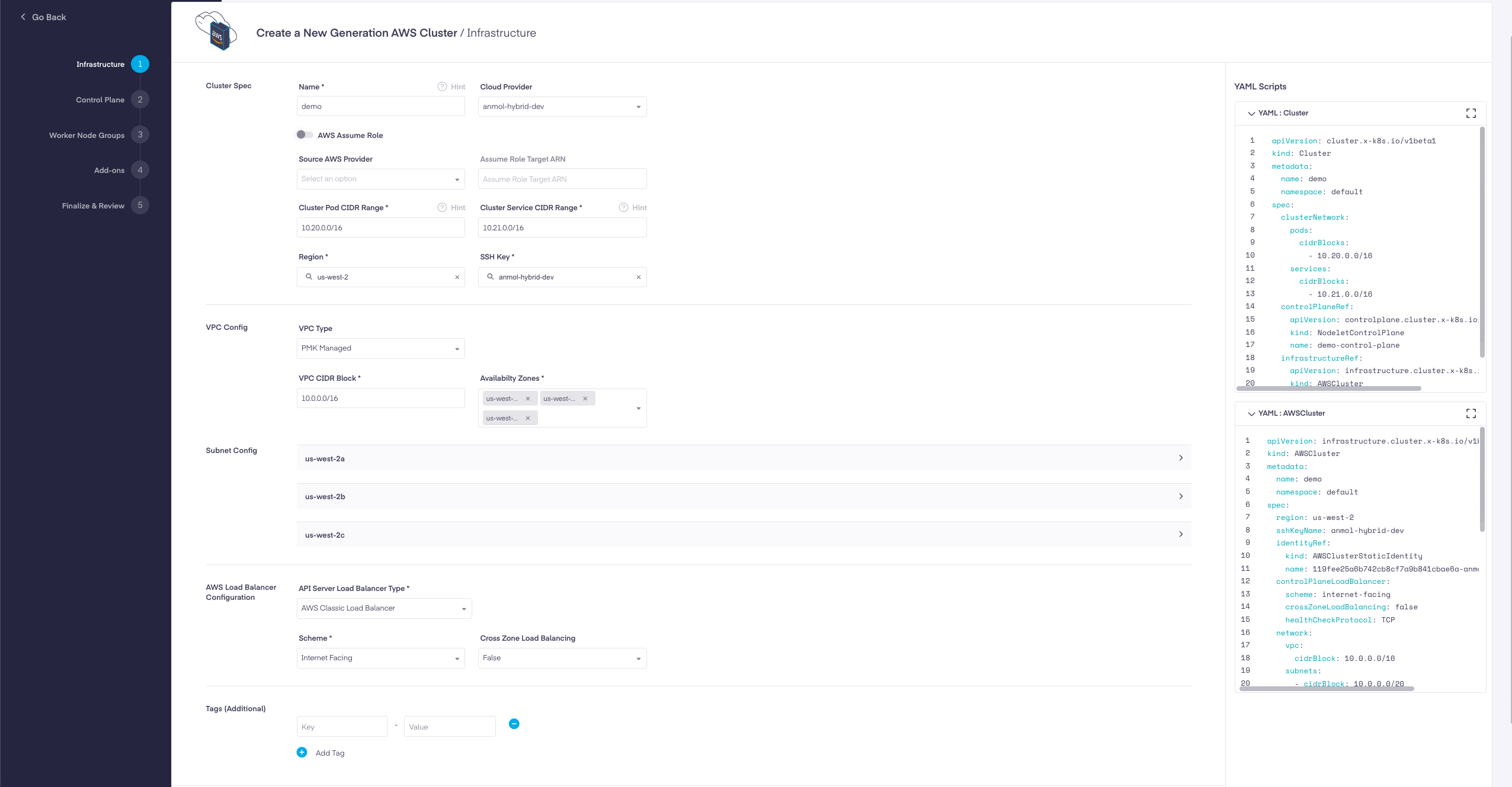
1. **Infrastructure**: Choose and define your AWS Infrastructure Resource such as AWS Cloud Provider, Region, SSH Key, VPC configuration, Availability Zones, Subnet Configuration, Resource Tags etc.
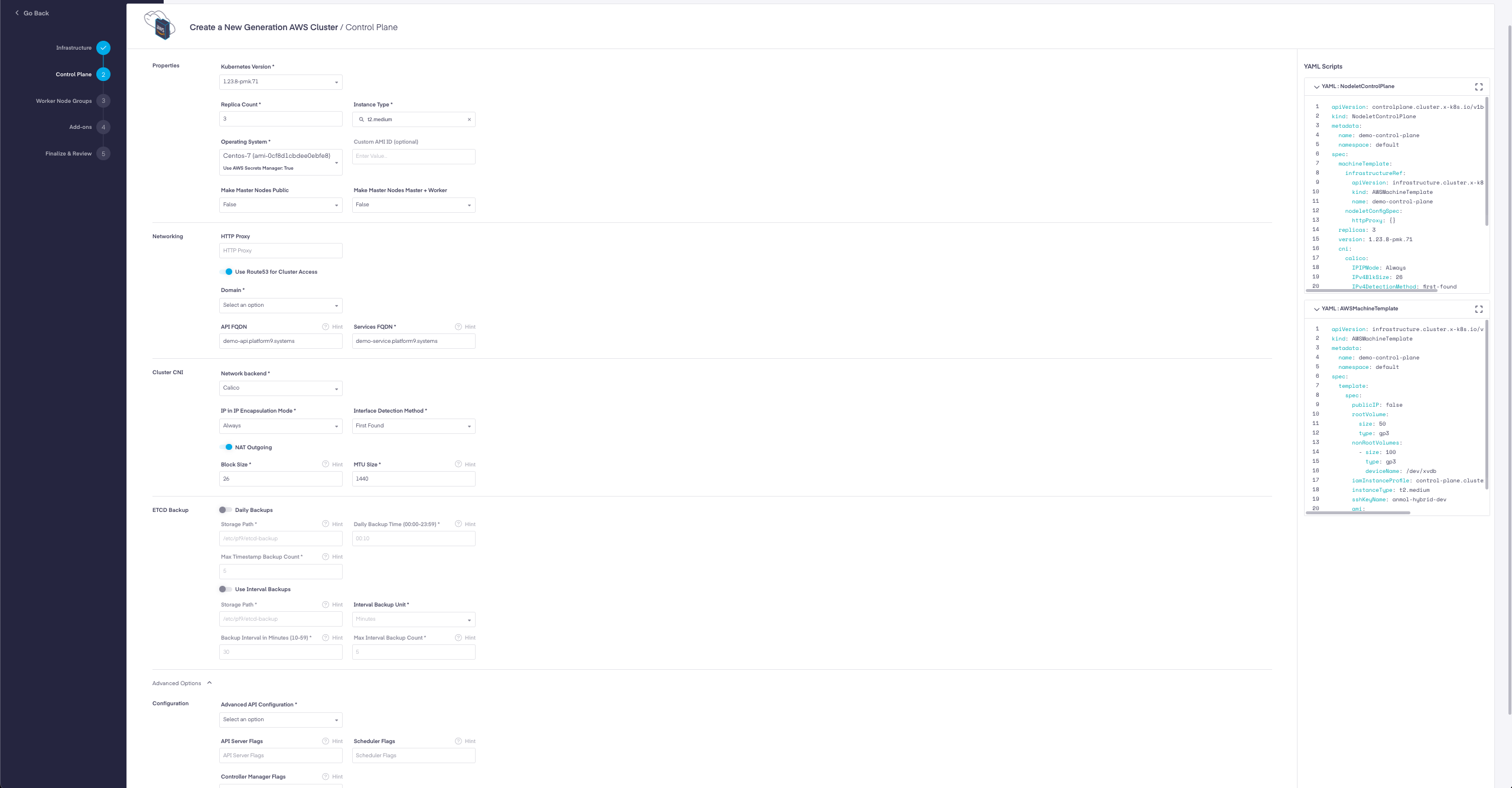
2. **Control Plane**: Configure your Kubernetes cluster's control plane properties such as Kubernetes version, Master Node count, Instance Types, Operating System, Networking, CNI, Advanced Flags etc.
3. **Worker Node Groups**: Configure your worker node group types and their properties Node count, Instance type, Operating System, Autoscaling options, Spot Instance use, Node update strategies etc.
4. **Add-ons**: Choose and configure the PMK-supported add-ons to be deployed on your cluster
5. **Finalize and Review:** Review your cluster properties selected in the previous steps and create the cluster.
Each Step has required inputs to be given. On the right side of the screen, the corresponding Kubernetes Resources YAMLs are shown that constitute the particular part of the cluster.
## AWS CAPI Cluster Configuration Options
### Infrastructure
| Field | Description |
| ----------------------------------------- | --------------------------------------------------------------------------------------------------------------------------------------------------------------------------------------------------------------------------------------------------------------------------------------------------------------------------------------------------------------------------- |
| Name | User-defined name of the cluster. |
| Cloud Provider | From the drop-down select your desired AWS cloud provider. |
| AWS Assume Role | Follow [auto$](https://github.com/platform9/pcd-docs-gitbook/blob/main/kubernetes/create-a-aws-capi-cluster-using-aws-assume-role/README.md). |
| Cluster Pod CIDR Range | Define the network ranges from which Pod networks are allocated. |
| Cluster Service CIDR Range | Define the network ranges from which service VIPs are allocated. |
| Region | Select the AWS region to deploy the cluster into. |
| SSH Key | SSH key is attached to the EC2 Instances of the cluster. |
| VPC Type |
Choose between PMK Managed and Self Managed from the drop-down.
- PMK Managed option creates the VPC in the Cloud Provider AWS account you chose to deploy your cluster. - Self Managed option lets you choose an existing VPC in the AWS Account associated with your Cloud Provider.
|
| VPC CIDR Block | CIDR Block is the CIDR block to be used when the provider creates a PMK Managed VPC. |
| VPC | Choose the existing Self Managed VPC to create the cluster into. |
| Availability Zones | Select two more Availability Zones within this region to deploy the nodes of this cluster into. Select at-least 3 availability zones for high availability. |
| Subnet Config - Number of Private Subnets |
Only 1 Private Subnet is allowed. Read more:
|
| Subnet Config - Number of Public Subnets | 1 Public Subnet is allowed only. |
| Private Subnets CIDR | CIDR block used to create the Private Subnet |
| Public Subnets CIDR | CIDR block used to create the Private Subnet |
| Internet Gateway ID | Internet Gateway ID to be used with Self Managed VPC. |
| Internet Gateway ID | Internet Gateway ID to be used with Self Managed VPC. |
| Route Table Id | Enter the Route Table ID associated with the Subnet in the Self Managed VPC; to be used for the cluster. |
| NAT Gateway ID | Enter the NAT Gateway ID associated with the Subnet in the Self Managed VPC; to be used for the cluster. |
| API Server Load Balancer Type | AWS Load Balancer type to be used for the API Server. Only AWS Classic Load Balancer is allowed to be used now. |
| Scheme |
Choose from the drop-down between Internet or Internal.
- Internet Facing load balancers can route requests from clients over the internet. - Internal load balancer have only private IP addresses and can only route requests from clients with access to the VPC of the load balancer.
|
| Cross Zone Load Balancing |
Choose True from the drop-down to Enable.
- When cross-zone load balancing is enabled, each load balancer node distributes traffic across the registered targets in all enabled Availability Zones. - When cross-zone load balancing is disabled, each load balancer node distributes traffic only across the registered targets in its Availability Zone.
|
| Tags (Additional) |
Optional set of tags to add to AWS resources managed by the AWS provider, in addition to the ones added by default. Provide a key-value pair for each tag.
Eg: key = Environment , Value = Production
|
### Control Plane
| Field | Description |
| --------------------------------- | -------------------------------------------------------------------------------------------------------------------------------------------------------------------------------------------------------------------------------------------------------------------------------------------------------------------------------------------------------------------------------------------------------- |
| Kubernetes Version | Select the Kubernetes version to be used to create the master and worker nodes of the cluster. |
| Replica Count | Count of Master Nodes for the Control Plane. A minimum of 3 are needed for High Availability. Only Odd values are applicable. |
| Instance Type | Choose the type of EC2 instance to be used for master nodes. |
| Operating System |
Choose the Operating system to be used for master nodes.
- Platform9 recommends using AMIs that have the component required to use encrypted cloud-init boot script i.e. Use AWS Secrets Manager: True. - Using an AMI that does not use Secrets Manager will inject the not encrypted cloud-init boot script and can expose any secrets that are part of the boot script.
|
| Custom AMI ID |
Enter an AMI ID of your choice.
Note: Only Cluster API conformant AMIs can be used to create CAPI clusters. Read to create your own custom AMIs.
When using custom AMIs, the secret manager is set to false.
|
| Make Master Nodes Public | Enabling this will put master nodes in public subnets of the VPC and assign an elastic IP for the master nodes so that master nodes are publicly accessible and users can ssh into them. |
| Make Master Nodes Master + Worker | Choose True to allow workloads to be scheduled on the Master nodes as well. |
| HTTP Proxy |
Enter HTTP Proxy to be used for the cluster. Format ://:@: where username and password are optional. Example:
|
| Route53 Domain | Route53 enables Platform9 to use the selected Route53 domain for the API Server and Service Endpoints. |
| API FQDN | Fully Qualified Domain Name used to reference the cluster API. The API will be secured by including the FQDN in the API server certificate’s Subject Alt Names. Clusters in Public Cloud will automatically have the DNS records created and registered for the FQDN. |
| Services FQDN | Fully Qualified Domain Name used to reference cluster services. If deploying onto AWS, we will automatically create the DNS records for this FQDN into AWS Route 53. |
| Network backend | Choose between AWS VPC CNI or Calico. |
| ETCD Backup | Define and Enable the ETCD backups for your cluster in this section |
| Advanced API Configuration | Advance API Group and versions, which includes general configuration of Groups, versions, and even resources, that can be enabled/disabled at runtime with the apiserver's '--runtime-config' flag. |
| API Server Flags | Add additional API Server Flags in form of comma separated string. |
| Scheduler Flags | Add additional API Scheduler Flags in form of comma separated string. |
| Controller Manager Flags | Add additional API Controller Manager Flags in form of comma separated string. |
### Worker Node Groups
PMK support two types of Node Groups called Machine Deployment and Machine Pools.
Find the Node Groups Configuration Options in the [auto$](https://github.com/platform9/pcd-docs-gitbook/blob/main/kubernetes/aws-capi-node-groups/README.md) page.
### Addons
| Field | Value |
| ------------------------ | ----------------------------------------------------------------------------------------------------------------------------------------------------------------------------------------------------------------------------------------------------------------------------------------------------------------------------------------------------------------------------------------------------------------------------------------------------------------------------------------------------------------------------------------------------------------------------------------------------------------------------------------------------------------------------------------------------------------------------------------------------------------------------------------------------------------- |
| Non-configurable add-ons |
Enable the PMK Supported add-ons with default configurations. The following add-ons are available for AWS CAPI clusters:
- Profile Agent - Read more here: auto$ - Metrics Server - Read more here: auto$ - Kubernetes Dashboard - Read more here: auto$ - CAPI Cluster Autoscaler - Read more here : auto$
|
| Configurable add-ons |
Enable the PMK Supported add-on with customizable configurations. Following add-ons are available for AWS CAPI clusters:
- Prometheus Monitoring - Read more here : auto$ - Core DNS - Read more here : auto$
|
---
# Agent Instructions
This documentation is published with GitBook. GitBook is the documentation platform designed so that both humans and AI agents can read, navigate, and reason over technical content effectively. Learn more at gitbook.com.
## Querying This Documentation
If you need additional information that is not directly available in this page, you can query the documentation by asking a question.
Perform an HTTP GET request on the following URL with the `ask` and `goal` query parameters:
```
GET https://docs.platform9.com/managed-kubernetes/5.8/aws-cluster-api/creating-aws-capi-clusters.md?ask=&goal=
```
`ask` is the immediate question: it should be specific, self-contained, and written in natural language.
`goal` is what the user is ultimately trying to achieve, the reason they need the answer. Sharing it helps GitBook give you a better, more relevant answer. A goal is most helpful when it describes the outcome the user wants rather than restating the question. For example, with `ask=how do I create an API token`, a goal like `automate deployments from our CI pipeline` lets GitBook tailor the answer to that use case.
The response will contain a direct answer to the question and relevant excerpts and sources from the documentation.
Use this mechanism when the answer is not explicitly present in the current page, you need clarification or additional context, or you want to retrieve related documentation sections.