> For the complete documentation index, see [llms.txt](https://docs.platform9.com/llms.txt). Markdown versions of documentation pages are available by appending `.md` to page URLs; this page is available as [Markdown](https://docs.platform9.com/managed-kubernetes/5.12/platform9-managed-add-ons-overview/metallb-addon2.md).
# Metallb Addon2
## Introduction
MetalLB is an open-source Load balancer implementation based on standard routing protocols for bare-metal Kubernetes. It specifically handles the `ServiceType: Loadbalancer` settings, which provides users with a more granular ability to control how IP addresses are assigned.
## Description
In our latest UI, users can modify the configuration for the IP Range at any stage of the cluster lifecycle. It provides:
* **Address Allocation – MetalLB** assigns and unassigning individual addresses to services as required, but only from IPs that are part of its defined pool.
* **External Announcement – After** MetalLB has assigned an external IP address to a service, it ensures the external network outside the cluster is aware that the IP resides within the cluster. MetalLB uses the typical routing protocols like ARP, NDP, or BGP to achieve this..
## Settings
MetalLB is not enabled by default on BareOS clusters. It can be enabled and configured during cluster creation or post cluster creation.
### Enabling MetalLB during cluster creation
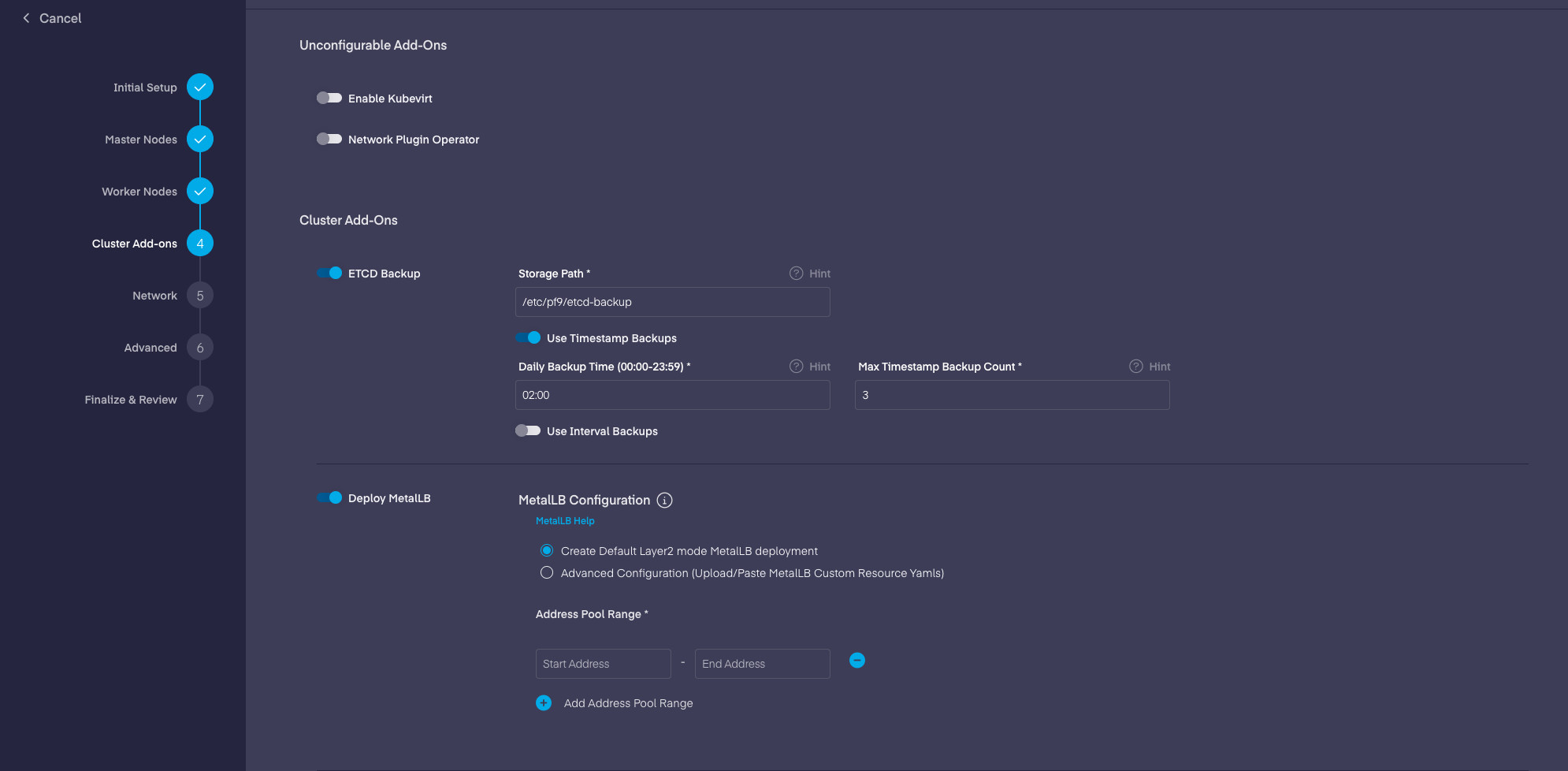
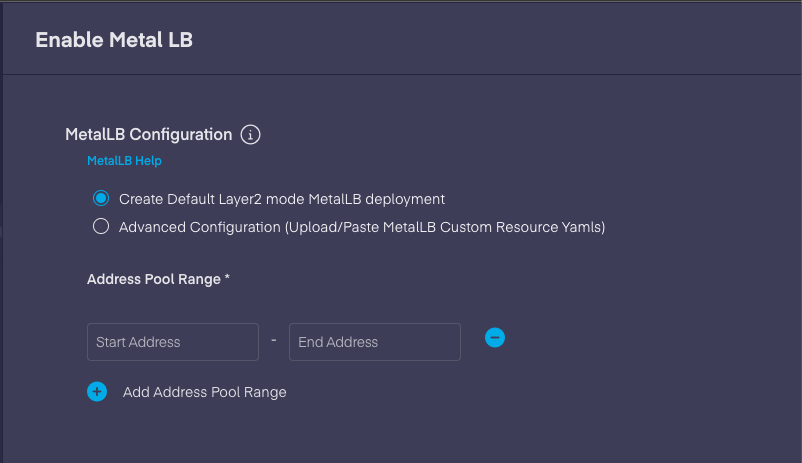
During cluster creation, PMK provides the option to enable MetalLB for the cluster in the Cluster Add-ons sections.
{% hint style="info" %}
**MetalLB configuration moved to only Custom Resource Definitions, starting from the version v0.13.0.**
Read MetalLB configuration documentation here:
With PMK 5.10 all MetalLB configurations are moved to the Custom Resources by default. Clusters with older configuration will working, but it is recommended to re-configure MetalLB with CRDs.
{% endhint %}
It can deployed in following modes:
* Layer 2 Mode (Default)
* IP address pool range needs to provided and it creates the following CR on the clusters.
{% tabs %}
{% tab title="yaml" %}
```yaml
apiVersion: metallb.io/v1beta1
kind: IPAddressPool
metadata:
creationTimestamp: null
name: default
namespace: metallb-system
spec:
addresses:
- 192.168.5.0-192.168.6.0
status: {}
---
apiVersion: metallb.io/v1beta1
kind: L2Advertisement
metadata:
creationTimestamp: null
name: l2advertisement1
namespace: metallb-system
spec:
ipAddressPools:
- default
status: {}
```
{% endtab %}
{% endtabs %}
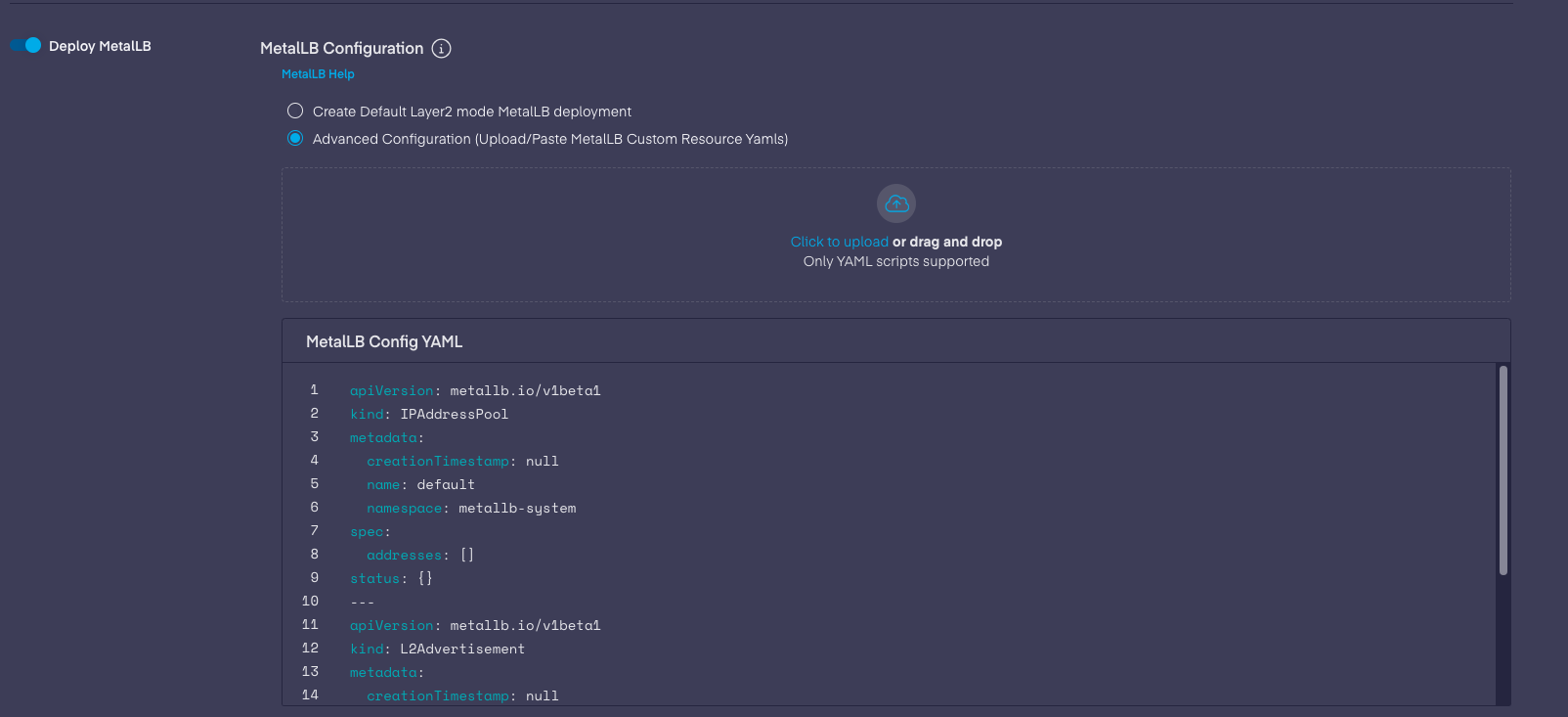
* Advanced Configuration
* Can be deployed with advanced configurations by providing all the CRs in a single yaml delimited by ---. Please applicable configuration documentaion here:
Example:
{% tabs %}
{% tab title="YAML" %}
```yaml
apiVersion: metallb.io/v1beta1
kind: IPAddressPool
metadata:
creationTimestamp: null
name: pool1
namespace: metallb-system
spec:
addresses:
- 192.168.5.0-192.168.6.0
---
apiVersion: metallb.io/v1beta1
kind: IPAddressPool
metadata:
creationTimestamp: null
name: pool2
namespace: metallb-system
spec:
addresses:
- 192.168.7.0-192.168.8.0
---
apiVersion: metallb.io/v1beta1
kind: L2Advertisement
metadata:
creationTimestamp: null
name: l2advertisement1
namespace: metallb-system
spec:
ipAddressPools:
- pool1
- pool2
```
{% endtab %}
{% endtabs %}
### Enabling MetalLB post cluster creation
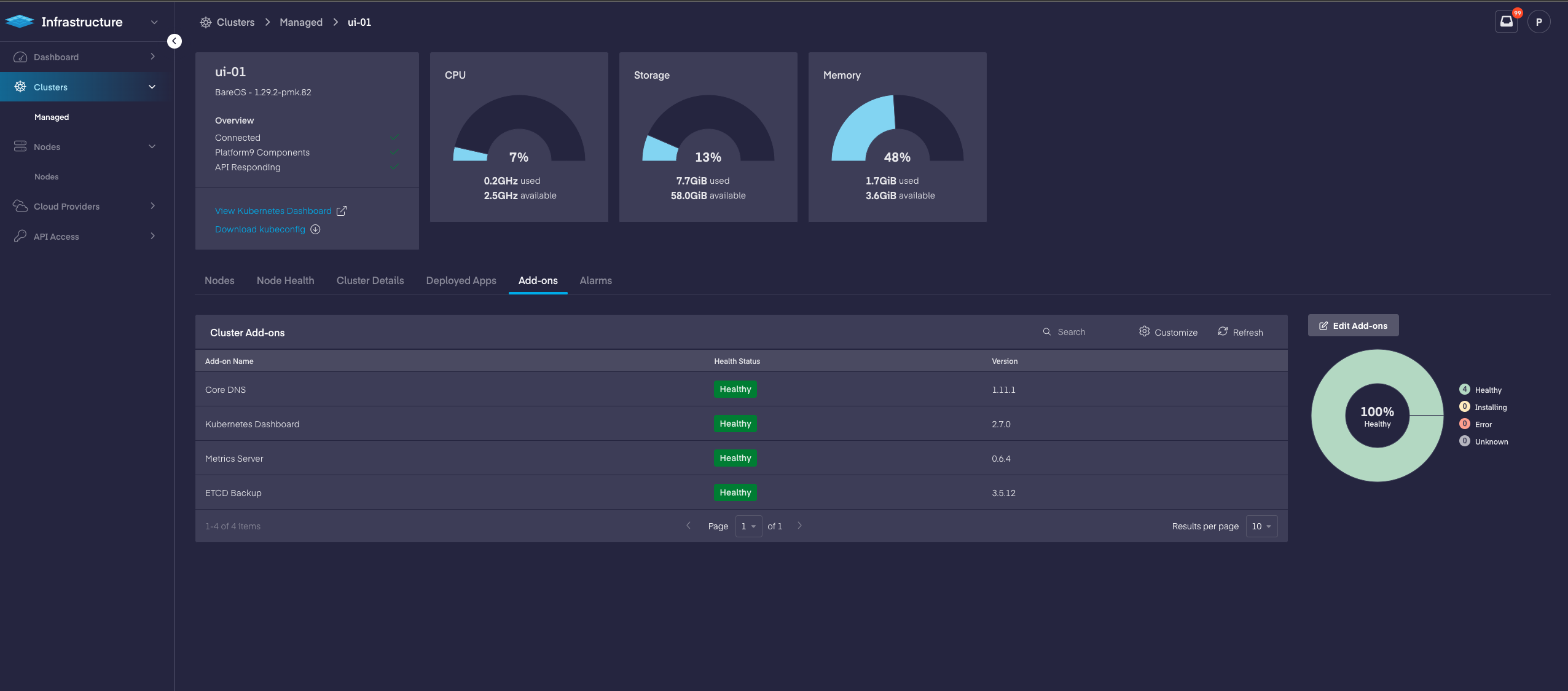
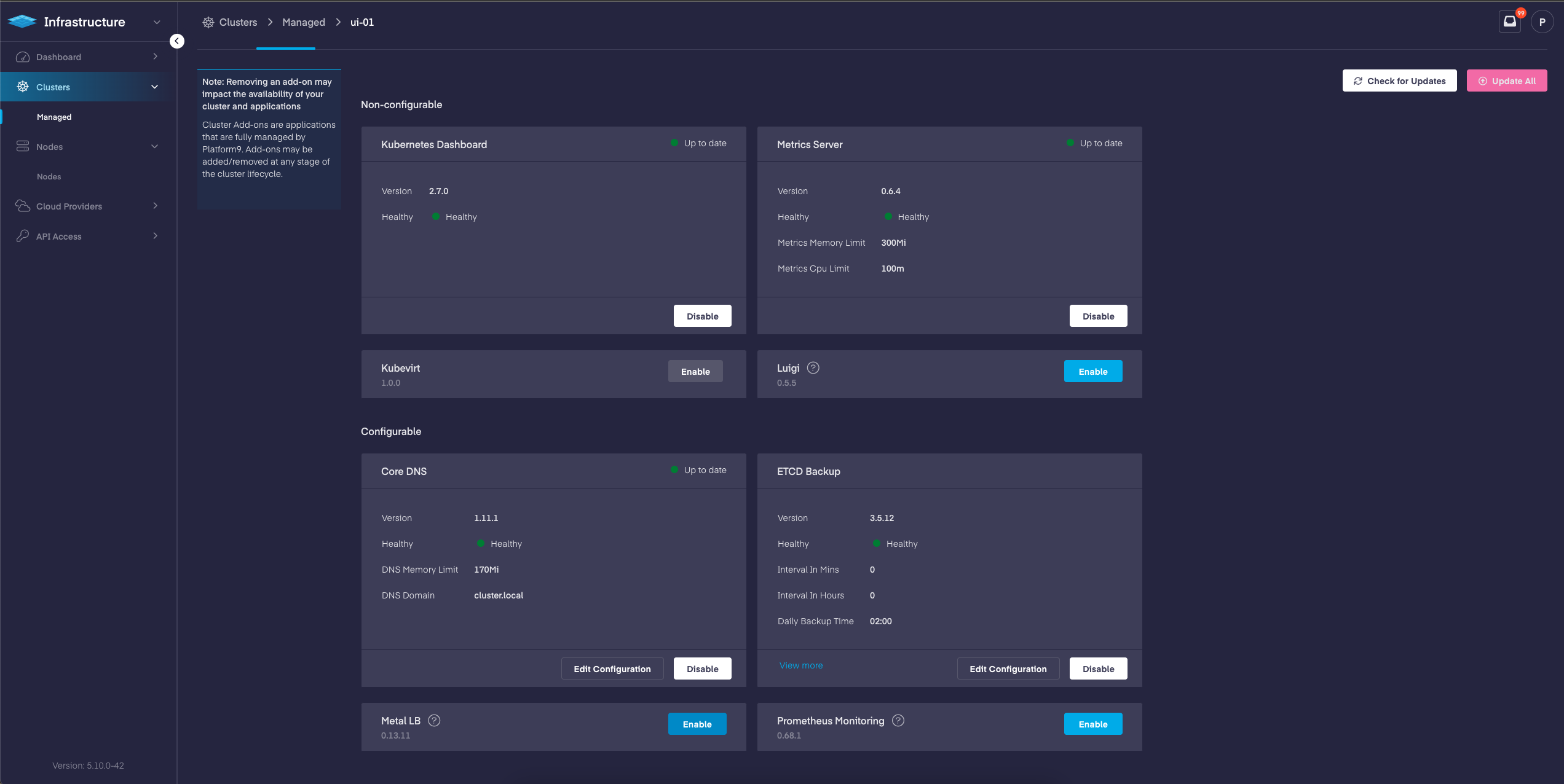
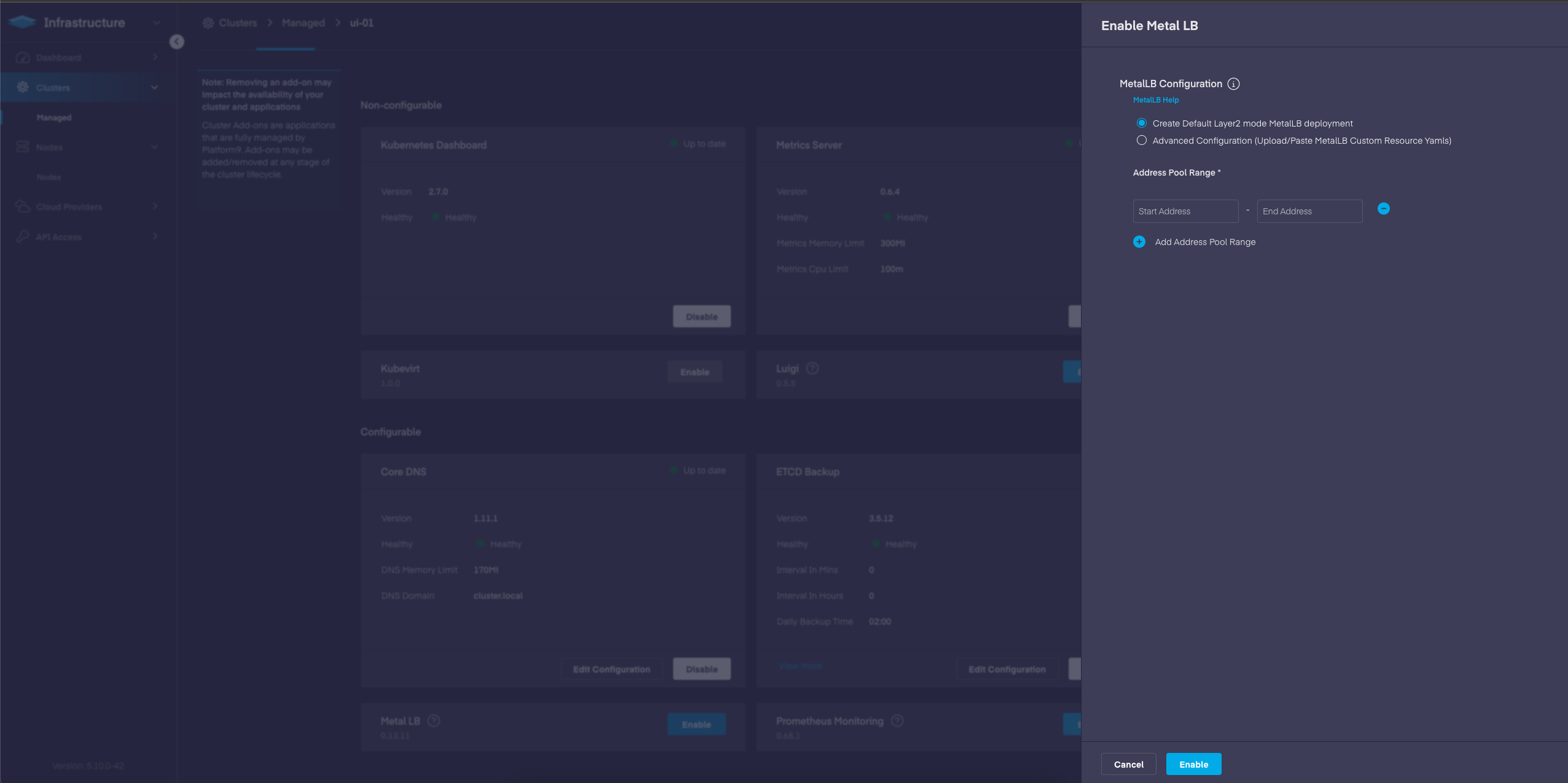
Go to Infrastructure > Cluster > Add-ons tab and click Edit Add-ons.
Under Configurable Add-ons, enable MetalLB.
Once enabled, you need to also specify the IP address pool(s) that MetalLB can use to allocate IP addresses to services that are created with type `LoadBalancer`. PMK will then deploy MetalLB as a Kubernetes application within the cluster, under the `metallb-system` namespace.
You can add multiple IP ranges by clicking the **+ Add Address Pool Range** .
{% hint style="danger" %}
**Note**
MetalLB is currently inoperative when used in BGP mode for IPv6. This is a limitation with MetalLB itself but is under active development. Additionally, In order for MetalLB to function correctly, privileged mode must be enabled for running containers on the cluster.
{% endhint %}
## YAML Specifications
{% tabs %}
{% tab title="YAML" %}
```yaml
apiVersion: sunpike.platform9.com/v1alpha2
kind: ClusterAddon
metadata:
labels:
sunpike.pf9.io/cluster: ''
type: metallb
name: -metallb
namespace: default
spec:
clusterID: ''
override:
params:
- name: base64EncMetallbConfig
value: 'base64 encoded entire metallb YAML config comprising of CRs '
type: metallb
version: 0.9.7
watch: true
```
{% endtab %}
{% endtabs %}
The *base64EncMetallbConfig* field can be added to any configuration that MetalLB supports. For example, if two address pools are required, then the following configuration can be applied.
{% tabs %}
{% tab title="Bash" %}
```bash
apiVersion: metallb.io/v1beta1
kind: IPAddressPool
metadata:
creationTimestamp: null
name: pool1
namespace: metallb-system
spec:
addresses:
- 192.168.5.0-192.168.6.0
---
apiVersion: metallb.io/v1beta1
kind: IPAddressPool
metadata:
creationTimestamp: null
name: pool2
namespace: metallb-system
spec:
addresses:
- 192.168.7.0-192.168.8.0
---
apiVersion: metallb.io/v1beta1
kind: L2Advertisement
metadata:
creationTimestamp: null
name: l2advertisement1
namespace: metallb-system
spec:
ipAddressPools:
- pool1
- pool2
```
{% endtab %}
{% endtabs %}
Data shall be encoded as base64 and used as the override parameter, in the cluster Addon sunpike object.
{% tabs %}
{% tab title="YAML" %}
```yaml
override:
params:
- name: base64EncMetallbConfig
value: "YXBpVmVyc2lvbjogbWV0YWxsYi5pby92MWJldGExCmtpbmQ6IElQQWRkcmVzc1Bvb2wKbWV0YWRhdGE6CiAgY3JlYXRpb25UaW1lc3RhbXA6IG51bGwKICBuYW1lOiBwb29sMQogIG5hbWVzcGFjZTogbWV0YWxsYi1zeXN0ZW0Kc3BlYzoKICBhZGRyZXNzZXM6CiAgICAtICAxOTIuMTY4LjUuMC0xOTIuMTY4LjYuMAotLS0KYXBpVmVyc2lvbjogbWV0YWxsYi5pby92MWJldGExCmtpbmQ6IElQQWRkcmVzc1Bvb2wKbWV0YWRhdGE6CiAgY3JlYXRpb25UaW1lc3RhbXA6IG51bGwKICBuYW1lOiBwb29sMgogIG5hbWVzcGFjZTogbWV0YWxsYi1zeXN0ZW0Kc3BlYzoKICBhZGRyZXNzZXM6CiAgICAtICAxOTIuMTY4LjcuMC0xOTIuMTY4LjguMAotLS0KYXBpVmVyc2lvbjogbWV0YWxsYi5pby92MWJldGExCmtpbmQ6IEwyQWR2ZXJ0aXNlbWVudAptZXRhZGF0YToKICBjcmVhdGlvblRpbWVzdGFtcDogbnVsbAogIG5hbWU6IGwyYWR2ZXJ0aXNlbWVudDEKICBuYW1lc3BhY2U6IG1ldGFsbGItc3lzdGVtCnNwZWM6CiAgaXBBZGRyZXNzUG9vbHM6CiAgICAtIHBvb2wxCiAgICAtIHBvb2wy"
```
{% endtab %}
{% endtabs %}
## Qbert API support
[Qbert cluster create AP](https://platform9.com/docs/qbert/ref#postcreates-a-cluster-using-auto-deploy-or-manual-mode)I supports following parameter from PMK 5.10 onwards to configure MetalLB during cluster creation:
**PMK 5.10 onwards:**
{% tabs %}
{% tab title="YAML" %}
```yaml
curl --request POST \
--url https://.platform9.net/qbert/v4/{projectId}/clusters \
--header "X-Auth-Token: {X-Auth-Token}" \
--data '{
"enableMetallb": {type: boolean, description: "If true, install MetalLB to support the loadbalancer service-type"},
base64EncMetallbConfig: {type: string, description: "Base64 encoded string of metallb custom resource yaml"},
```
{% endtab %}
{% endtabs %}
The base64EncMetallbConfig should be a base64 encoded string with MetalLB Custom Resource Configuration yaml eg:
{% tabs %}
{% tab title="YAML" %}
```yaml
apiVersion: metallb.io/v1beta1
kind: IPAddressPool
metadata:
creationTimestamp: null
name: default
namespace: metallb-system
spec:
addresses:
- 192.168.5.0-192.168.6.0
status: {}
---
apiVersion: metallb.io/v1beta1
kind: L2Advertisement
metadata:
creationTimestamp: null
name: l2advertisement1
namespace: metallb-system
spec:
ipAddressPools:
- default
status: {}
```
{% endtab %}
{% endtabs %}
Base64 encoded form of above yaml :
{% tabs %}
{% tab title="YAML" %}
```yaml
YXBpVmVyc2lvbjogbWV0YWxsYi5pby92MWJldGExCmtpbmQ6IElQQWRkcmVzc1Bvb2wKbWV0YWRhdGE6CiAgY3JlYXRpb25UaW1lc3RhbXA6IG51bGwKICBuYW1lOiBkZWZhdWx0CiAgbmFtZXNwYWNlOiBtZXRhbGxiLXN5c3RlbQpzcGVjOgogIGFkZHJlc3NlczoKICAgIC0gMTkyLjE2OC41LjAtMTkyLjE2OC42LjAKc3RhdHVzOiB7fQotLS0KYXBpVmVyc2lvbjogbWV0YWxsYi5pby92MWJldGExCmtpbmQ6IEwyQWR2ZXJ0aXNlbWVudAptZXRhZGF0YToKICBjcmVhdGlvblRpbWVzdGFtcDogbnVsbAogIG5hbWU6IGwyYWR2ZXJ0aXNlbWVudDEKICBuYW1lc3BhY2U6IG1ldGFsbGItc3lzdGVtCnNwZWM6CiAgaXBBZGRyZXNzUG9vbHM6CiAgICAtIGRlZmF1bHQKc3RhdHVzOiB7fQ==
```
{% endtab %}
{% endtabs %}
**Before PMK 5.10:**
The following parameter was used instead of the new **base64EncMetallbConfig (Added in PMK 5.10)**
`metallbCidr: {type: string, description: "If enableMetallb is true, specify the comma-separated pools of IPs that MetalLB will manage (for example: A.B.C.D-E.F.G.H, I.J.K.L-M.N.O.P)"},`
Existing clusters with older configuration will keep working when upgraded to PMK 5.10, but it is recommended to migrate to new configuration.
## Migrating MetalLB configuration from configMap to Custom Resources
* Instructions to convert config map to CRs are present here: [https://metallb.universe.tf/configuration/migration\_to\_ crds/](https://metallb.universe.tf/configuration/migration_to_crds/)
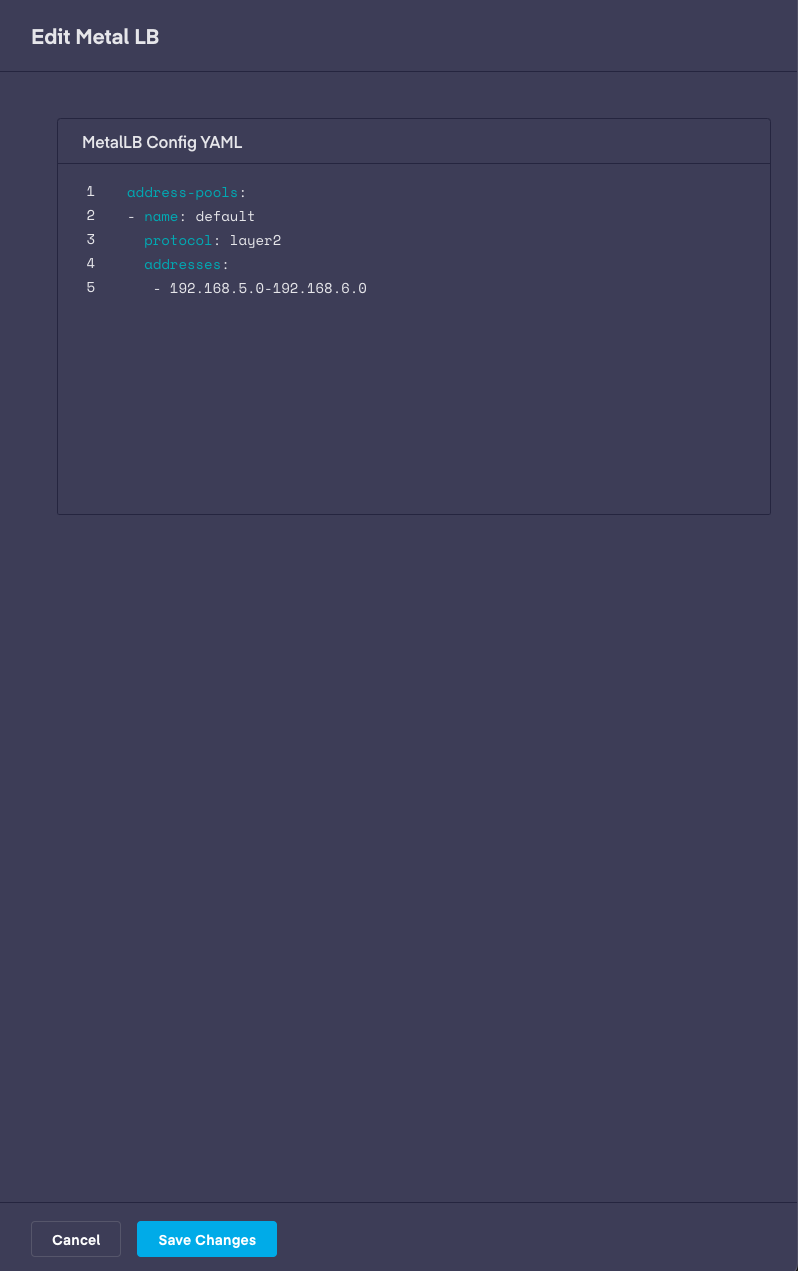
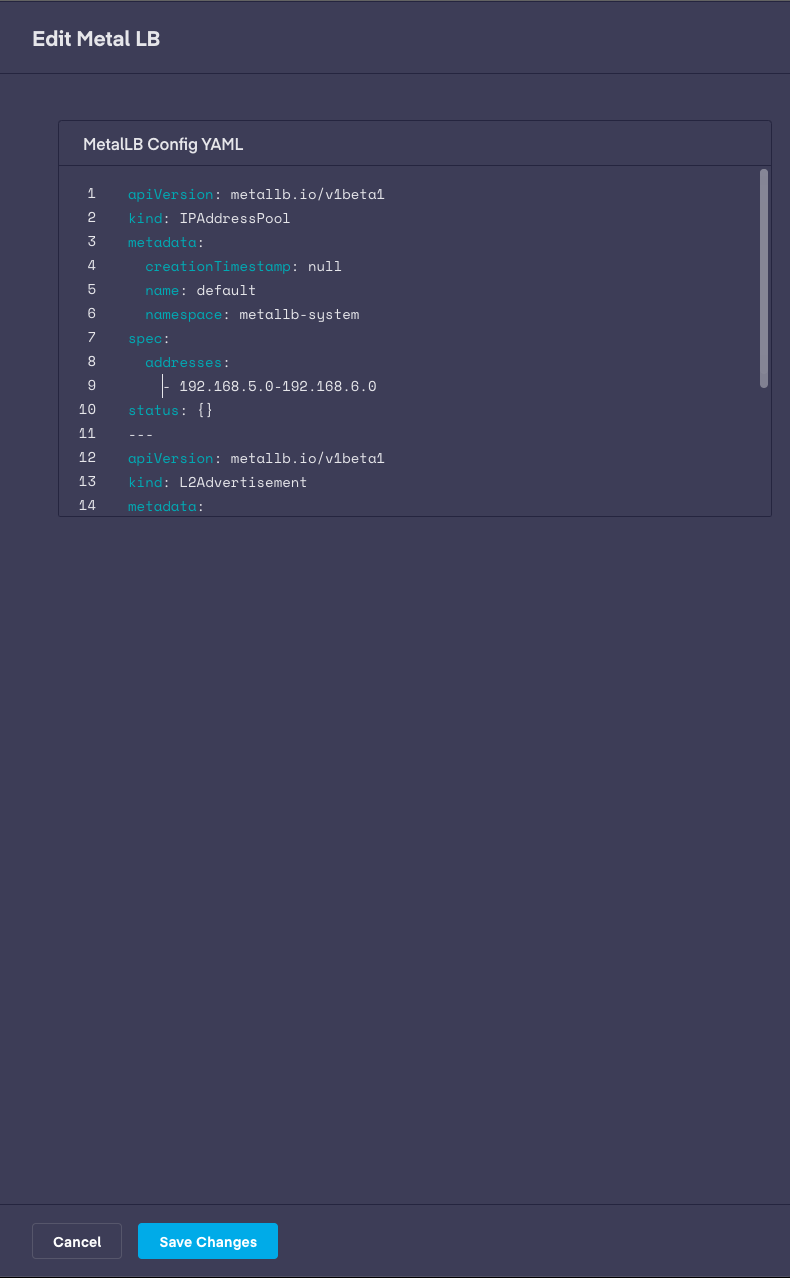
* Go to Infrastructure > Desired clusters > Add-ons > Edit Add-ons(Button) > MetalLB > Edit Configuration(Button)
* The existing configMap configuration should appear as below. Replace the configuration with new Custom Resource configuration and click Save Changes.
MetalLB with config map type configuration
MetalLB with Custom Resource type configuration
## Conclusion
Add-ons are updated along with the `pf9-kube` version and can be referenced in the [Support Matrix](https://docs.platform9.com/kubernetes/support-matrix) article. For additional assistance, contact our [support team](https://platform9.zendesk.com/hc/en-us/requests/new?ticket_form_id=360000924873). For additional assistance with this addon, contact our [support team](https://platform9.zendesk.com/hc/en-us/requests/new?ticket_form_id=360000924873).
---
# Agent Instructions
This documentation is published with GitBook. GitBook is the documentation platform designed so that both humans and AI agents can read, navigate, and reason over technical content effectively. Learn more at gitbook.com.
## Querying This Documentation
If you need additional information that is not directly available in this page, you can query the documentation dynamically by asking a question.
Perform an HTTP GET request on the current page URL with the `ask` query parameter, and the optional `goal` query parameter:
```
GET https://docs.platform9.com/managed-kubernetes/5.12/platform9-managed-add-ons-overview/metallb-addon2.md?ask=&goal=
```
`ask` is the immediate question: it should be specific, self-contained, and written in natural language.
`goal` is optional and describes the broader end goal you are ultimately trying to accomplish on behalf of the user. GitBook uses it to tailor the answer towards what is most useful for that goal.
The response will contain a direct answer to the question and relevant excerpts and sources from the documentation.
Use this mechanism when the answer is not explicitly present in the current page, you need clarification or additional context, or you want to retrieve related documentation sections.