> For the complete documentation index, see [llms.txt](https://docs.platform9.com/llms.txt). Markdown versions of documentation pages are available by appending `.md` to page URLs; this page is available as [Markdown](https://docs.platform9.com/private-cloud-director/integrations/veeam-integration-with-pcd/veeam-service-provider-console.md).
# Veeam Service Provider Console
Configure Veeam Service Provider Console to centrally manage Veeam Backup & Replication deployments integrated with Private Cloud Director.
Use Veeam Service Provider Console (VSPC) to centrally manage your Veeam Backup & Replication (VBR) deployments, including those integrated with Private Cloud Director (PCD) through the PCD Veeam Proxy (PVP) appliance.
The VSPC-to-VBR connection is a native Veeam capability and is not specific to PCD. This page describes which VSPC features are supported when VBR is integrated with PCD.
#### How it works
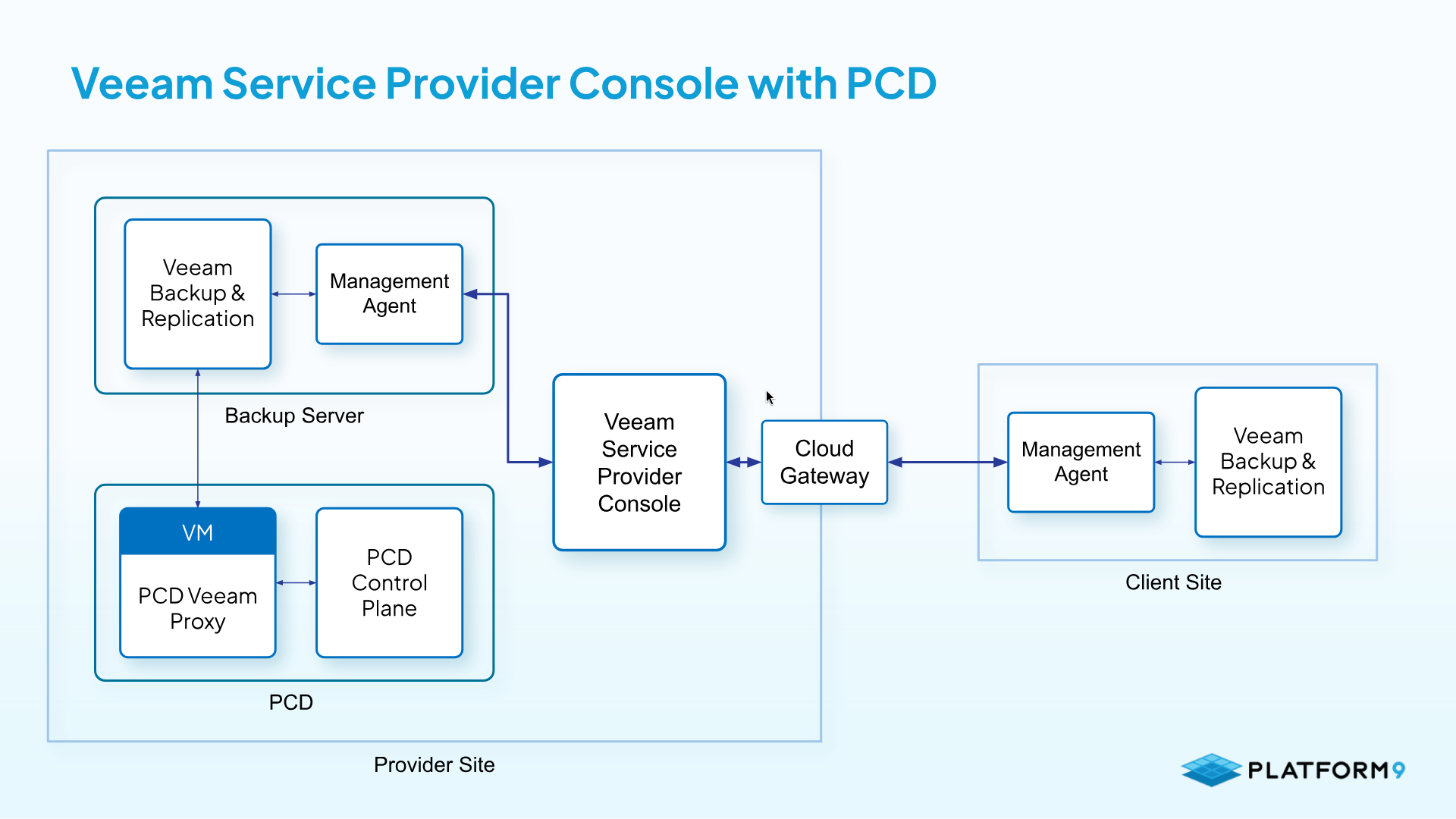
VSPC connects to each VBR server through a management agent installed on the server. The agent connects directly when VSPC and VBR share a network, or through a cloud gateway when VBR runs in a remote client network. VSPC collects status and performance data from each agent and surfaces it through a multitenant web interface, where you can manage and monitor backup jobs across all connected VBR deployments.
Each Veeam Backup & Replication server shown in the diagram represents a complete VBR and PCD Veeam Proxy deployment. For the data-plane architecture, see [Broken mention](broken://pages/YHuyfrgmVPC2VZbklGR5).
For more information, see the following Veeam documentation:
* [Features for VBR](https://helpcenter.veeam.com/docs/vac/deployment/about.html?ver=9.2#veeam-backup---replication)
* [Architecture in Brief](https://helpcenter.veeam.com/docs/vac/deployment/architecture.html?ver=9.2)
### Prerequisites
Before you begin, ensure your environment meets the following requirements.
**Veeam**
* VBR is deployed and configured with PCD using the PCD Veeam Proxy (PVP) appliance. For setup instructions, see [Veeam Backup and Replication](/private-cloud-director/integrations/veeam-integration-with-pcd/veeam-backup-and-replication.md).
* VBR version 13.1.0.411 or later.
* VSPC version 9.3 or later.
For full system requirements and supported ports, see [Prerequisites](https://helpcenter.veeam.com/docs/vac/deployment/prerequisites.html) in the Veeam Service Provider Console Deployment Guide.
### Connecting VBR to VSPC
You connect VBR servers to VSPC by installing a management agent on each VBR server. Choose the connection method that fits your environment.
* **Automatic discovery.** Use VSPC discovery rules to find VBR servers on your network and install the management agent. Useful for onboarding multiple servers at once. See [Configuring Windows Discovery Rules](https://helpcenter.veeam.com/docs/vac/provider_admin/discovery_windows.html) in the VSPC Service Provider Guide.
* **Direct addition through the VSPC wizard.** Add a VBR server with the **New Windows Backup Server** wizard. VSPC pushes the agent to the server using the address and credentials you provide. See [Connecting Windows Veeam Backup & Replication Servers](https://helpcenter.veeam.com/docs/vac/provider_admin/vbr_connect_windows.html) in the VSPC Service Provider Guide.
* **Manual agent installation.** [Download the agent setup file](https://helpcenter.veeam.com/docs/vac/provider_admin/obtain_agent_setup_file.html) from VSPC and run it on the VBR server, then enter the VSPC gateway details to link the server. See [Deploying Windows Management Agents](https://helpcenter.veeam.com/docs/vac/provider_admin/deploy_management_agents_win.html) in the VSPC Service Provider Guide.
* **Connection from the VBR console.** For VBR servers in a client network, initiate the connection from the Veeam Backup & Replication console to connect through a cloud gateway. See [Connecting Veeam Backup & Replication servers](https://helpcenter.veeam.com/docs/vac/provider_admin/connect_backup_servers.html) in the VSPC Service Provider Guide.
#### Supported features and limitations
VBR supports PCD through the oVirt KVM Manager plugin. The following table lists VSPC features and their support status under this plugin.
| Feature | Support | Notes | Veeam documentation |
| --------------------------------- | ---------------------------- | --------------------------------------------------------------------------------------------------------------------------- | --------------------------------------------------------------------------------------------------------------------------------------------------------------------------------------------------------------------------- |
| Backup job management | Supported | Supports basic job control (start, stop, retry, remove) and log retrieval. Job creation and modification are not supported. | [Managing Veeam Backup & Replication jobs](https://helpcenter.veeam.com/docs/vac/provider_user/manage_backup_jobs.html) |
| Reporting and monitoring | Supported | Supports predefined dashboards for RPO and SLA compliance, with reporting for protected VMs and backup data. | [Backup reporting](https://helpcenter.veeam.com/docs/vac/provider_user/backup_reports.html), [Monitoring](https://helpcenter.veeam.com/docs/vac/provider_user/summary.html) |
| Backup to provider repositories | Supported (Backup Copy only) | Supports copying backups to provider repositories using the Backup Copy feature. | [Integration with Veeam Cloud Connect](https://helpcenter.veeam.com/docs/vac/provider_admin/integration_cc.html), [Backup Copy to cloud repository](https://helpcenter.veeam.com/docs/vbr/cloud/cc_backup_copy.html?ver=13) |
| VM replication and failover plans | Not supported | Cloud Connect VM replication and Cloud failover are not supported for plugin-based hypervisors. | [Managing failover plans](https://helpcenter.veeam.com/docs/vac/provider_user/manage_failover_plans.html), [Veeam Cloud Connect Replication](https://helpcenter.veeam.com/docs/vbr/cloud/cloud_replication.html?ver=13) |
| VBR management | Supported | Supports HA cluster management, tag assignment, server restarts, and log download. | [Managing Veeam Backup & Replication servers](https://helpcenter.veeam.com/docs/vac/provider_user/manage_backup_servers.html) |
#### References
For complete configuration details, see the official Veeam documentation:
* [Veeam Service Provider Console - Guide for Service Providers](https://helpcenter.veeam.com/docs/vac/provider_admin/)
* [Veeam Service Provider Console - Deployment Guide](https://helpcenter.veeam.com/docs/vac/deployment/)
* [Veeam Service Provider Console - Guide for End Users](https://helpcenter.veeam.com/docs/vac/provider_user/)
* [Integration with Veeam Backup and Replication](https://helpcenter.veeam.com/docs/vac/provider_admin/integration_vbr.html)
* [Managing Veeam Backup and Replication](https://helpcenter.veeam.com/docs/vac/provider_admin/manage_vbr.html)
---
# Agent Instructions
This documentation is published with GitBook. GitBook is the documentation platform designed so that both humans and AI agents can read, navigate, and reason over technical content effectively. Learn more at gitbook.com.
## Querying This Documentation
If you need additional information that is not directly available in this page, you can query the documentation by asking a question.
Perform an HTTP GET request on the following URL with the `ask` and `goal` query parameters:
```
GET https://docs.platform9.com/private-cloud-director/integrations/veeam-integration-with-pcd/veeam-service-provider-console.md?ask=&goal=
```
`ask` is the immediate question: it should be specific, self-contained, and written in natural language.
`goal` is what the user is ultimately trying to achieve, the reason they need the answer. Sharing it helps GitBook give you a better, more relevant answer. A goal is most helpful when it describes the outcome the user wants rather than restating the question. For example, with `ask=how do I create an API token`, a goal like `automate deployments from our CI pipeline` lets GitBook tailor the answer to that use case.
The response will contain a direct answer to the question and relevant excerpts and sources from the documentation.
Use this mechanism when the answer is not explicitly present in the current page, you need clarification or additional context, or you want to retrieve related documentation sections.