> For the complete documentation index, see [llms.txt](https://docs.platform9.com/llms.txt). Markdown versions of documentation pages are available by appending `.md` to page URLs; this page is available as [Markdown](https://docs.platform9.com/private-cloud-director/identity-and-multi-tenancy/enterprise-sso/set-up-pingone.md).
# Set up PingOne
Configure single sign-on (SSO) for your PCD environment using PingOne as a SAML 2.0 identity provider.
Configure single sign-on (SSO) for your space.vars.product\_acronym environment using PingOne. This integration allows users to authenticate to space.vars.product\_acronym using their existing PingOne credentials.
### Prerequisites
Before you begin, ensure you have:
* Administrative access to PingOne.
* Administrative access to your space.vars.product\_acronym environment.
* Your PCD domain FQDN (fully qualified domain name), without the region name.
* Users created in PingOne who need access to space.vars.product\_acronym.
#### Step 1: Create a SAML application in PingOne
Create a new SAML application in PingOne to handle the SSO integration.
1. Log in to PingOne.
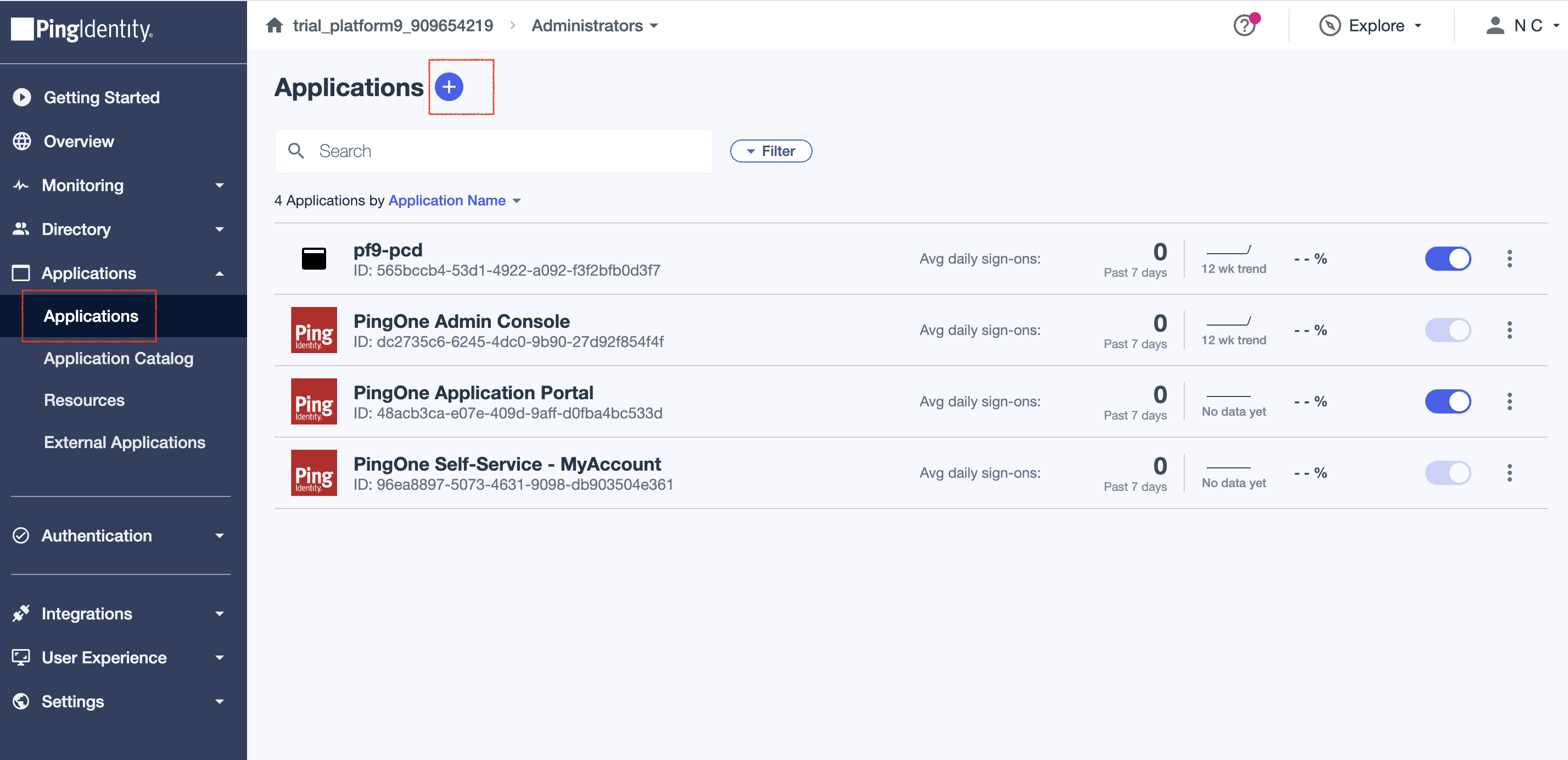
2. Navigate to **Applications**, and then select **+** to create a new application.
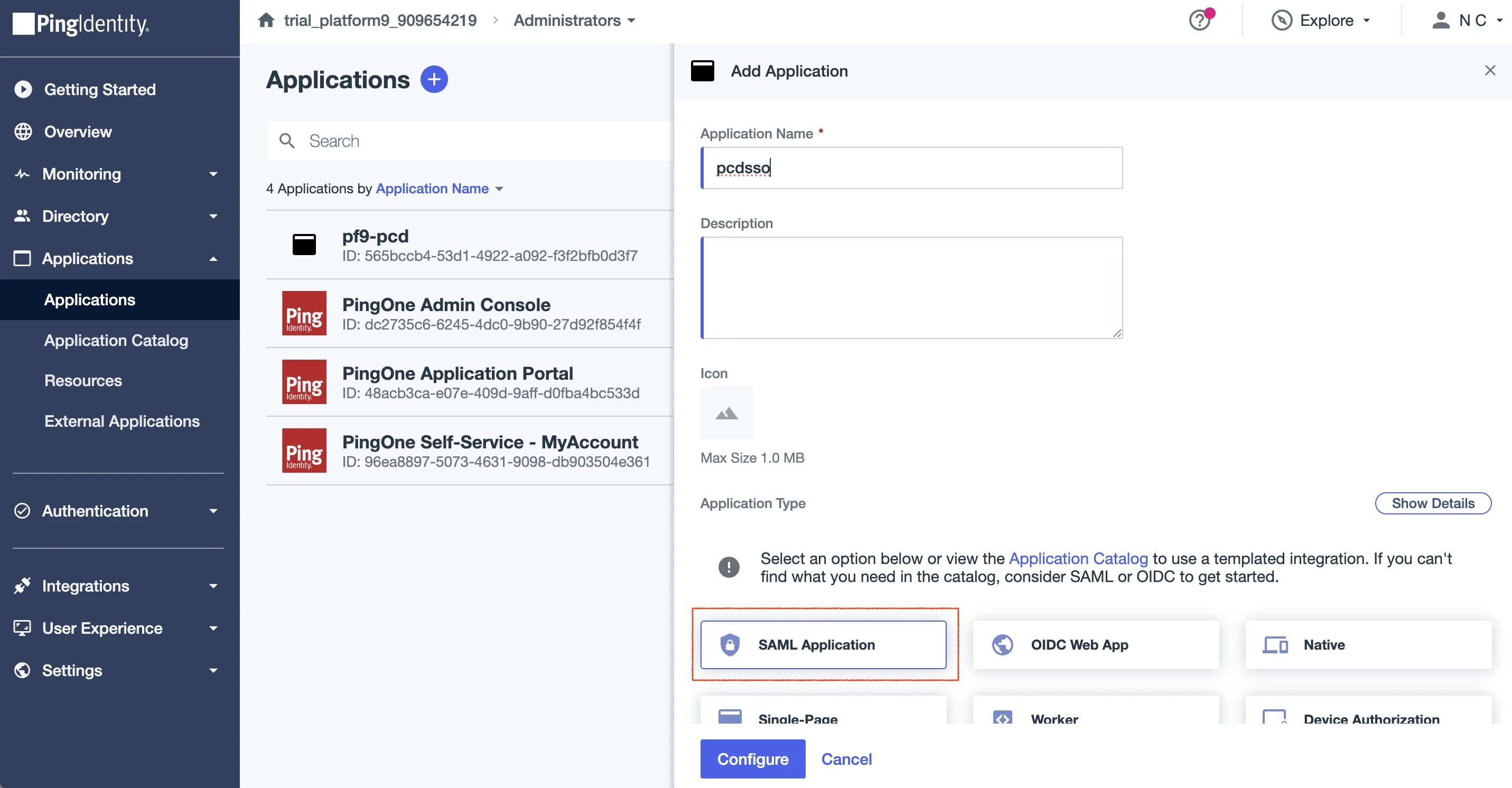
3. Enter a unique name for the application.
4. For application type, select **SAML Application**.
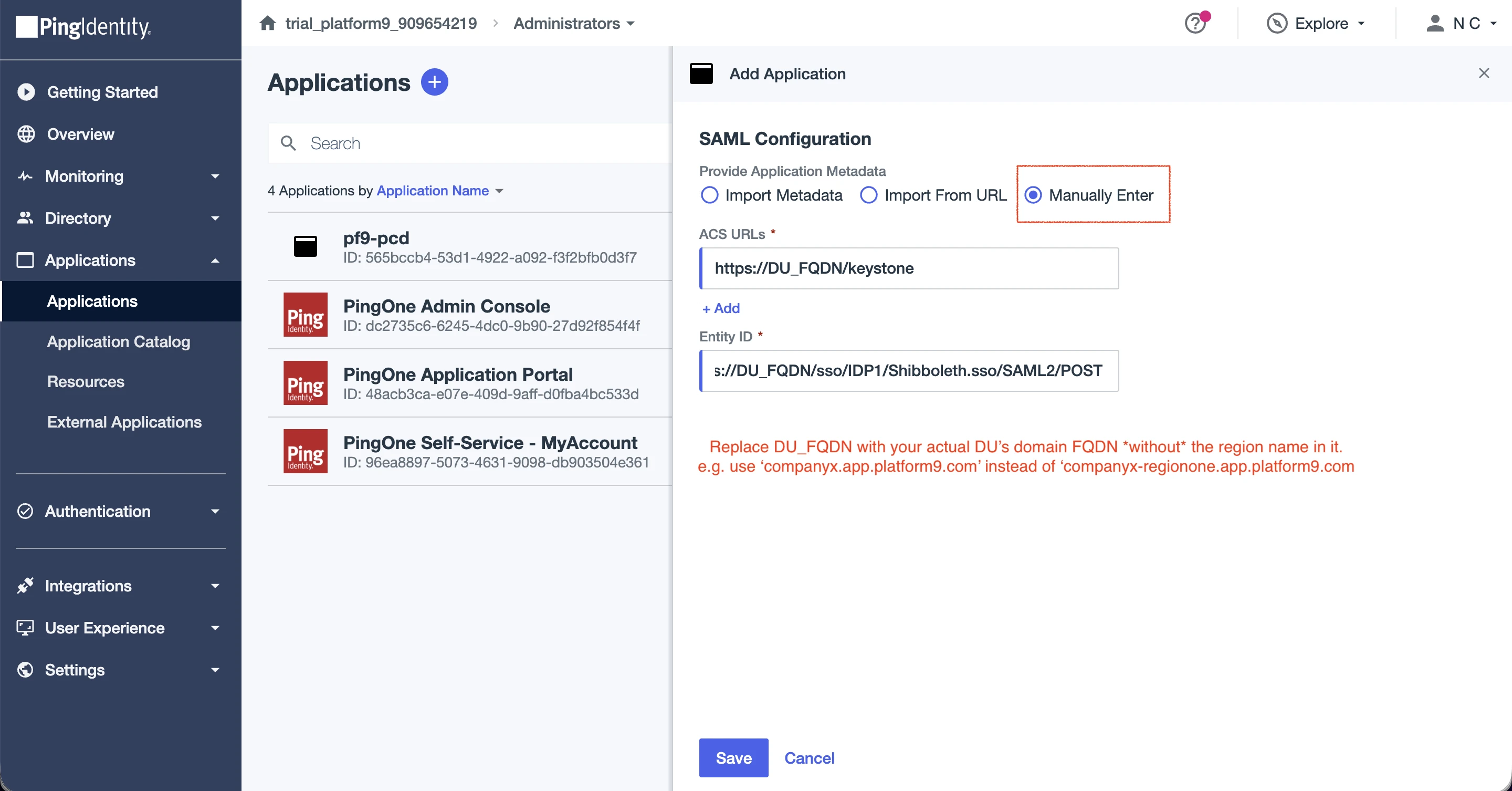
5. For SAML Configuration method, select **Manually Enter**, and then configure the following fields.
| Field | Value |
| ------------- | ------------------------------------------------------ |
| **ACS URLs** | `https:///keystone` |
| **Entity ID** | `https:///sso/IDP1/Shibboleth.sso/SAML2/POST` |
{% hint style="info" %}
**NOTE**
Replace `` with your actual domain FQDN **without** the region name. For example, use `companyx` instead of `companyx-regionone`.
{% endhint %}
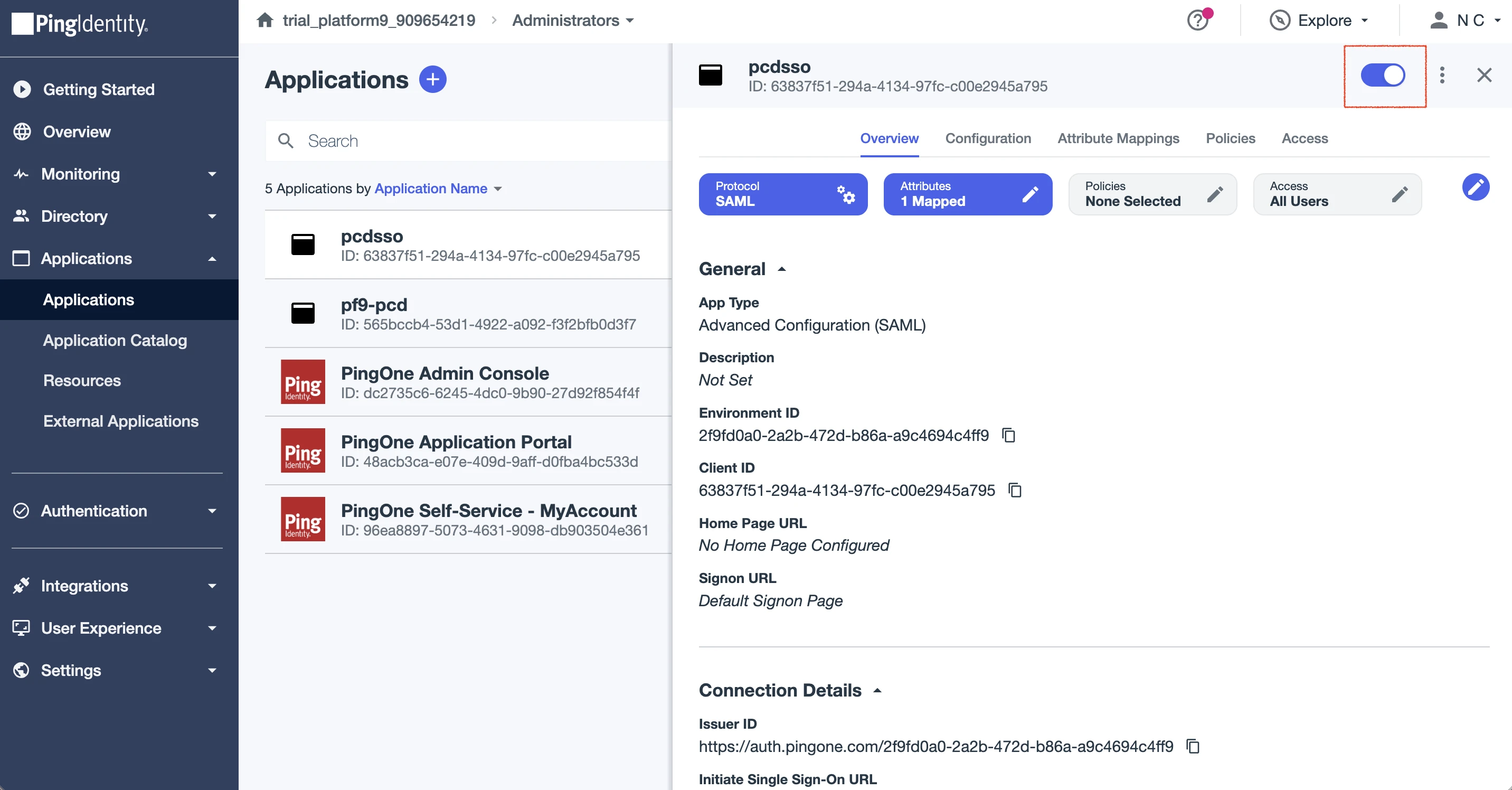
6. Save the application and enable it.
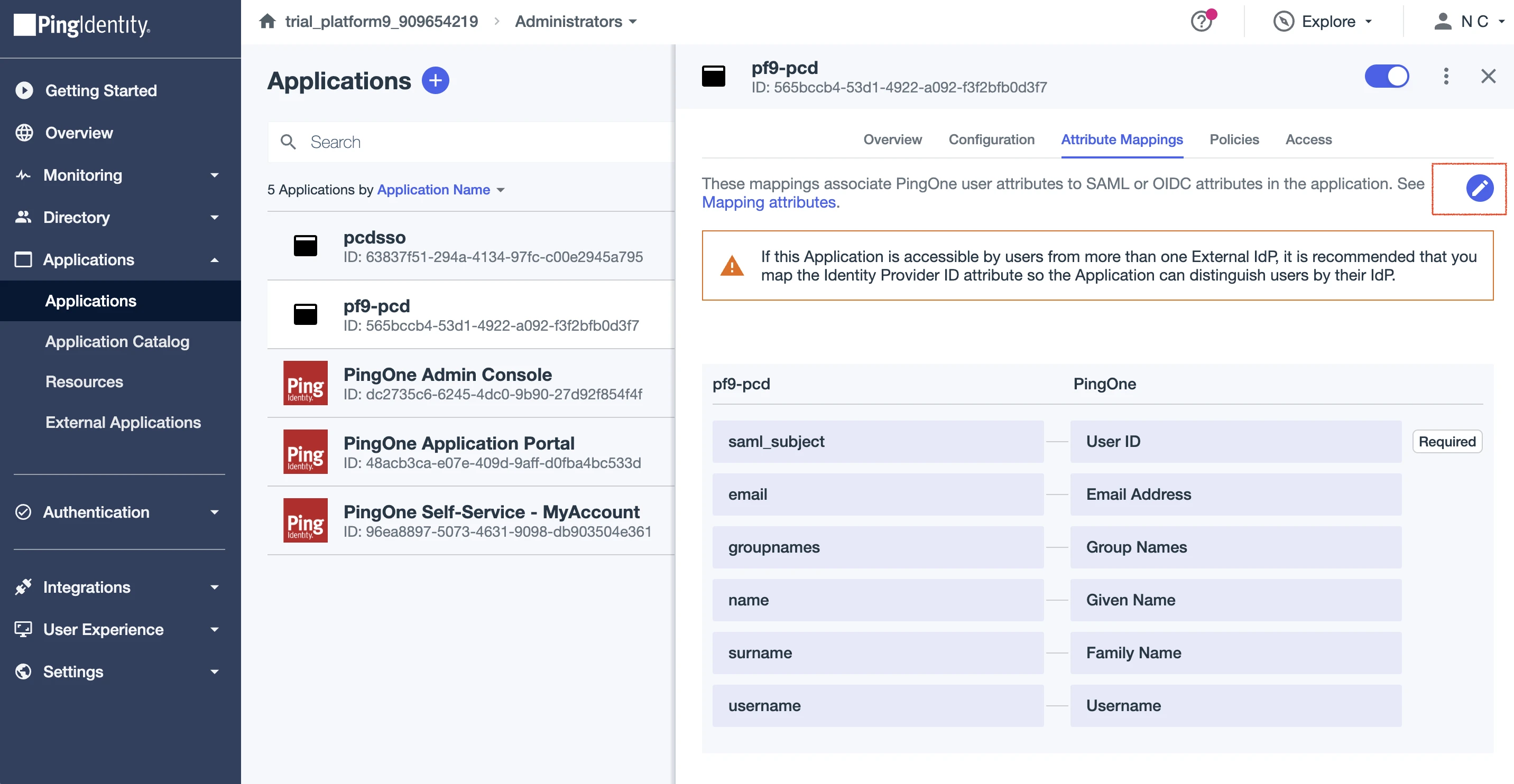
7. On the application page, go to **Attribute Mappings**.
8. Add the attributes required for PCD authentication and group membership. At minimum, configure attributes for the user's identifier, email, first name, last name, and group membership.
{% hint style="info" %}
**NOTE**
The names you assign to each attribute. You will reference these names in the attribute map XML and SAML group configuration in PCD.
{% endhint %}
#### Step 2: Assign users and groups in PingOne
Create a group in PingOne, add users to the group, and assign the group to the SAML application.
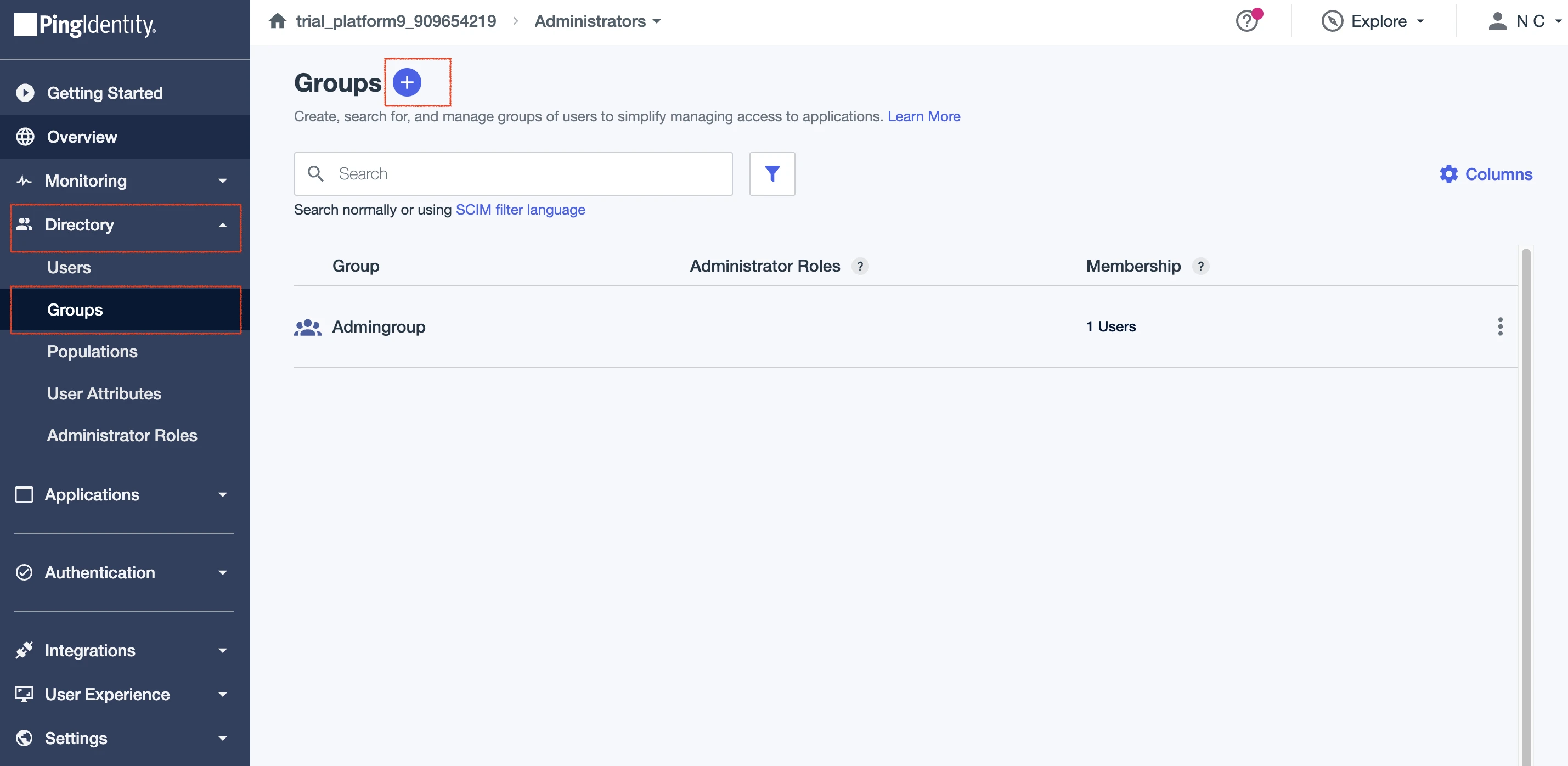
1. Navigate to **Groups** in PingOne.
2. Create a new group and enter a name.
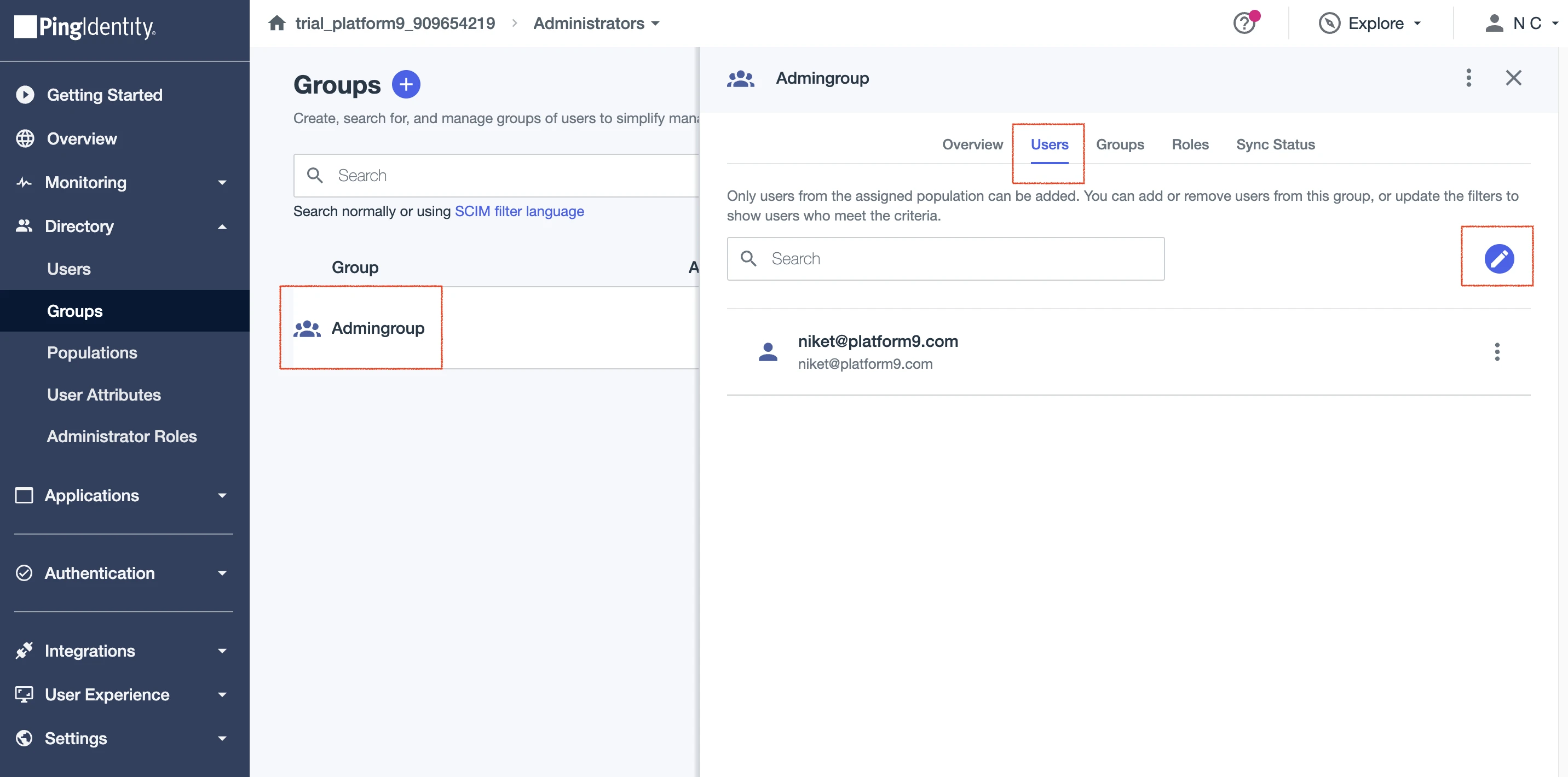
3. Select the group you created, and then add the users who need access to PCD.
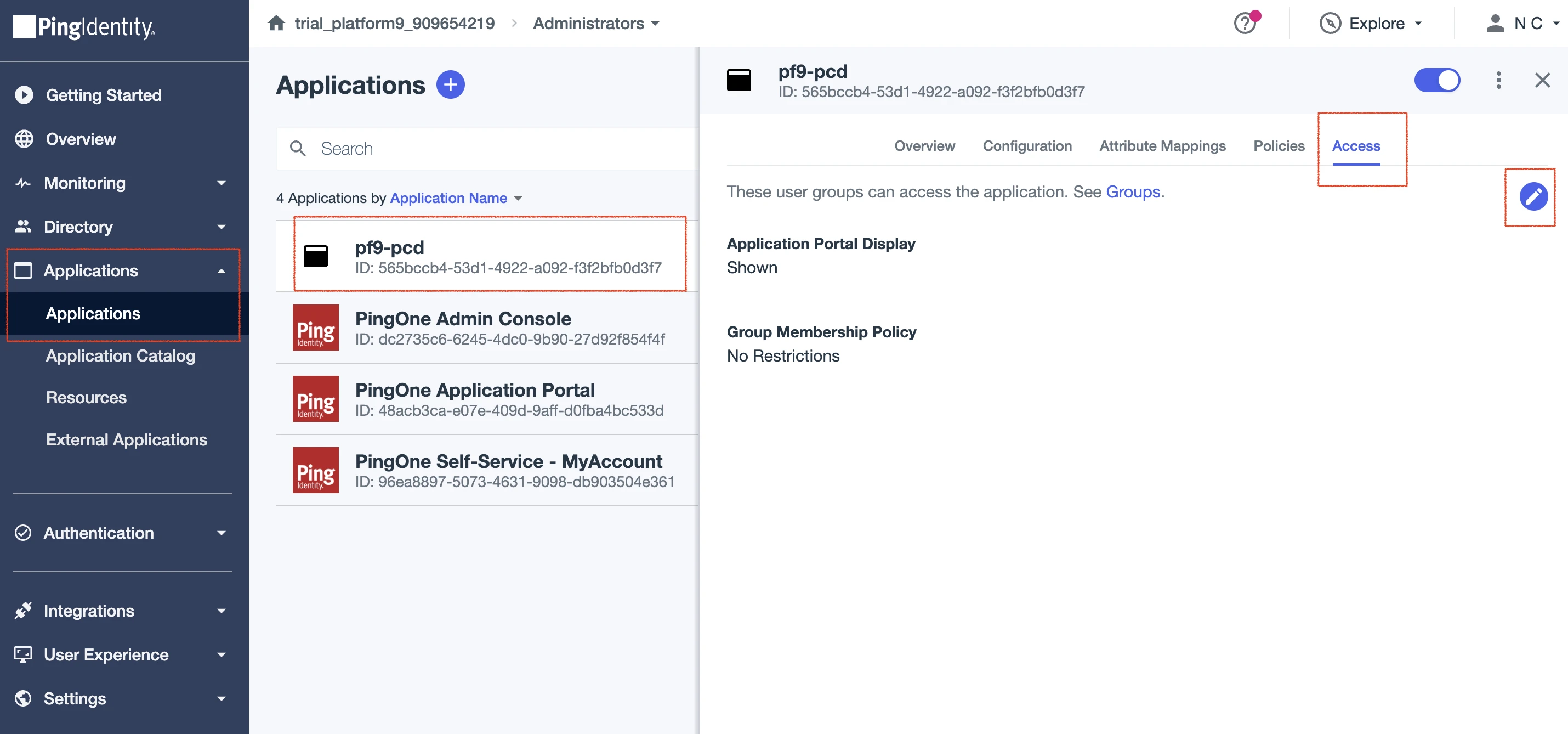
4. Go to **Applications**, and then select the SAML application you created in Step 1.
5. Go to the **Access** tab, and then select the edit option.
6. Search for the group name, select it, and then select **Save**.
#### Step 3: Configure SSO settings in PCD
Configure your PCD environment to use the PingOne SSO integration.
1. Log in to your PCD environment.
2. Navigate to **Settings** > **Enterprise SSO**.
3. On the **Enterprise SSO** page, enable SSO, and then configure the following settings.
| Field | Description |
| ------------------------------------- | -------------------------------------------------------------------------------------------------------------------------------------- |
| **SSO Provider** | Select **PingOne** from the available options. |
| **Entity ID** | Copy the **Issuer ID** from the **Connection Details** section of your PingOne application **Overview** tab, and paste it here. |
| **SAML Metadata URL** | Copy the **IDP Metadata URL** from the **Connection Details** section of your PingOne application **Overview** tab, and paste it here. |
| **SSO Provider Attribute Map in XML** | Paste the attribute map XML that covers all attributes added to your PingOne application. See the sample in step 4. |
4. Construct the attribute map XML to cover **all** attributes added to the PingOne application. Use the following sample as a starting point.
```xml
```
5. Paste the completed attribute map XML into the **SSO Provider Attribute Map in XML** field.
6. Select **Save**.
Your space.vars.product\_acronym SSO connection to PingOne is now configured.
#### Step 4: Configure SAML groups in space.vars.product\_acronym
Set up SAML groups to manage user permissions and role assignments in space.vars.product\_acronym.
1. On the **Enterprise SSO** page, select **SAML Groups**.
2. Select **Add Group**.
3. Configure the group settings.
| Field | Description |
| ------------------------------------- | ----------------------------------------------------------------------------- |
| **Name** | Enter a unique name for the group. |
| **Description** | Enter a brief description of the group. |
| **SAML Attribute Key for First Name** | Enter the attribute key for the user's first name (for example, `firstname`). |
| **SAML Attribute Key for Last Name** | Enter the attribute key for the user's last name (for example, `lastname`). |
| **SAML Attribute Key for Email** | Enter the attribute key for the user's email (for example, `email`). |
{% hint style="info" %}
**NOTE**
The attribute keys must match those configured in your attribute map XML and in your PingOne application's attribute mappings.
{% endhint %}
4. For **Username Attribute Mapping Template** and **Email Attribute Mapping Template**, enter a template using the format `{attributeKey}`, where `attributeKey` corresponds to attributes configured in PingOne.
5. Configure the group mapping.
| Field | Description |
| ------------------------ | --------------------------------------------------------------------------------------------------------- |
| **SAML Group Attribute** | Enter the group attribute name configured in your PingOne attribute mappings (for example, `groupnames`). |
| **Criteria** | Select **Any one of**. |
| **SAML Group Values** | Enter the name of the group configured in PingOne (for example, `Admingroup`). |
6. Under **Tenants & Roles**, assign the group to appropriate tenants and roles (Administrator or Self-Service User).
7. Select **Save**.
Your SAML group is now configured in space.vars.product\_acronym.
#### Step 5: Test the SSO configuration
Verify that your PingOne SSO integration works correctly.
1. Log out of your current space.vars.product\_acronym session.
2. Open a new private or incognito browser window.
3. Navigate to your space.vars.product\_acronym login page.
4. Select **Sign In with SSO**.
5. Complete the authentication process using your PingOne credentials.
6. Verify you can access space.vars.product\_acronym resources according to your assigned role.
You have now successfully configured SSO integration between space.vars.product\_acronym and PingOne. Users can authenticate using their existing PingOne credentials and access space.vars.product\_acronym resources based on their assigned roles and permissions.
---
# Agent Instructions
This documentation is published with GitBook. GitBook is the documentation platform designed so that both humans and AI agents can read, navigate, and reason over technical content effectively. Learn more at gitbook.com.
## Querying This Documentation
If you need additional information that is not directly available in this page, you can query the documentation by asking a question.
Perform an HTTP GET request on the following URL with the `ask` and `goal` query parameters:
```
GET https://docs.platform9.com/private-cloud-director/identity-and-multi-tenancy/enterprise-sso/set-up-pingone.md?ask=&goal=
```
`ask` is the immediate question: it should be specific, self-contained, and written in natural language.
`goal` is what the user is ultimately trying to achieve, the reason they need the answer. Sharing it helps GitBook give you a better, more relevant answer. A goal is most helpful when it describes the outcome the user wants rather than restating the question. For example, with `ask=how do I create an API token`, a goal like `automate deployments from our CI pipeline` lets GitBook tailor the answer to that use case.
The response will contain a direct answer to the question and relevant excerpts and sources from the documentation.
Use this mechanism when the answer is not explicitly present in the current page, you need clarification or additional context, or you want to retrieve related documentation sections.