space.vars.product\_name endpoints (Keystone/Nova/Cinder/Glance) over HTTPS/443. You may need provider networks to host Access Nodes.
* The disk library (local disk or object storage, if used)
## CommServe installation
#### Requirements
* Supported OS (Windows or Linux)
* As per **Commvault** system requirements
#### Install
{% stepper %}
{% step %}
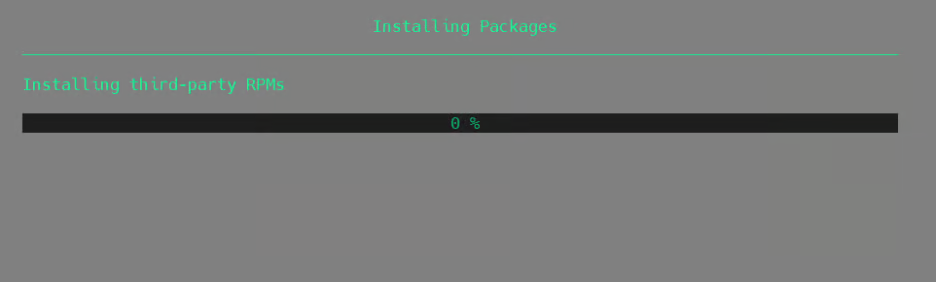
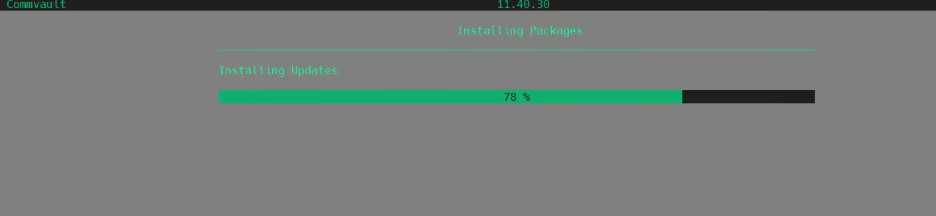
**Download & Run Installer**
1. Download the Commvault Media Kit.
2. Run the installer.


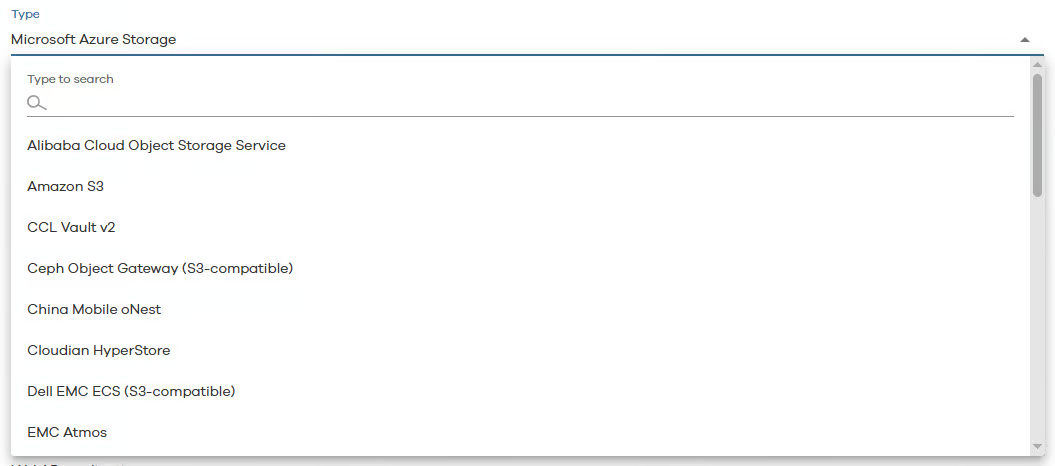
More screenshots
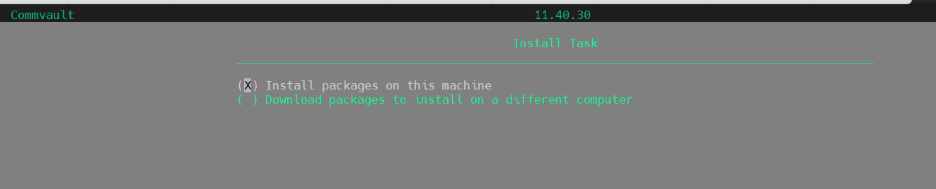
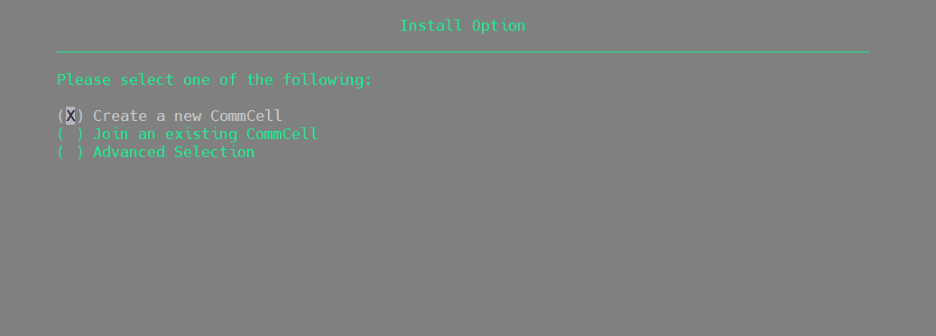
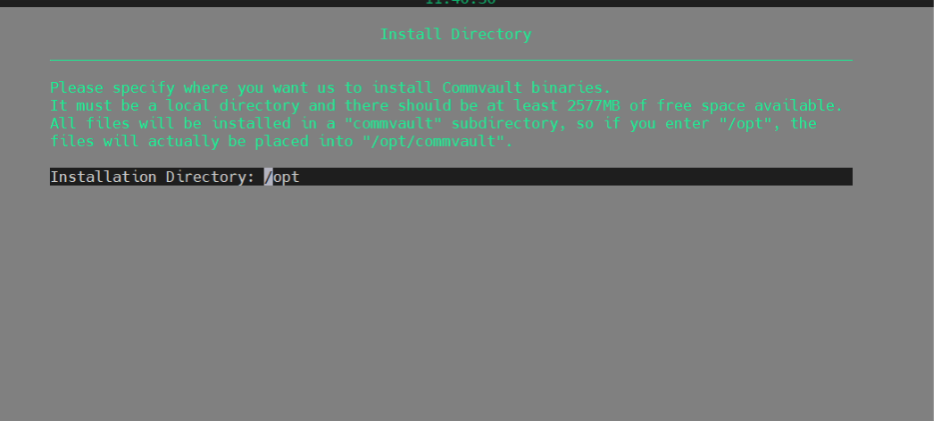
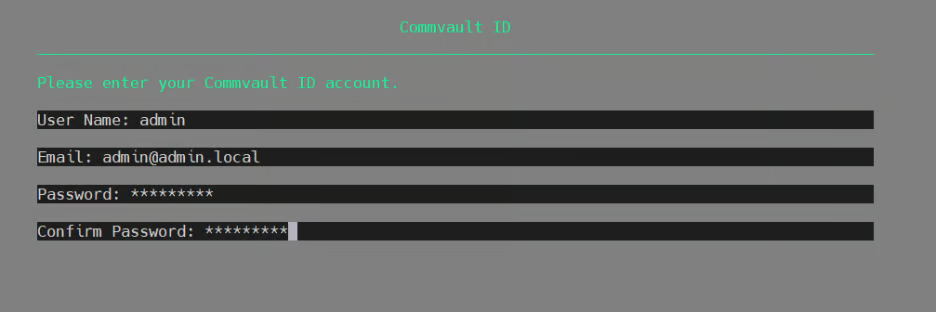
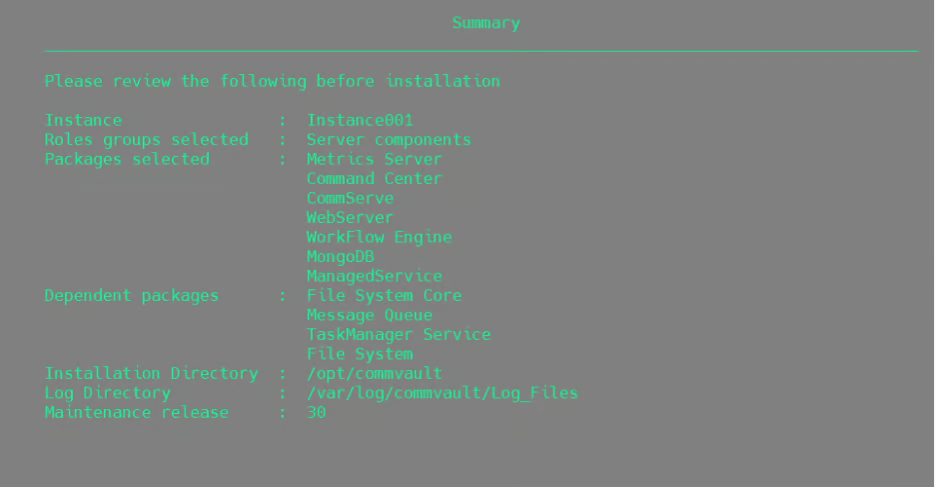
More screenshots


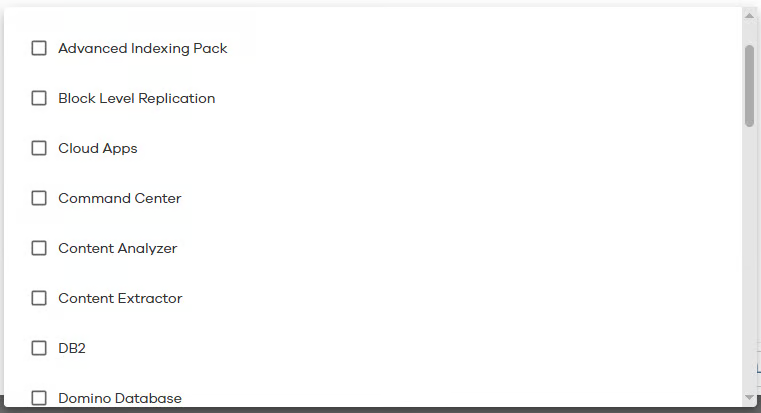
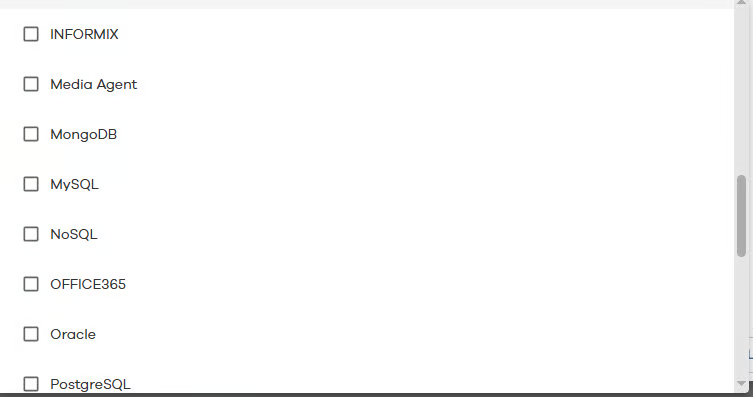
space.vars.product\_name.
* Use one Windows MediaAgent and one Linux MediaAgent per region.
* Attach local disks for backup storage.
#### Create a Custom Installation Package
#### Create a Custom Installation Package
{% stepper %}
{% step %}
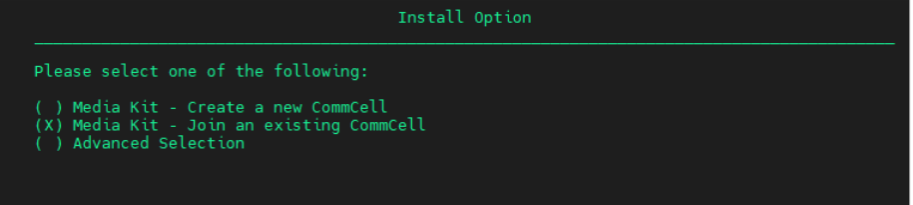
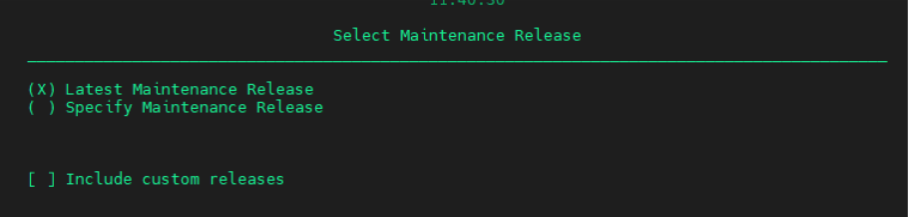
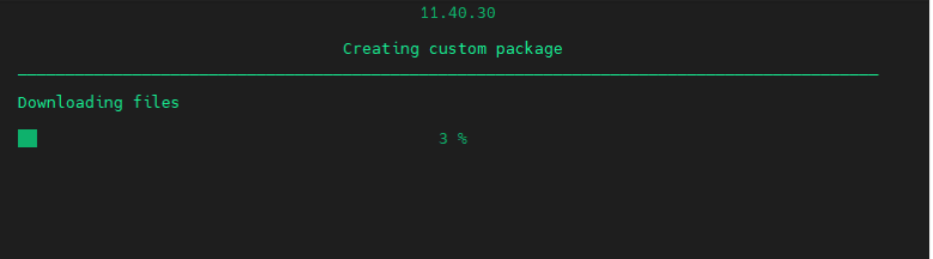
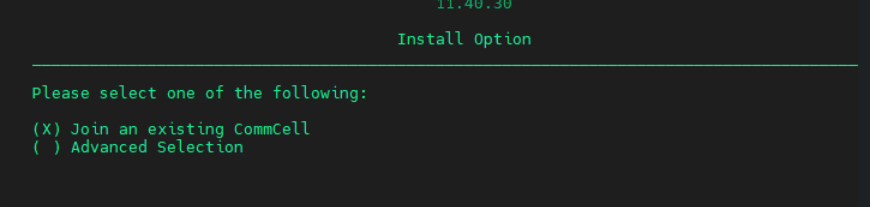
#### Run installer on CommServe
Execute the Commvault installation script on the CommServe server.
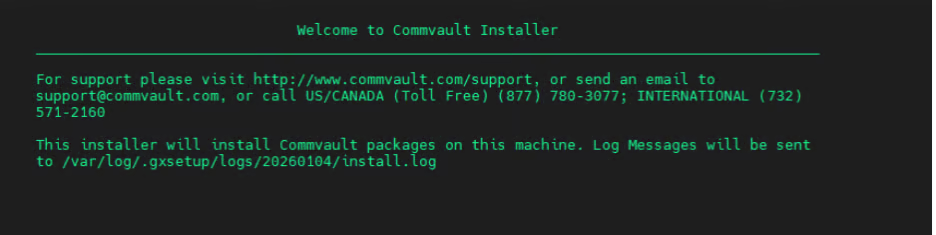

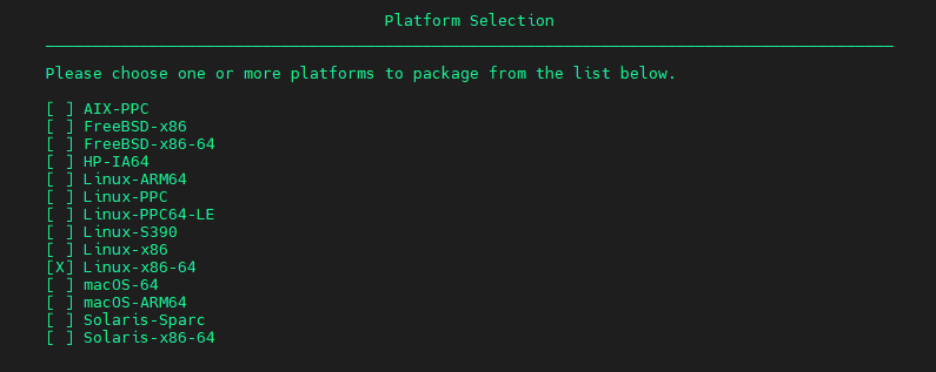
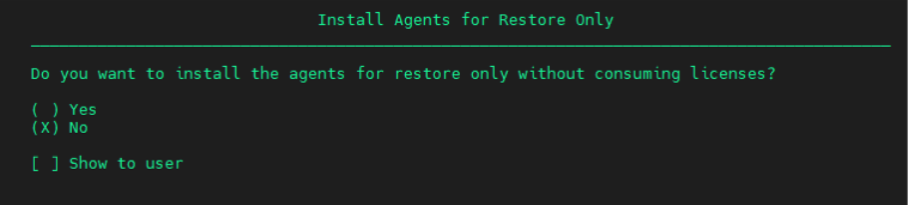
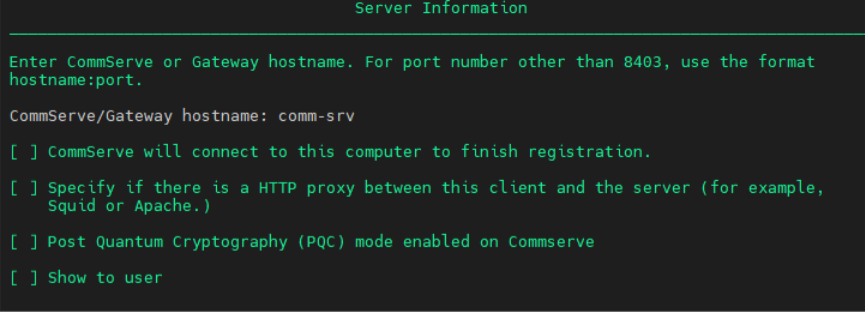

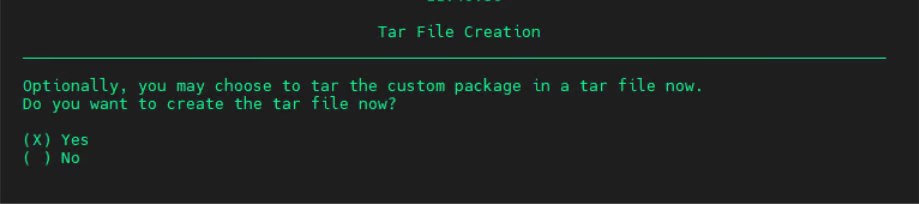
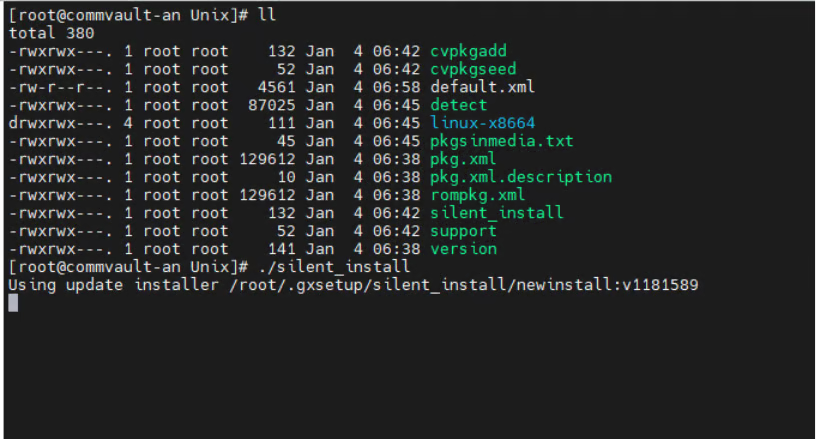
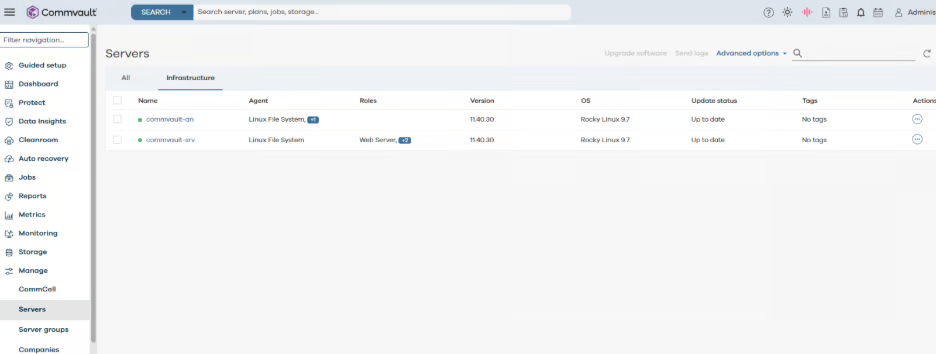
space.vars.product\_name to Commvault
Go to Commvault UI.
{% stepper %}
{% step %}
#### Add Hypervisor
1. Go to Virtualization → Add Hypervisor.
2. Select OpenStack.
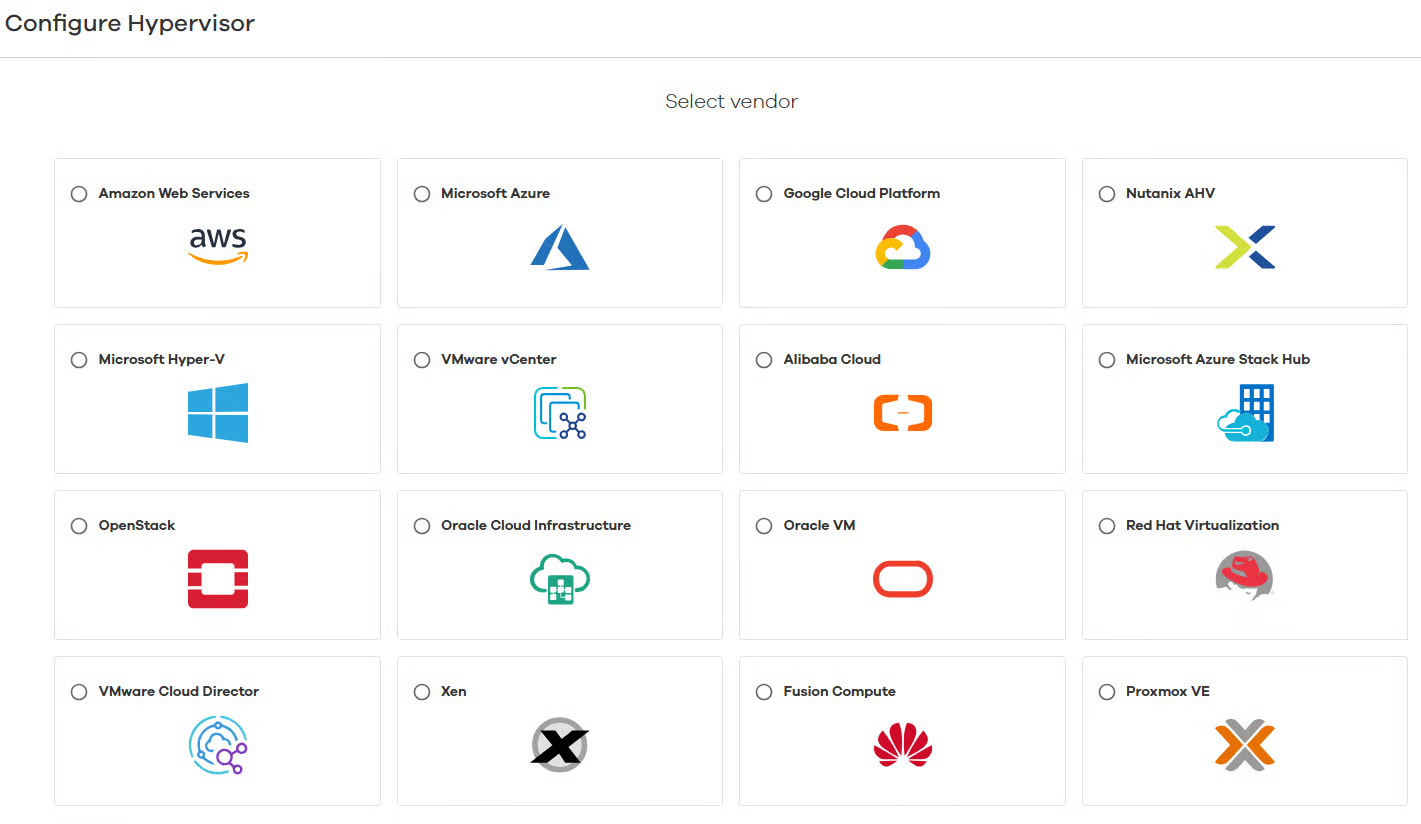
space.vars.product\_acronym Keystone endpoint (HTTPS/443), for example: `https://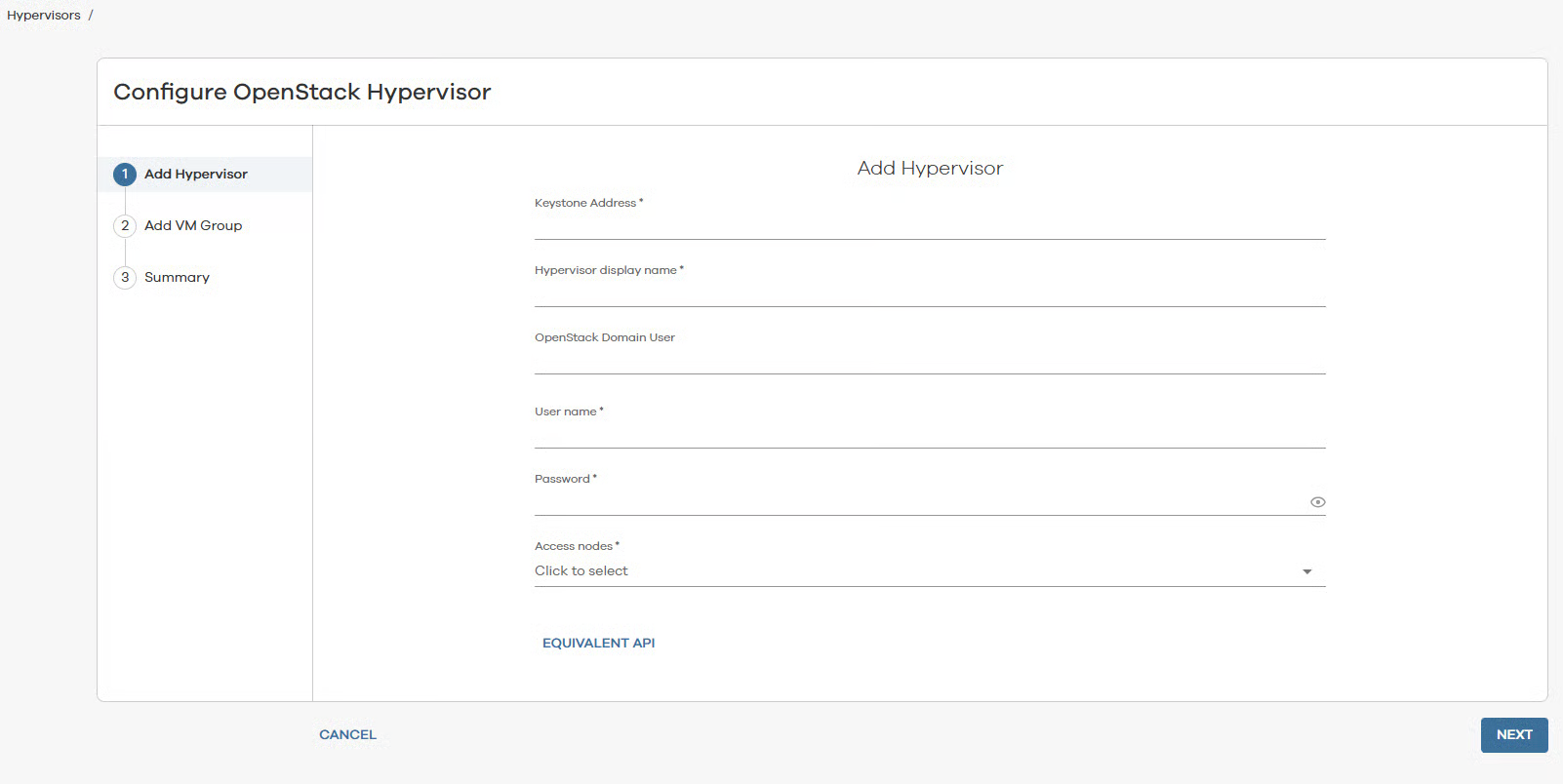
space.vars.product\_name VMs.
{% endstep %}
{% endstepper %}
## Backup and restore
### Add VMs for backup
VM Groups
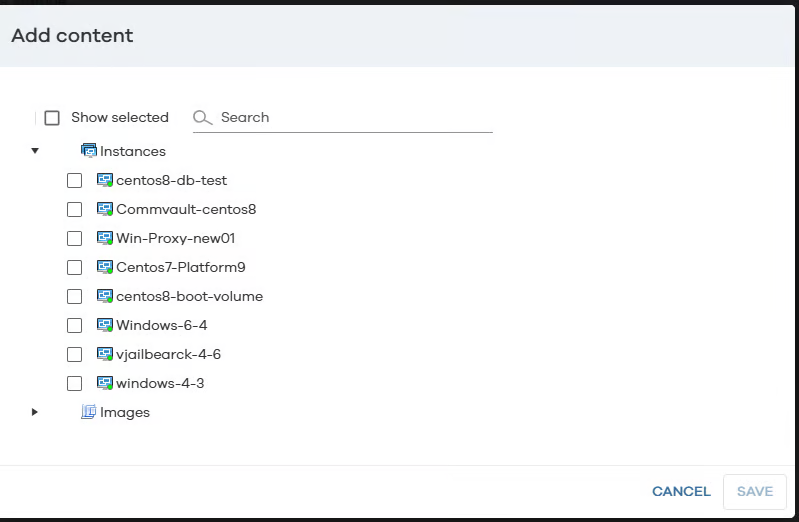
* Create VM Groups using:
* Content (explicit VMs)
* Rules (tags / naming patterns)
Database protection (optional)
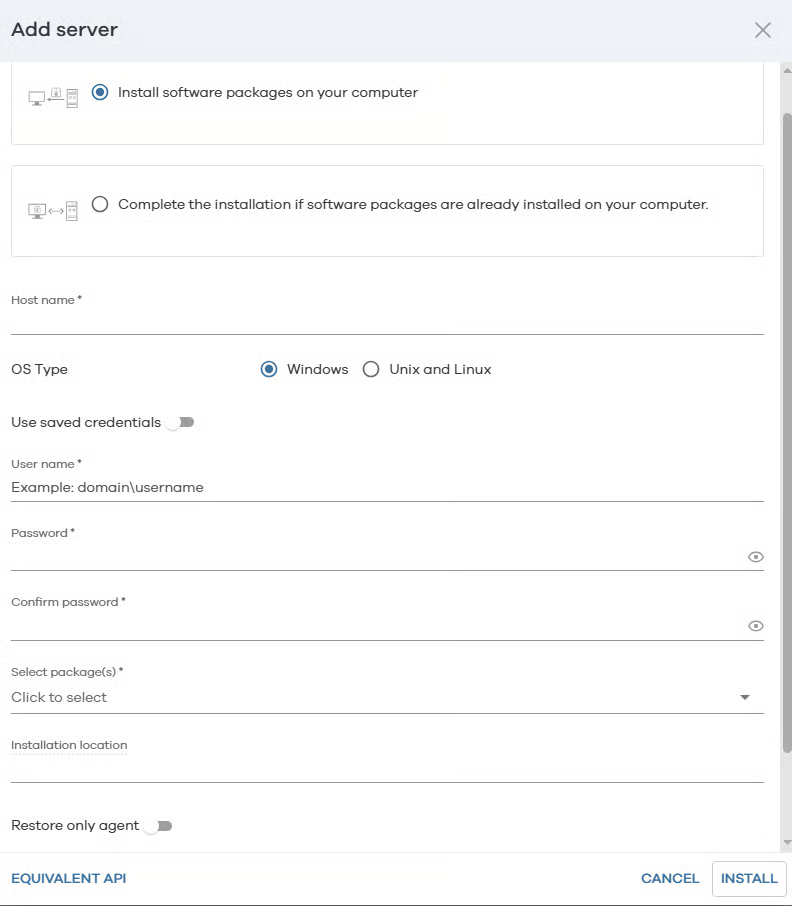
Database protection is agent-based. Add the DB serverAdd the DB server:Manage → Servers → Add ServerInstall agents on the DB serverInstall directly on the same database server:File System AgentApplication-specific agent (MySQL, MSSQL, etc.)Configure policies and verifyConfigure DB backup policies.Verify visibility under the Database tab.Since the agent is installed on the database server itself, backups are application-aware. This ensures consistent backups and supported restores.space.vars.product\_name
This section explains the sequence of operations and the resources created in space.vars.product\_acronym when a backup or restore job is triggered from Commvault.
#### Backup Workflow (High-Level Flow)
Commvault interacts with space.vars.product\_acronym using the OpenStack APIs. Backups are agentless at the VM level (for VMs), with data movement handled by the Media Agent (Access Node).
{% stepper %}
{% step %}
**Backup Job Triggered**
* A backup job is initiated from Commvault (scheduled or manual).
* The job is associated with a VM Group and a Storage Policy.
{% endstep %}
{% step %}
**PCD / OpenStack Authentication**
* Commvault authenticates to space.vars.product\_acronym via Keystone using the configured credentials.
* Project and region context is established.
{% endstep %}
{% step %}
**VM Metadata Collection**
* Commvault queries space.vars.product\_acronym for:
* VM details
* Attached volumes
* Disk layout
* Snapshot capabilities
{% endstep %}
{% step %}
**Snapshot Creation (**space.vars.product\_acronym **Side)**
* space.vars.product\_acronym creates:
* AVM snapshot or
* Volume snapshots (depending on configuration)
{% hint style="warning" %}
Only VMs that boot from persistent (bootable) volumes are supported. Ephemeral-root VMs are not protected.
{% endhint %}
* The VM remains powered on unless otherwise configured.
{% endstep %}
{% step %}
**Temporary Snapshot Resources Created**
On the PCD side, the following resources are created temporarily:
* Snapshot objects (VM or volume)
* Temporary snapshot volumes
* Snapshot metadata entries
{% endstep %}
{% step %}
**Data Read by Media Agent**
* The MediaAgent (Access Node VM) accesses the snapshot data.
* A temporary volume created from the snapshot is attached or mapped to the MediaAgent. This allows reads without impacting the source VM.
* Backup data is streamed:
* From snapshot → MediaAgent
* From MediaAgent → local disk library
{% endstep %}
{% step %}
**Snapshot Cleanup**
* Once data transfer completes successfully:
* Snapshot resources are deleted
* Temporary volumes are removed
* space.vars.product\_acronym returns the VM to its original state.
{% endstep %}
{% step %}
**Job Completion**
* Backup metadata is updated in Commvault.
* Backup data is retained according to the Storage Policy.
{% endstep %}
{% endstepper %}
space.vars.product\_acronym Impact Summary (Backup)
* No permanent resources left behind
* Short-lived snapshots only
* No agent installed inside the VM
* Minimal VM performance impact
#### Restore Workflow
Restores are proxy-based and require an OS-matching MediaAgent. Commvault uses space.vars.product\_acronym APIs to recreate or overwrite VM resources.
{% stepper %}
{% step %}
**1. Restore Job Triggered**
* Restore initiated from Commvault:
* Full VM restore
* File-level restore
{% endstep %}
{% step %}
**2. Restore Proxy Selection**
* Commvault selects an OS-specific Media Agent:
* Windows VM restore → Windows Media Agent
* Linux VM restore → Linux Media Agent
{% endstep %}
{% step %}
**3. PCD Authentication**
* Commvault authenticates to space.vars.product\_acronym using Keystone.
* Target project, network, cluster, and region are selected.
{% endstep %}
{% step %}
**4. Target Resource Preparation (PCD Side)**
Depending on restore type, PCD creates:
* New volumes from backup data
* Temporary volumes (during restore)
* Network attachments
{% endstep %}
{% step %}
**5. Data Transfer**
* Backup data is read from:
* Local disk library on Media Agent
* Data is written to:
* Newly created or existing space.vars.product\_acronym volumes
{% endstep %}
{% step %}
**6. VM Reconstruction**
For full VM restore:
* VM definition is recreated
* Volumes attached
* Networks connected
The network selected for restore should have port security enabled.
space.vars.product\_acronym.
{% endstep %}
{% endstepper %}
space.vars.product\_acronym Impact Summary (Restore)
* New resources may be permanently created:
* VMs
* Volumes
* Network attachments
* Temporary resources are cleaned automatically
* Restore speed depends on:
* Media Agent proximity
* Local disk performance
* Volume size
### Troubleshooting quick checks
* **Discovery fails**
* Confirm Keystone URL ends in `/keystone/v3`.
* Confirm HTTPS/443 reachability from CommServe and Access Nodes.
* Confirm credentials and scope (system vs project).
* **Backup fails at snapshot**
* Check tenant snapshot quota and concurrent jobs.
* Check Cinder snapshot support for the backend.
* **Restore fails**
* Confirm the restore proxy OS matches the guest OS.
* Confirm Access Node can attach and read volumes in the target project.
### Summary
* Deploy CommServe and Access Nodes per space.vars.product\_acronym region for performance and isolation.
* Backups are snapshot-based and agentless for VMs.
* Database backups remain agent-based (inside the DB server).
* Media Agents handle all data movement.
* Local disk storage ensures:
* Faster restores
* Reduced dependency on network or cloud storage
* OS-specific Media Agents are mandatory for restores, not backups.
---
# Agent Instructions
This documentation is published with GitBook. GitBook is the documentation platform designed so that both humans and AI agents can read, navigate, and reason over technical content effectively. Learn more at gitbook.com.
## Querying This Documentation
If you need additional information that is not directly available in this page, you can query the documentation by asking a question.
Perform an HTTP GET request on the following URL with the `ask` and `goal` query parameters:
```
GET https://docs.platform9.com/private-cloud-director/2026.1/integrations/commvault-integration-with-pcd.md?ask=