# Set up Okta

Set up Single Sign-On (SSO) integration between Okta and <code class="expression">space.vars.product\_name</code> (<code class="expression">space.vars.product\_acronym</code>). You will configure an Okta SAML 2.0 application and connect it to your <code class="expression">space.vars.product\_acronym</code> deployment for seamless user authentication.

{% hint style="info" %}
**NOTE**

Only 5 active applications are allowed in Okta. Deactivate unused applications before creating new integrations.
{% endhint %}

### Step 1: Create an Okta SAML application

This step guides you through creating a new SAML 2.0 application integration in Okta.

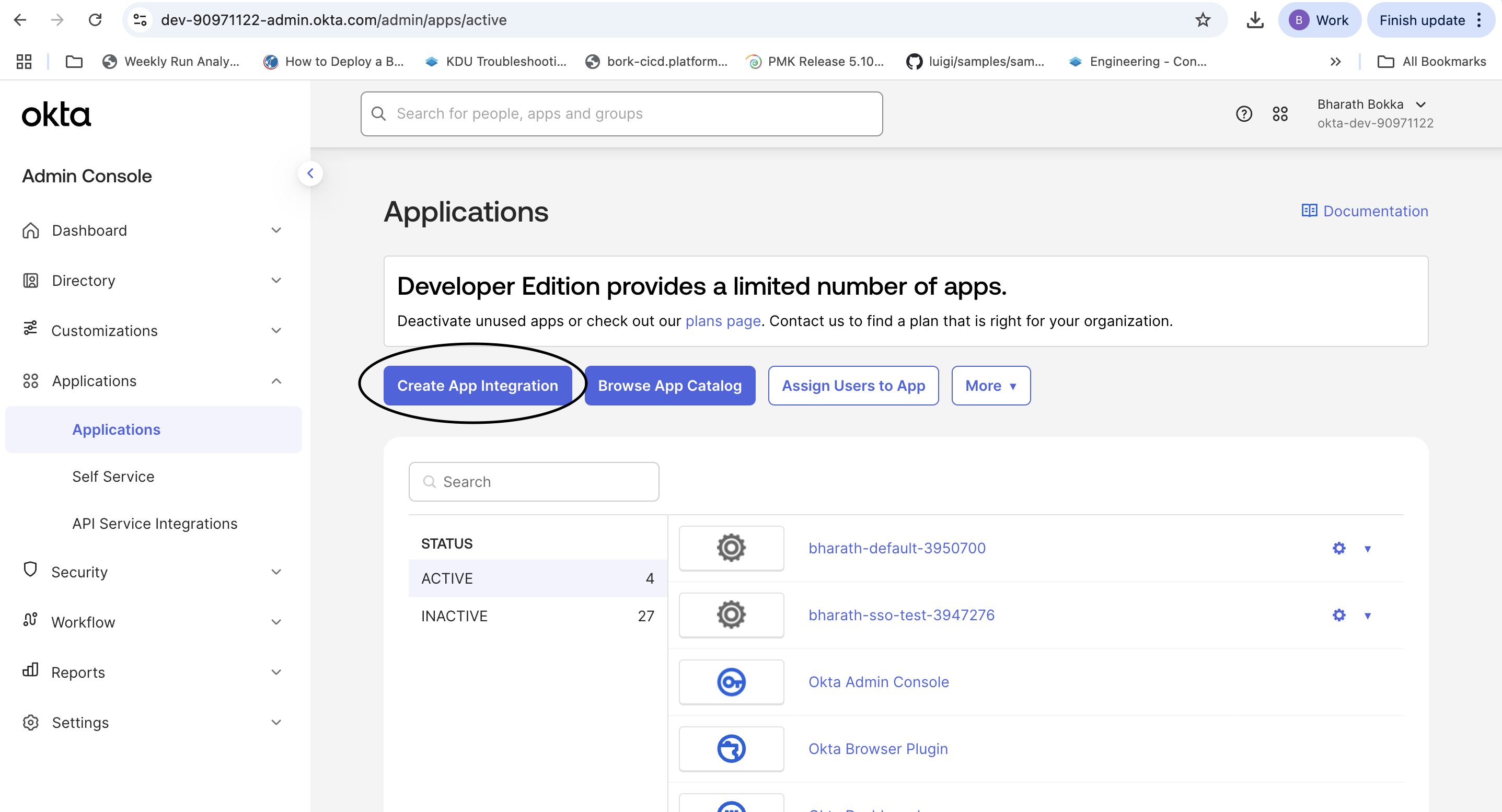
1. Log in to your Okta server and navigate to **Applications**. Verify you have fewer than 5 active applications. If needed, deactivate unused applications.
2. Select **Create App Integration**.
<figure><img src="/files/gUjZFxeXN7ETK5SoQTCv" alt=""><figcaption></figcaption></figure>

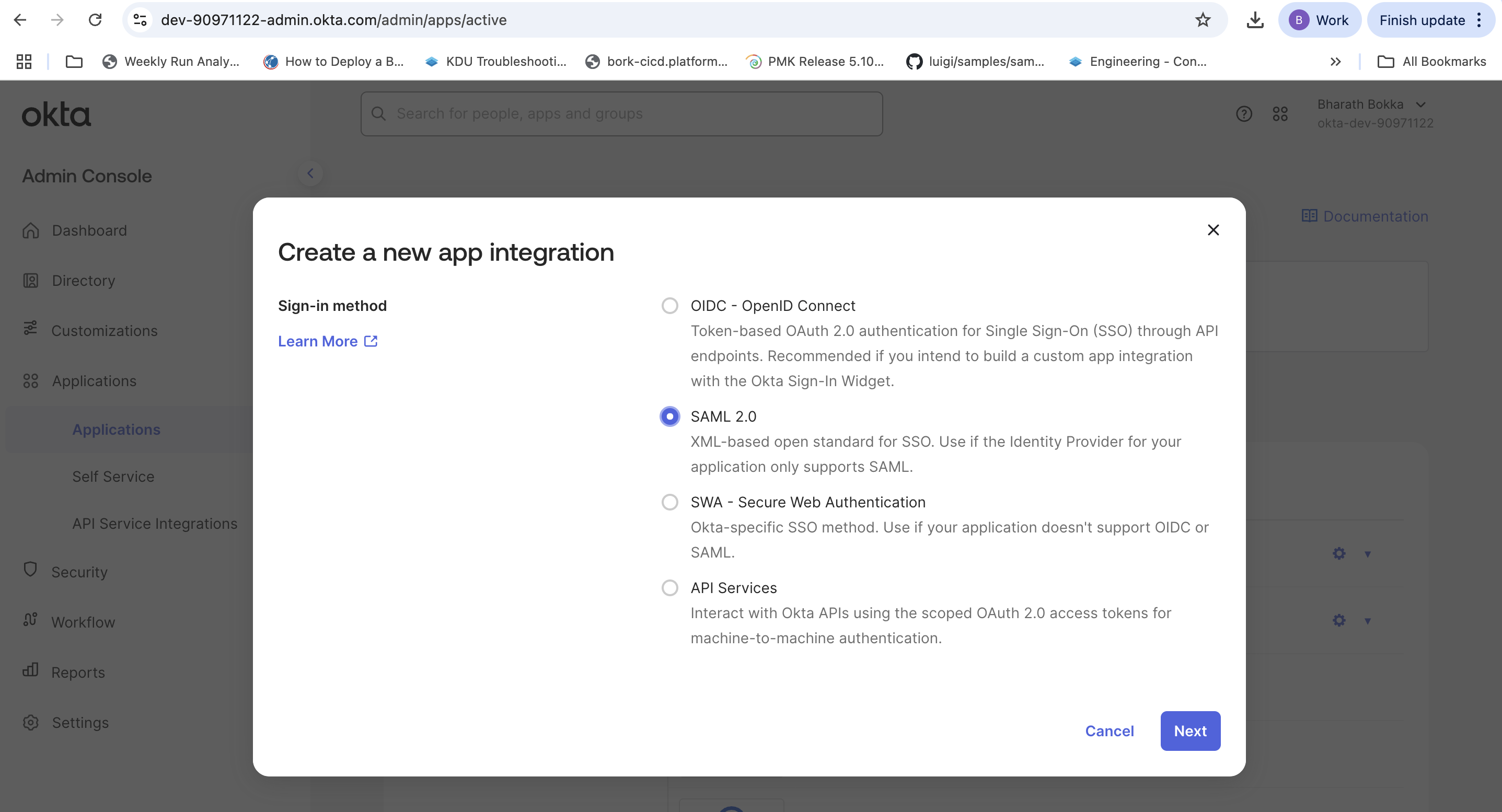
3. Select **SAML 2.0** as the sign-on method.

<figure><img src="/files/kTlQYa80JwGRtOkZ25PN" alt=""><figcaption></figcaption></figure>

4. Select **Next** to proceed to the general settings.

### Step 2: Configure SAML settings

Configure the basic SAML integration settings for your PCD deployment.

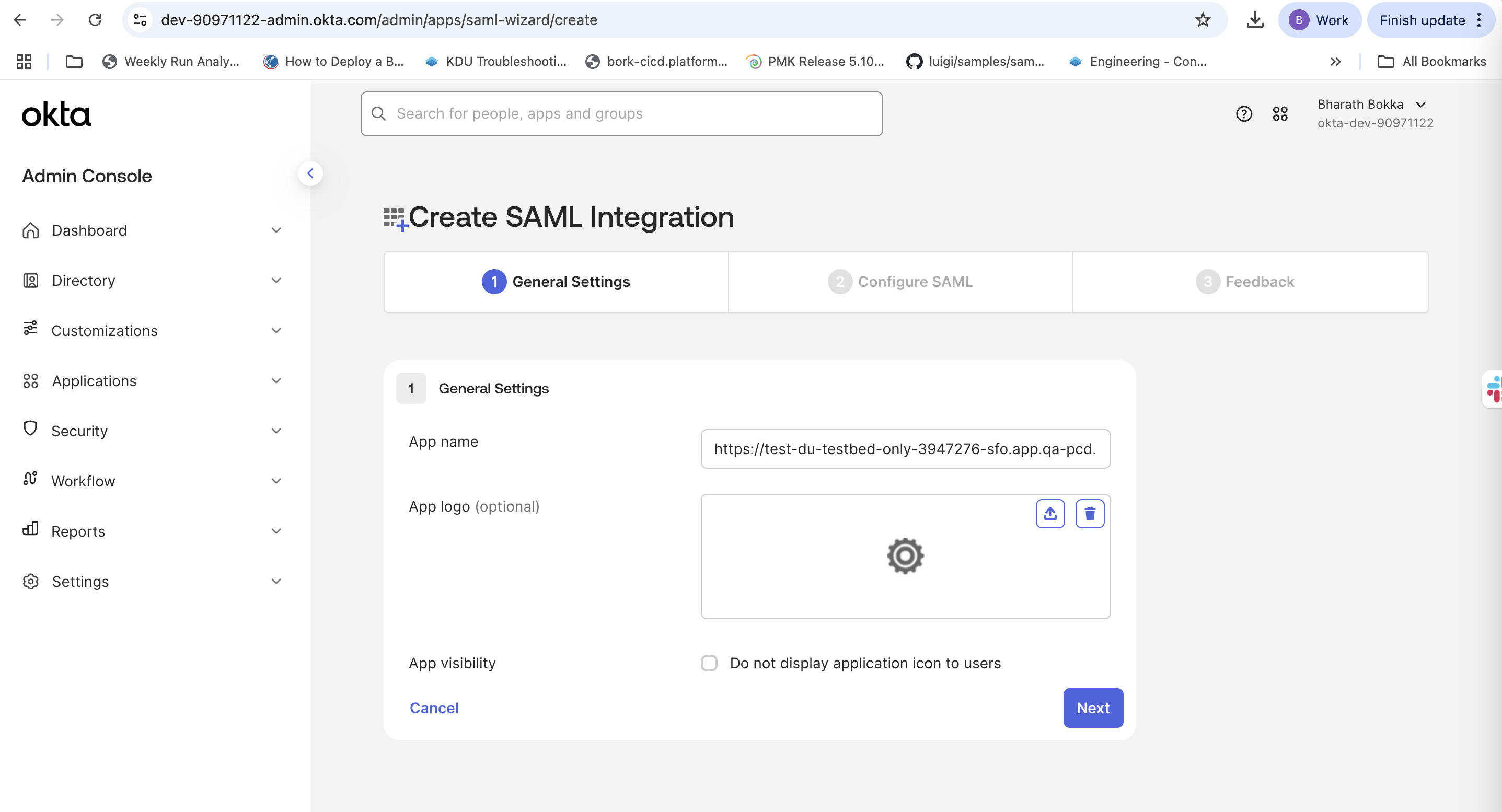
1. On **General Settings**, enter a descriptive application name.
2. Select **Next** to proceed to SAML configuration.

<figure><img src="/files/aV5TQfTBti1SR16qd47k" alt=""><figcaption></figcaption></figure>

3. In **Configure SAML**, enter the following required information:

{% hint style="info" %}
**NOTE**

Replace `<FQDN>`with your PCD environment without any regions. Use `IDP1` for the default domain, or substitute your specific domain name for `<DOMAIN_NAME>` .
{% endhint %}

| Field                                              | Description                                                                                                                                                                                                    |
| -------------------------------------------------- | -------------------------------------------------------------------------------------------------------------------------------------------------------------------------------------------------------------- |
| **Single sign-on URL**                             | <p><code>https\://\<FQDN>/sso/\<DOMAIN\_NAME>/Shibboleth.sso/SAML2/POST</code><br>Example: <code><https://test-du-testbed-only-3950700.app.qa-pcd.platform9.com/sso/IDP1/Shibboleth.sso/SAML2/POST></code></p> |
| **Use this for Recipient URL and Destination URL** | Select this checkbox                                                                                                                                                                                           |
| **Audience URI (SP Entity ID)**                    | <p><code>https\://\<FQDN>/keystone</code><br>Example: <code><https://test-du-testbed-only-3950700.app.qa-pcd.platform9.com/keystone></code></p>                                                                |
| **Default RelayState**                             | Leave blank                                                                                                                                                                                                    |
| **Name ID format**                                 | EmailAddress                                                                                                                                                                                                   |
| **Application Username**                           | Okta Username                                                                                                                                                                                                  |
| **Update application username on**                 | Create and update                                                                                                                                                                                              |

### Step 3: Set up attribute statements

Add attribute statements to pass user information from Okta to <code class="expression">space.vars.product\_acronym</code> .

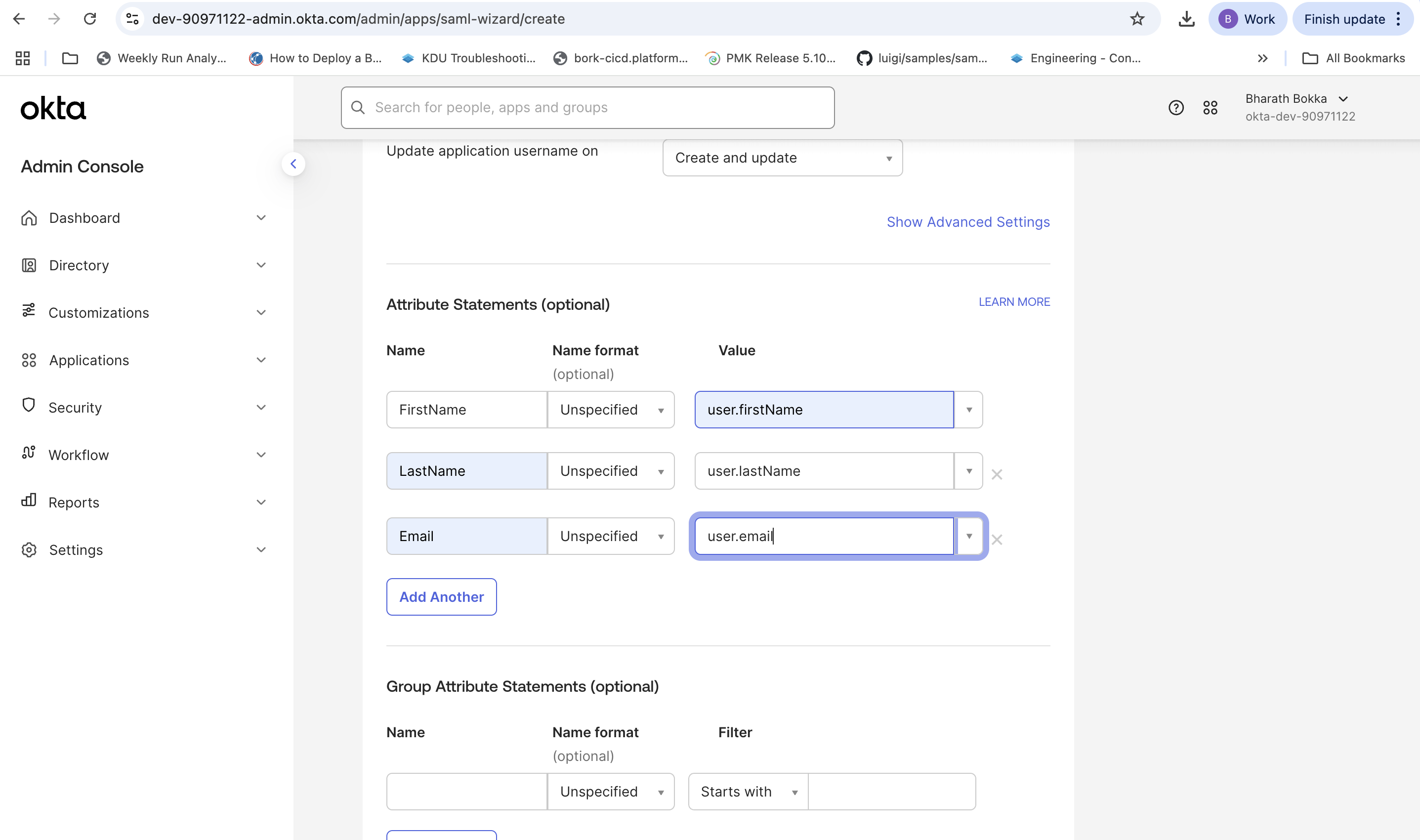
1. Optionally, you can choose to update the **Attribute Statements** by adding the following mappings.

| Name      | Name Format | Value          |
| --------- | ----------- | -------------- |
| FirstName | Unspecified | user.firstName |
| LastName  | Unspecified | user.lastName  |
| Email     | Unspecified | user.email     |
<figure><img src="/files/75A8ihkcIjtNOrCw4yUU" alt=""><figcaption></figcaption></figure>

2. Select **Next** to continue.
3. In **Feedback**, select **Finish** to complete the application setup.

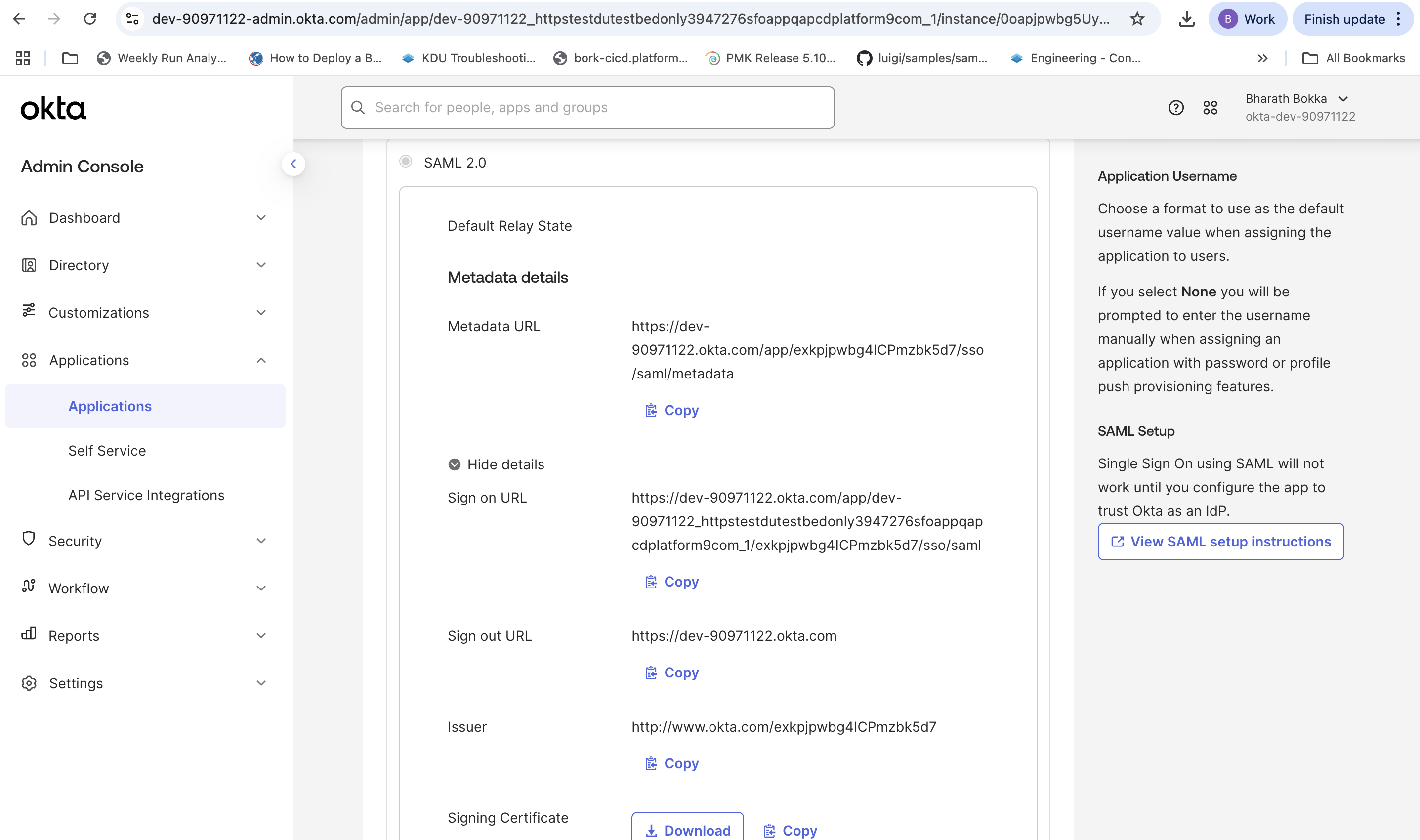
You will be redirected to the application **Sign On Settings**, which displays the **Issuer** and **Metadata URL** needed for <code class="expression">space.vars.product\_acronym</code> configuration.

<figure><img src="/files/DdX9BOEZeuIAJac5KFzu" alt=""><figcaption></figcaption></figure>

### Step 4: Assign users to the application

Grant users access to the SAML application in Okta.

1. Navigate to the **Assignments** tab in your application.
2. Select **Assign**, then select **Assign to People**.
3. Select the users to give access to <code class="expression">space.vars.product\_acronym</code> through SSO.
4. Choose **Assign** to complete the user assignment.

The Okta configuration is now complete.

### Step 5: Configure SSO in <code class="expression">space.vars.product\_acronym</code>

Connect your <code class="expression">space.vars.product\_acronym</code> deployment to the Okta SAML application.

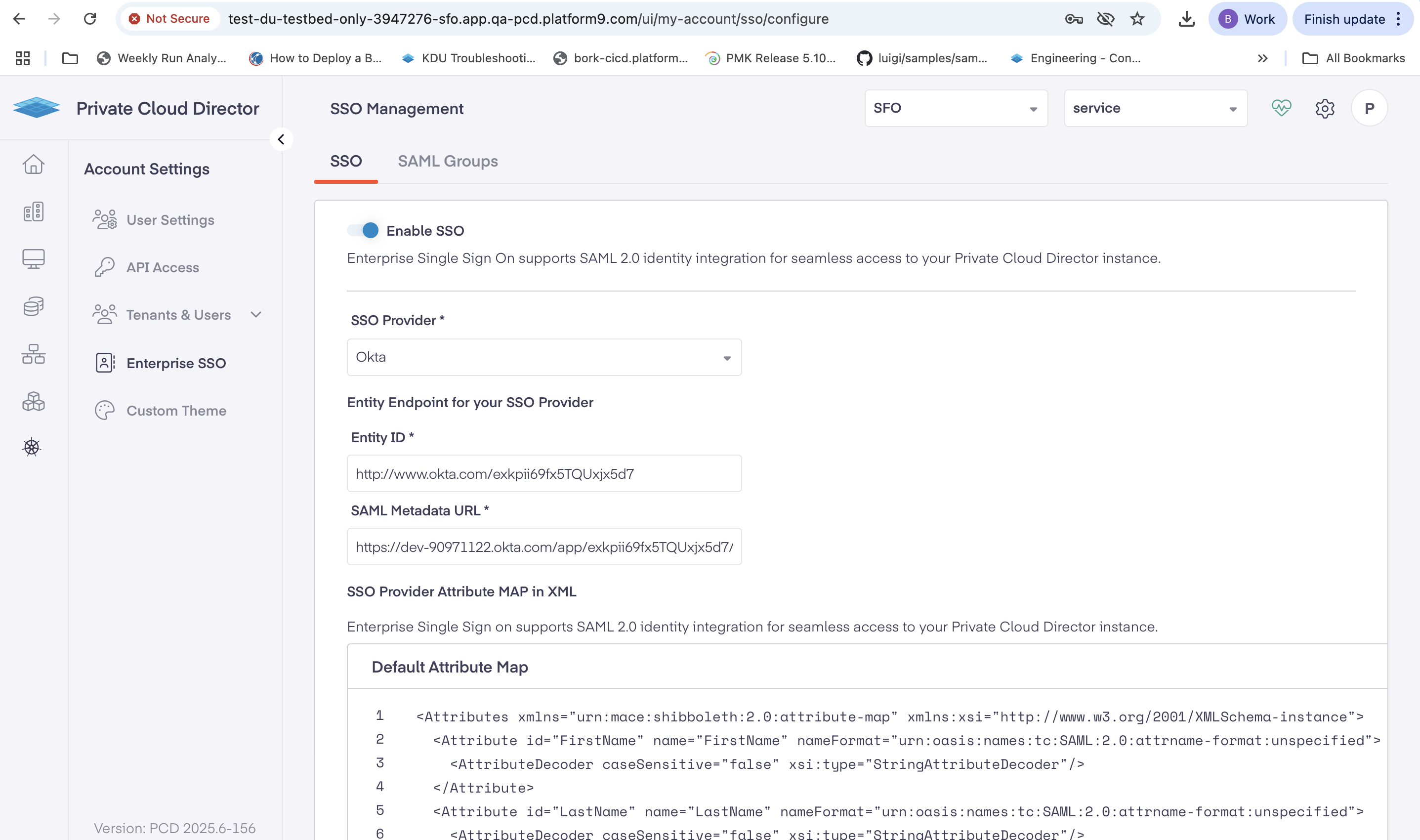
1. Log in to your <code class="expression">space.vars.product\_acronym</code> deployment using the DU FQDN for your target region.
2. Navigate to **Settings** > **Enterprise SSO**.
3. Select **Enable SSO**.
<figure><img src="/files/QyN2ThfRKtywV3ywjJfo" alt=""><figcaption></figcaption></figure>

4. Select **Okta** as your SSO Provider.
5. Copy the **Issuer** from your Okta application **Sign On** and paste it in the **Entity ID** field.
6. Copy the **Metadata URL** from your Okta application **Sign On** tab and paste it in the **SAML Metadata URL** field.
7. Add the following XML configuration in the **SSO Provider Attribute MAP** field:

{% tabs %}
{% tab title="XML" %}

```yaml
<Attributes xmlns="urn:mace:shibboleth:2.0:attribute-map" xmlns:xsi="http://www.w3.org/2001/XMLSchema-instance">
  <Attribute id="FirstName" name="FirstName" nameFormat="urn:oasis:names:tc:SAML:2.0:attrname-format:unspecified">
    <AttributeDecoder caseSensitive="false" xsi:type="StringAttributeDecoder"/>
  </Attribute>
  <Attribute id="LastName" name="LastName" nameFormat="urn:oasis:names:tc:SAML:2.0:attrname-format:unspecified">
    <AttributeDecoder caseSensitive="false" xsi:type="StringAttributeDecoder"/>
  </Attribute>
  <Attribute id="Email" name="Email" nameFormat="urn:oasis:names:tc:SAML:2.0:attrname-format:unspecified">
    <AttributeDecoder caseSensitive="false" xsi:type="StringAttributeDecoder"/>
  </Attribute>
  <Attribute id="UserName" name="UserName" nameFormat="urn:oasis:names:tc:SAML:2.0:attrname-format:unspecified">
    <AttributeDecoder caseSensitive="false" xsi:type="StringAttributeDecoder"/>
  </Attribute>
  <Attribute id="department" name="department" nameFormat="urn:oasis:names:tc:SAML:2.0:attrname-format:unspecified">
    <AttributeDecoder caseSensitive="false" xsi:type="StringAttributeDecoder"/>
  </Attribute>
  <Attribute id="division" name="division" nameFormat="urn:oasis:names:tc:SAML:2.0:attrname-format:unspecified">
    <AttributeDecoder caseSensitive="false" xsi:type="StringAttributeDecoder"/>
  </Attribute>
  <Attribute id="locale" name="locale" nameFormat="urn:oasis:names:tc:SAML:2.0:attrname-format:unspecified">
    <AttributeDecoder caseSensitive="false" xsi:type="StringAttributeDecoder"/>
  </Attribute>
  <Attribute id="organization" name="organization" nameFormat="urn:oasis:names:tc:SAML:2.0:attrname-format:unspecified">
    <AttributeDecoder caseSensitive="false" xsi:type="StringAttributeDecoder"/>
  </Attribute>
  <Attribute id="preferredLanguage" name="preferredLanguage" nameFormat="urn:oasis:names:tc:SAML:2.0:attrname-format:unspecified">
    <AttributeDecoder caseSensitive="false" xsi:type="StringAttributeDecoder"/>
  </Attribute>
  <Attribute id="userType" name="userType" nameFormat="urn:oasis:names:tc:SAML:2.0:attrname-format:unspecified">
    <AttributeDecoder caseSensitive="false" xsi:type="StringAttributeDecoder"/>
  </Attribute>
  <Attribute id="custom1" name="custom1" nameFormat="urn:oasis:names:tc:SAML:2.0:attrname-format:unspecified">
    <AttributeDecoder caseSensitive="false" xsi:type="StringAttributeDecoder"/>
  </Attribute>
  <Attribute id="custom2" name="custom2" nameFormat="urn:oasis:names:tc:SAML:2.0:attrname-format:unspecified">
    <AttributeDecoder caseSensitive="false" xsi:type="StringAttributeDecoder"/>
  </Attribute>
  <Attribute id="custom3" name="custom3" nameFormat="urn:oasis:names:tc:SAML:2.0:attrname-format:unspecified">
    <AttributeDecoder caseSensitive="false" xsi:type="StringAttributeDecoder"/>
  </Attribute>
  <Attribute id="custom4" name="custom4" nameFormat="urn:oasis:names:tc:SAML:2.0:attrname-format:unspecified">
    <AttributeDecoder caseSensitive="false" xsi:type="StringAttributeDecoder"/>
  </Attribute>
  <Attribute id="custom5" name="custom5" nameFormat="urn:oasis:names:tc:SAML:2.0:attrname-format:unspecified">
    <AttributeDecoder caseSensitive="false" xsi:type="StringAttributeDecoder"/>
  </Attribute>
</Attributes>
```

{% endtab %}
{% endtabs %}

8. Select **Save** to create the configuration.

You will see a confirmation message as **SSO configuration saved**.

### Step 6: Create SAML groups and mappings

Set up SAML groups to manage user permissions and role assignments in <code class="expression">space.vars.product\_acronym</code>.

1. Create a new SAML group with the following settings:

| **Field**                               | **Description**                                                                                                                                                                                                                            |
| --------------------------------------- | ------------------------------------------------------------------------------------------------------------------------------------------------------------------------------------------------------------------------------------------ |
| **Name**                                | Enter a descriptive group name                                                                                                                                                                                                             |
| **Description**                         | Provide a clear description                                                                                                                                                                                                                |
| **Username Attribute Mapping Template** | <p>Enter a template that defines how the username should be constructed using SAML attributes.<br>Use the format <code>{attributeKey}</code> where attributeKey corresponds to the attributes available in your identity provider</p>      |
| **Email Attribute Mapping Template**    | <p>Enter a template that defines how the email address should be constructed using SAML attributes.<br>Use the format <code>{attributeKey}</code> where attributeKey corresponds to the attributes available in your identity provider</p> |

**Template Examples:**

* `{FirstName} {LastName}` - Combines first and last name with a space
* `{FirstName}-{LastName}` - Combines first and last name with a dash
* `{FirstName}xxxx{LastName}` - Combines first and last name with custom characters
* `{Email}` - Uses the email attribute directly

The attribute keys must match those configured in your identity provider's attribute mapping configuration.

2. Add a group mapping with these configurations.

| **Field**                | **Value**                                                                                                                                                       |
| ------------------------ | --------------------------------------------------------------------------------------------------------------------------------------------------------------- |
| **SAML Group Attribute** | `Email`                                                                                                                                                         |
| **Criteria**             | `Any one of`                                                                                                                                                    |
| **SAML Group Values**    | <p>Enter email addresses that match user assignments in your Okta application<br>(For example: <code><name@platform9.com>, <nonadmin@platform9.com></code>)</p> |

3. Assign roles and tenants from **Tenants & Roles**, by configuring the following.

| Role                        | Description                 |
| --------------------------- | --------------------------- |
| **Admin**                   | Full administrative access  |
| **SSU (Self-Service User)** | Limited self-service access |
| **ReadOnly**                | View-only access            |

4. Select **Add group** to complete the SAML group setup.

### Step 7: Verify the SSO integration

Verify if your Okta SSO integration works correctly.

1. Log out of your current <code class="expression">space.vars.product\_acronym</code> session.
2. Navigate to your <code class="expression">space.vars.product\_acronym</code> environment URL to initiate a new login.
3. The system redirects you to Okta for authentication.
4. Enter your Okta credentials and complete any required multi-factor authentication (MFA).

Upon successful authentication, Okta redirects you back to <code class="expression">space.vars.product\_acronym</code> with the appropriate user permissions.

You have now successfully configured Okta SSO for <code class="expression">space.vars.product\_acronym</code>. Users can now access <code class="expression">space.vars.product\_acronym</code> using their Okta credentials with seamless single sign-on authentication.


---

# Agent Instructions: Querying This Documentation

If you need additional information that is not directly available in this page, you can query the documentation dynamically by asking a question.

Perform an HTTP GET request on the current page URL with the `ask` query parameter:

```
GET https://docs.platform9.com/private-cloud-director/2026.1/identity-and-multi-tenancy/enterprise-sso/configure-okta-sso-for-pcd.md?ask=<question>
```

The question should be specific, self-contained, and written in natural language.
The response will contain a direct answer to the question and relevant excerpts and sources from the documentation.

Use this mechanism when the answer is not explicitly present in the current page, you need clarification or additional context, or you want to retrieve related documentation sections.