> For the complete documentation index, see [llms.txt](https://docs.platform9.com/llms.txt). Markdown versions of documentation pages are available by appending `.md` to page URLs; this page is available as [Markdown](https://docs.platform9.com/private-cloud-director/2025.8/multi-tenancy/enterprise-sso/login-with-sso.md).
# Set up Microsoft Entra ID
Learn how to configure Single Sign-On (SSO) for your PCD environment using Microsoft Entra ID. This step-by-step guide covers prerequisites, enterprise app creation, SAML configuration, attribute mapp
## Overview
Configure single sign-on (SSO) for your space.vars.product\_acronym environment using Microsoft Entra ID. This integration allows you to authenticate space.vars.product\_acronym resources through your existing Microsoft accounts.
## Prerequisites
Before you begin, ensure you have:
* Administrative access to Microsoft Entra ID
* Administrative access to your space.vars.product\_acronym environment
* A Linux system with Python 3 installed
* Your space.vars.product\_acronym domain FQDN (fully qualified domain name)
#### Step 1: Create an Enterprise Application in Entra ID
Create a new enterprise application in Microsoft Entra ID to handle the SSO integration.
1. Sign in to the Microsoft Entra admin center.
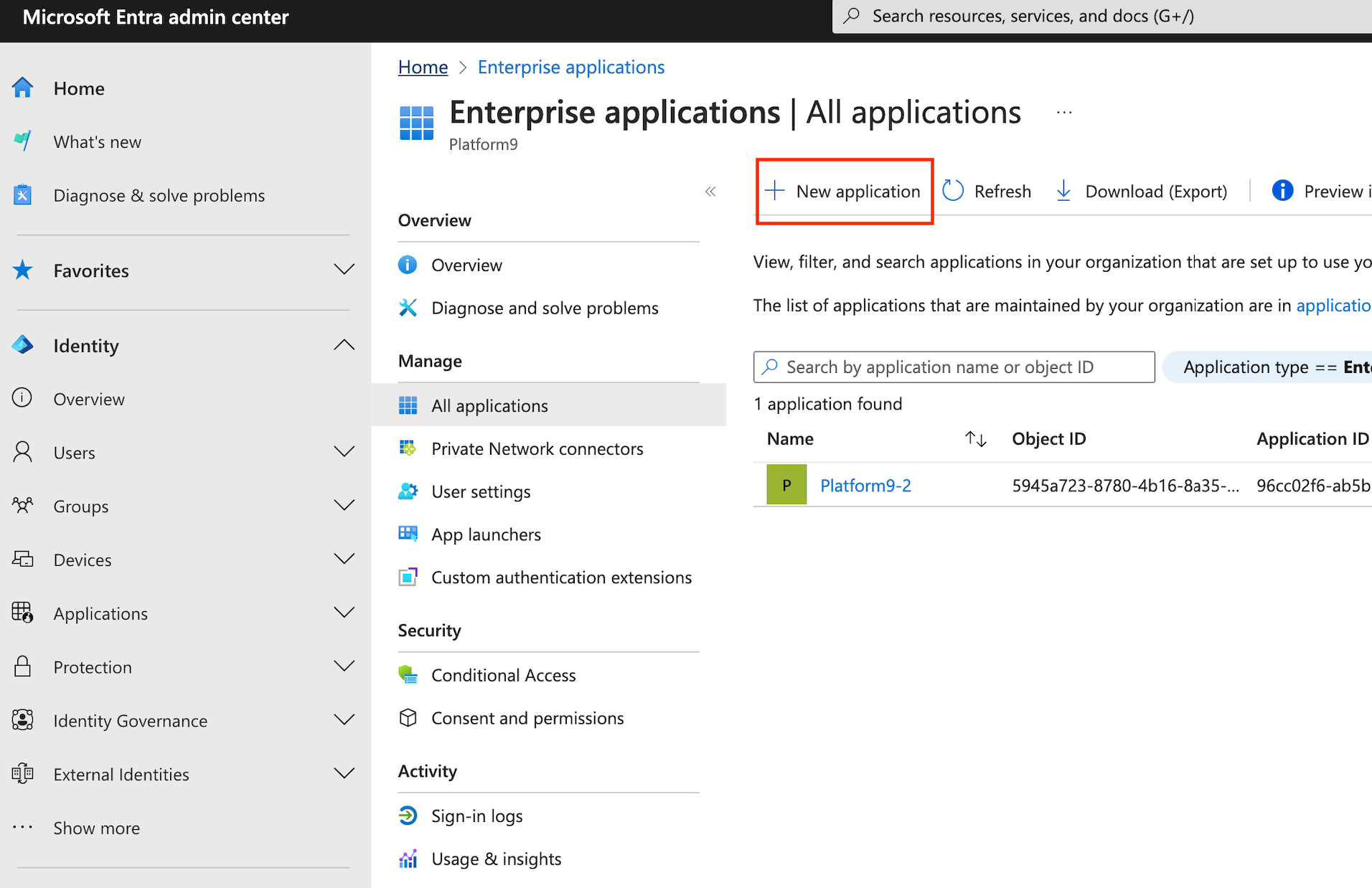
2. Navigate to **Entra ID > Enterprise apps > All applications**.
3. Select **New application**.
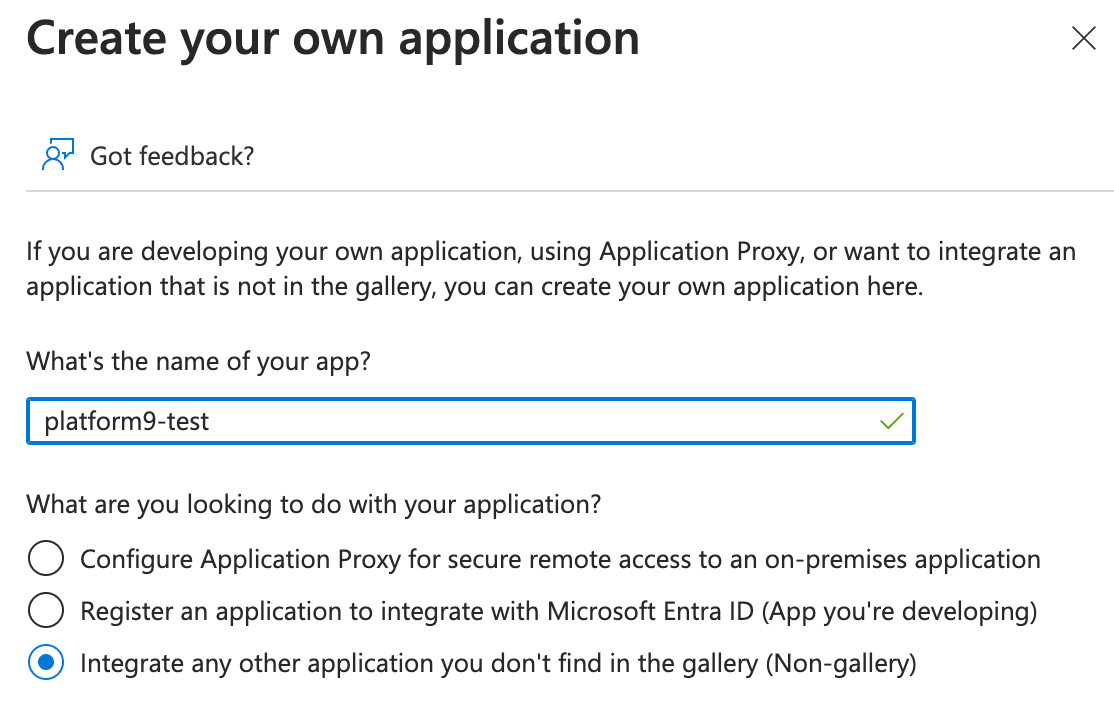
4. On **Browse Microsoft Entra Gallery** select **Create your own application**.
You see options for cloud platforms, on-premises applications, and featured applications.
4. Enter a name that you want to use to recognize the instance of the application.
5. Select **Integrate any other application you don't find in the gallery (Non-gallery)**.
6. Select **Create**.
#### Step 2: Enable SAML single sign-on
Enable SAML single sign-on for your enterprise application and configure the connection settings between Entra ID and your space.vars.product\_name environment, while assigning user account to the application.
1. Sign in to the **Microsoft Entra admin center** and then navigate to **Browse to Entra ID > Enterprise apps > All applications**.
2. Enter the name of the existing application in the search box, and then select the application from the search results.
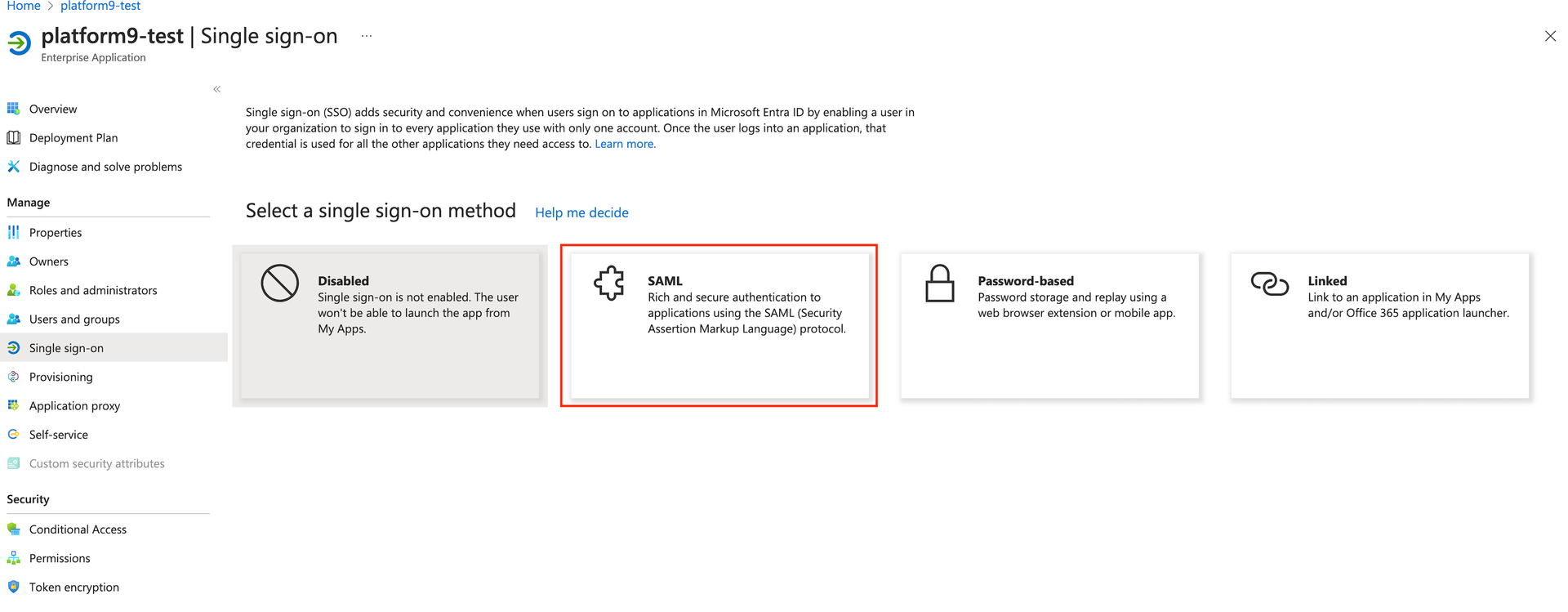
3. Navigate to **Manage** and then select **Single sign-on**
4. Select **SAML** as the single sign-on method.
5. On **Basic SAML Configuration,** select **Edit** and then configure the following required fields.
| Field | Description |
| ----------------------------------------------- | ------------------------------------------------------- |
| **Identifier (Entity ID)** | https\://\/keystone |
| **Reply URL (Assertion Consumer Service URL)**: | https\://\/sso/IDP1/Shibboleth.sso/SAML2/POST |
{% hint style="info" %}
**NOTE**
Replace `` with your actual domain FQDN **without** the region name.
For example, use `companyx` instead `companyx-regionone`
{% endhint %}
Optionally, you can choose to enter information to the optional fields.
5. Select **Save**.
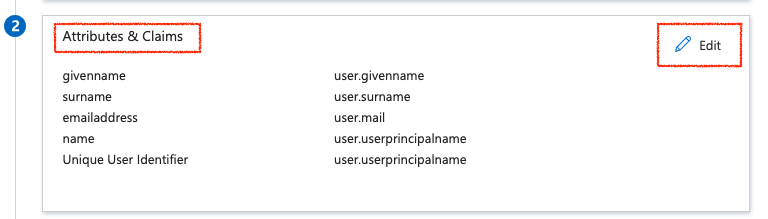
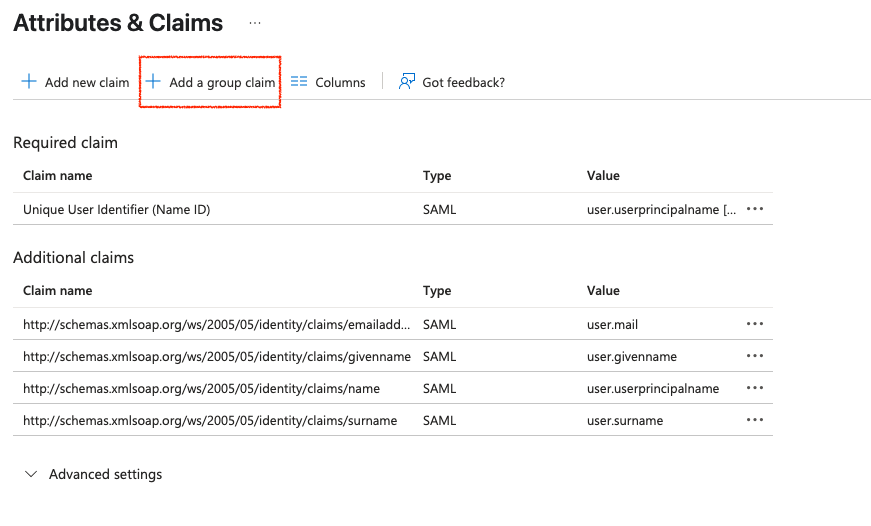
6. On the **Attributes & Claims**, select **Add a group claim** and then configure the group settings according to your requirements.
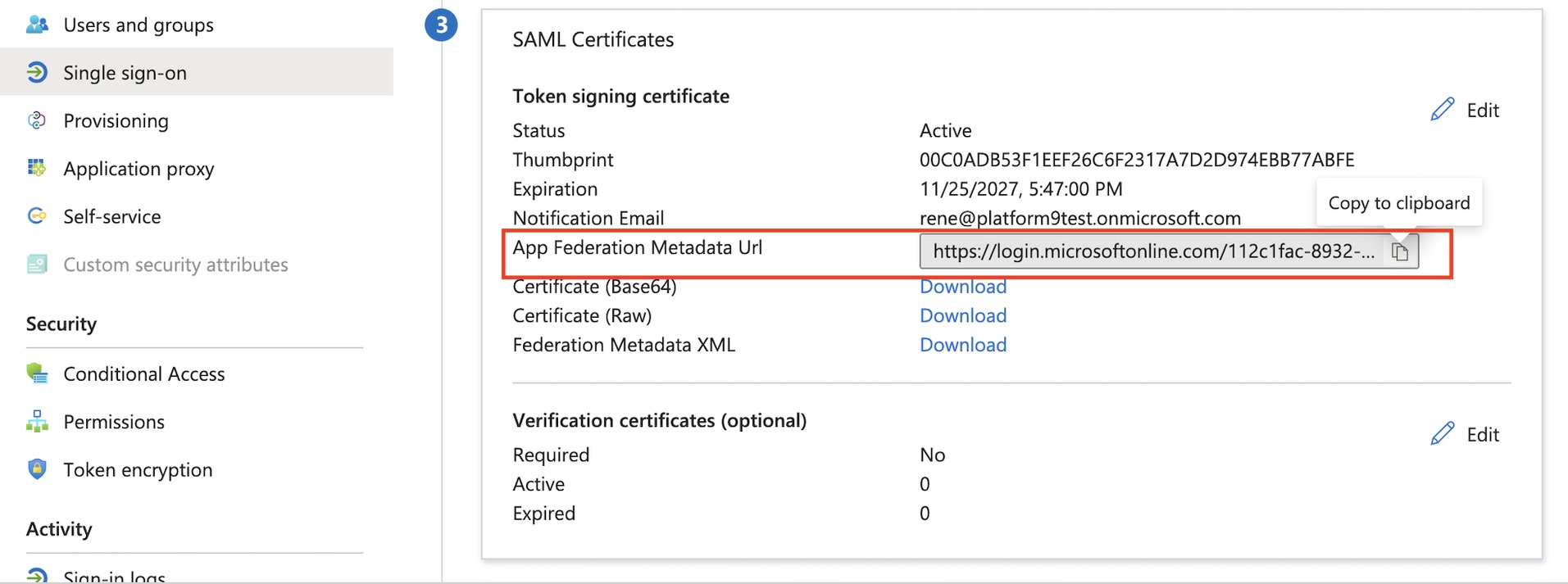
5. Copy and securely save the **App Federation Metadata URL** value. You will require this URL during the space.vars.product\_acronym environment configuration.
6. To assign users or groups to the application, perform the following steps.
* Navigate to **Entra ID > Enterprise apps > All applications**
* Select **Users and groups** and then select **Add user/group**
After assigning the user to the application, ensure that the application is set to be visible to the user. To make it visible to assigned users, select **Properties** and then set **Visible to users?** to **Yes**.
Your SAML single sign-on configuration is complete.
#### Step 3: Generate Attribute Mapping Files
Create the required attribute mapping files using the federation metadata from your Entra ID application.
1. On your Linux system with Python 3, download the federation metadata using the wget command:
{% tabs %}
{% tab title="Bash" %}
```bash
wget https://login.microsoftonline.com/YOUR_TENANT_ID/federationmetadata/2007-06/federationmetadata.xml?appid=YOUR_APP_ID
```
{% endtab %}
{% endtabs %}
Replace `YOUR_TENANT_ID` and `YOUR_APP_ID` with the actual values from your App Federation Metadata URL.
2. Download the [metadata parsing script](https://github.com/platform9/support-locker/blob/master/sso/adfs-metadata-parse.py)
3. Generate the attribute mapping file by running the following script against the federation metadata XML file.
{% tabs %}
{% tab title="Bash" %}
```bash
./adfs-metadata-parse.py federationmetadata.xml > attribute_map.xml
```
{% endtab %}
{% endtabs %}
3. Verify the generated file contains the correct attribute mappings.
Your attribute mapping file is ready.
#### Step 4: Configure space.vars.product\_acronym SSO Settings
Configure your space.vars.product\_acronym environment to use the Entra ID SSO integration.
1. Log in to your space.vars.product\_acronym administrative interface.
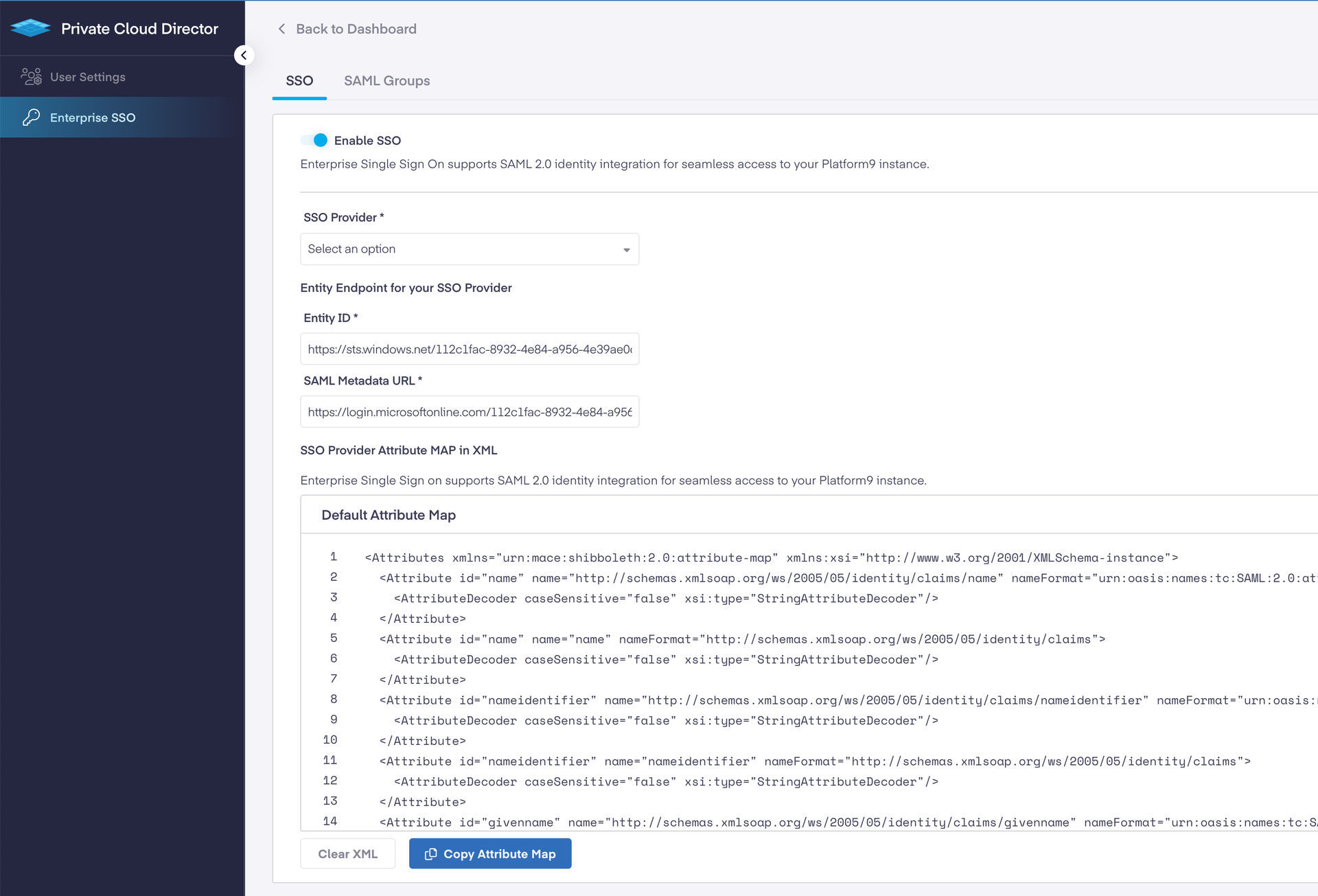
2. Navigate to **Settings** > **Enterprise SSO**.
3. On the **Enterprise SSO**, enable SSO and configure the following settings.
| **Field** | **Description** |
| ------------------------------------- | --------------------------------------------------------------------------------- |
| **SSO Provider** | Selection from the available options |
| **Entity ID** | Copy the Microsoft Entra Identifier from your Entra ID application configuration. |
| **SAML Metadata URL** | Enter the App Federation Metadata URL from your Entra ID application. |
| **SSO Provider Attribute MAP in XML** | Copy and paste the contents of the `attribute_map.xml` file you generated |
4. Select **Save**.
5. Select **SAML Groups**.
6. Select **Add Group** to create a new SAML group.
7. Configure the SAML **Group Settings** by filling in the following required fields:
| **Field** | **Description** |
| ----------------------------------- | --------------------------------------------------------------------------------------------------------------------------------------------------------------------------------------------------------------------- |
| Name | Enter a unique name for the group |
| Description | Provide a brief description of the group |
| Username Attribute Mapping Template | Enter a template that defines how the username should be constructed using SAML attributes. Use the format `{attributeKey}` where attributeKey corresponds to the attributes available in your identity provider |
| Email Attribute Mapping Template | Enter a template that defines how the email address should be constructed using SAML attributes. Use the format `{attributeKey}` where attributeKey corresponds to the attributes available in your identity provider |
Template Examples:
* `{firstName} {lastName}` - Combines first and last name with a space
* `{firstName}-{lastName}` - Combines first and last name with a dash
* `{firstName}xxxx{lastName}` - Combines first and last name with custom characters
* `{email}` - Uses the email attribute directly
The attribute keys must match those configured in your identity provider's attribute\_map.xml file.
8. On Group Settings continue with additional configuration as follows:
| **Field** | **Description** |
| --------------- | ---------------------------------------------------------------------------------- |
| Group Mapping | Configure tenant and role assignments |
| Tenants & Roles | Assign users to appropriate tenants and roles (Administrator or Self-Service User) |
8. Select **Add Group**.
Your space.vars.product\_acronym SSO configuration is now complete.
#### Step 5: Test Your SSO Configuration
Verify that your SSO integration works correctly.
1. Log out of your current space.vars.product\_acronym session.
2. Open a new private or incognito browser window.
3. Navigate to your space.vars.product\_acronym login page.
4. Select **Sign In with SSO**.
5. Complete the authentication process using your Microsoft credentials.
6. Verify you can access space.vars.product\_acronym resources according to your assigned role.
You have now successfully configured SSO integration between space.vars.product\_acronym and Microsoft Entra ID. Users can now authenticate using their existing Microsoft accounts and access space.vars.product\_acronym resources based on their assigned roles and permissions.
---
# Agent Instructions
This documentation is published with GitBook. GitBook is the documentation platform designed so that both humans and AI agents can read, navigate, and reason over technical content effectively. Learn more at gitbook.com.
## Querying This Documentation
If you need additional information that is not directly available in this page, you can query the documentation dynamically by asking a question.
Perform an HTTP GET request on the current page URL with the `ask` query parameter, and the optional `goal` query parameter:
```
GET https://docs.platform9.com/private-cloud-director/2025.8/multi-tenancy/enterprise-sso/login-with-sso.md?ask=&goal=
```
`ask` is the immediate question: it should be specific, self-contained, and written in natural language.
`goal` is optional and describes the broader end goal you are ultimately trying to accomplish on behalf of the user. GitBook uses it to tailor the answer towards what is most useful for that goal.
The response will contain a direct answer to the question and relevant excerpts and sources from the documentation.
Use this mechanism when the answer is not explicitly present in the current page, you need clarification or additional context, or you want to retrieve related documentation sections.