> For the complete documentation index, see [llms.txt](https://docs.platform9.com/llms.txt). Markdown versions of documentation pages are available by appending `.md` to page URLs; this page is available as [Markdown](https://docs.platform9.com/private-cloud-director/2025.7/tutorials/create-windows-vm-from-iso/creating-a-windows-virtual-machine--vm--from-an-iso-image.md).
# Create a Windows Virtual Machine from an ISO
## Overview
This guide outlines the process of deploying a Windows virtual machine (VM) directly from an ISO using space.vars.product\_name. Traditionally, Windows VMs required manual installation outside the cloud environment, followed by conversion and uploading of the disk image. This streamlined approach eliminates those steps by allowing users to install Windows directly from an ISO, configure necessary drivers, and create a reusable "golden image" for future deployments. By following this guide, you can simplify Windows VM provisioning within space.vars.product\_acronym while ensuring consistency and efficiency across deployments.
***
## Prerequisites
* space.vars.product\_name **Environment:**
* Access to space.vars.product\_acronym environment with Block Storage configured.
* Appropriate permissions to create images, volumes, and virtual machines.
* **Command Line Tools:**
* [Pcdctl Command Line](/private-cloud-director/2025.7/reference/pcdctl-command-line.md) or [OpenStack CLI](https://docs.openstack.org/python-openstackclient/2023.1/) version 6.3.0 or greater
* **Required Files:**
* Windows Installation ISO:
* A valid Windows ISO (e.g., Windows Server 2012, 2016, 2019, 2022, Windows 10, etc.)
* VirtIO Driver ISO:
* Windows requires VirtIO drivers for better performance on a Linux (QEMU-KVM) hypervisor.
* Download the latest stable VirtIO driver ISO from the [Fedora VirtIO repository](https://fedorapeople.org/groups/virt/virtio-win/direct-downloads/stable-virtio/).
* This ISO contains drivers for storage, networking, and other virtual devices required during Windows installation.
***
## Step 1: Upload Images
#### 1.1 Upload Windows Installation ISO
Use the following command to upload the Windows ISO (e.g., Windows Server 2012, 2016, 2019, 2022, Windows 10, etc.) to the space.vars.product\_acronym Image service:
{% tabs %}
{% tab title="Bash" %}
```bash
openstack image create "windows-installation-iso" --os-interface admin --insecure \
--disk-format iso \
--container-format bare \
--file /path/to/windows-installation.iso \
--property hw_boot_menu=True \
--property hw_cdrom_bus=sata \
--property hw_disk_bus=scsi \
--property hw_firmware_type=uefi \
--property hw_machine_type=q35 \
--property hw_scsi_model=virtio-scsi \
--property os_secure_boot=required \
--property os_type=Windows
```
{% endtab %}
{% endtabs %}
#### 1.2 Upload VirtIO Driver ISO
Use the following command to upload the VirtIO driver ISO file to the space.vars.product\_acronym Image service:
{% tabs %}
{% tab title="Bash" %}
```bash
openstack image create "virtio-driver-iso" --os-interface admin --insecure \
--disk-format iso \
--container-format bare \
--file /path/to/virtio-win.iso
```
{% endtab %}
{% endtabs %}
## Step 2: Create Volumes
Create the following volumes to proceed:
{% hint style="info" %}
**Note**
If a volume type is not specified, space.vars.product\_name will use the `__DEFAULT__` type. Should you want to store these volumes on block storage, add `--type ` to the end of the `volume create` commands.
{% endhint %}
#### 2.1 Create Installation Media Volume
{% hint style="info" %}
**Purpose**
Acts as the bootable volume containing the Windows installation media.
{% endhint %}
{% tabs %}
{% tab title="Bash" %}
```bash
openstack volume create --image windows-installation-iso --size 10 --bootable windows-installation-volume --insecure
```
{% endtab %}
{% endtabs %}
#### 2.2 Create VirtIO Driver Media Volume
{% hint style="info" %}
**Purpose**
Provides VirtIO drivers during Windows installation.
{% endhint %}
{% tabs %}
{% tab title="Bash" %}
```bash
openstack volume create --image virtio-driver-iso --size 2 virtio-driver-volume --insecure
```
{% endtab %}
{% endtabs %}
#### 2.3 Create Windows OS Target Volume
{% hint style="info" %}
**Purpose**
Target disk where Windows will be installed.
{% endhint %}
{% tabs %}
{% tab title="Bash" %}
```bash
openstack volume create --size 30 --bootable windows-os-target-volume --insecure
```
{% endtab %}
{% endtabs %}
## Step 3: Create the VM
This step creates a virtual machine using the previously created volumes. The VM will:
* **Boot from the Windows installation ISO** *(device\_type=cdrom)*: Allows the VM to load the Windows installer.
* **Attach the VirtIO driver ISO** *(device\_type=cdrom)*: Provides essential drivers during the installation process.
* **Use the target volume as the Windows installation disk** *(device\_type=disk)*: Serves as the destination for the Windows OS installation.
The properties specified in the command ensure the VM boots correctly and remains compatible with the Windows installation requirements.
#### 3.1 Launch the VM Using Created Volumes
{% tabs %}
{% tab title="Bash" %}
```bash
openstack server create --insecure --flavor m1.xlarge --network \
--block-device source_type=volume,uuid=$(openstack volume show windows-installation-volume -f value -c id --insecure),destination_type=volume,device_type=cdrom,boot_index=0 \
--block-device source_type=volume,uuid=$(openstack volume show virtio-driver-volume -f value -c id --insecure),destination_type=volume,device_type=cdrom,boot_index=-1 \
--block-device source_type=volume,uuid=$(openstack volume show windows-os-target-volume -f value -c id --insecure),destination_type=volume,device_type=disk,boot_index=1 \
--property hw_firmware_type=uefi --property hw_machine_type=q35 --property os_secure_boot=disabled \
--property hw_boot_menu=True --property hw_video_model=qxl
```
{% endtab %}
{% endtabs %}
{% hint style="info" %}
**Important**
> * Replace `` with the appropriate network name or UUID in your environment.
> * Replace `` with the desired name for your VM.
> * The `openstack volume show` commands reference the previously created volumes to ensure correct attachment.
> {% endhint %}
## Step 4: Configure the VM
#### 4.1 Initial Boot Process
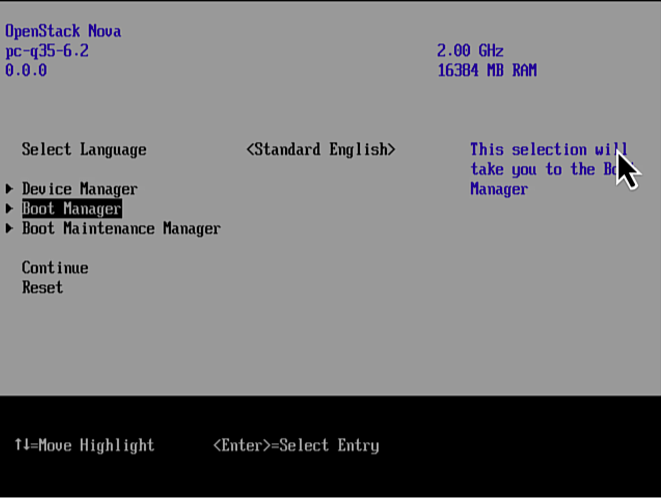
* Access the VM console from the space.vars.product\_acronym UI.
* Press Enter
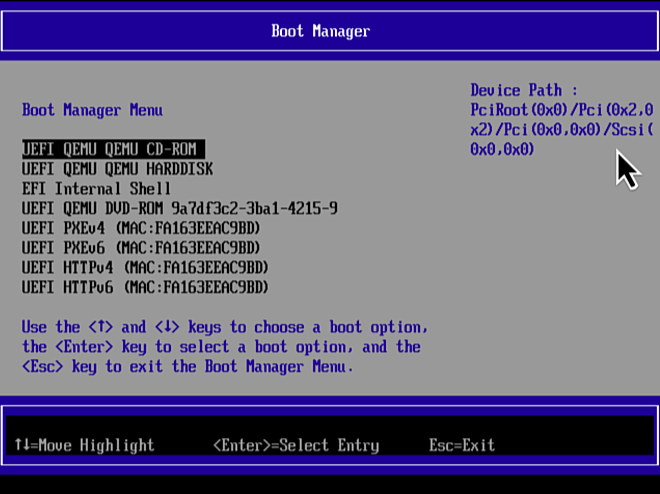
* Select "Boot Manager" and press Enter.
* Select **UEFI QEMU QEMU CD-ROM** from the Boot Manager and press Enter.
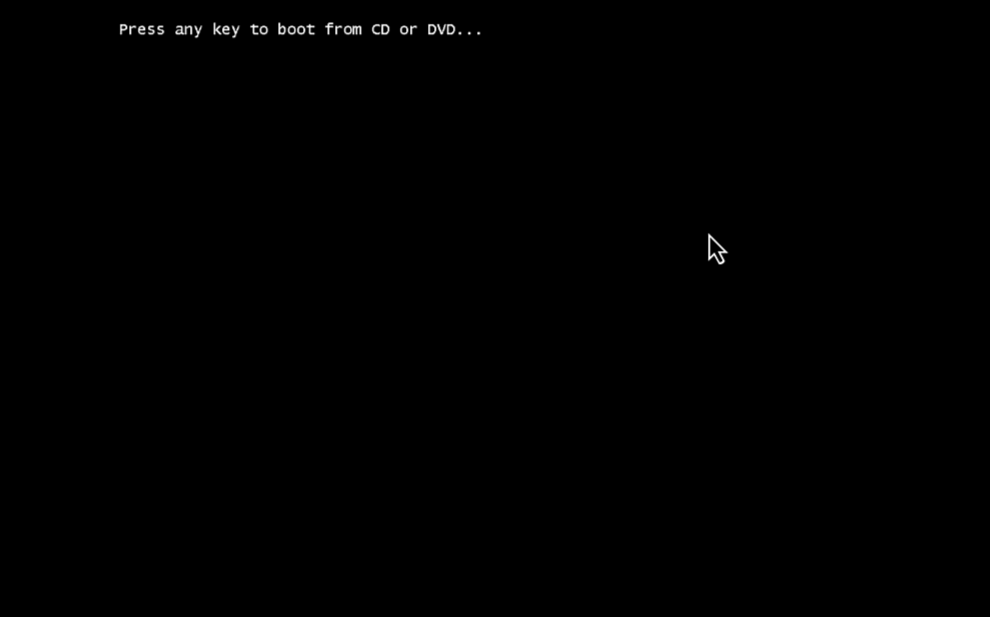
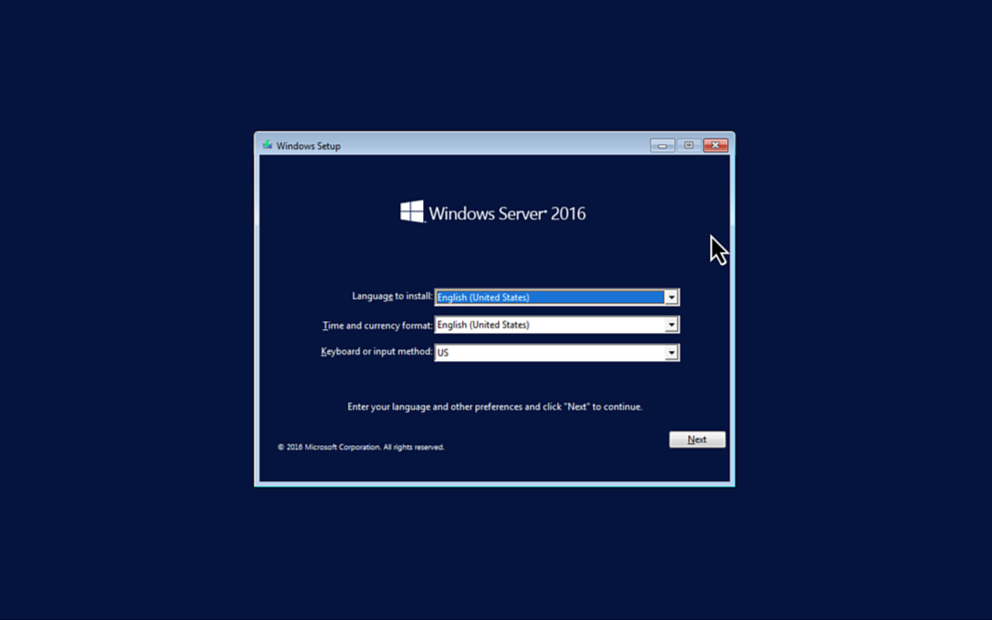
* Press any key to boot from CD. The Windows installer should load. *(This is only necessary during the first boot.)*
\_\_
#### 4.2 Installing VirtIO drivers
1. Follow the Windows installation wizard.
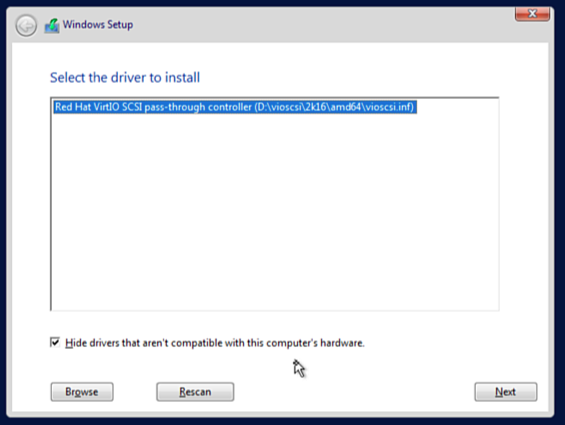
2. **Load VirtIO Drivers:**
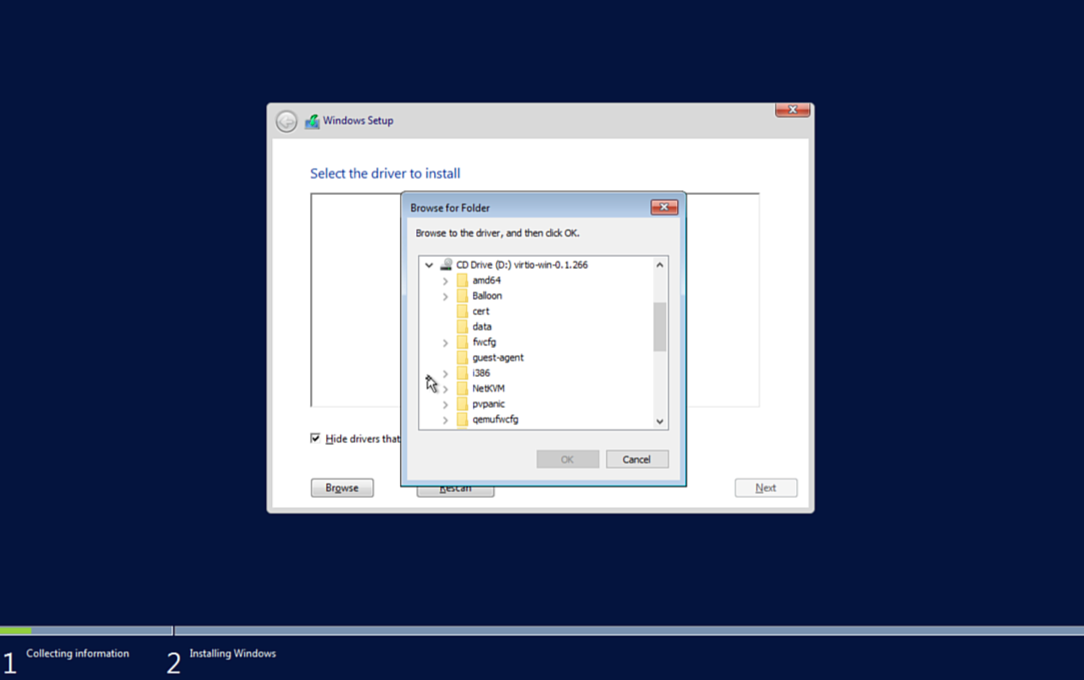
* Click **Browse** when prompted for storage drivers.
* Navigate to the VirtIO driver ISO identified by the Windows version you are installing (e.g., `D:\amd64\2k19`).
* Select and install the appropriate driver.
#### 4.3 Disable Secure Boot and VTPM (Mandatory step for Windows 11 onwards)
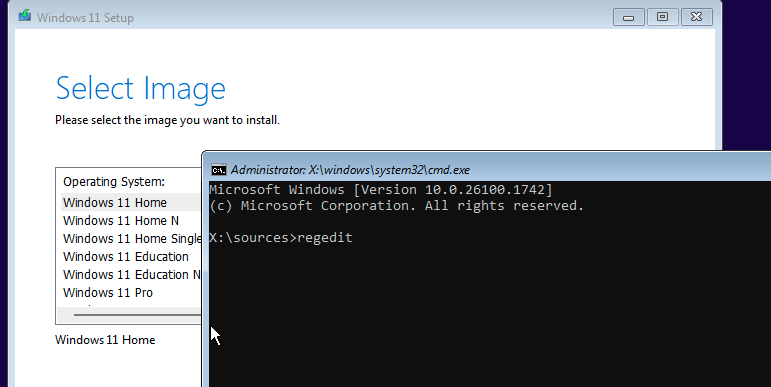
Windows 11 installer mandates the use of VirtualTPM during install. The following steps help disable these checks so that Windows 11 can be installed.
1. While on the OS selection page press Shift+F10
2. The command prompt should open. Type `regedit` and hit enter to start the registry editor.
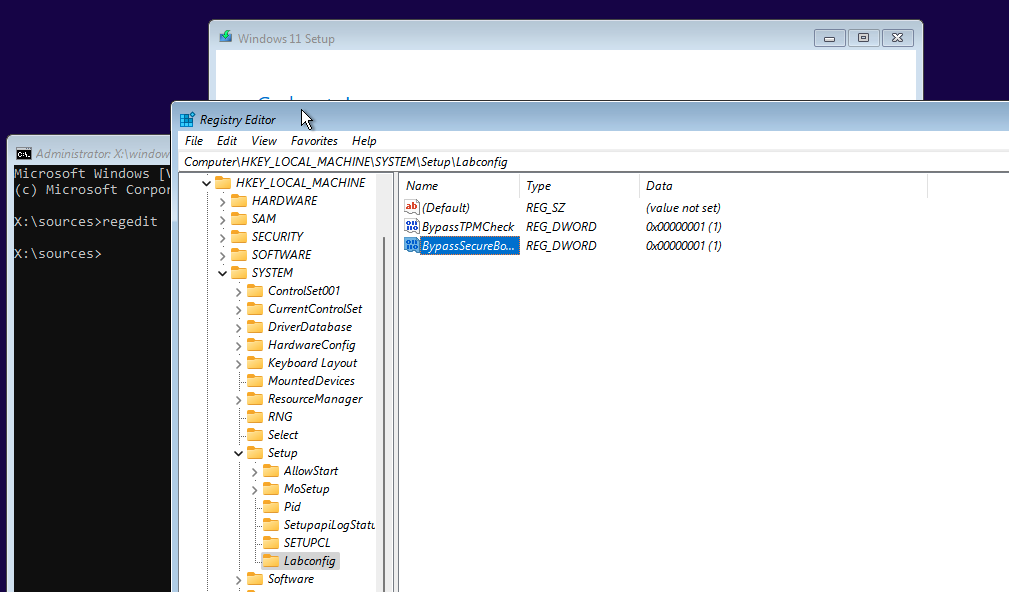
3. In registry editor, navigate to `HKEY_LOCAL_MACHINE > SYSTEM > Setup` folder
4. Create a new key under it called `Labconfig`
5. Under the `Labconfig` key, create the following 2 entries of type REG\_DWORD with values set to 1
1. `BypassTPMCheck`
2. `BypassSecureBootCheck`
6. Close the regedit and command line tools and proceed with the Windows install.
#### 4.4 Install Network & Other Required Drivers
After the Windows installation has completed, install necessary drivers.
1. Open **Device Manager**.
2. Right-click **Ethernet Controller** → **Update Driver Software**.
3. Select the VirtIO path (e.g., `E:\NetKVM\2k16\`).
4. Complete the driver installation.
5. Repeat as needed for remaining devices in Device Manager.
#### 4.5 Install Cloudbase-Init
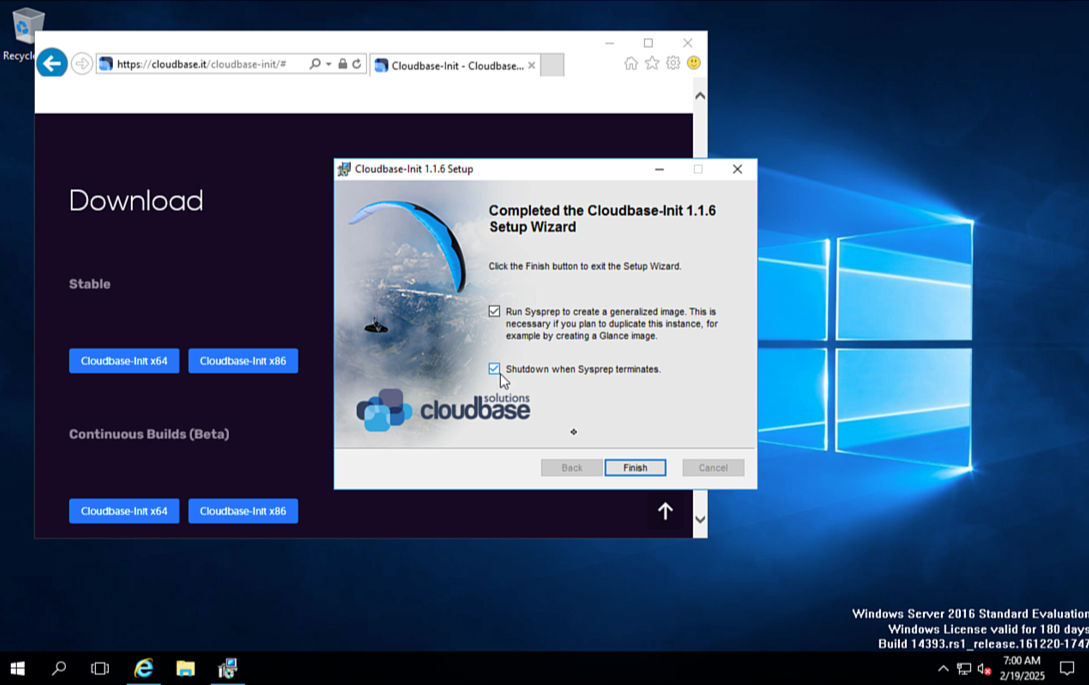
1. Download and Run [Cloudbase-Init](https://cloudbase.it/cloudbase-init/) to enable automated configurations for future VMs, as space.vars.product\_name uses this to set the initial Administrator password during VM deployment.
2. Select the option to run Sysprep for creating a generalized golden image.
3. Allow the VM to power off automatically upon completion.
## Step 5: Convert the VM into a Golden Image
#### 5.1 Detach the Installation Volume
Detach the `windows-os-target-volume`, which contains the installed OS, to prepare it for upload as a Glance image.
{% tabs %}
{% tab title="Bash" %}
```bash
openstack server remove volume windows-os-target-volume
```
{% endtab %}
{% endtabs %}
*Note*: The VM can be deleted after detaching the volume, as its primary purpose was to prepare the Windows image.
5.2 Create a Glance image from the installation volume
{% tabs %}
{% tab title="Bash" %}
```bash
openstack --os-interface admin --insecure image create "" --disk-format raw --volume windows-os-target-volume
```
{% endtab %}
{% endtabs %}
#### 5.3 Set Image properties
The following properties are required in order for the VM to boot properly.
{% tabs %}
{% tab title="Bash" %}
```bash
openstack --os-interface admin --insecure image set \
--property hw_boot_menu=True \
--property hw_cdrom_bus=sata \
--property hw_disk_bus=scsi \
--property hw_firmware_type=uefi \
--property hw_machine_type=q35 \
--property hw_scsi_model=virtio-scsi \
--property os_secure_boot=required \
--property os_type=Windows
```
{% endtab %}
{% endtabs %}
{% hint style="success" %}
**Expected Result**
A reusable golden image is created for future Windows VM deployments.
With the golden image created, new VMs can be deployed quickly without repeating the installation process.
{% endhint %}
## Step 6: Deploy a VM from the golden image
Please refer to the [Deploy Vms On Your Virtualized Cluster](/private-cloud-director/2025.7/tutorials/deploy-vms-on-your-virtualized-cluster.md) guide to deploy a VM with the new golden image.
---
# Agent Instructions
This documentation is published with GitBook. GitBook is the documentation platform designed so that both humans and AI agents can read, navigate, and reason over technical content effectively. Learn more at gitbook.com.
## Querying This Documentation
If you need additional information that is not directly available in this page, you can query the documentation dynamically by asking a question.
Perform an HTTP GET request on the current page URL with the `ask` query parameter, and the optional `goal` query parameter:
```
GET https://docs.platform9.com/private-cloud-director/2025.7/tutorials/create-windows-vm-from-iso/creating-a-windows-virtual-machine--vm--from-an-iso-image.md?ask=&goal=
```
`ask` is the immediate question: it should be specific, self-contained, and written in natural language.
`goal` is optional and describes the broader end goal you are ultimately trying to accomplish on behalf of the user. GitBook uses it to tailor the answer towards what is most useful for that goal.
The response will contain a direct answer to the question and relevant excerpts and sources from the documentation.
Use this mechanism when the answer is not explicitly present in the current page, you need clarification or additional context, or you want to retrieve related documentation sections.