space.vars.product\_name (space.vars.product\_acronym). You will configure an Okta SAML 2.0 application and connect it to your space.vars.product\_acronym deployment for seamless user authentication.
{% hint style="info" %}
**NOTE**
Only 5 active applications are allowed in Okta. Deactivate unused applications before creating new integrations.
{% endhint %}
#### Step 1: Create Okta SAML application
This step guides you through creating a new SAML 2.0 application integration in Okta.
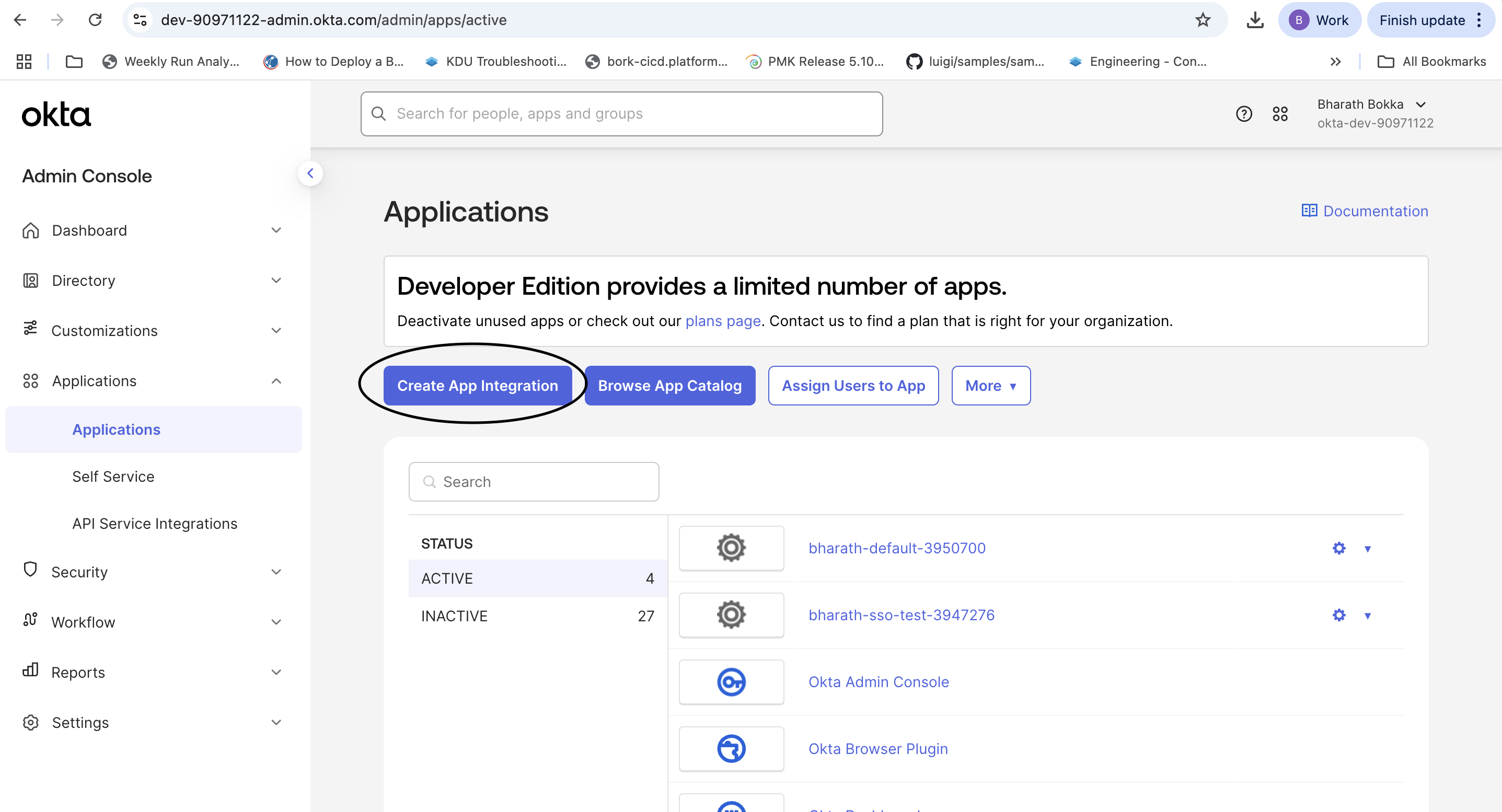
1. Log in to your Okta server and navigate to **Applications**. Verify you have fewer than 5 active applications. If needed, deactivate unused applications.
2. Select **Create App Integration**.
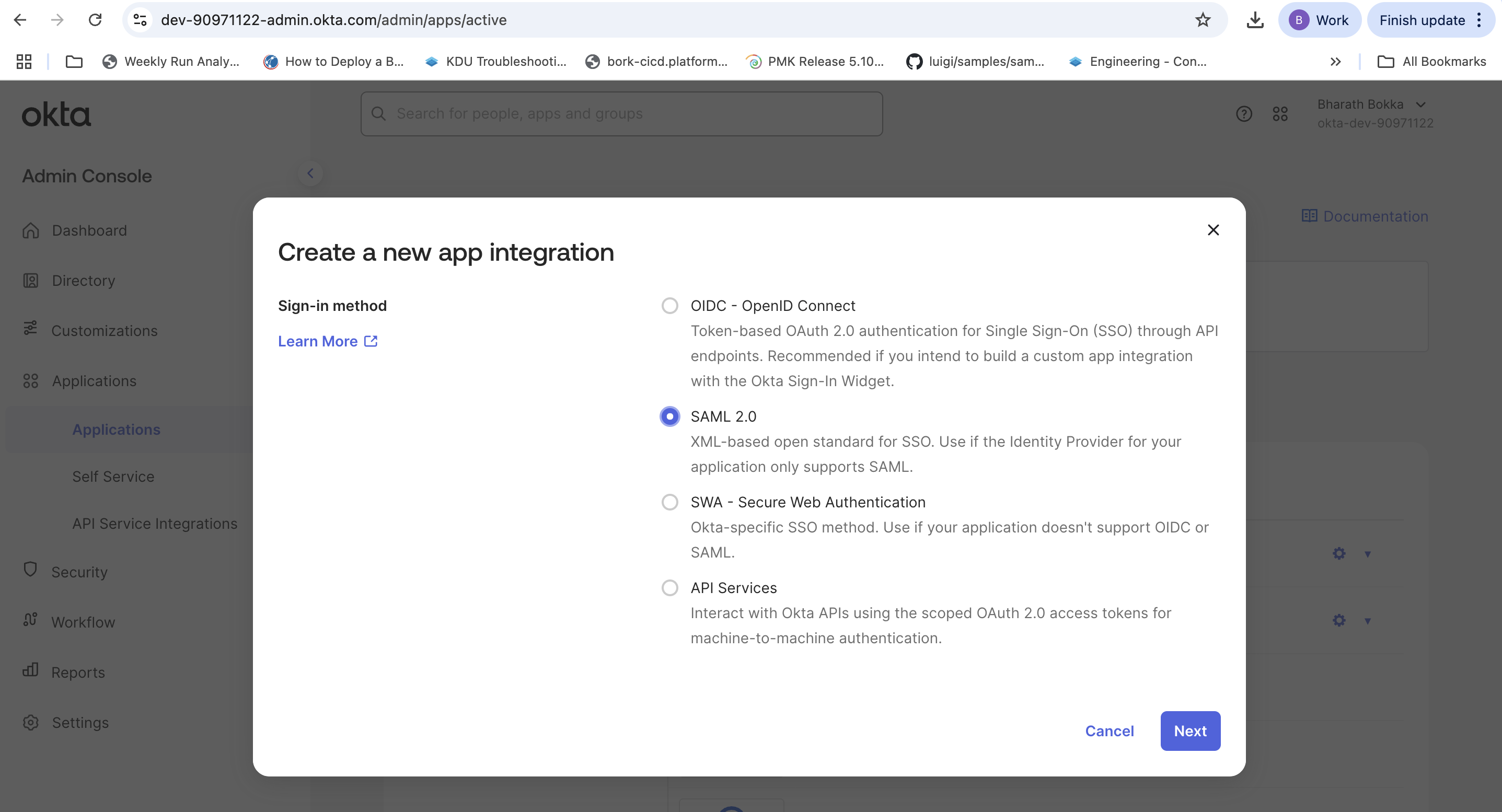
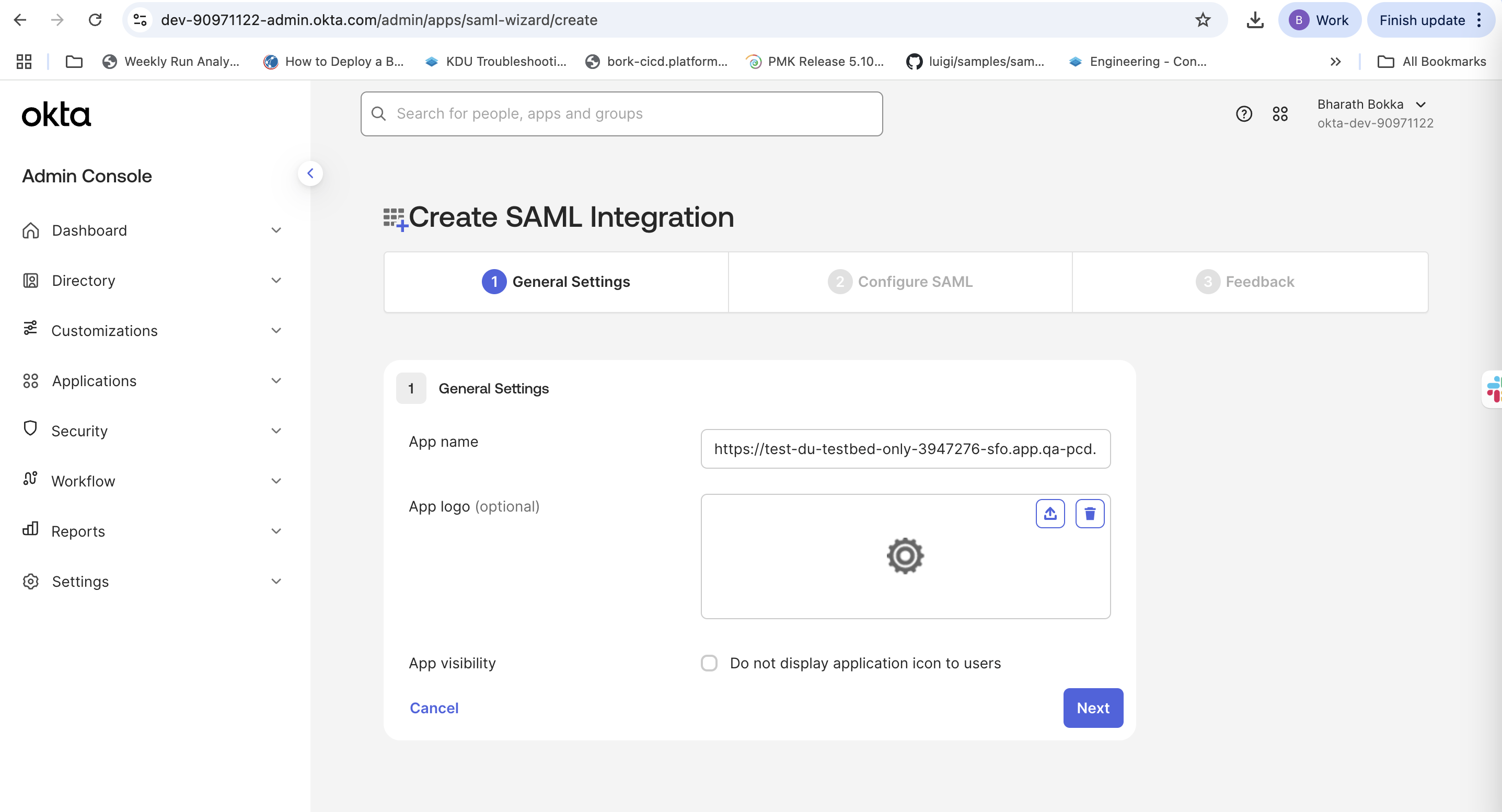
https\://\
Example:
https\://\
Example:
space.vars.product\_acronym .
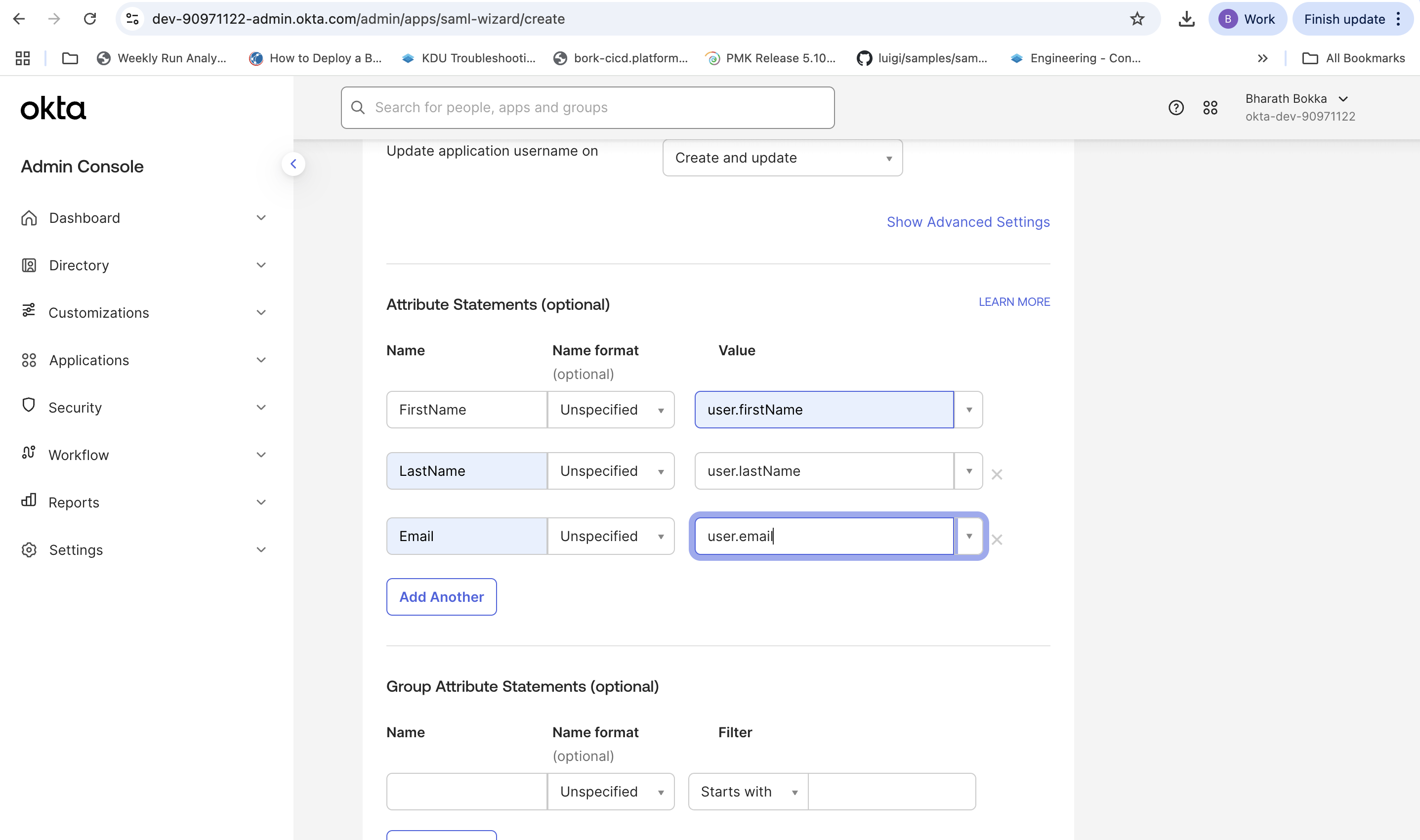
1. Optionally, you can choose to update the **Attribute Statements** by adding the following mappings.
| Name | Name Format | Value |
| --------- | ----------- | -------------- |
| FirstName | Unspecified | user.firstName |
| LastName | Unspecified | user.lastName |
| Email | Unspecified | user.email |
space.vars.product\_acronym configuration.
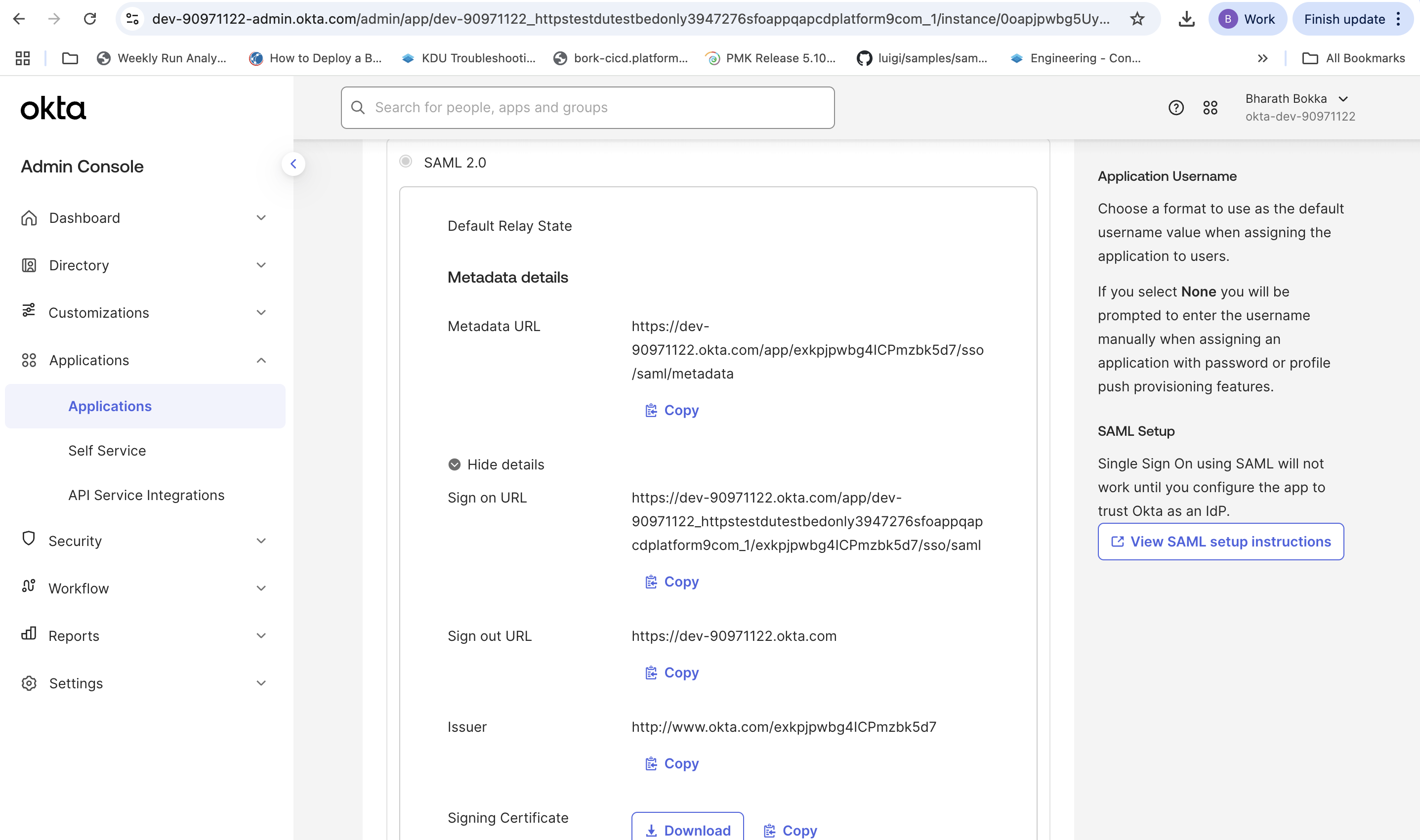
space.vars.product\_acronym through SSO.
4. Choose **Assign** to complete the user assignment.
The Okta configuration is now complete.
#### Step 5: Configure SSO in space.vars.product\_acronym
Connect your space.vars.product\_acronym deployment to the Okta SAML application.
1. Log in to your space.vars.product\_acronym deployment using the DU FQDN for your target region.
2. Navigate to **Settings** > **Enterprise SSO**.
3. Select **Enable SSO**.
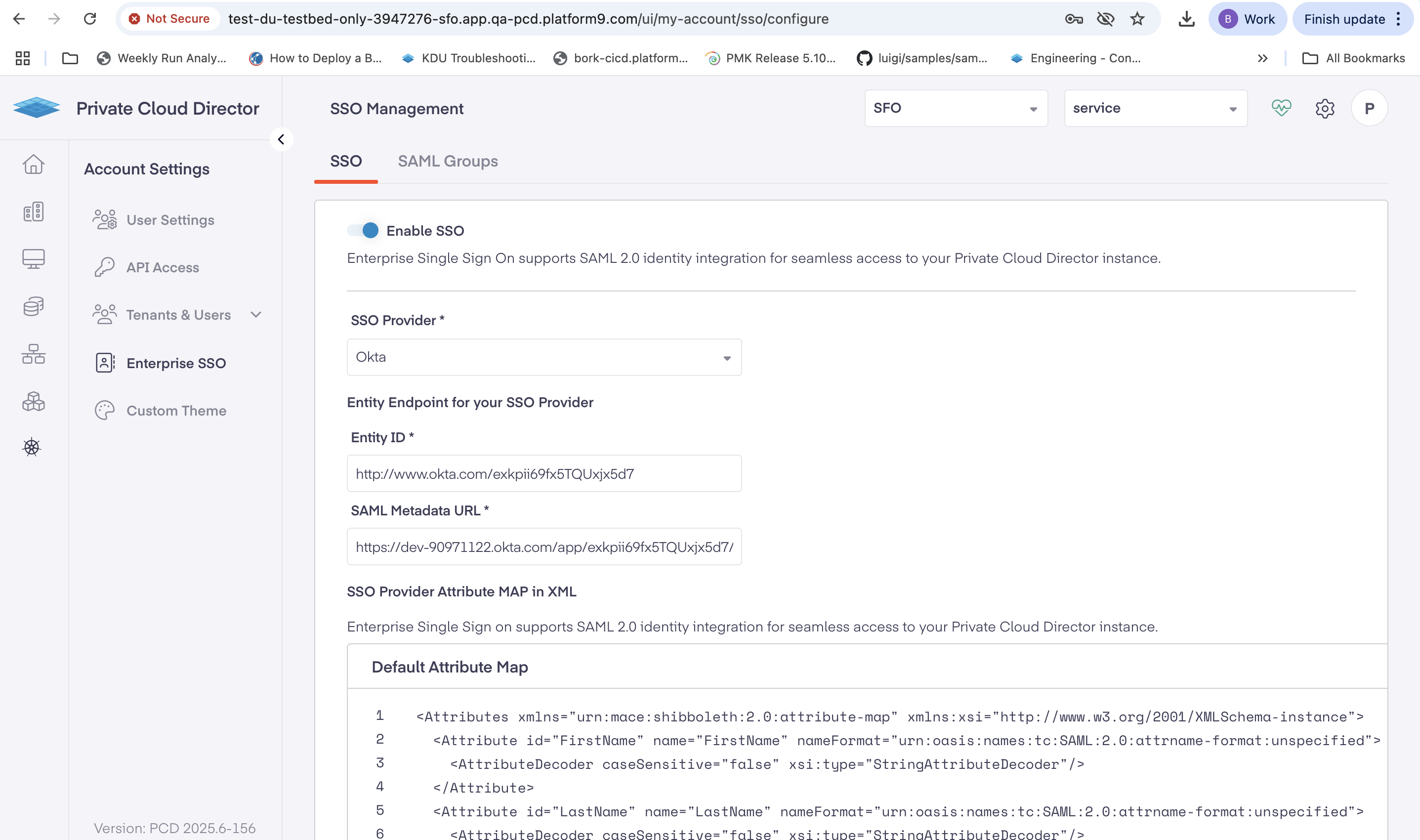
space.vars.product\_acronym.
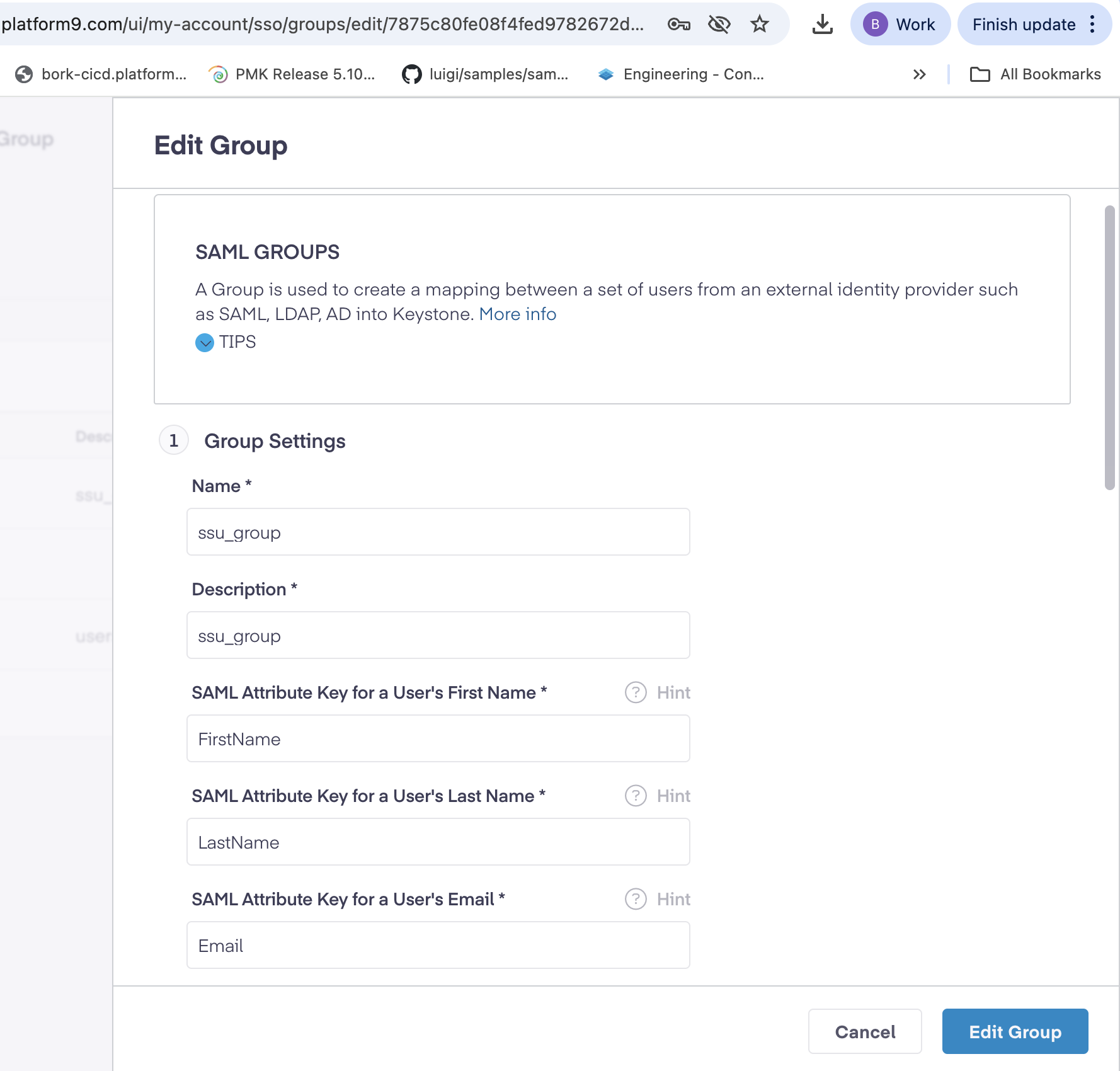
1. Create a new SAML group with the following settings:
| Field | Value |
| -------------------------------------------- | ------------------------------ |
| **Name** | Enter a descriptive group name |
| **Description** | Provide a clear description |
| **SAML Attribute Key for User's First Name** | `FirstName` |
| **SAML Attribute Key for User's Last Name** | `LastName` |
| **SAML Attribute Key for User's Email** | Email |
Enter email addresses that match user assignments in your Okta application
(for example:
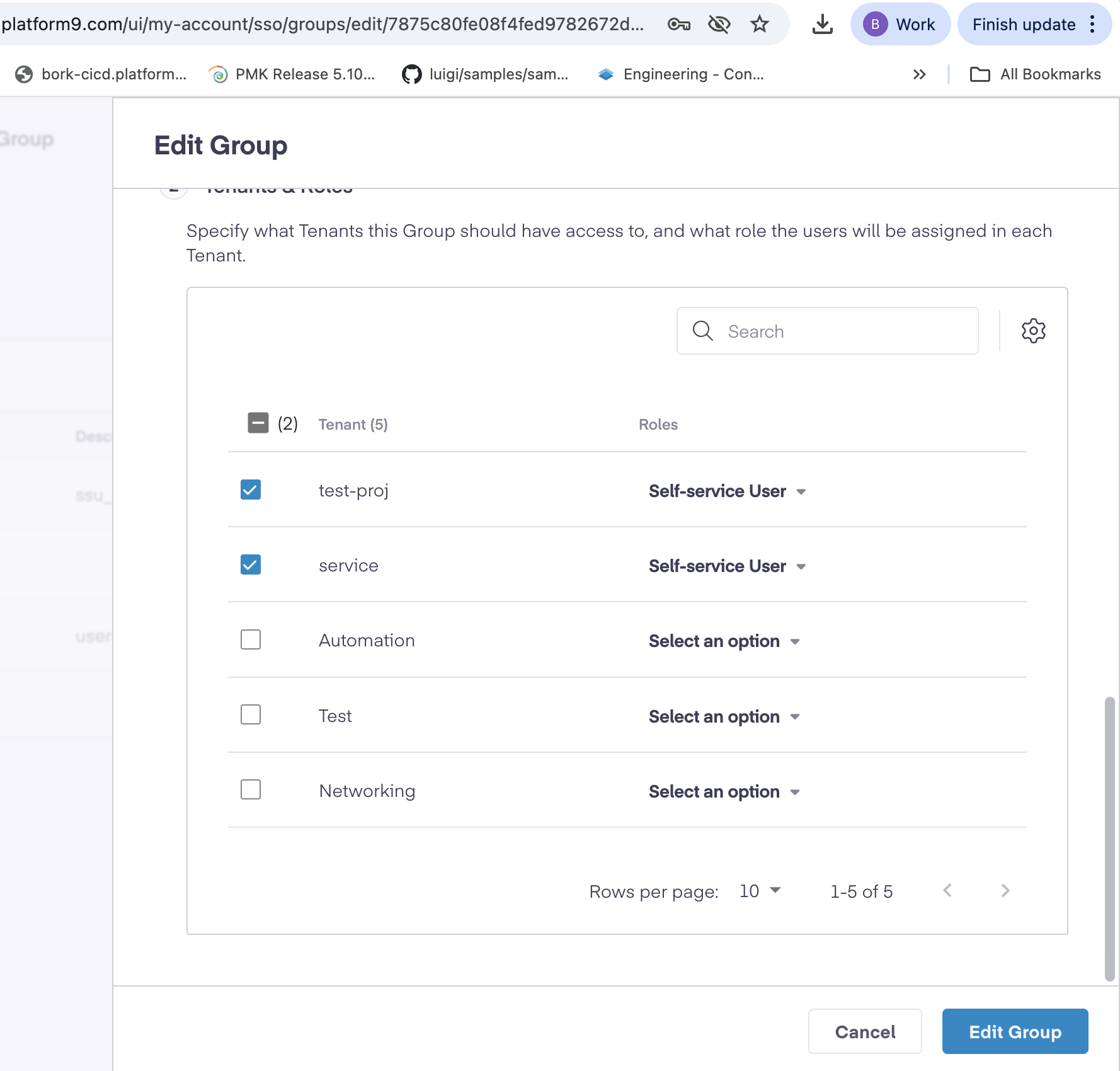
space.vars.product\_acronym session.
2. Navigate to your space.vars.product\_acronym environment URL to initiate a new login.
3. The system redirects you to Okta for authentication.
4. Enter your Okta credentials and complete any required multi-factor authentication (MFA).
Upon successful authentication, Okta redirects you back to space.vars.product\_acronym with the appropriate user permissions.
You have now successfully configured Okta SSO for space.vars.product\_acronym. Users can now access space.vars.product\_acronym using their Okta credentials with seamless single sign-on authentication.
---
# Agent Instructions
This documentation is published with GitBook. GitBook is the documentation platform designed so that both humans and AI agents can read, navigate, and reason over technical content effectively. Learn more at gitbook.com.
## Querying This Documentation
If you need additional information that is not directly available in this page, you can query the documentation dynamically by asking a question.
Perform an HTTP GET request on the current page URL with the `ask` query parameter, and the optional `goal` query parameter:
```
GET https://docs.platform9.com/private-cloud-director/2025.7/multi-tenancy/enterprise-sso/configure-okta-sso-for-pcd.md?ask=