space.vars.product\_name Community Edition, check out the Tutorials section: [Beginner’s Guide to Deploying PCD Community Edition](/private-cloud-director/2025.4/tutorials/beginner---s-guide-to-deploying-pcd-community-edition.md)
{% endhint %}
## What Is Community Edition?
space.vars.product\_name Community Edition is a free, community-supported, and full-featured version of space.vars.product\_name*.* It's free forever and comes with Platform9 community support, currently available on Reddit at space.vars.product\_name, with the only differences being deployment models:
1. **SaaS-Managed:** In this model, the infrastructure region of Private Cloud Director is managed by Platform9, while the workload region is managed by the customer. This approach simplifies infrastructure management for customers, allowing them to focus on their workloads.
2. **Self-Hosted:** Both the infrastructure and workload regions are managed by the customer. The infrastructure region requires multiple servers to ensure high availability, making it suitable for organizations with robust IT resources and expertise.
3. **Community Edition:** Designed for simplicity, Community Edition installs both the infrastructure and workload regions on a single server. It supports being deployed on either bare-metal or as a virtual machine, offering an accessible option for smaller-scale or experimental use cases.
Note: The 2025.4 release of Community Edition does not support Private Cloud Director - Kubernetes workloads. Additionally, Dynamic Resource Rebalancing (DRR) is not supported. Both of these features are planned for a future release.
## Pre-requisites
The Community Edition host and hypervisor hosts can be any combination of bare-metal or virtual machines. Community Edition 2025.4 has been tested with the [Ubuntu 22.04](https://cloud-images.ubuntu.com/releases/jammy/release/) AMD64 cloud image. A full server distribution is not required, and a minimal distribution is not supported.
Hypervisor hosts deployed as virtual machines must have virtualization support available inside the VM. Virtual machines on ARM CPUs are currently untested.
If you want to verify that nested virtualization is working in a VM, you can check for virtualization support inside the VM by running:
{% tabs %}
{% tab title="Bash" %}
```bash
egrep "svm|vmx" /proc/cpuinfo
```
{% endtab %}
{% endtabs %}
Community Edition management host's requirements:
* Minimum of [Ubuntu 22.04 ](https://cloud-images.ubuntu.com/releases/jammy/release/)AMD64 cloud image
* 16 CPUs suggested, minimum 12 CPUs (see note).
* 32GB RAM required.
* 100GB local storage required.
* The Community Edition install script **must be run as the root user**.
**Note**: 12 vCPUs is only attainable by removing completed pods throughout the deployment process.
In order to create virtual machines, at least one hypervisor host must be available. Hypervisors will be authorized to run virtual machines managed by Community Edition.
* Minimum of [Ubuntu 22.04 ](https://cloud-images.ubuntu.com/releases/jammy/release/)AMD64 cloud image
* 8 CPUs and 16GB RAM suggested
* 100GB local storage suggested
In order to create virtual machines with persistent volumes, backend storage such as NFS must be available. The amount of storage necessary depends on the number and size of persistent volumes. Ephemeral VMs are stored locally on the hypervisor host.
## Deploy Community Edition host
space.vars.product\_name Community Edition (CE) is deployed using a script **run as root**.
Note: If you are not logged in as a root user, you can switch using `sudo su -` and then entering the password for the current user.
{% tabs %}
{% tab title="Bash" %}
```bash
curl -sfL https://go.pcd.run | bash
```
{% endtab %}
{% endtabs %}
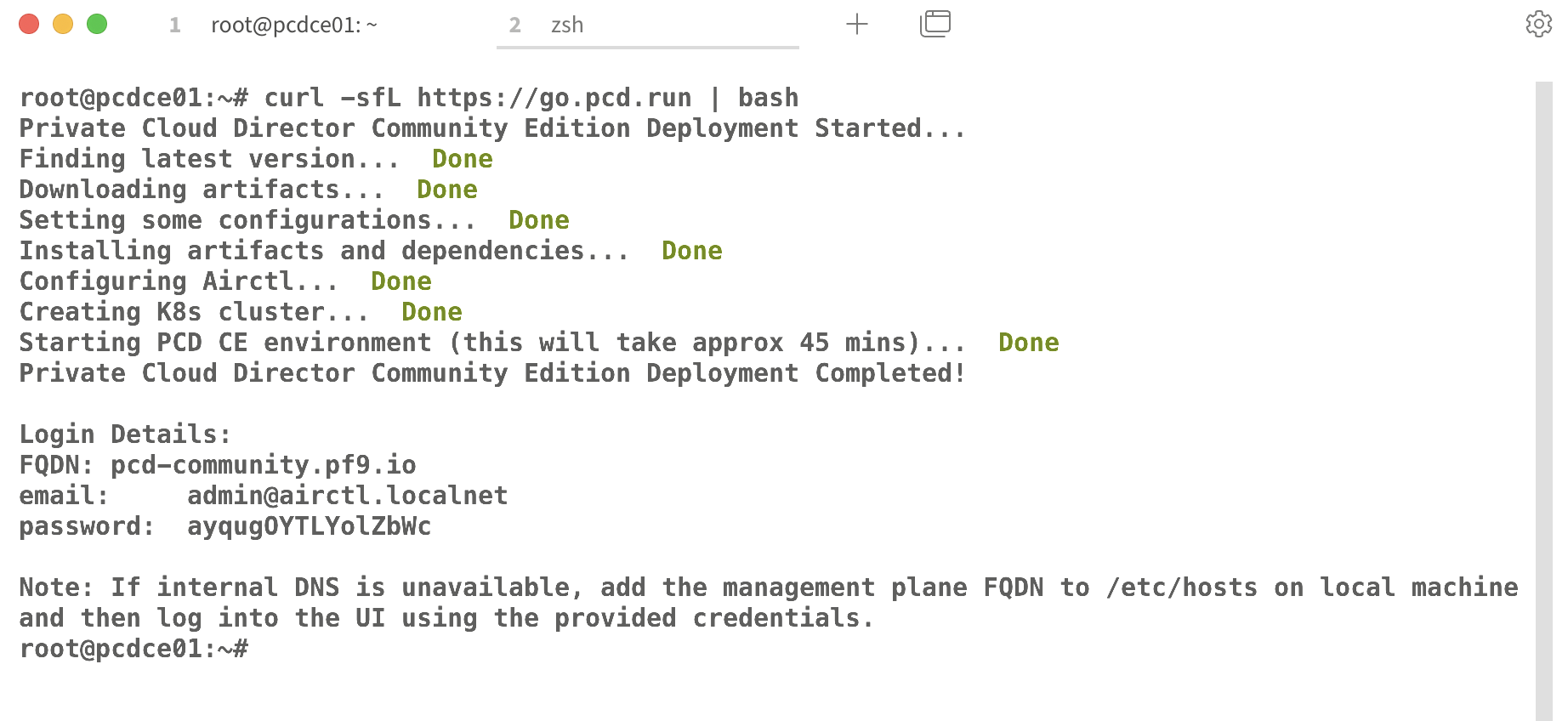
The install will show its progress, and when completed it will present the fully qualified domain name of the workload region and administrator credentials.
space.vars.product\_name.
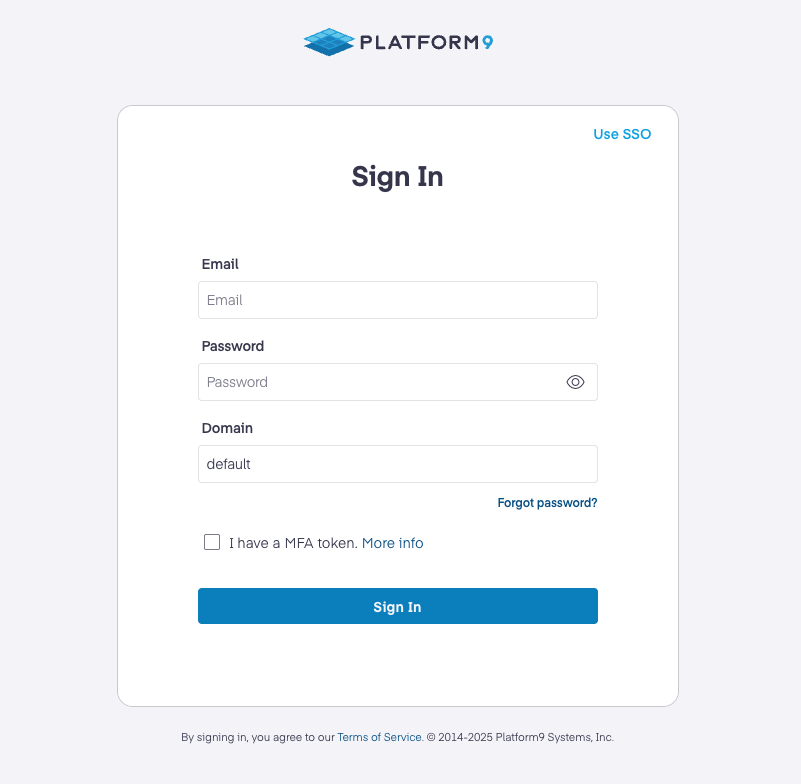
Private Cloud Director Community Edition local credentials login screen
space.vars.product\_name Community Edition is installed, the next steps are to create a cluster blueprint, and then begin onboarding hypervisors.
1. Follow [Virtualized Cluster Blueprint](/private-cloud-director/2025.4/virtualized-clusters/virtualized-cluster-blueprint.md) article for more information on what cluster blueprints are and how to create one.
Once the cluster blueprint is created, onboard hypervisor hosts to the cluster and assign roles to them based on the blueprint you setup above.
1. Follow [Add a Host (Self-Hosted & Community Edition Deployment)](/private-cloud-director/2025.4/virtualized-clusters/add-hosts-virtualized-cluster.md#add-a-host-self-hosted--community-edition-deployment)
After a host is onboarded, create at least one [Networks And Ports](/private-cloud-director/2025.4/virtualized-networking/networks-and-ports.md) or [Physical Network](/private-cloud-director/2025.4/virtualized-networking/physical-network.md) for virtual machine connectivity.
## Create Virtual Machines
1. Read [Virtual Machines](/private-cloud-director/2025.4/virtualized-clusters/deploying-workloads.md) for steps to provision the first virtual machine on your cluster.
## YouTube Playlist
Check out Platform9's [YouTube](https://www.youtube.com/@Platform9) channel for a [Private Cloud Director playlist](https://www.youtube.com/playlist?list=PLUqDmxY3RncUmegG6dv8XxjSr0g1THpLq).
## Log file locations & service names
**Community Edition log files**
Log files for hypervisor hosts can be found in the `/var/log` & `/var/log/pf9` directories.
Logs for Community Edition can be found at `/var/log/pf9/fluentbit/ddu.log` This file is structured as JSON and contains Kubernetes pod logs.
**Hypervisor host services**
Platform9 hypervisor host service names begin with `pf9` .
Examples:
* `pf9-hostagent`
* `pf9-imagelibrary`
* `pf9-ostackhost`
## Troubleshooting
**Issue: The CE install fails.**
Answer: This is usually due to CPU or RAM restraints on the CE host or a `curl` failure, however the following steps are generally helpful in determining the reasons why a failure occurred. The installation process first downloads all of the binaries, installs & creates the K3s cluster, and then orchestrates the installation of the `pcd` (infrastructure region) and `pcd-community` (workload region) namespaces. First, check the install logs, then the install pod logs in the `pcd-kplane` namespace.
* Check the install logs at `airctl-logs/airctl.log`
* `kubectl describe node` The allocated resources block should show requests CPU and memory near or at 100%, if resources are constrained.
* `kubectl get pods -n pcd-kplane` if the node resources are maxed out, either the `du-install-pcd-