> For the complete documentation index, see [llms.txt](https://docs.platform9.com/llms.txt). Markdown versions of documentation pages are available by appending `.md` to page URLs; this page is available as [Markdown](https://docs.platform9.com/private-cloud-director/2025.10/tutorials/create-windows-vm-from-iso/creating-a-windows-virtual-machine--vm--from-an-iso-image.md).
# Create a Windows VM from an ISO in PCD
## Overview
Deploy Windows VMs directly from ISO files using space.vars.product\_name (space.vars.product\_acronym), eliminating manual installation and conversion workflows. Upload the Windows ISO and VirtIO drivers, configure installation volumes with optimized VM properties, execute the Windows installation with the required drivers, and generate reusable golden images for consistent enterprise deployments.
This approach streamlines Windows VM provisioning within space.vars.product\_acronym environments while maintaining standardized configuration management and automated provisioning capabilities.
## Prerequisites
**Environment Requirements**
* space.vars.product\_acronym access with Block Storage configured.
* Network connectivity and VLAN access.
* Image, volume, and VM creation permissions.
**Required Tools**
* PCD CLI (pcdctl) or OpenStack CLI version 6.3.0 and greater.
* product\_acronym web interface for console access
**Required Files**
* Windows ISO: Server 2012, 2016, 2019, 2022, or Windows 10.
* VirtIO Driver ISO: Latest stable from [Fedora VirtIO repository](https://fedorapeople.org/groups/virt/virtio-win/direct-downloads/stable-virtio/), better performance on a Linux (QEMU-KVM) hypervisor.
* Verify file integrity using checksums
#### Step 1: Upload Images
1. **Upload Windows Installation ISO**
Run the following command to upload a Windows ISO (for example, Windows Server 2012, 2016, 2019, 2022, or Windows 10) to the space.vars.product\_acronym Image service.
{% tabs %}
{% tab title="Bash" %}
```bash
pcdctl image create "windows-installation-iso" --os-interface admin --insecure \
--disk-format iso \
--container-format bare \
--file /path/to/windows-installation.iso
```
{% endtab %}
{% endtabs %}
2. **Upload VirtIO Driver ISO**
Run the following command to upload the VirtIO driver ISO to the space.vars.product\_acronym Image service.
{% tabs %}
{% tab title="Bash" %}
```bash
pcdctl image create "virtio-driver-iso" --os-interface admin --insecure \
--disk-format iso \
--container-format bare \
--file /path/to/virtio-win.iso
```
{% endtab %}
{% endtabs %}
#### Step 2: Create Volumes
{% hint style="info" %}
**NOTE**
If you do not specify a volume type space.vars.product\_name uses `__DEFAULT__`, and you are adding `--type ` to the `volume create` command to store volumes on block storage.
{% endhint %}
1. Create the installation media volume.
This creates a bootable volume that contains the Windows installation media.
{% tabs %}
{% tab title="Bash" %}
```bash
pcdctl volume create --image windows-installation-iso --size 10 --bootable windows-installation-volume --insecure
```
{% endtab %}
{% endtabs %}
2. Create VirtIO driver media volume.
This creates a bootable volume that provides VirtIO drivers during Windows installation.
{% tabs %}
{% tab title="Bash" %}
```bash
pcdctl volume create --image virtio-driver-iso --size 2 virtio-driver-volume --insecure
```
{% endtab %}
{% endtabs %}
3. Create Windows OS Target volume.
This creates a target disk where Windows is being installed.
{% tabs %}
{% tab title="Bash" %}
```bash
pcdctl volume create --size 40 --bootable windows-os-target-volume --insecure
pcdctl volume set \
--image-property hw_boot_menu=true \
--image-property hw_firmware_type=uefi \
--image-property hw_machine_type=q35 \
--image-property hw_tpm_model=tpm-crb \
--image-property hw_tpm_version=2.0 \
--image-property hw_cdrom_bus=sata \
--image-property hw_disk_bus=virtio \
--image-property hw_scsi_model=virtio-scsi \
--image-property os_secure_boot=required \
--image-property os_type=windows \
--image-property hw_video_model=qxl \
windows-os-target-volume
```
{% endtab %}
{% endtabs %}
#### Step 3: Launch VM using the created volumes
This step creates a virtual machine with the previously created volumes. The VM is configured as follows:
* **Booting from the Windows installation ISO** (`device_type=cdrom`): The VM is loading the Windows installer.
* **Attaching the VirtIO driver ISO**`(device_type=cdrom`): The VM is providing essential drivers during the installation.
* **Using the target volume as the installation disk** (`device_type=disk`): The VM is serving this disk as the destination for the Windows OS installation.
The properties specified in the command ensure that the VM is booting correctly and remains compatible with Windows installation requirements.
{% tabs %}
{% tab title="Bash" %}
```bash
openstack server create --insecure --flavor m1.xlarge --network \
--block-device source_type=volume,uuid=$(openstack volume show windows-os-target-volume -f value -c id --insecure),destination_type=volume,device_type=disk,boot_index=0 \
--block-device source_type=volume,uuid=$(openstack volume show windows-installation-volume -f value -c id --insecure),destination_type=volume,device_type=cdrom,boot_index=1 \
--block-device source_type=volume,uuid=$(openstack volume show virtio-driver-volume -f value -c id --insecure),destination_type=volume,device_type=cdrom,boot_index=-1 \
--availability-zone \
```
{% endtab %}
{% endtabs %}
Replace `` with the appropriate network name or UUID in your environment. Replace `` with the desired name for your VM. Replace `` with your PCD cluster name.
The `pcdctl volume show` command is referencing the previously created volumes to ensure correct attachment.
#### Step 4: Configure the VM
1. **Initial Boot Process**
Access the VM console from the space.vars.product\_acronym UI.
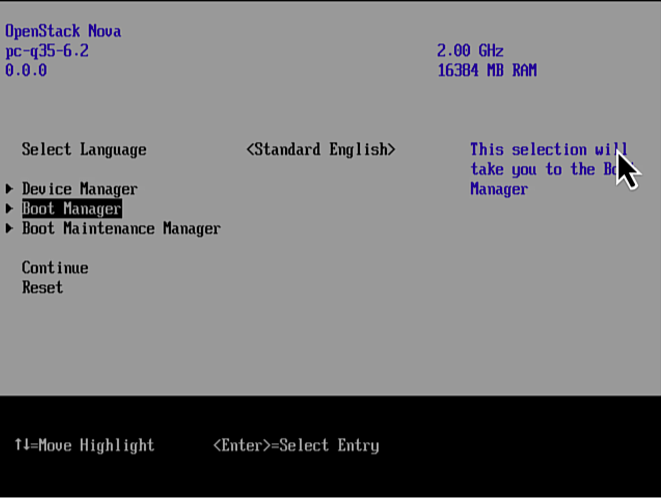
* Press **Enter** at the boot prompt
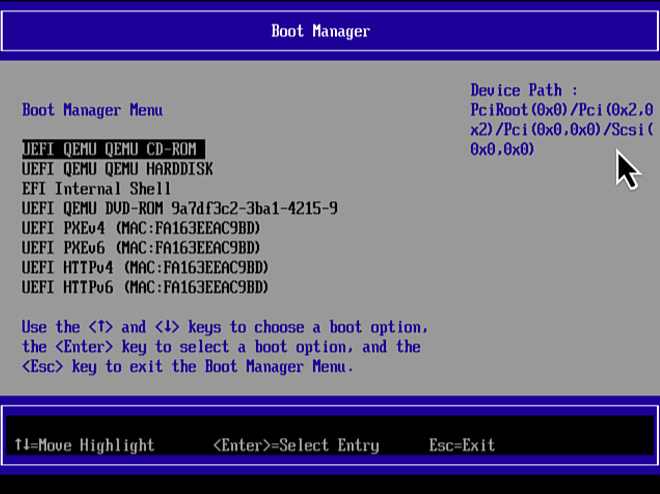
* Select **Boot Manager** and then press **Enter.**
* Select **UEFI QEMU QEMU CD-ROM** and then press **Enter**.
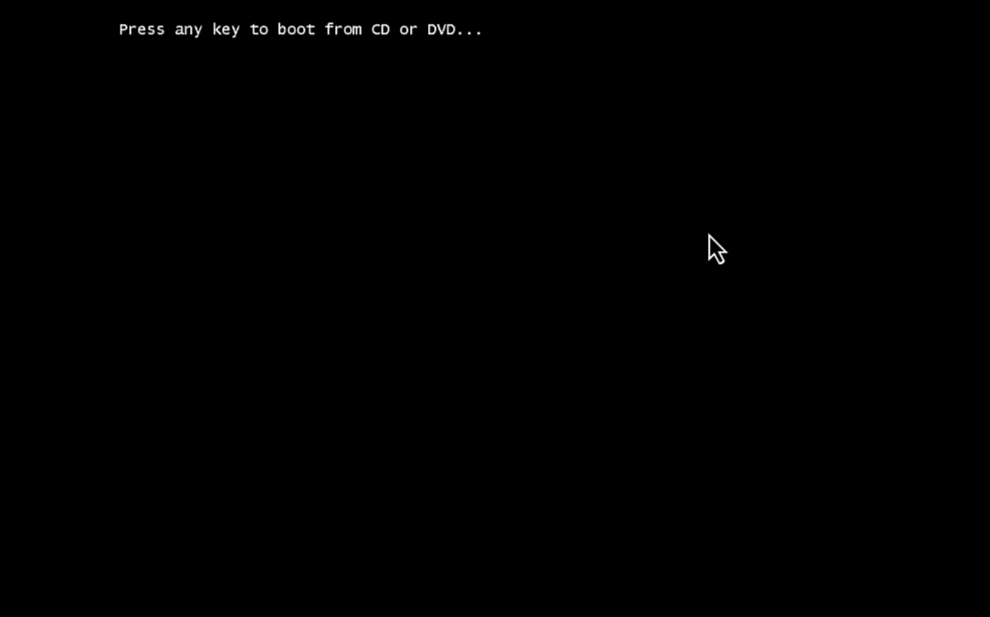
* Press any key to boot from CD.
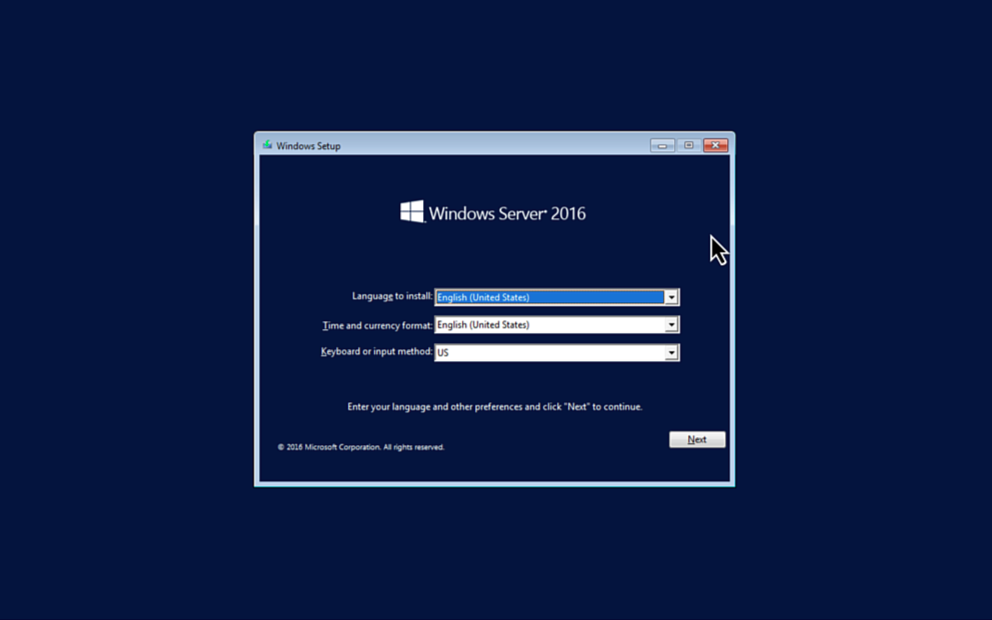
The Windows installer is loading. This occurs only during the first boot.
{% hint style="info" %}
**NOTE**
VirtIO drivers required for optimal performance.
{% endhint %}
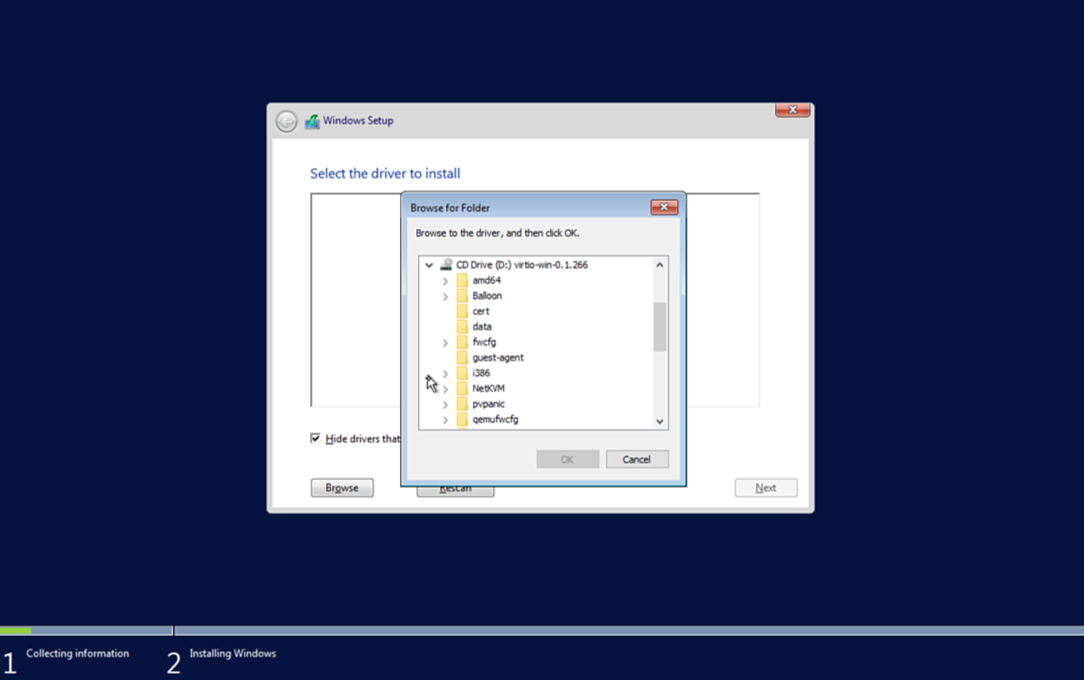
2. **Install VirtIO Drivers**
During Windows installation:
* Select **Browse** when prompted for storage drivers.
* Navigate to VirtIO driver ISO identified by the Windows version you are installing, for example `D:\amd64\2k19` for Windows Server 2019.
* Select and install VirtIO SCSI driver.
{% hint style="info" %}
**NOTE**
VirtIO drivers required for optimal performance.
{% endhint %}
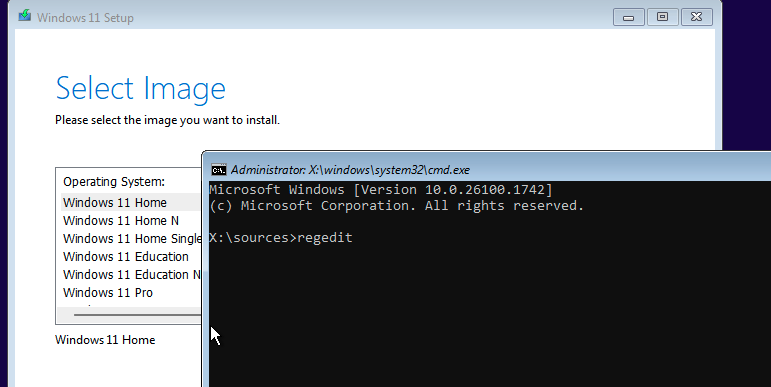
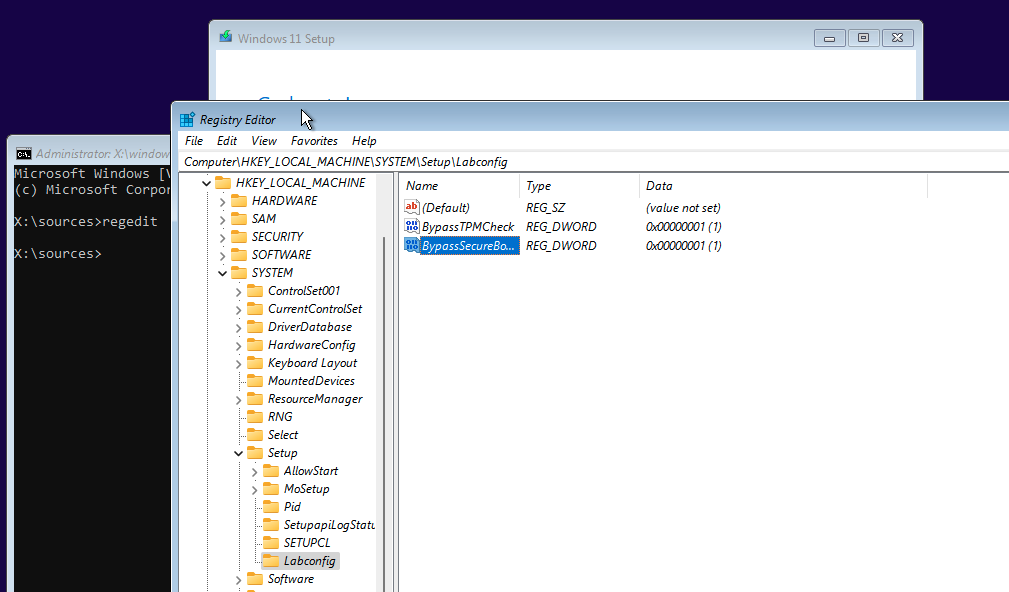
3. **OPTIONAL: Disable Secure Boot and vTPM**
Certain operating systems like Windows 11 require TPM and Secure Boot. If your VM does not have Secure Boot or a TPM but you still want to continue the installation, you can bypass these checks. To proceed, follow these steps:
* On the OS selection page, press Shift+F10 to open a command prompt.
* In the command prompt, type **regedit** and press **Enter** to launch the **Registry Editor**.
* On the **Registry Editor**, navigate to **HKEY\_*****LOCAL*****\_ MACHINE > SYSTEM > Setup** folder.
* Create a new key named **LabConfig** as a part of the **Setup** folder.
* Within the **LabConfig** key, create two new **REG\_DWORD** entries and set the values to `1`:
* BypassTPMCheck
* BypassSecureBootCheck
* Close the Registry Editor and the command prompt and continue with the Windows installation.
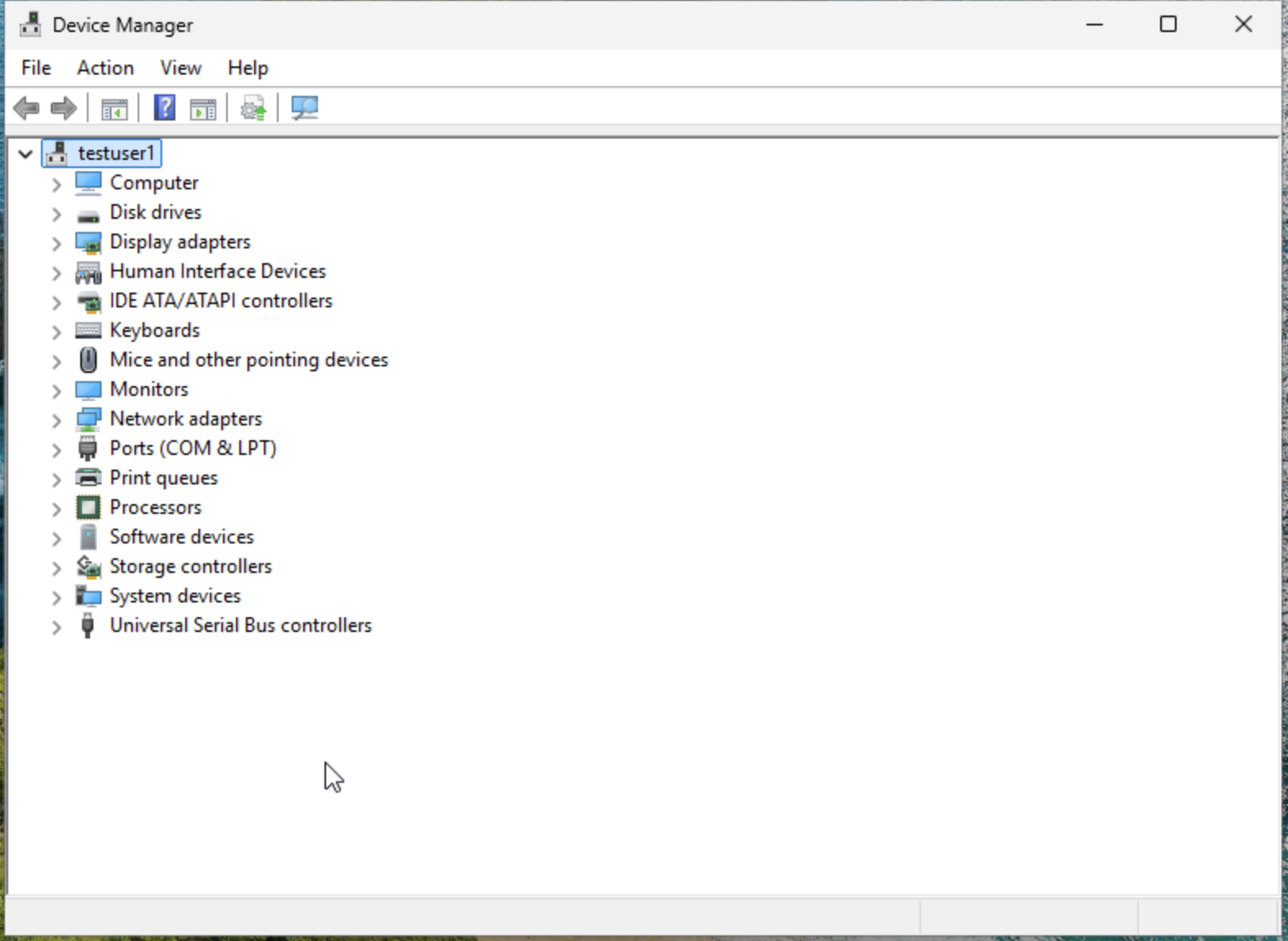
4. **Install Network and Other Required Drivers**
After Windows installation completes, install the necessary drivers to enable network connectivity and other devices.
* Access **Device Manager**.
* Right-click **Ethernet Controller** and select **Update Driver Software**.
* Browse to the VirtIO path (for example, `E:\NetKVM\2k16\`) and complete the installation.
* Repeat the process for any remaining devices listed in **Device Manager**.
5. **Verify VirtIO Driver Installation**
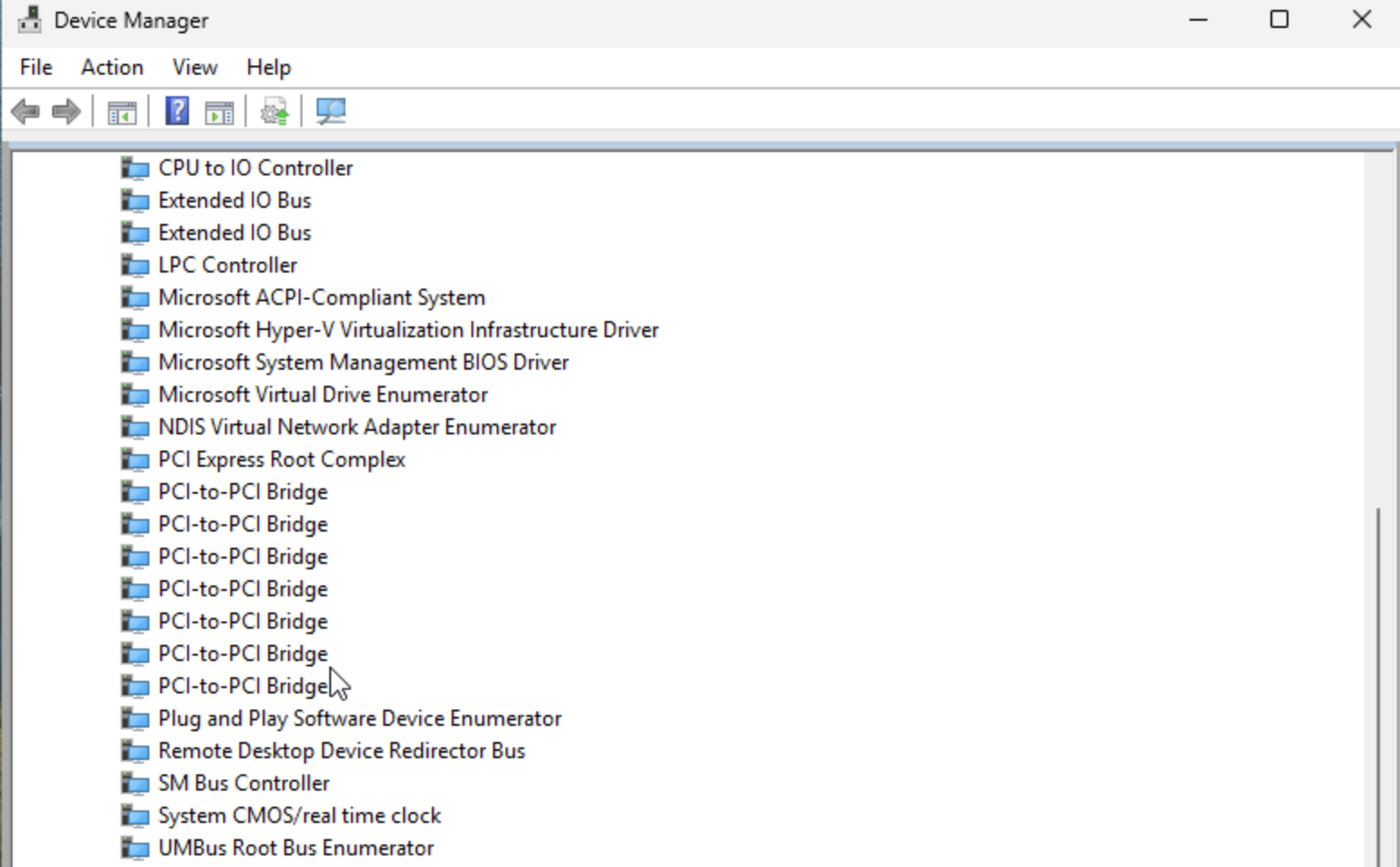
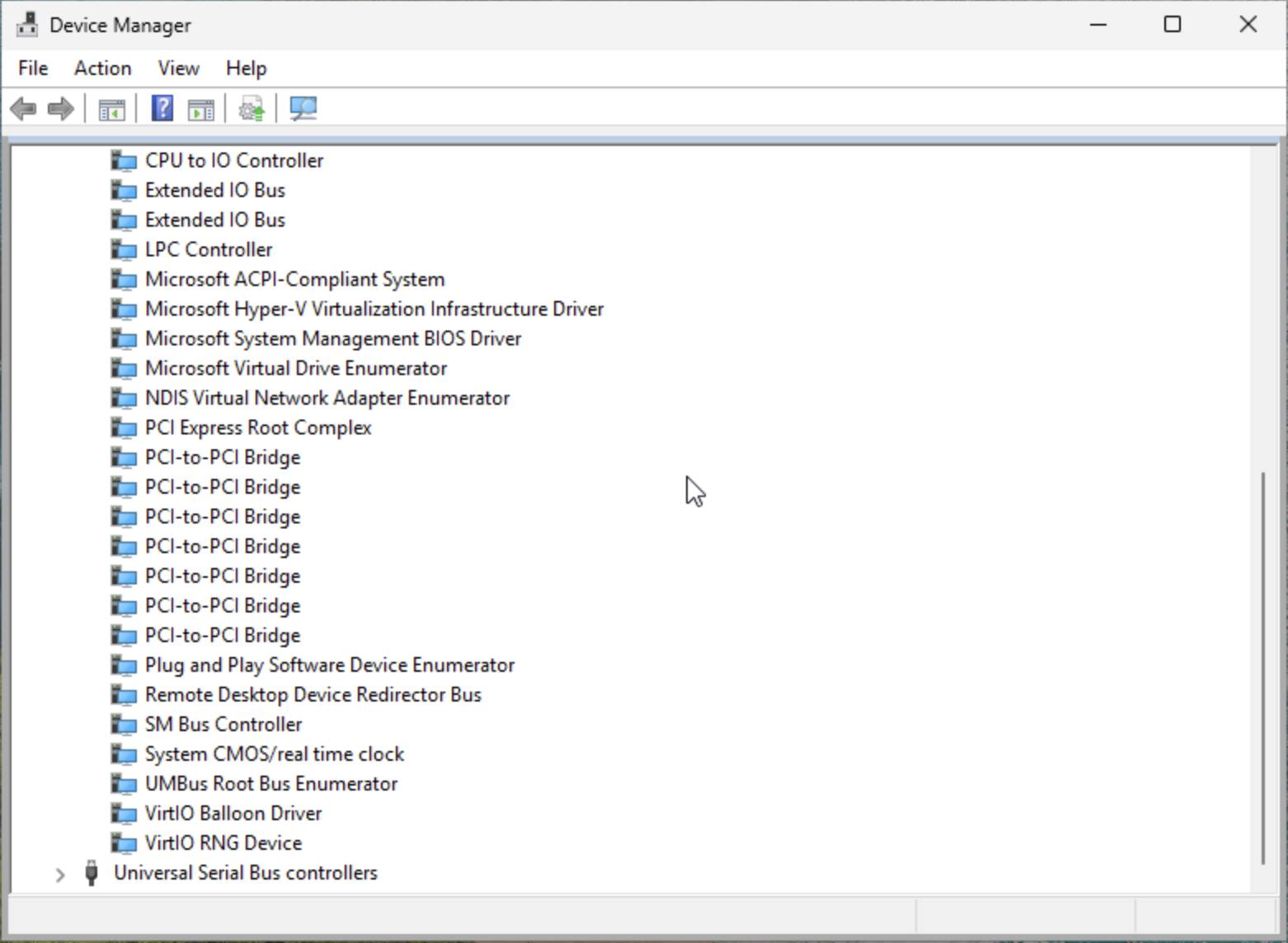
* Access **Device Manager** and then navigate to **System devices > VirtIO driver**.
* If the VirtIO driver appears in the list, the driver is already installed.
* If it does not appear, continue with the following steps.
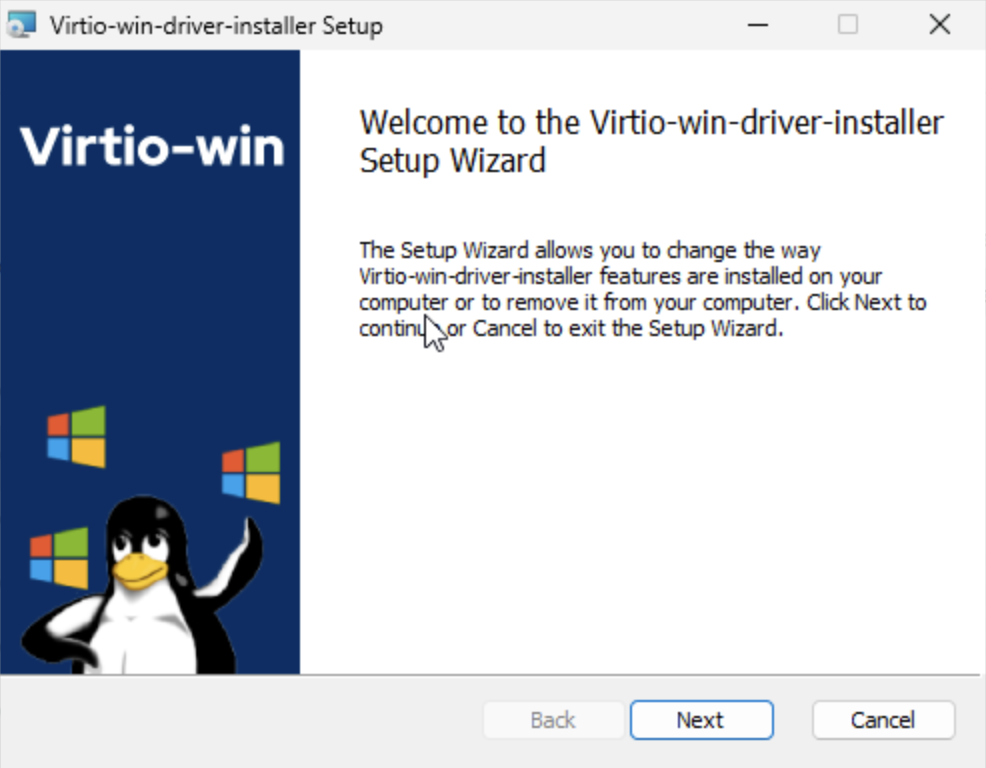
* Download the VirtIO setup package from [Index of /groups/virt/virtio-win/direct-downloads](https://fedorapeople.org/groups/virt/virtio-win/direct-downloads/).
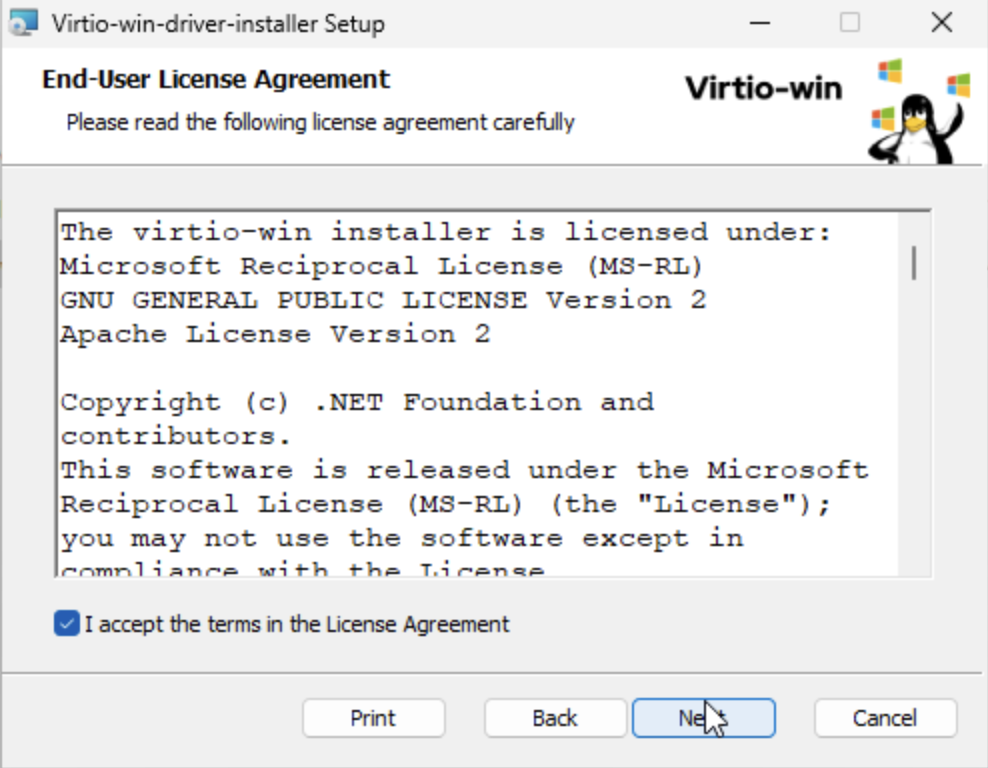
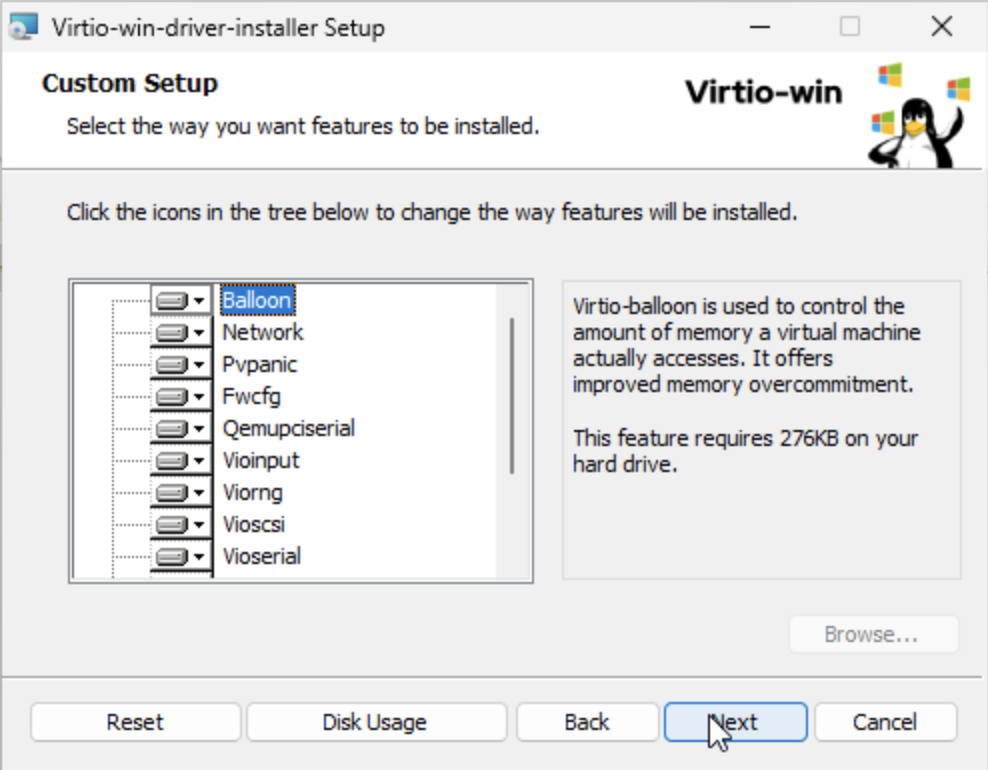
* Run **virtio-setup** to install the drivers.
* After installation is complete, navigate back to **Device Manager** > **System devices** to verify that the VirtIO driver is listed.
6. **Install Cloudbase-Init**
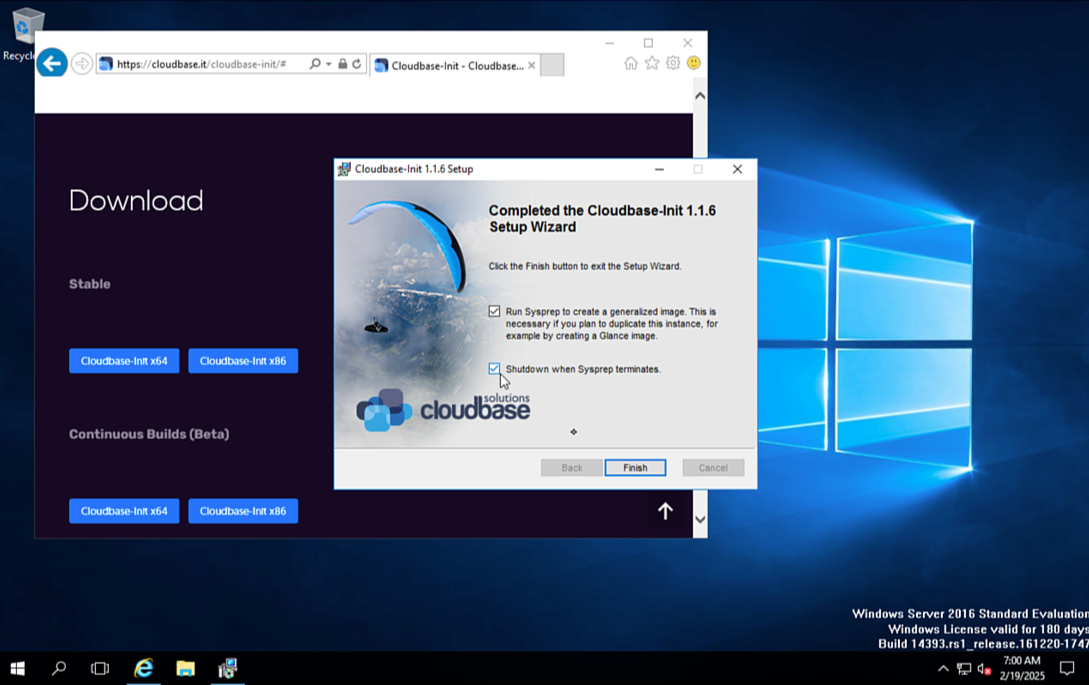
* Download and run [Cloudbase-Init](https://cloudbase.it/cloudbase-init/) to enable automated configuration for future VMs. space.vars.product\_acronym uses Cloudbase-Init to set the initial Administrator password during VM deployment.
* Select the option to run **s ysprep** to create a generalized golden image.
* Allow the VM to power off automatically once the process is complete.
#### Step 5: Create Golden Image
1. **Detach the Windows Installer and VirtIO drivers:** Detach the windows-installation-volume and virtio-driver-volume. This leaves your VM with windows-os-target-volume with windows installed. This can be done from the UI
2. **Create a Glance Image from the Installation Volume:** Navigate to the windows-os-target-volume in the volumes page in the UI and select the action to `Upload as Image`.
3. **Set Image Properties:** Set the required properties to ensure the VM boots correctly. This can also be done in the UI using the `Edit Properties` option.
{% tabs %}
{% tab title="Bash" %}
```bash
pcdctl --os-interface admin --insecure image set \
--property hw_boot_menu=true \
--property hw_firmware_type=uefi \
--property hw_machine_type=q35 \
--property hw_tpm_model=tpm-crb \
--property hw_tpm_version=2.0 \
--property hw_disk_bus=virtio \
--property hw_scsi_model=virtio-scsi \
--property hw_vif_model=virtio \
--property os_secure_boot=required \
--property os_type=windows \
--property hw_video_model=qxl
```
{% endtab %}
{% endtabs %}
A reusable golden image is now created and can be used for future Windows VM deployments, allowing you to quickly provision new VMs without having to repeat the installation process.
#### Step 6: Deploy a VM from the golden image
Refer to the [Deploy Vms On Your Virtualized Cluster](/private-cloud-director/2025.10/tutorials/deploy-vms-on-your-virtualized-cluster.md) guide to deploy a VM with the new golden image.
---
# Agent Instructions
This documentation is published with GitBook. GitBook is the documentation platform designed so that both humans and AI agents can read, navigate, and reason over technical content effectively. Learn more at gitbook.com.
## Querying This Documentation
If you need additional information that is not directly available in this page, you can query the documentation dynamically by asking a question.
Perform an HTTP GET request on the current page URL with the `ask` query parameter, and the optional `goal` query parameter:
```
GET https://docs.platform9.com/private-cloud-director/2025.10/tutorials/create-windows-vm-from-iso/creating-a-windows-virtual-machine--vm--from-an-iso-image.md?ask=&goal=
```
`ask` is the immediate question: it should be specific, self-contained, and written in natural language.
`goal` is optional and describes the broader end goal you are ultimately trying to accomplish on behalf of the user. GitBook uses it to tailor the answer towards what is most useful for that goal.
The response will contain a direct answer to the question and relevant excerpts and sources from the documentation.
Use this mechanism when the answer is not explicitly present in the current page, you need clarification or additional context, or you want to retrieve related documentation sections.