> For the complete documentation index, see [llms.txt](https://docs.platform9.com/llms.txt). Markdown versions of documentation pages are available by appending `.md` to page URLs; this page is available as [Markdown](https://docs.platform9.com/managed-openstack/tutorials/tutorials-centos-vm-image.md).
# Creating CentOS VM Image from Scratch
There are multiple ways to create a CentOS image compatible with OpenStack Glance image repository. You can:
* Download a pre-built image from RedHat RDO: [https://openstack.redhat.com/Image\_resources](https://www.rdoproject.org/resources/image-resources/) (default user is 'centos' on these images)
* Create the image from Scratch with or without cloud-init
{% hint style="info" %}
**Note**
The benefit of cloud-init is that it allows customization of virtual machines
{% endhint %}
{% hint style="success" %}
**Recommendation**
Platform9 recommends that you create your virtual machine images from scratch, as this gives you full flexibility to customize the image per your specific requirements, and ensure that it's configured appropriately, to reduce future errors.
{% endhint %}
This tutorial describes how you can create a CentOS guest image from scratch and also optionally install cloud-init.
### Step 1 - Download ISO
ISO images are available form CentOS and its mirrors
Assuming you have a CentOS/Ubuntu system with libvirt and all the dependencies installed (see here for details: ), go to /var/lib/libvirt/images and copy the downloaded iso.
{% tabs %}
{% tab title="CentOS" %}
```yaml
cd /var/lib/libvirt/images
wget http://mirror.hmc.edu/centos/6.6/isos/x86_64/CentOS-6.6-x86_64-minimal.iso
```
{% endtab %}
{% endtabs %}
### Step 2 - Create a Virtual Machine
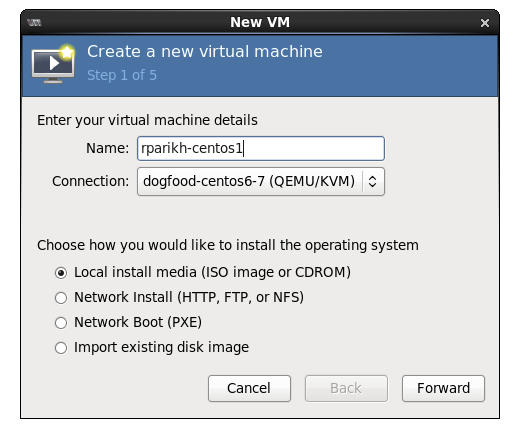
Fire up your virt-manager and create a new virtual machine.
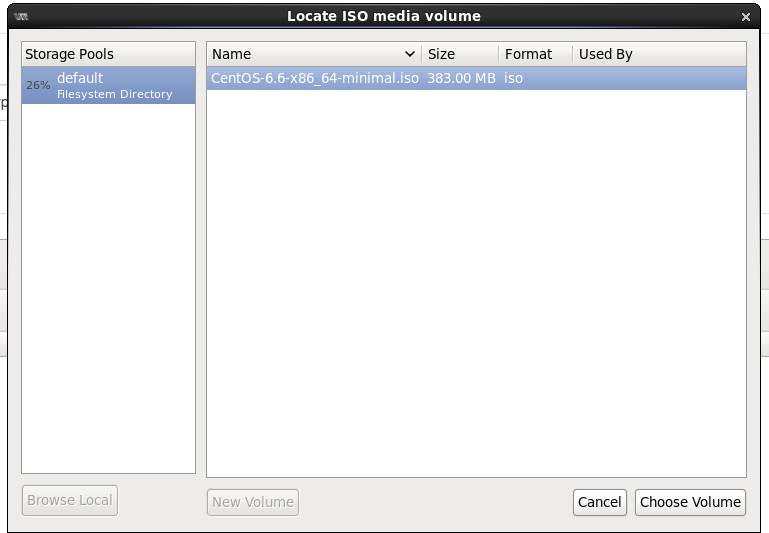
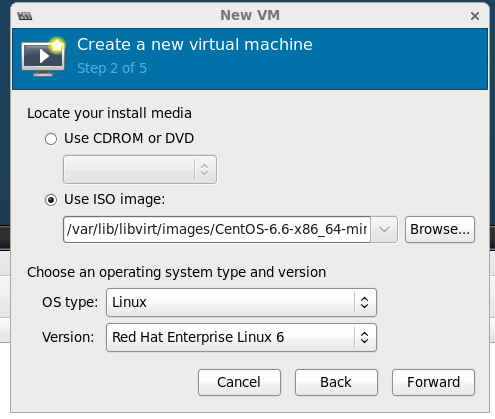
Pick the ISO you just downloaded.
Use OS type = Linux, Version= Red Hat Enterprise Linux 6
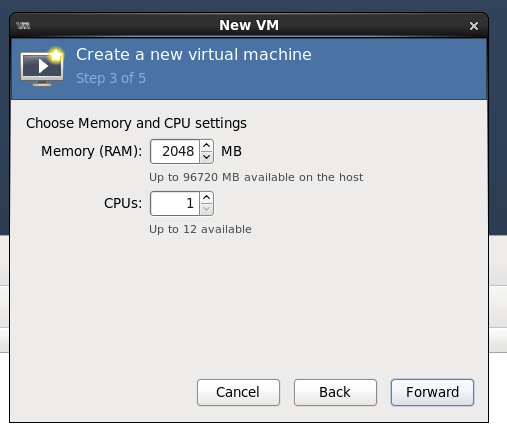
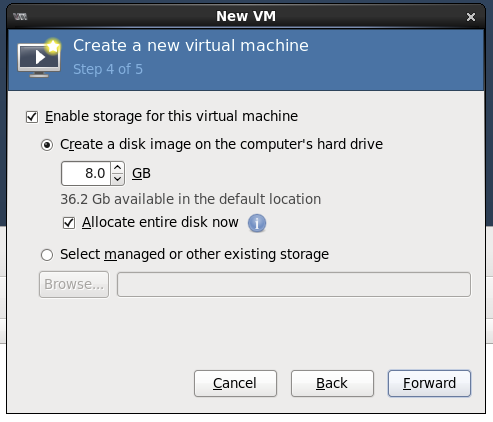
Pick the amount of CPU, Memory and Storage.
### Step 3 - Install & Configure OS
Pick the options you like, I generally install minimal with just SSH. Depending upon how you want your consumers to logon to the virtual machine, you can configure the users, password and SSH configuration (no-password vs password logon). I suggest putting a specific admin user with a password/ssh key that can be used by your system administrators to logon. Platform9 (and OpenStack), will allow the owner of the virtual machine to pass a SSH key at boot time, but this specific admin user can be used exclusively by a system administrator as a powerful debugging tool.
### Step 4 - (Optional) Install cloud-init
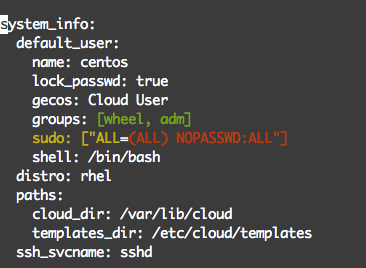
Once the OS is installed, reboot and log in; by default OS comes up with DHCP configured. Install epel repository to fetch cloud-init and then install cloud-init.
### Step 6 - Power Off the Virtual Machine
Now go ahead and power-off the virtual machine. You are one step away from the setup.
### Step 7 - Call virt-sysprep
{% tabs %}
{% tab title="Bash" %}
```bash
cd /var/lib/libvirt/images/
virt-sysprep -a
```
{% endtab %}
{% endtabs %}
Congratulations! Your image is ready, copy it to the "ImageLibrary" in Platform9 or any other glance installation and it is ready to go.
---
# Agent Instructions
This documentation is published with GitBook. GitBook is the documentation platform designed so that both humans and AI agents can read, navigate, and reason over technical content effectively. Learn more at gitbook.com.
## Querying This Documentation
If you need additional information that is not directly available in this page, you can query the documentation by asking a question.
Perform an HTTP GET request on the following URL with the `ask` and `goal` query parameters:
```
GET https://docs.platform9.com/managed-openstack/tutorials/tutorials-centos-vm-image.md?ask=&goal=
```
`ask` is the immediate question: it should be specific, self-contained, and written in natural language.
`goal` is what the user is ultimately trying to achieve, the reason they need the answer. Sharing it helps GitBook give you a better, more relevant answer. A goal is most helpful when it describes the outcome the user wants rather than restating the question. For example, with `ask=how do I create an API token`, a goal like `automate deployments from our CI pipeline` lets GitBook tailor the answer to that use case.
The response will contain a direct answer to the question and relevant excerpts and sources from the documentation.
Use this mechanism when the answer is not explicitly present in the current page, you need clarification or additional context, or you want to retrieve related documentation sections.