> For the complete documentation index, see [llms.txt](https://docs.platform9.com/llms.txt). Markdown versions of documentation pages are available by appending `.md` to page URLs; this page is available as [Markdown](https://docs.platform9.com/managed-openstack/5.6/images/images-prep-image-vmware.md).
# Prepare VMware Images Using cloud-init
This tutorial describes the steps to prepare Ubuntu and Centos images with cloud-init in PMO vSphere environment.
Cloud-init is the de-facto multi-distribution package that handles early initialization of a cloud instance. For more information on cloud-init, refer here:
### Step 1: Download cloud-init ISO
Download the iso for the preferred operating system from the links below.
* [Ubuntu](http://releases.ubuntu.com/releases)
* [Centos](https://www.centos.org/download/)
### Step 2: Upload iso to datastore
Upload the iso to vSphere datastore using the Datastore browser. Note the location to use it in next step.
### Step 3: Connect VM to datastore ISO
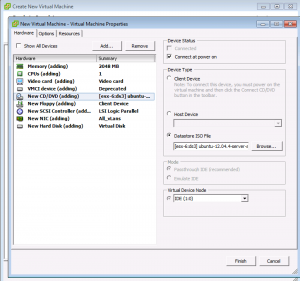
Create a Virtual Machine and edit VM settings before completion. Edit the CD ROM to point to the uploaded iso from Step 2. Check the option for connecting it at power on.
### Step 4: Power on VM and install OS
Power on the VM and follow the steps for installation. Install vmware tools.
### Step 5: Install the Platform9 Cloud-init Package
* Ubuntu: `apt-get install cloud-init`
* Centos: `yum install cloud-init`
### Step 6: Create an image
* Power off the VM
* Remove NIC and CD ROMs attached to the VM
* Image can be created as a template or as a vmdk
* Template: Convert the VM to a template and save it on a datastore that is authorized for Platform9 nova compute. The template will be available for provisioning in 10 mins.
* VMDK: Download the VM’s vmdk from the datastore and upload it to glance as an image using [Glance command line client](/managed-openstack/5.6/images/images-vmware-glance.md).
### Optional – Download and deploy Prebuilt Images
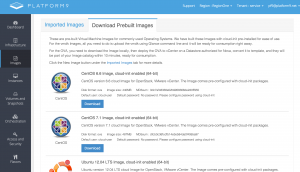
Prebuilt images are available in your Platform9 UI under Images -> Download Prebuiltimages. The prebuilt images are available in 2 formats, OVA and vmdk. The vmdk can be added to the PMO image catalog by uploading it using [Glance command line client](/managed-openstack/5.6/images/images-vmware-glance.md). The OVA can be deployed to vCenter using “Deploy OVF template” option. Once deployed, it can be converted into template or the VM’s vmdk can be uploaded to the PMO image catalog.
---
# Agent Instructions
This documentation is published with GitBook. GitBook is the documentation platform designed so that both humans and AI agents can read, navigate, and reason over technical content effectively. Learn more at gitbook.com.
## Querying This Documentation
If you need additional information that is not directly available in this page, you can query the documentation by asking a question.
Perform an HTTP GET request on the following URL with the `ask` and `goal` query parameters:
```
GET https://docs.platform9.com/managed-openstack/5.6/images/images-prep-image-vmware.md?ask=&goal=
```
`ask` is the immediate question: it should be specific, self-contained, and written in natural language.
`goal` is what the user is ultimately trying to achieve, the reason they need the answer. Sharing it helps GitBook give you a better, more relevant answer. A goal is most helpful when it describes the outcome the user wants rather than restating the question. For example, with `ask=how do I create an API token`, a goal like `automate deployments from our CI pipeline` lets GitBook tailor the answer to that use case.
The response will contain a direct answer to the question and relevant excerpts and sources from the documentation.
Use this mechanism when the answer is not explicitly present in the current page, you need clarification or additional context, or you want to retrieve related documentation sections.