# Migrate Windows VM from vSphere to KVM

In this guide, we will migrate a Windows VM from vSphere to KVM.

### Requirements

* A vSphere VM with one of the following operating systems (All 64 bit):
* Windows Server 2003
* Windows Server 2008
* Windows Server 2008 R2
* Windows Server 2012
* Windows Server 2012 R2
* Windows 7
* Windows 8
* Windows 8.1
* Windows XP
* Administrator privileges for the VM.
* The VM must only have one disk.

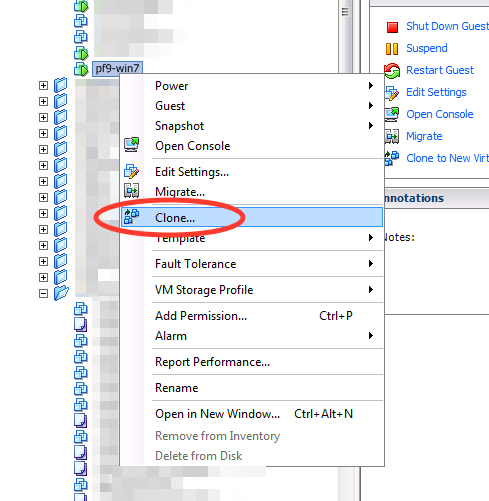
### Step 1 - Clone the VM to be Migrated

Since we will modify the VM before converting formats, first clone the VM to keep the original VM intact.

<figure><img src="https://1126553421-files.gitbook.io/~/files/v0/b/gitbook-x-prod.appspot.com/o/spaces%2FZ8EciOmTwpkZCkUOCYd9%2Fuploads%2Fgit-blob-3e797178f7a321df4a6adfba417ef98b94db3d11%2F1605296550.png?alt=media" alt=""><figcaption></figcaption></figure>

### Step 2 - Install Virtio Drivers

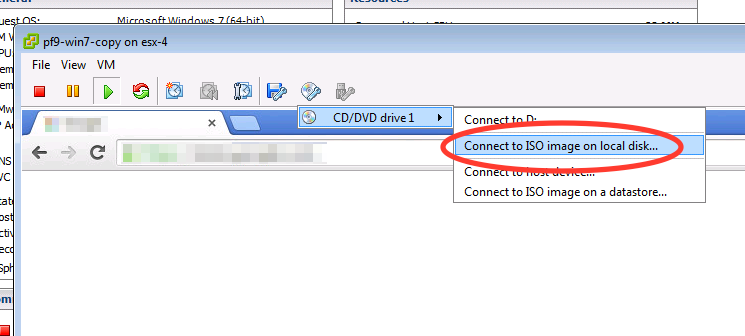
After cloning, power on the new VM. Download the [Virtio drivers](https://fedorapeople.org/groups/virt/virtio-win/direct-downloads/stable-virtio/virtio-win.iso) onto the machine running the vSphere client. Attach the ISO to the VM.

<figure><img src="https://1126553421-files.gitbook.io/~/files/v0/b/gitbook-x-prod.appspot.com/o/spaces%2FZ8EciOmTwpkZCkUOCYd9%2Fuploads%2Fgit-blob-4a4241cc8bd79efd45260c6573f88c552f3e4d90%2F1605296574.png?alt=media" alt=""><figcaption></figcaption></figure>

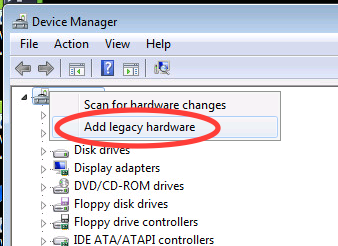
Open the Device Manager on the Windows VM. Then, right click on the root device and select "Add legacy hardware".

<figure><img src="https://1126553421-files.gitbook.io/~/files/v0/b/gitbook-x-prod.appspot.com/o/spaces%2FZ8EciOmTwpkZCkUOCYd9%2Fuploads%2Fgit-blob-0ae199892211e8fb1501a55e0bf321977735d6aa%2F1605296602.png?alt=media" alt=""><figcaption></figcaption></figure>

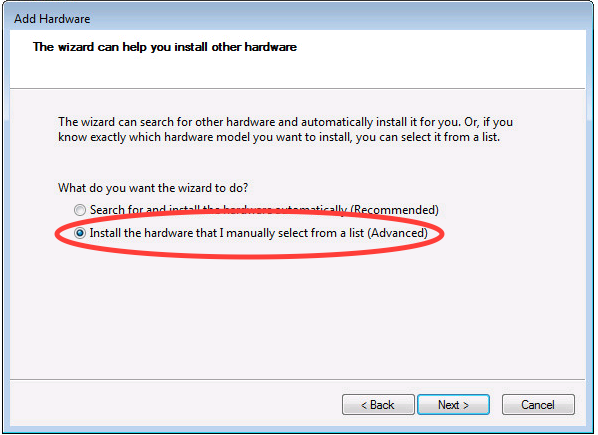
Click Next. Then select "Install the hardware that I manually select..." and click Next.

<figure><img src="https://1126553421-files.gitbook.io/~/files/v0/b/gitbook-x-prod.appspot.com/o/spaces%2FZ8EciOmTwpkZCkUOCYd9%2Fuploads%2Fgit-blob-05835714cc4b7554df55d0b30de2f5ea547aa8f6%2F1605296665.png?alt=media" alt=""><figcaption></figcaption></figure>

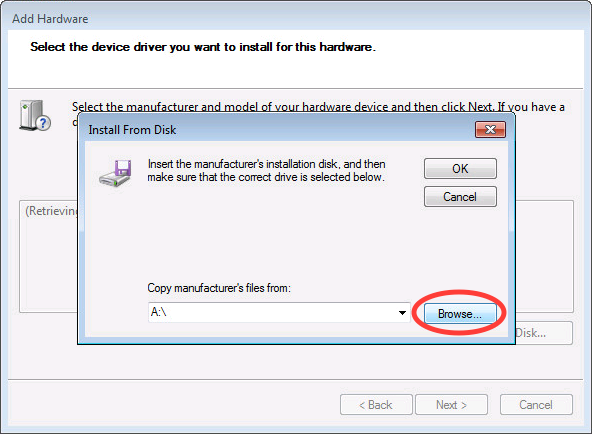
Click Next again. Then, click "Have Disk...". Click "Browse...".

<figure><img src="https://1126553421-files.gitbook.io/~/files/v0/b/gitbook-x-prod.appspot.com/o/spaces%2FZ8EciOmTwpkZCkUOCYd9%2Fuploads%2Fgit-blob-3f214efe44615a6d21588b0394781027d5857a37%2F1605296697.png?alt=media" alt=""><figcaption></figcaption></figure>

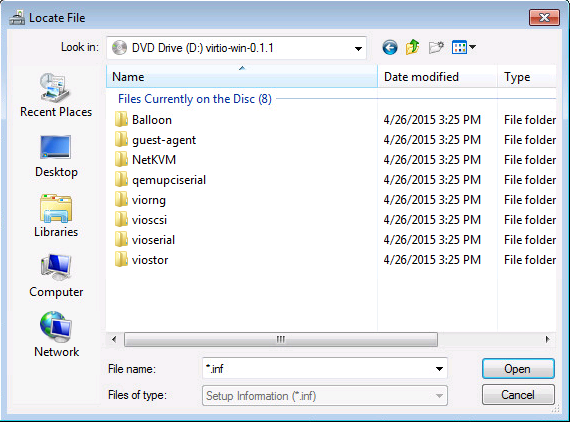
Then, navigate to the directory of the ISO.

<figure><img src="https://1126553421-files.gitbook.io/~/files/v0/b/gitbook-x-prod.appspot.com/o/spaces%2FZ8EciOmTwpkZCkUOCYd9%2Fuploads%2Fgit-blob-5d6872974473997e66dbf2582eb82c00e3c6f7c2%2F1605296729.png?alt=media" alt=""><figcaption></figcaption></figure>

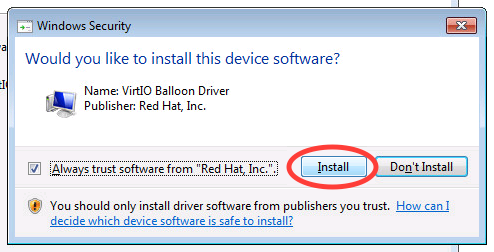
Click on "Balloon". Then, select your operating system version. Select the architecture (x86 or amd64). Then, select the INF file (There should only be one of these). Click OK, then Next, and Next again. You may need to confirm the driver installation.

<figure><img src="https://1126553421-files.gitbook.io/~/files/v0/b/gitbook-x-prod.appspot.com/o/spaces%2FZ8EciOmTwpkZCkUOCYd9%2Fuploads%2Fgit-blob-70486df68f8f295d326cfc1c0246c957576d7388%2F1605296755.png?alt=media" alt=""><figcaption></figcaption></figure>

When installing the driver, you may receive an error saying that the device cannot start or is not working properly. This is normal, and the driver should be able to start when the VM boots on a KVM hypervisor.

**Repeat the process above for the directories NetKVM, qemupciserial, viorng, vioscsi, vioserial, and viostor.**

Ignore errors if the qemupciserial driver complains about the machine architecture.

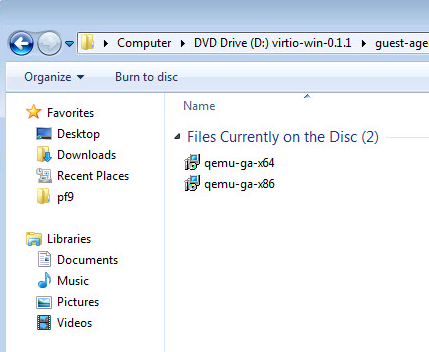
Finally, install the QEMU guest agent on the VM. The installer is located in the ISO file. Only use the installer that matches your architecture (x86 or x64).

<figure><img src="https://1126553421-files.gitbook.io/~/files/v0/b/gitbook-x-prod.appspot.com/o/spaces%2FZ8EciOmTwpkZCkUOCYd9%2Fuploads%2Fgit-blob-b58fcff91ddac7c33d7468d8a0eb16e224f51c59%2F1605296786.png?alt=media" alt=""><figcaption></figcaption></figure>

### Step 3 - Add the Virtio Drivers to the Windows Registry

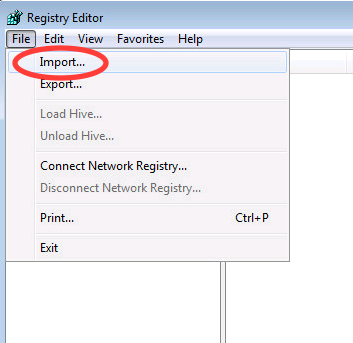
Download the [Virtio Registry File](http://migration.platform9.com.s3-us-west-1.amazonaws.com/virtio.reg) onto the VM. Then, open the Windows Registry Editor by searching regedit from the start menu. Click **File -> Import..**.

<figure><img src="https://1126553421-files.gitbook.io/~/files/v0/b/gitbook-x-prod.appspot.com/o/spaces%2FZ8EciOmTwpkZCkUOCYd9%2Fuploads%2Fgit-blob-98950b2f82168c81985172407d9c6ac641b6e35e%2F1605296831.png?alt=media" alt=""><figcaption></figcaption></figure>

Then select the [Virtio Registry File](http://migration.platform9.com.s3-us-west-1.amazonaws.com/virtio.reg) that was downloaded.

### Step 4 - Uninstall VMware Tools

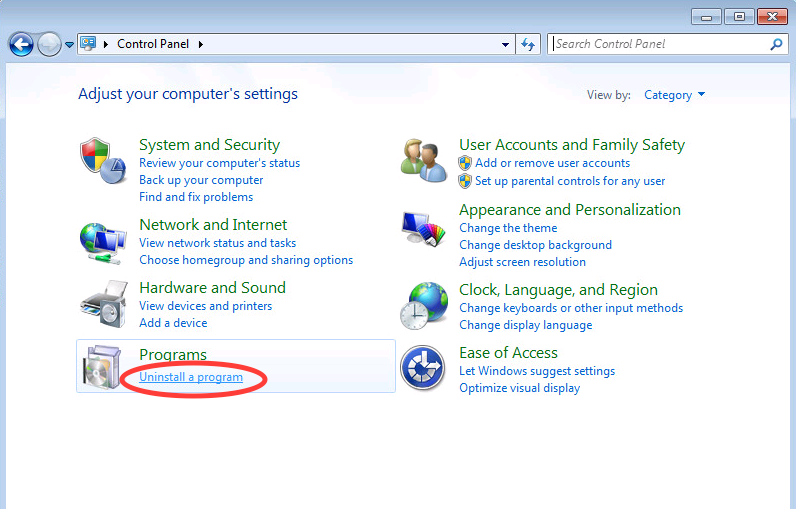
From the control panel, click on "Uninstall a program".

<figure><img src="https://1126553421-files.gitbook.io/~/files/v0/b/gitbook-x-prod.appspot.com/o/spaces%2FZ8EciOmTwpkZCkUOCYd9%2Fuploads%2Fgit-blob-b0e213fd5e8304171f38dc0c92d66ae05a81a874%2F1605296853.png?alt=media" alt=""><figcaption></figcaption></figure>

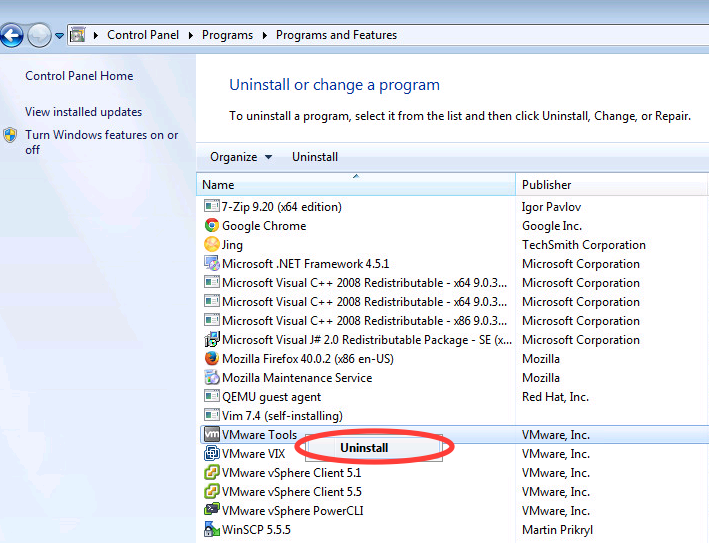
Find the VMware Tools program. Right click on it and select Uninstall. Then, confirm the uninstall.

<figure><img src="https://1126553421-files.gitbook.io/~/files/v0/b/gitbook-x-prod.appspot.com/o/spaces%2FZ8EciOmTwpkZCkUOCYd9%2Fuploads%2Fgit-blob-cdb84329cf37aa9e395d04d55270b6b4522e46e6%2F1605296886.png?alt=media" alt=""><figcaption></figcaption></figure>

If prompted to reboot the machine, select Yes.

### Step 5 - Install Cloudbase

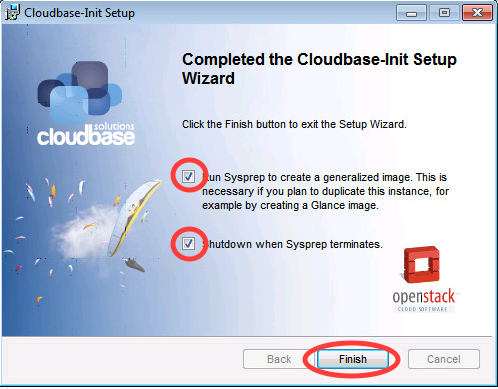
Download the stable [Cloudbase software](http://www.cloudbase.it/cloud-init-windows/). Open the installer and click Next until the final the step is reached. Select both the sysprep and the shutdown options. Then, click Finish.

<figure><img src="https://1126553421-files.gitbook.io/~/files/v0/b/gitbook-x-prod.appspot.com/o/spaces%2FZ8EciOmTwpkZCkUOCYd9%2Fuploads%2Fgit-blob-6c60b1b00b4a350bb35cafd499e1616c05022973%2F1605296912.png?alt=media" alt=""><figcaption></figcaption></figure>

### Step 6 - Convert VMDK to QCOW2

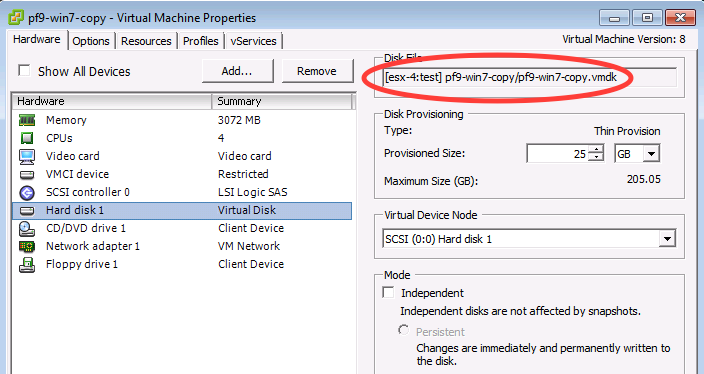
Note the path of the hard disk of the VM by editing the settings of the VM and selecting the Virtual Disk.

<figure><img src="https://1126553421-files.gitbook.io/~/files/v0/b/gitbook-x-prod.appspot.com/o/spaces%2FZ8EciOmTwpkZCkUOCYd9%2Fuploads%2Fgit-blob-7a10d2ffde194221dd24a7ed2b5bcd06d51f4e79%2F1605296938.png?alt=media" alt=""><figcaption></figcaption></figure>

Copy the flat VMDK from the ESX host to the Image Library, or a machine with the qemu-img command available.

<figure><img src="https://1126553421-files.gitbook.io/~/files/v0/b/gitbook-x-prod.appspot.com/o/spaces%2FZ8EciOmTwpkZCkUOCYd9%2Fuploads%2Fgit-blob-c6d97f957c0dbe85fb76f373cacd614da02181e4%2F1605296963.png?alt=media" alt=""><figcaption></figcaption></figure>

After copying, convert the VMDK to a QCOW2 image.

{% tabs %}
{% tab title="None" %}

```none
qemu-img convert -O qcow2 <input vmdk file> <ouput qcow2 file>
```

{% endtab %}
{% endtabs %}

For example:

{% tabs %}
{% tab title="None" %}

```none
qemu-img convert -O qcow2 pf9-win7-copy-flat.vmdk pf9-win7.qcow2
```

{% endtab %}
{% endtabs %}

### Step 7 - Upload the Image to the Image Library Host

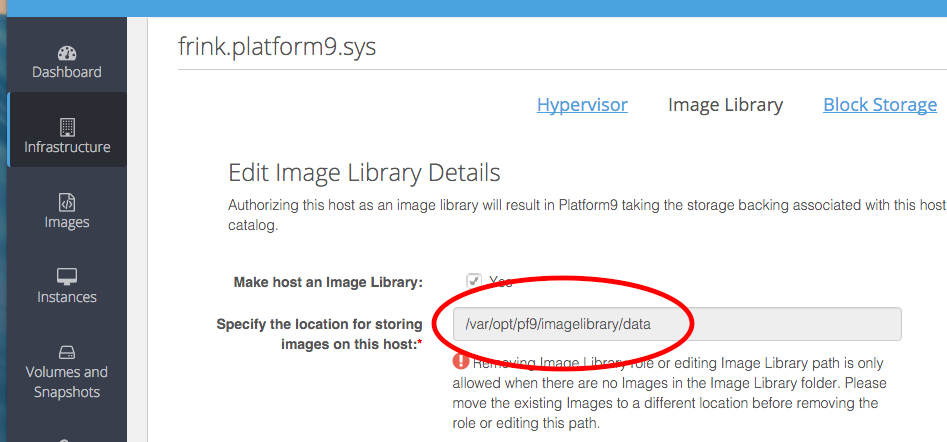
You can simply copy the converted qcow2 image to the Image library host's image directory.

<figure><img src="https://1126553421-files.gitbook.io/~/files/v0/b/gitbook-x-prod.appspot.com/o/spaces%2FZ8EciOmTwpkZCkUOCYd9%2Fuploads%2Fgit-blob-8aa40d13de62b12d5400ca3f020dacfd812cccd6%2F1605297032.png?alt=media" alt=""><figcaption></figcaption></figure>

<figure><img src="https://1126553421-files.gitbook.io/~/files/v0/b/gitbook-x-prod.appspot.com/o/spaces%2FZ8EciOmTwpkZCkUOCYd9%2Fuploads%2Fgit-blob-82f6eb0b42e1285c6ec41f6861417fee4d94c47b%2F1605297047.png?alt=media" alt=""><figcaption></figcaption></figure>

**OR**

Follow our support guide on [Installing OpenStack CLI Clients](https://docs.platform9.com/managed-openstack/5.4/cli-access/cli-access-cli-overview) if the openstack client is not yet installed. Then, use the openstack command to upload the image.

{% tabs %}
{% tab title="OpenStack" %}

```none
openstack image create --disk-format qcow2
--container-format bare
--file pf9-win7.qcow2
--visibility public
--name pf9-win7
--property pf9_description="Windows VM migrated from vSphere"
--property pf9_virtual_size=<size in bytes>
```

{% endtab %}
{% endtabs %}

For example:

{% tabs %}
{% tab title="OpenStack" %}

```none
openstack image create --disk-format qcow2
--container-format bare
--file
--visibility public
--name
--property pf9_description="Windows VM migrated from vSphere"
--property pf9_virtual_size=26422542336
```

{% endtab %}
{% endtabs %}

### Step 8 - Create an Instance

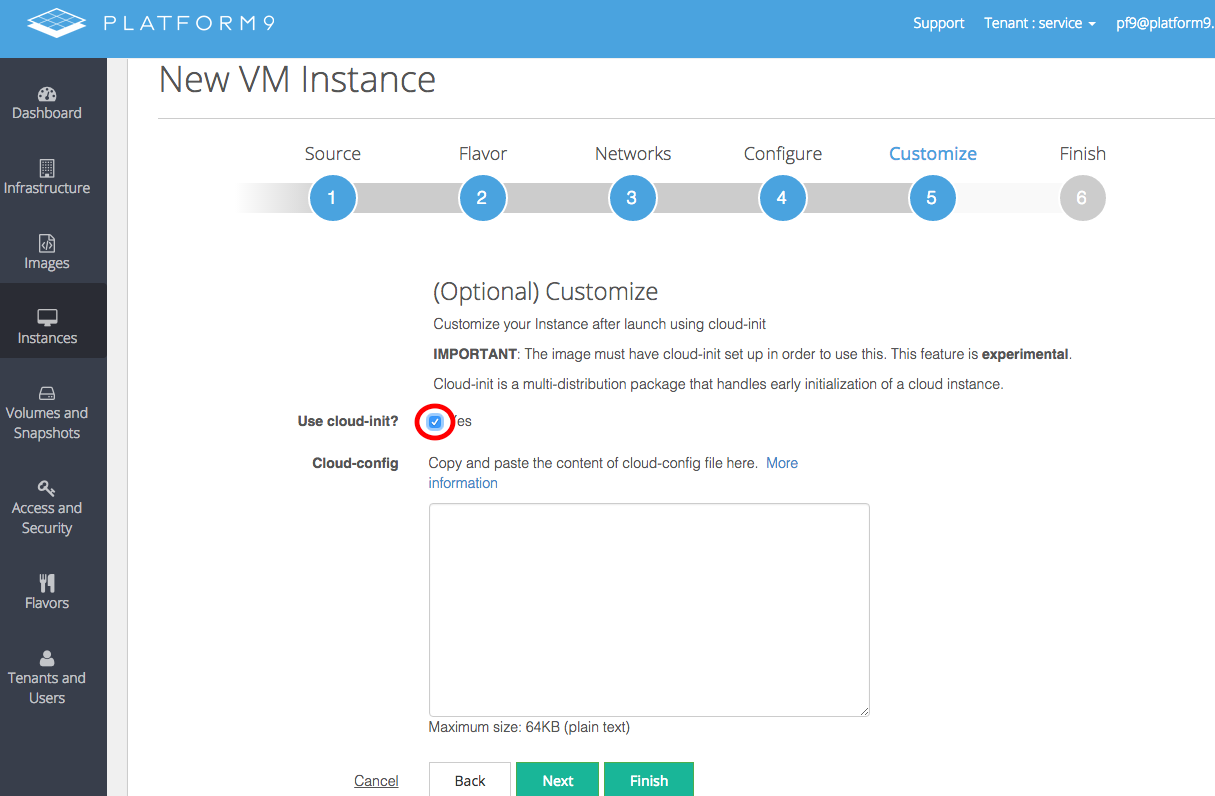
Create an instance as you normally would. However, for Windows VMs using cloudbase-init, ensure cloud-init is enabled.

<figure><img src="https://1126553421-files.gitbook.io/~/files/v0/b/gitbook-x-prod.appspot.com/o/spaces%2FZ8EciOmTwpkZCkUOCYd9%2Fuploads%2Fgit-blob-4ab437f203c8da1e00fee5431fdd7a76e903373f%2F1605297158.png?alt=media" alt=""><figcaption></figcaption></figure>

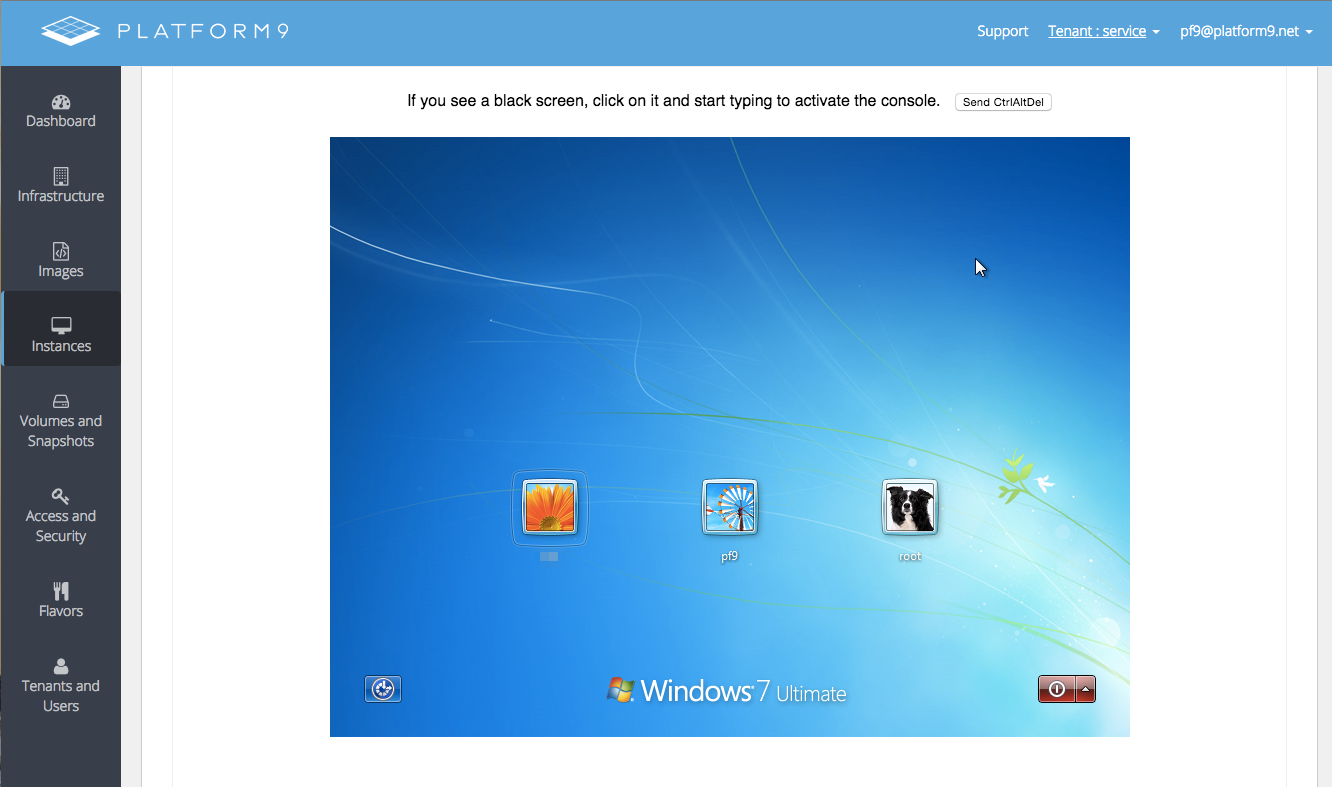
Enjoy your newly migrated Windows VM!
<figure><img src="https://1126553421-files.gitbook.io/~/files/v0/b/gitbook-x-prod.appspot.com/o/spaces%2FZ8EciOmTwpkZCkUOCYd9%2Fuploads%2Fgit-blob-92b033887e664c194e874e7f4c11e2504faf6bbf%2F1605297181.png?alt=media" alt=""><figcaption></figcaption></figure>