> For the complete documentation index, see [llms.txt](https://docs.platform9.com/llms.txt). Markdown versions of documentation pages are available by appending `.md` to page URLs; this page is available as [Markdown](https://docs.platform9.com/managed-kubernetes/workloads-and-apps/workloads/deployments.md).
# Deployments
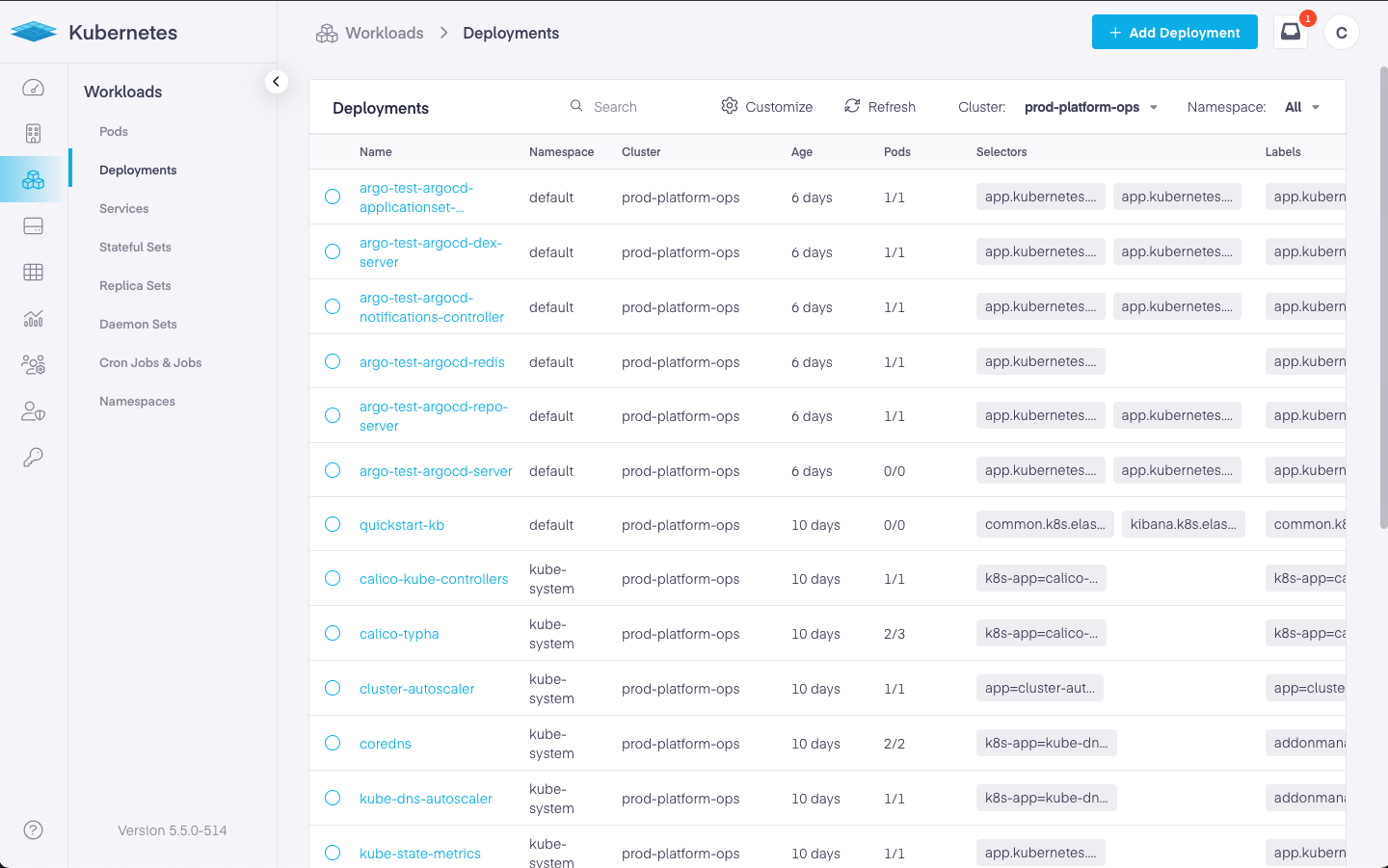
The *Workloads* > *Deployments* view in the Platform9 Managed Kubernetes (PMK) UI is used to view, edit, and delete specific Kubernetes deployment objects for clusters in your PMK environment.
Below, we can see options to select a cluster, namespace, search for a deployment, and [add a deployment](/managed-kubernetes/workloads-and-apps/workloads/create-deployment.md). Clicking on the circular icon refreshed the page, while clicking on the gear icon allows users to select the columns best suited for their needs. The available columns are as follows.
* Name – The name of the deployment
* Cluster – The cluster where the deployment resides
* Namespace – The namespace it occupies
* Links – Provides a quick link to the [Kubernetes](/managed-kubernetes/clusters/kubernetes-dashboard/local-dashboard-access.md) [dashboard](/managed-kubernetes/clusters/kubernetes-dashboard/remote-dashboard-access.md)
* Labels – The user provided name of the deployment
* Selectors – A specific identifying attribute of the objects that is important and pertinent to the user
* Pods – Defines the number of pods in the deployment
* Created Date – The implementation date of the deployment
### Overview
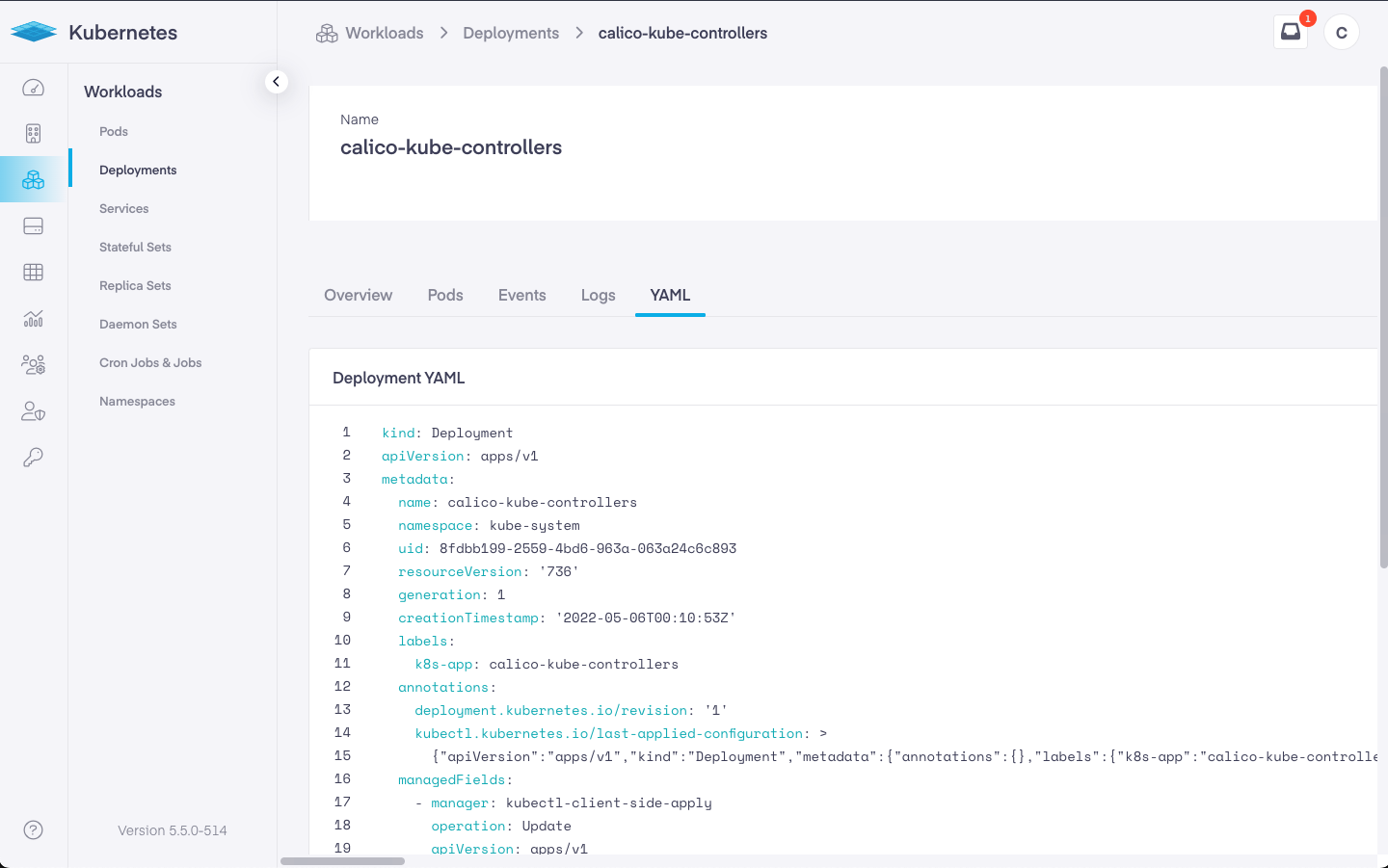
Clicking on the deployment link opens a new page showing tab options for the Overview, Events, Logs, and YAML pages for the deployment.
The overview tab details the name of the deployment, the cluster it is on, the associated namespace, the defined strategy and the age of the deployment. To the right, we see utilization information of the deployment. This includes the percentage and memory usage in percent, as well as the requested and limits for each.
Below that, we see the selector used, and any pods associated with the deployment. In the pods section, we see the name of the pod linked with the deployment, the age of the pod, the number of restarts, its CPU and memory usage, its status, and any related status messages.
Further down, the defined info about the pod, including the labels and any annotations, are seen. Underneath that, any services and ingress information is provided, as well as any config maps and persistent volume claims.
### Events
Selecting the events tab shows us any specific documented pod related issues, should they occur. The available fields include the following information.
* Reason – The cause of the problem
* Type – Lists the nature of the event
* Object – The generated response to changes that have occurred
* Kind – Details the type of pod
* Message – The communication that is generated by the event
* Time – The time the event occurred
### Logs
The Logs page provides a quick overview of the most recent event noted in the logs. Clicking on the *View Full Logs* link opens a new page to review the full logs.
### YAML
The YAML tab allows users to modify, copy, or search the file for a specific term or preference. If changes are made, click the \_Save\_button to keep the changes or the *Reset* button to restore the original info.
---
# Agent Instructions
This documentation is published with GitBook. GitBook is the documentation platform designed so that both humans and AI agents can read, navigate, and reason over technical content effectively. Learn more at gitbook.com.
## Querying This Documentation
If you need additional information that is not directly available in this page, you can query the documentation by asking a question.
Perform an HTTP GET request on the following URL with the `ask` and `goal` query parameters:
```
GET https://docs.platform9.com/managed-kubernetes/workloads-and-apps/workloads/deployments.md?ask=&goal=
```
`ask` is the immediate question: it should be specific, self-contained, and written in natural language.
`goal` is what the user is ultimately trying to achieve, the reason they need the answer. Sharing it helps GitBook give you a better, more relevant answer. A goal is most helpful when it describes the outcome the user wants rather than restating the question. For example, with `ask=how do I create an API token`, a goal like `automate deployments from our CI pipeline` lets GitBook tailor the answer to that use case.
The response will contain a direct answer to the question and relevant excerpts and sources from the documentation.
Use this mechanism when the answer is not explicitly present in the current page, you need clarification or additional context, or you want to retrieve related documentation sections.