> For the complete documentation index, see [llms.txt](https://docs.platform9.com/llms.txt). Markdown versions of documentation pages are available by appending `.md` to page URLs; this page is available as [Markdown](https://docs.platform9.com/managed-kubernetes/5.8/storage-introduction/storage-class-details.md).
# Storage Class Details
To access the Storage Class Details page, go to *Storage* > *Storage Classes* tab > and click on the *Storage Class* link. This opens a page providing an overview, a list of events, and the associated YAML file detailing the specific parameters of the storage class.
## Overview
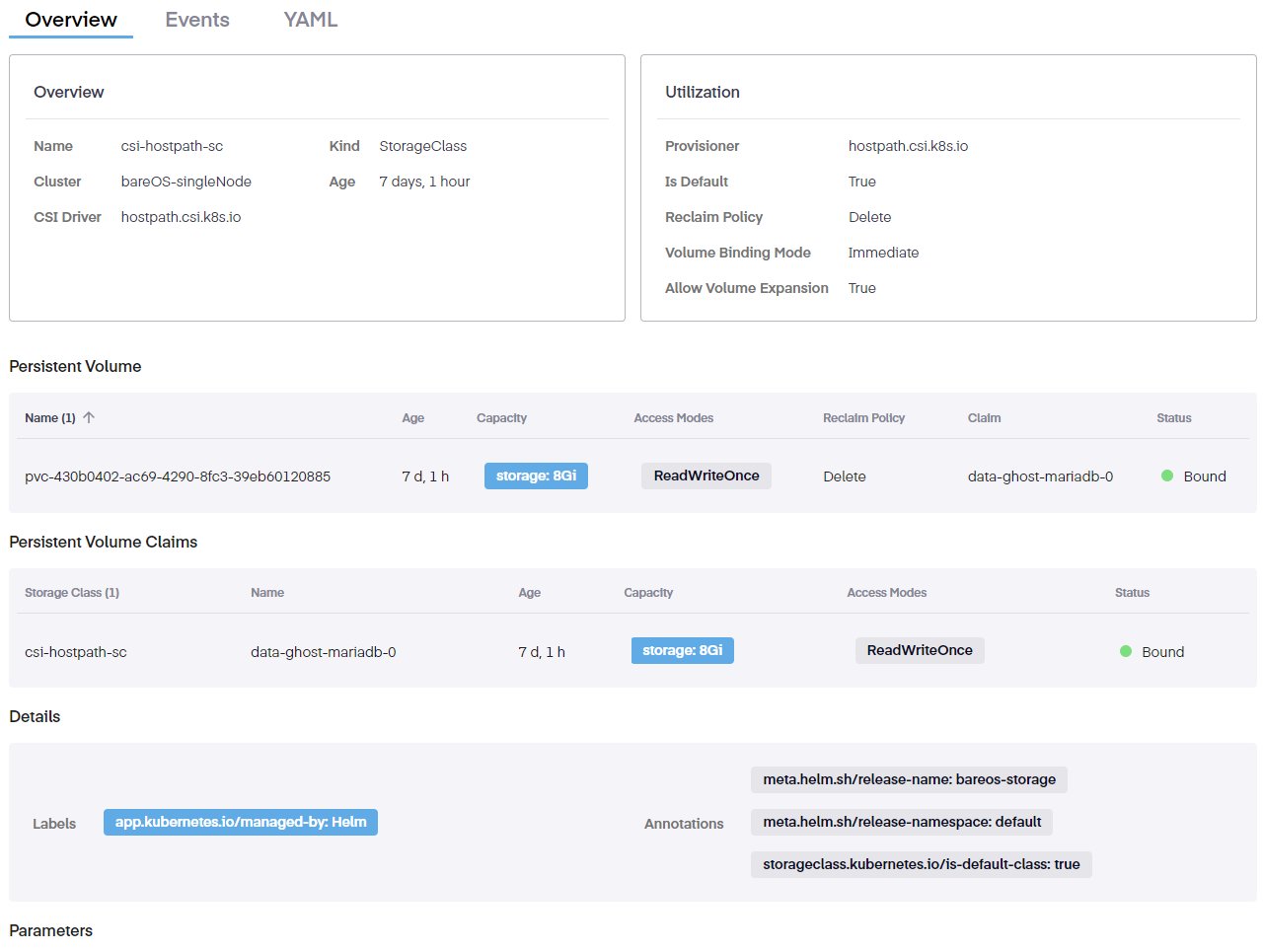
On this page, we see three tabs; the Overview, Events, and YAML pages. On the Overview page, we see a summary of the storage class including its name, kind, cluster is it attached to, its age, and the associated CSI driver for that storage class. Further to the right, utilization details are shown, including the provisioner. If this is the default storage class, the reclaim policy (which can be either Delete or Retain, but the default is Delete), the volume binding mode, and what the Allow Volume Expansion option is.
### Persistent Volumes
Further down, we observe the following details for any attached Persistent Volumes.
* Name – This is a unique name assigned to the PV
* Age – Shows how long the PV has been in place
* Capacity – Details the allocated space of the PV
* Access Modes – This option is set to the [specific mode](https://kubernetes.io/docs/concepts/storage/persistent-volumes/#access-modes) based on that particular volume's requirements
* Reclaim Policy – The reclaim policy can be either Delete or Retain. The default setting is Delete.
* Claim – This shows whether a PVC is bound to an app, and if so, it notes the name of the app
* Status – Confirms whether the PV is bound or unbound
### Persistent Volumes Claims
Under this, we see info on the Persistent Volume Claims (PVC) section.
In this section, we see the following info.
* Storage Class – This is the name of the installed CSI driver
* Name – The name of the associated app
* Age – The age of the claim
* Capacity – Details the amount of space allocated to the PVC
* Access Modes – This option is set to the [specific mode](https://kubernetes.io/docs/concepts/storage/persistent-volumes/#access-modes) based on that particular claim's requirements
* Status – Confirms whether the PVC is bound or unbound
### Details
If an error occurs in a PV or PVC, the *Details* page documents that issue here. The columns can be modified with the following fields.
* Labels – This is the user-defined identifier for the object type
* Annotations - Defines whether this is the default storage class. Settings are True or False
## Events
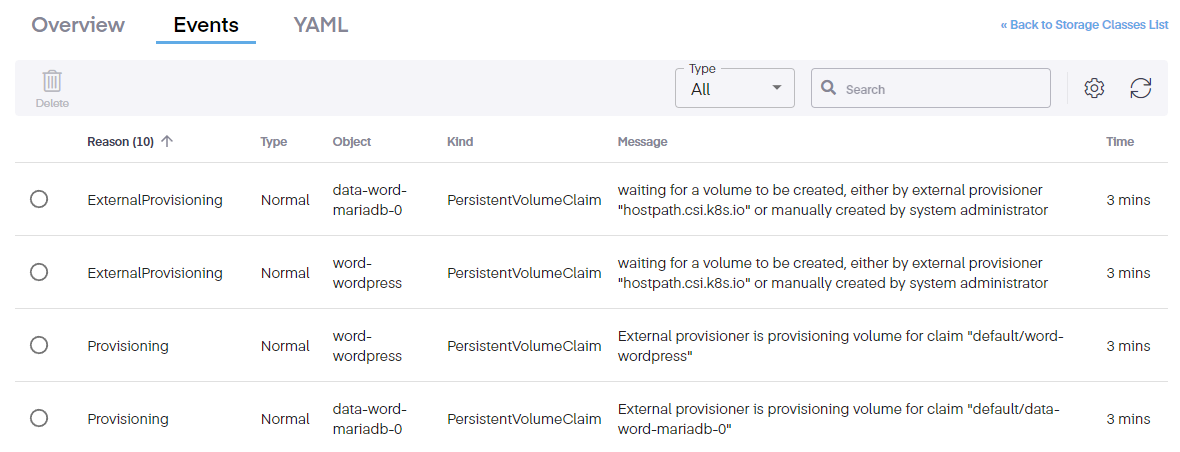
Clicking on the Events tab shows incidents and actions allows users to view any events, should they exist. The dropdown sorts events into three Warning, Error, and Normal. Searching is also available to locate a specific event type.
The columns can be modified to view the following information.
* Reason – The task that is determining the issue
* Type – This is the event type
* Object – The type of object being affected
* Kind – This is the k8s object is the instance of the type
* Message – This is the error message produced
* Time – The time event occurred
## YAML
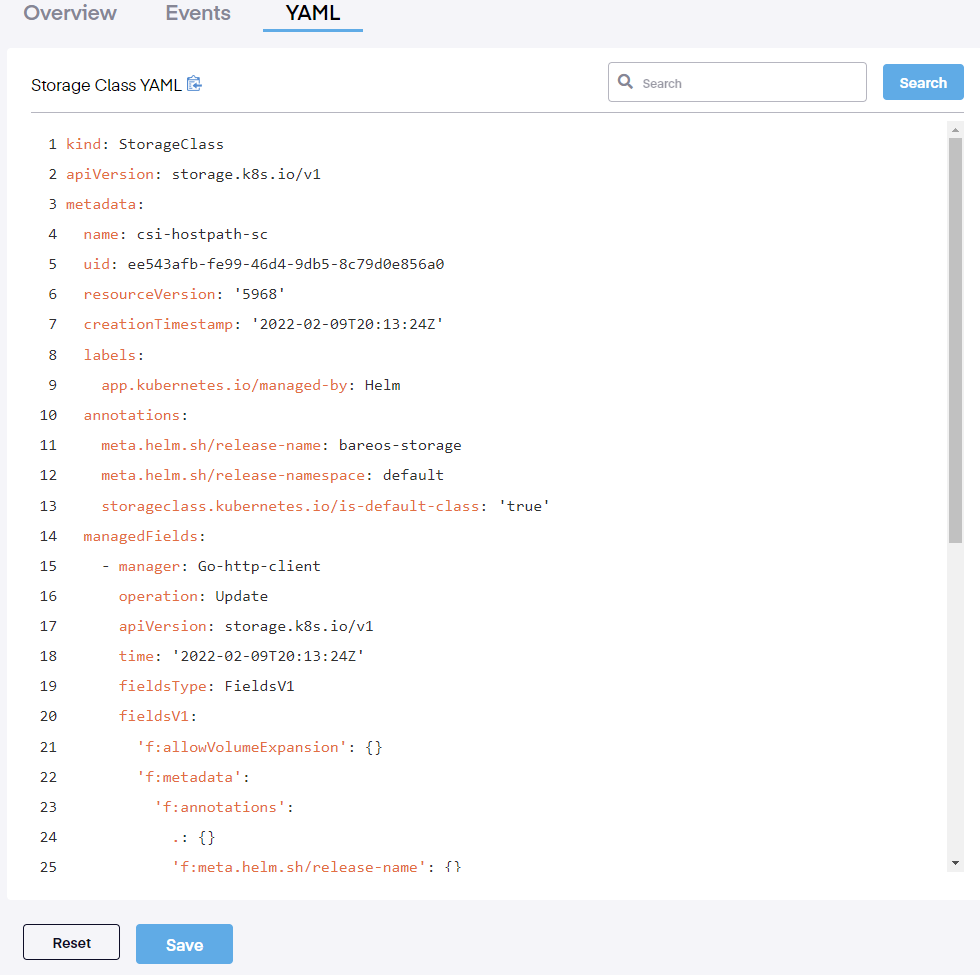
The Storage Class YAML tab show an editable file created when the CSI driver is installed. Any changes are applied immediately.
---
# Agent Instructions
This documentation is published with GitBook. GitBook is the documentation platform designed so that both humans and AI agents can read, navigate, and reason over technical content effectively. Learn more at gitbook.com.
## Querying This Documentation
If you need additional information that is not directly available in this page, you can query the documentation dynamically by asking a question.
Perform an HTTP GET request on the current page URL with the `ask` query parameter, and the optional `goal` query parameter:
```
GET https://docs.platform9.com/managed-kubernetes/5.8/storage-introduction/storage-class-details.md?ask=&goal=
```
`ask` is the immediate question: it should be specific, self-contained, and written in natural language.
`goal` is optional and describes the broader end goal you are ultimately trying to accomplish on behalf of the user. GitBook uses it to tailor the answer towards what is most useful for that goal.
The response will contain a direct answer to the question and relevant excerpts and sources from the documentation.
Use this mechanism when the answer is not explicitly present in the current page, you need clarification or additional context, or you want to retrieve related documentation sections.