> For the complete documentation index, see [llms.txt](https://docs.platform9.com/llms.txt). Markdown versions of documentation pages are available by appending `.md` to page URLs; this page is available as [Markdown](https://docs.platform9.com/managed-kubernetes/5.10/tenant-user-administration-regions-tenants/tenant-user-administration-edit-user-info.md).
# Tenant User Administration Edit User Info
Users within Platform9 can be updated from the Platform9 *Admin Settings* page.
The following actions are available to be administrators:
* Enable User
* Disable User
* Edit User
* Delete User
You can change the username, the display name and the tenants and role on the respective tenant for a user. You cannot change the password for a user.
## Enable or Disable a User
A user can be enabled or disabled to better manage access without removing the user account. The steps to modify these settings are listed below.
1. Log in to your Platform9 SaaS Management Plane.
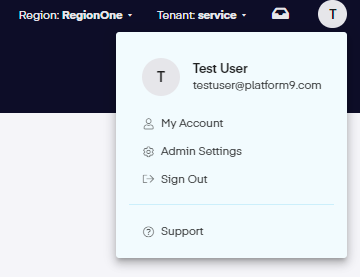
2. Navigate to the *Admin\_\_Settings* page, that is accessible under your user Avatar.
3. Click Tenants and Users in the left panel.
4. Click the Users tab.
5. Select a User and toggle their state using the *Enable and Disable* in the table Action Bar.
## Edit a User
To edit the related information for a user, follow the detailed steps provided below.
1. Log in to your Platform9 SaaS Management Plane.
2. Navigate to the *Settings* page, that is accessible under your user Avatar.
3. Click *Tenants and Users* in the left panel.
4. Then click on the *Users* tab.
5. Next, select the checkbox for the user you want to edit.
6. Now, click *Edit User* on the toolbar seen above the list of users.
7. Then, make the required changes and finally, click *Save* to implement the changes.
## Delete a User
To delete a user, follow the steps provided below.
1. Log in to your Platform9 SaaS Management Plane.
2. Navigate to the *Settings* page, that is accessible under your user Avatar.
3. Next, click on *Tenants and Users* in the left panel.
4. Then, click the *Users* tab.
5. Now, select the user you want to delete.
6. Now, click *Delete User* on the toolbar, seen above the list of users.
7. Finally, click *Delete User* on the message, if you are certain that you want to delete the user.
## Conclusion
In this article, we review several tenets of user management and how to manipulate user access. For additional support assistance with the ideas discussed in this article, or if you have thoughts or questions regarding this procedure or are experiencing difficulty in implementation, please reach out to our [support team](https://platform9.zendesk.com/hc/en-us/requests/new?ticket_form_id=360000924873) for more in-depth information.
Are you looking for a well-supported SaaS-based management platform for a solution in [Private Clouds](https://platform9.com/solutions/private-cloud/), a [Managed KubeVirt](https://platform9.com/managed-kubevirt/) option, or our zero-touch, [Edge Computing](https://platform9.com/solutions/edge-computing/) platform? Reach out to us today for [more information](https://platform9.com/signup/)! If you're ready to learn what would be best suited for your infrastructure, contact our sales team to get started.
---
# Agent Instructions
This documentation is published with GitBook. GitBook is the documentation platform designed so that both humans and AI agents can read, navigate, and reason over technical content effectively. Learn more at gitbook.com.
## Querying This Documentation
If you need additional information that is not directly available in this page, you can query the documentation dynamically by asking a question.
Perform an HTTP GET request on the current page URL with the `ask` query parameter, and the optional `goal` query parameter:
```
GET https://docs.platform9.com/managed-kubernetes/5.10/tenant-user-administration-regions-tenants/tenant-user-administration-edit-user-info.md?ask=&goal=
```
`ask` is the immediate question: it should be specific, self-contained, and written in natural language.
`goal` is optional and describes the broader end goal you are ultimately trying to accomplish on behalf of the user. GitBook uses it to tailor the answer towards what is most useful for that goal.
The response will contain a direct answer to the question and relevant excerpts and sources from the documentation.
Use this mechanism when the answer is not explicitly present in the current page, you need clarification or additional context, or you want to retrieve related documentation sections.